How to Configure the Health Section in Set Up
This process walks you through configuring health-related custom information for your center in the setup module, including custom immunizations and health symptoms used in digital health and incident reports.
Last updated 3 months ago
Step 1: Open the Setup Module and Select the Correct Center
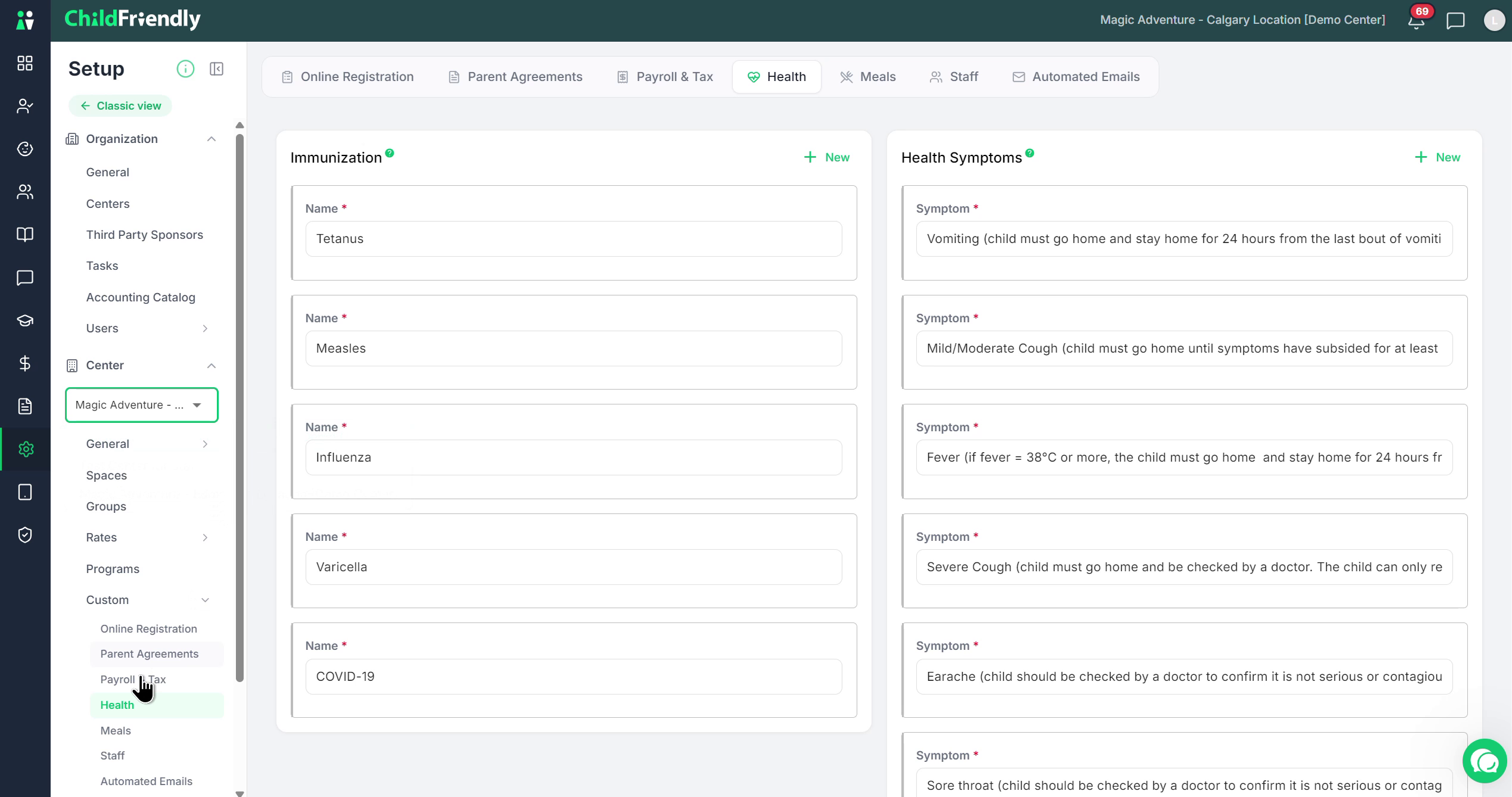
Make sure you have navigated to the Setup module on the left-hand side of the screen.
Confirm that the correct center you are currently working on is selected.
Under the selected center, go to Custom and then click Health to open the health customization settings.
Step 2: Configure Immunizations
In the Health customization area, you can set up the list of immunizations that your center tracks (if you track immunizations). If no immunizations are shown and you wish to track immunizations, please enable vaccination tracking in your centers configuration section in the Set Up Module, before moving on.
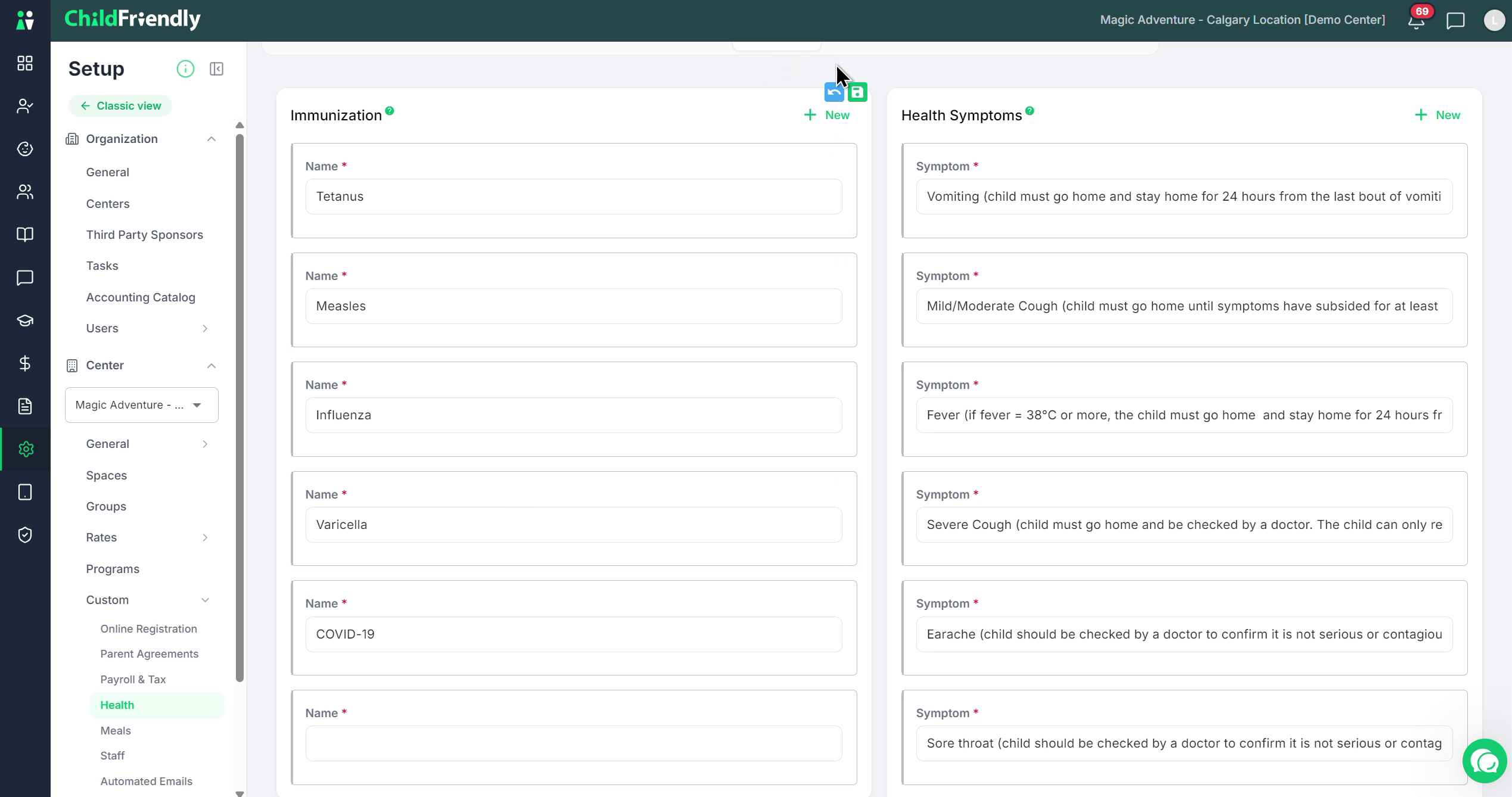
To add a new immunization, click New, then enter the required immunization information.
After entering the details, click Save to store the new immunization record.
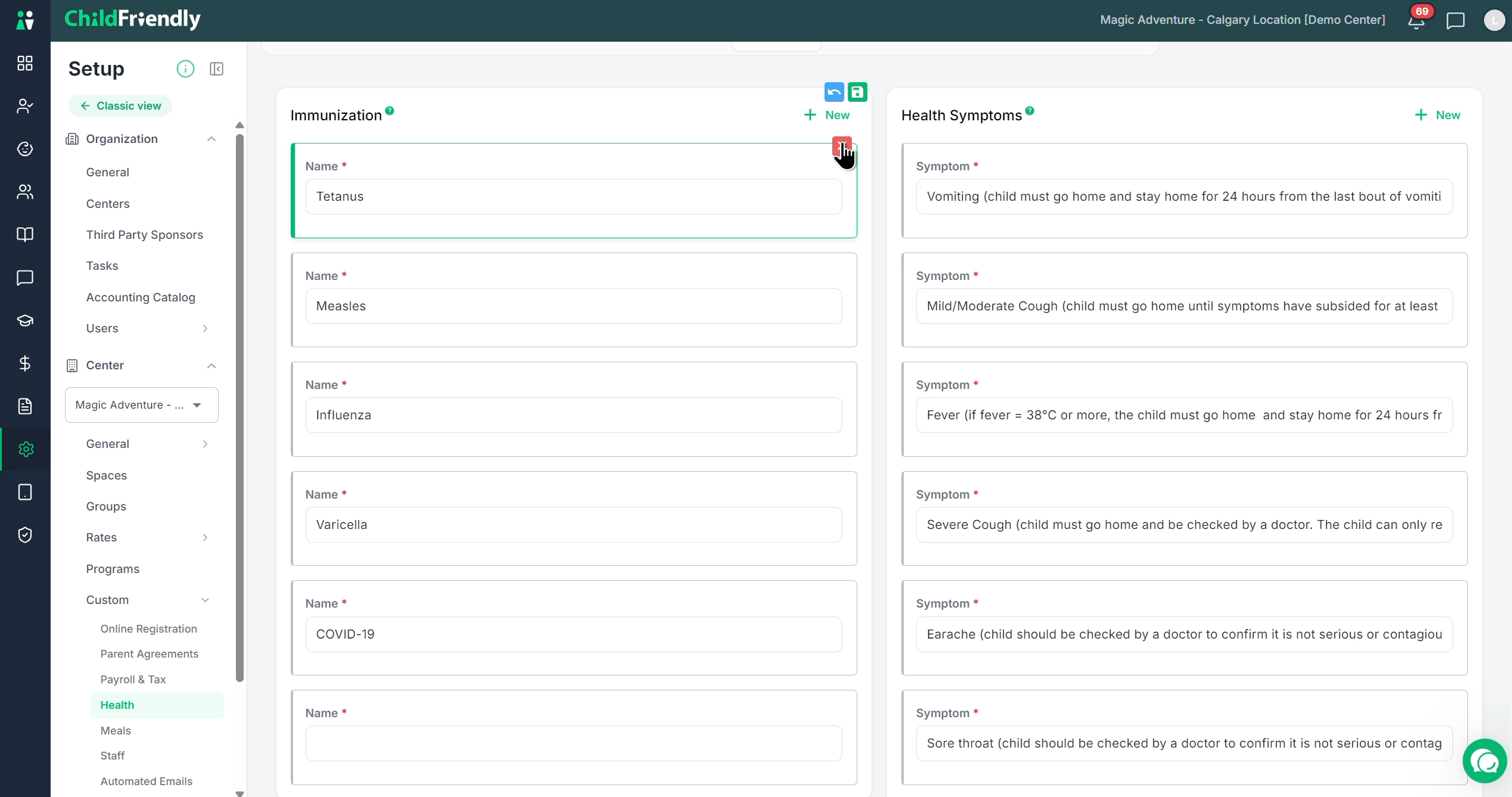
You can also remove an existing immunization by clicking the X button next to it.
Step 3: Customize Health Symptoms
You can also customize the list of Health Symptoms, which are used in health reporting when there is a sickness.
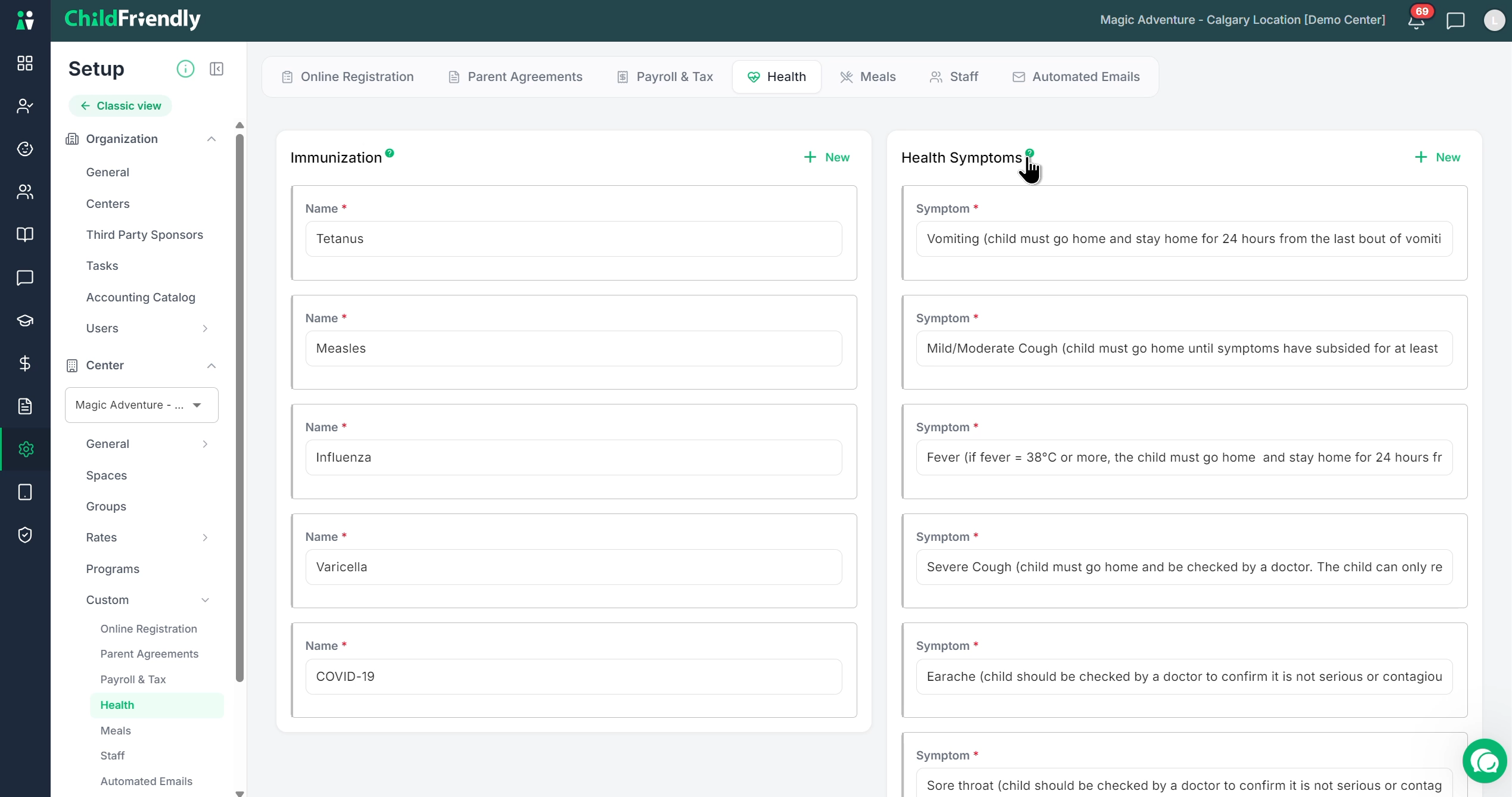
Illness reports for sickness are completed digitally through ChildFriendly. During reporting, staff will select one or more symptoms that accompany the health concern or illness for the child. Configure this list based on your center’s policies and local regulations so that only relevant symptoms are available for selection.
Some centers find it helpful to include clarifying notes in brackets after the symptom name. For example, you might define a symptom as:
“Vomiting (child must stay home for 24 hours from the last bout of vomiting)”
Adjust and maintain this list so it accurately reflects your health reporting and communication needs.
Was this helpful?
Still need help? Ask the team