How to Set Up Custom Staff Roles
This article explains how to configure and manage staff positions in the Staff custom section within the Setup module for a specific center. These positions are later used in the Staff module when assigning roles to staff members.
Last updated 3 months ago
Step 1: Open the Staff Custom Section
Make sure you are in the Setup module and that the correct center is selected. Under the Custom area, click Staff to open the staff custom section.
Step 2: Review Existing Staff Positions
In the Staff section, review the list of staff positions currently configured for your center. These positions define the roles available in the Staff module when assigning a position to each staff member.
Examples of positions might include Room Lead, Room Assistant, Director, Bus Driver, Cook, and Janitor, among others.
Step 3: Add a New Staff Position
To add a new staff position, click the New button.
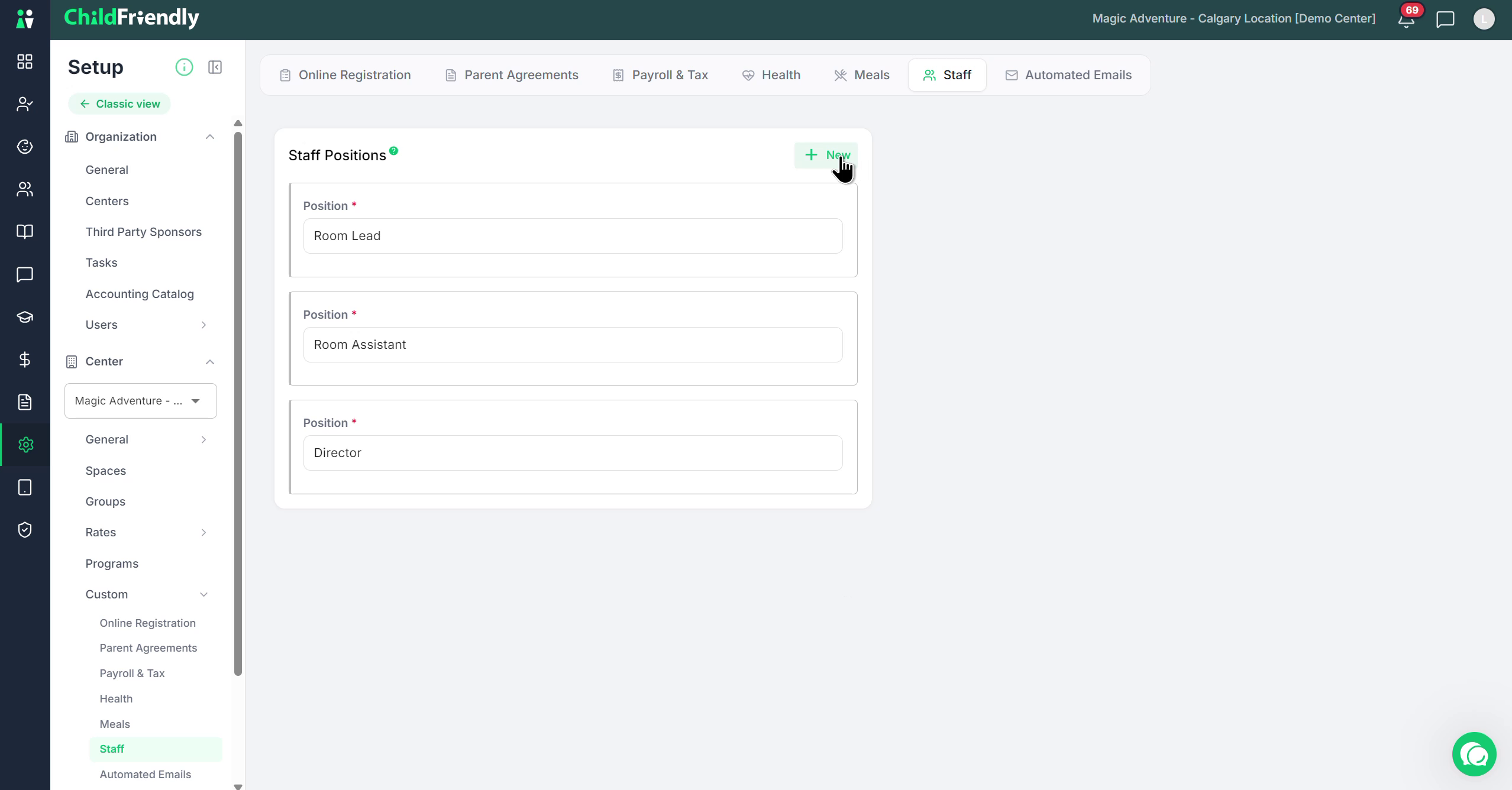
Enter the details for the new position (for example, the position name), and then click Save.
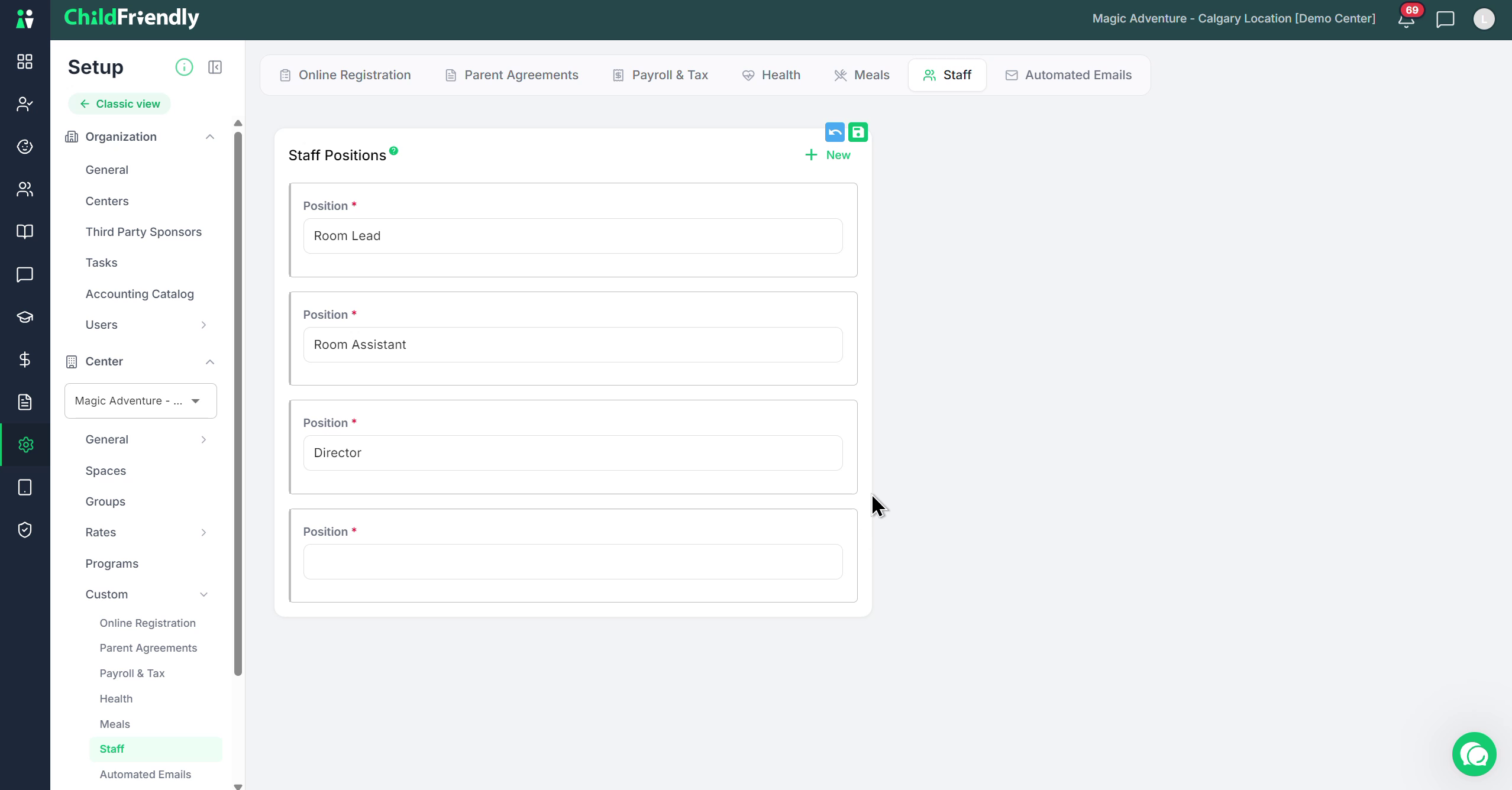
The new position will now appear as an option in the dropdown menu in your Staff module when you are updating or adding staff members for your center.
Step 4: Delete an Existing Staff Position
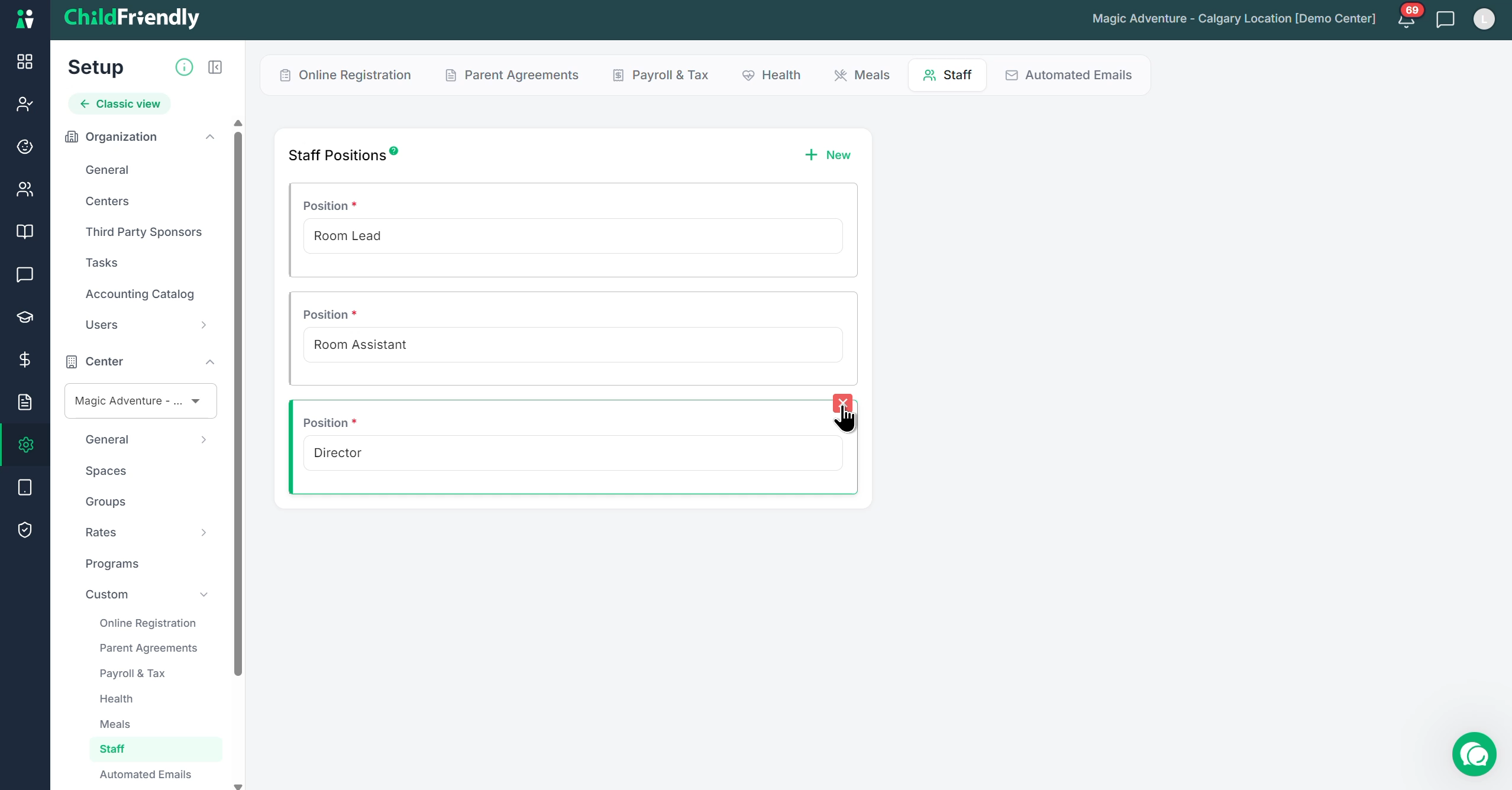
You can delete an existing staff position by clicking the small X button next to the position you want to remove.
Was this helpful?
Still need help? Ask the team