Parent App Full 'How to...' Orientation Guide
Before going through this guide, ensure you have first watched the video or read the guide on how to set up your ChildFriendly account. This training guide will teach you how to use the ChildFriendly parent app, including how to view your child's registration, daily activities, and payment information. You can also add or edit necessary information including allergies, medications, and food restrictions. Payments, billing, and tax slips are readily accessed here.
Last updated 3 months ago
Getting Started: Login & Dashboard
Once your center has confirmed your registration status, you can then view and submit information on the ChildFriendly app.
Login: Login to your account.
Forgot Password: If you have forgotten your password, click “Forget Password?” and follow the prompts.

Change Password: Once logged into the app, click the family name in the top right and select “Change Password”.

Notifications: If there are any outstanding agreements to sign, or reports (health or incident) to view and sign, a notification will appear in a bar at the top of the screen.
Attendance: Once your child is registered, the Attendance area will show any real-time child activity at the center. If your child is signed into a room, this will display here.
Activities: Activities will display any new journal activity. Scroll down to view more activity information.
Last Meal: Last Meal will list the last meal journal, if applicable.
RSVP: RSVP will list if your child is Present or Absent.
Note: If you have multiple children at the center, they will display separately.
Registered Program Information
Scroll down to view current registration information for your child. You can then click on this area to view more information, including any upcoming registrations. You will also be able to register your child for a new program in this area.
Quick Actions
The Quick Actions section lets you quickly and easily take a variety of actions, including sending a message, viewing more information about your child, viewing invoices and billing, or managing your family's profile.
Journals
Click the Journals tab at the bottom of the screen. Alternatively, click the Menu button and select "Journal" from here.
Entries: This section shows all journal entries for your child, as well as any sign-offs. Here you can view any activities or other journal entries sent to you by staff.
Sign Offs: The Sign Offs tab is used to access any journals that require your digital signature, such as health and incident reports.
Agreements
Click the Agreements tab at the top to view all signed agreements for your child/ren. Select your child’s name and click the arrow. The drop-down menu will show any signed agreements.
Signing Off on Medications
If there has been a health or incident report for your child at their daycare center or preschool, you will be able to view the report in the Sign Offs tab of the Journals module.
Medication Notification: If you have any medications to sign off on, this notification will display on the main screen.

Approval: Click the notification to bring you to the medication area to approve.
Digital Signature: Scroll down to the "Guardian Digital Signature of Permission" area to digitally sign this and give approval for staff to administer medications or topical creams.

Financial
To access financial information, click the Menu, and then click the Financial drop-down menu.
Ledger: Select the Ledger option to view an outline of your balances, invoices, and a breakdown of payment information, including any subsidy or grant information.

Finance Tab: The Finance tab displays a monthly breakdown of invoices and receipts. You can search and filter by date here as well.

Payments: If you have added your banking information already, you can make payments here for any outstanding invoices. For instance, to make a credit card payment, click Select Payment and then select Credit Card payment.

Receipts: You can also download any receipts for invoices paid by pre-authorized debit or credit card.

Download Tax Receipt
Find Receipts: To find your yearly tax receipts, click the Tax Receipt option in the Financial menu.
Select Year: Select the tax year in the top left.
Download: Click the Download Receipt icon to download and save the receipt.

Note: Tax receipts will automatically be generated as soon as you have made a payment to the center.
Add/ Edit Student Infomation
As a parent you can also view and edit all information about any of your children registered in the center’s system. First,
Select Child: If you have more than one child registered, ensure you have selected the child whom you wish to view information for, at the top.
Profile Access: Scroll down and click the Children Info icon. Alternatively, click Menu > Children > Profile and then click on the child's profile.
Edit: To make any changes, click the "Edit" icon in the bottom right.
Students - Add Health Information
Health Care #: Enter your child’s health care number. If it is already entered, ensure it is correct.
Immunizations: Under the Immunization section, click Add Record to enter information. Select the type and next due date if required.
Files: To upload any images of your child's immunization records, click "Upload Files".

Add a New Medication
Add Icon: In the Editing mode of the Child's profile, click the "+ Add Medication" icon.
Details: Enter the Medication Name, Type, Purpose, and Dosage.
Classification: Specify whether this is a regular medication or an emergency medication (i.e. an inhaler).
Schedules: If this is a regular or short-term daily medication/cream, enter the Start Date, End Date, and Administration Times.
Toggles: Use the toggles to select if it has been prescribed by a physician and if the medication is in the original container with the child’s name on it.
Save: Click the Save button in the bottom right once finished.

Add an Allergy or Medical Condition
Medical Condition Icon: Click "+ Add Medical Condition".
Condition Name: Enter the type (e.g., Diabetes or Dairy Allergy).
Description: Enter symptoms and severity.
Follow-up: Add any required follow-up information.
Save: Click the Save button.

Add Special Needs
Special Need Icon: Click "+ Add Special need".
Title: Enter a title (e.g., Speech Therapy).
Description: Enter details of the special need and required supports.
Multiple Needs: Click the icon again for additional entries.
Save: Click the Save button.

Add Menu Meal Restrictions
If there are any meals on the center's menu that are to be replaced with an alternative offering such as a vegan option (if offered by yoru center), these can be selected under the Menu-Based Meal Restrictions section. Select any prohibited meal types from the list in order to restrict them from your child's meal plan.
Custom Enrollment Questions
Review and update any custom questions set up by your center. Save any changes with the Save button in the bottom right.
View Child's Attendance
Click the Children drop-down from the Menu, and select Attendance. You can view all attendance records by day, with total hours displayed at the top. Use the arrows beside the date to navigate.
Report a Child's Absence from Daycare or School
Click the Children drop-down from the Menu, and select RSVP. The RSVP tab is used to report an absence from the center or for school pick-up.
Verify Child: Ensure you are in the correct child's profile.
Add Absence: Click the + Add Absence icon.
Dates: Select the From Date and To Date (same date for one day, entire period for holidays).
Reason: Select the Reason for Absence drop-down.
Notes: Add any notes if necessary.
Recurring: Use the Recurring Weekly toggle for weekly appointments (set To Date in the future).
Save: Click the Add Absence icon to save.
Report an Absence from School Pick-Up
Add Absence: Click the + Add Absence icon.
School Pickup: Click the School Pickup tab.
Date: Select the date the child will not need pick-up.
Finalize: Add notes and use the recurring toggle if required.
Add/ Edit Members
The Members section displays any parents or guardians.
Add Member: Click the + icon at the bottom and enter details.

Authorization: Specify Full, Limited, or No pick-up authorization.

Edit Profile: Click on your name to edit fields like name, address, or occupation (other fields are locked).
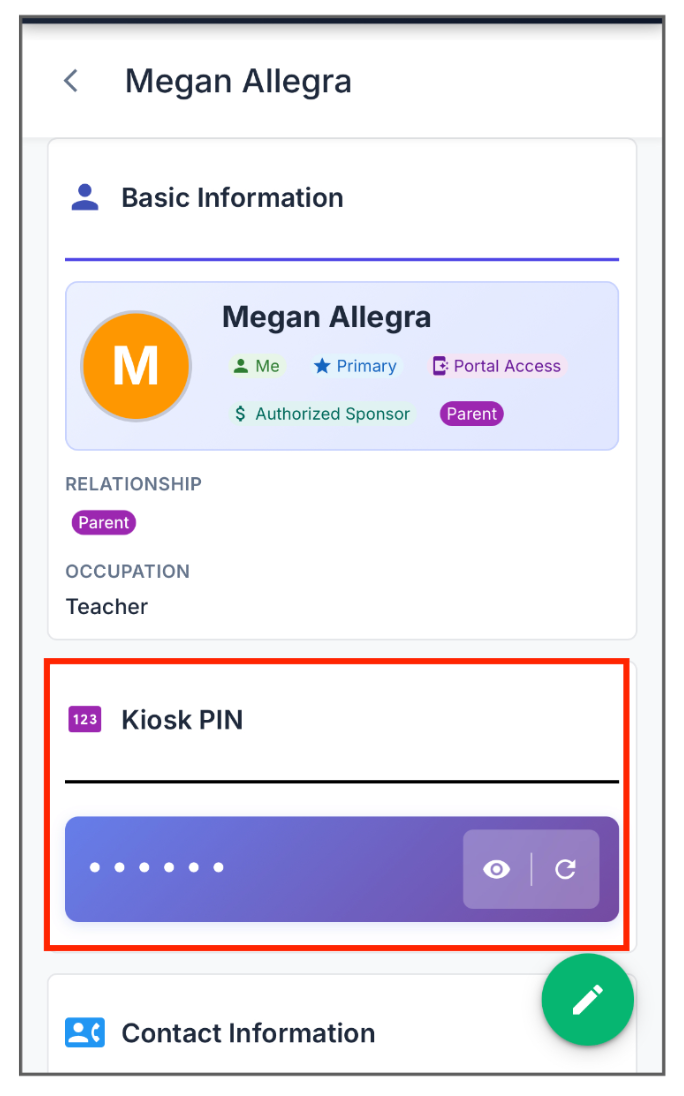
Kiosk PIN: Under yoru member profile, click the eye icon to reveal the pin used to sign in your child at the center kiosk.
Note: Only authorized sponsors can make payments; reach out to your center to give access to new portal members.
Add or Edit Payment Information
Select Menu > Payment Info.
Bank Account: Select Allow Auto-Withdrawal of Outstanding Fees and enter details to avoid late penalties.
Credit Card: Alternatively, select Add Credit Card under the Credit Card section.
Note: Confirm your center is setup for pre-authorized payments before adding info.
Instant Messaging
Select the Messages icon at the bottom. Type your message and click the Send arrow. You will receive notifications of any replies as long as they are enabled on your device.lies in real-time.

Was this helpful?
Still need help? Ask the team