How to Set Up Agreements & Policies for Parent Sign Off
Use this process to configure, update, and maintain parent agreement documents (such as policies and handbooks) for each center. Parents will review and sign these non-fillable PDF agreements through the parent portal during online registration, and signed copies will be stored in the child’s digital file cabinet and remain accessible to both admin and parents.
Last updated 3 months ago
Step 1: Navigate to the Parent Agreements Setup
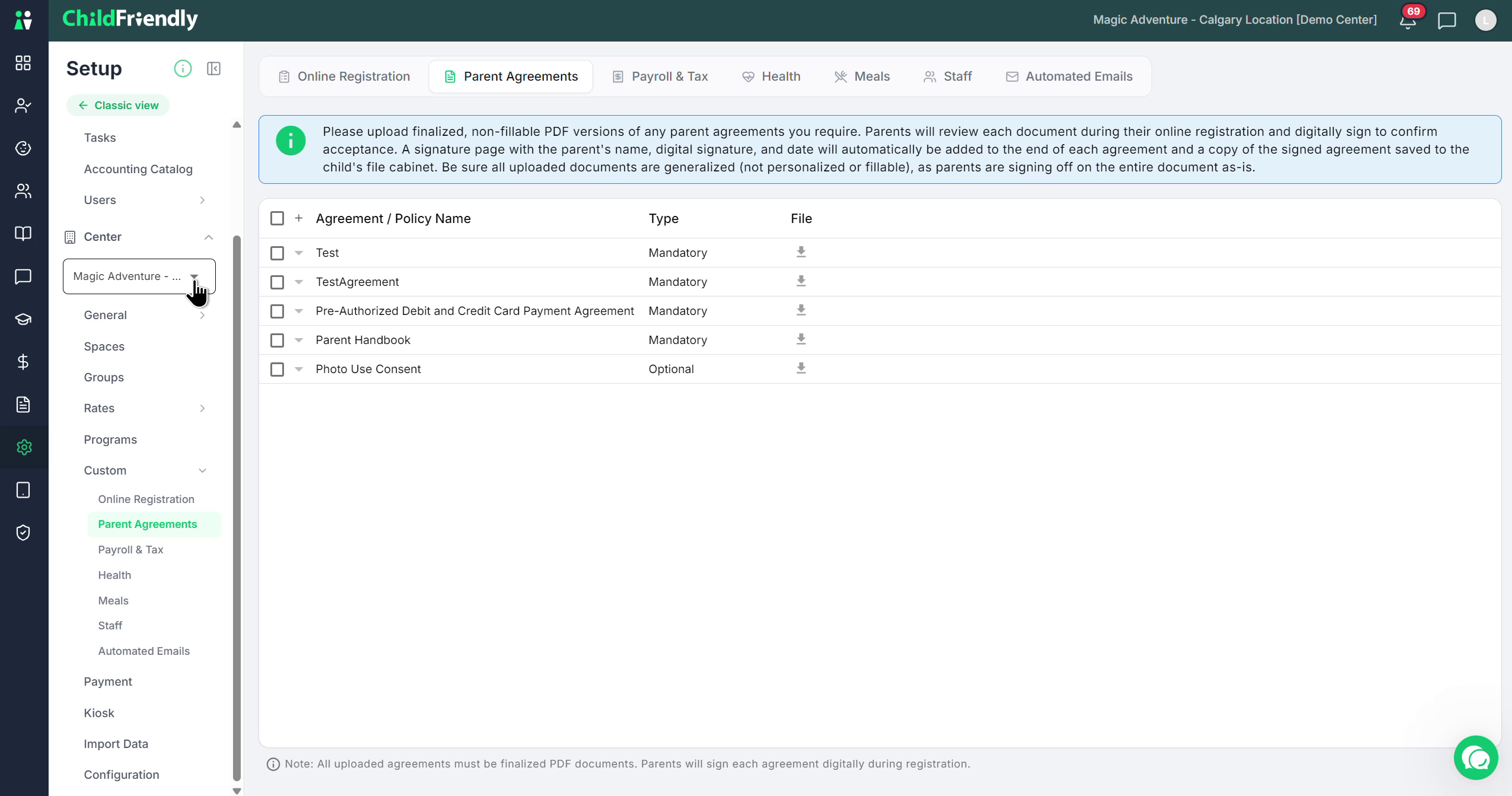
Make sure you are in the Setup module, under Custom and then Parent Agreements. Confirm that the correct center you want to configure is selected and shown at the top of the screen.
Step 2: Prepare and Understand Agreement Requirements
Under Parent Agreements, you can add all policies, parent handbooks, and any other documents that you require families to sign during online registration. These will appear in a dedicated section in the parent portal where parents must sign them.
All agreements must be non-fillable PDF files (no blank fields for parents to type into). The system appends the signature page—with the agreement terms which state "*I the Parent/Guardian of ***[child's name] **acknowledge that I have read, understood, and agree to adhere to the terms and conditions outlined in this [name of agreement]", the parent’s name, signature, and date—to the end of the PDF, so the document itself should not require any internal form fields or manual entries.
Once signed, the completed agreement (original PDF plus the appended signature page) is stored in the child’s file cabinet in the Family module and can be accessed at any time. Parents can also access their signed agreements through their parent portal.
Step 3: Add, Delete, or Download Agreements
To manage agreements for the selected center:
To add a new agreement, click the plus (+) button.
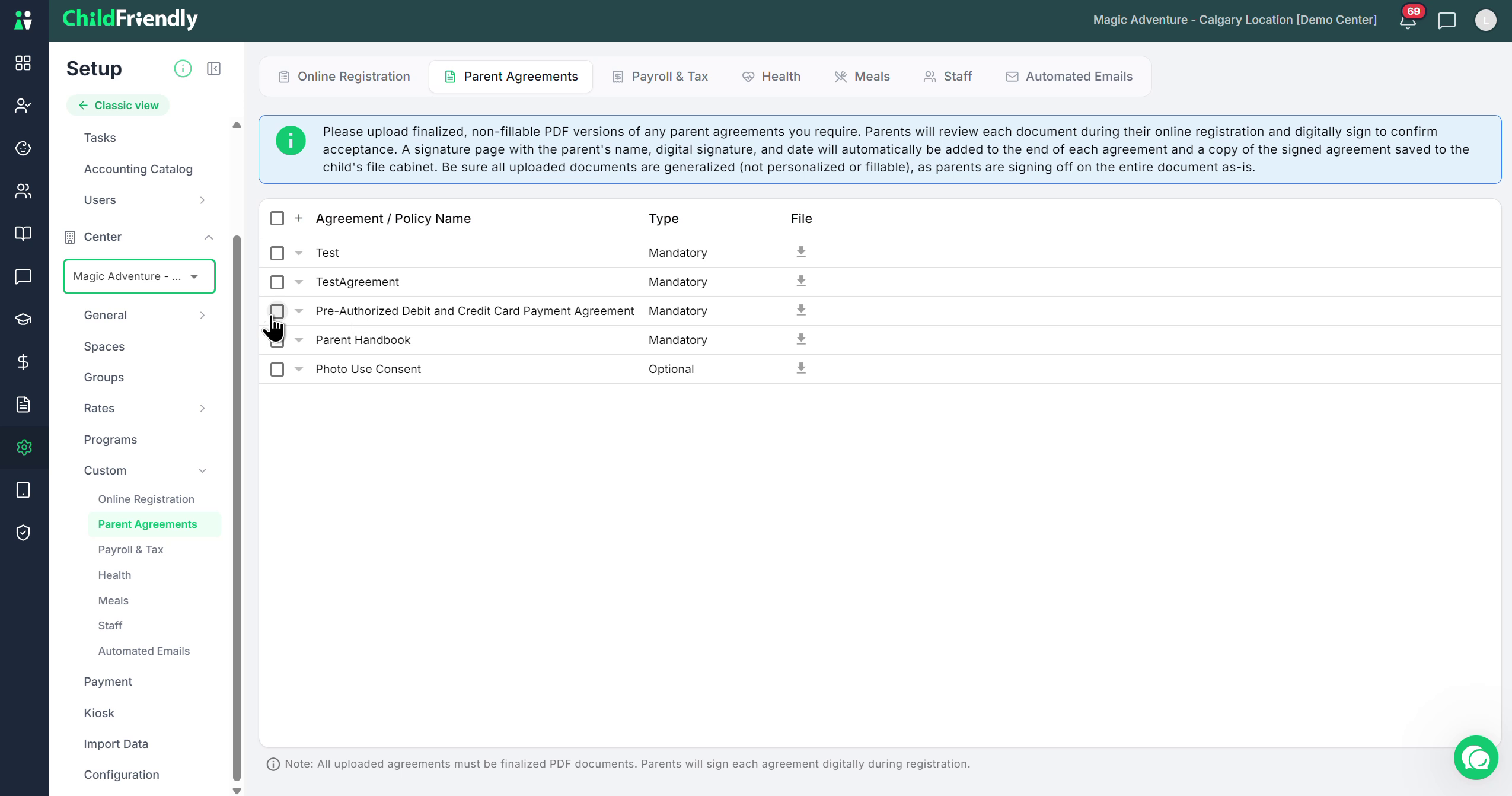
To delete an existing agreement, click the Delete option.
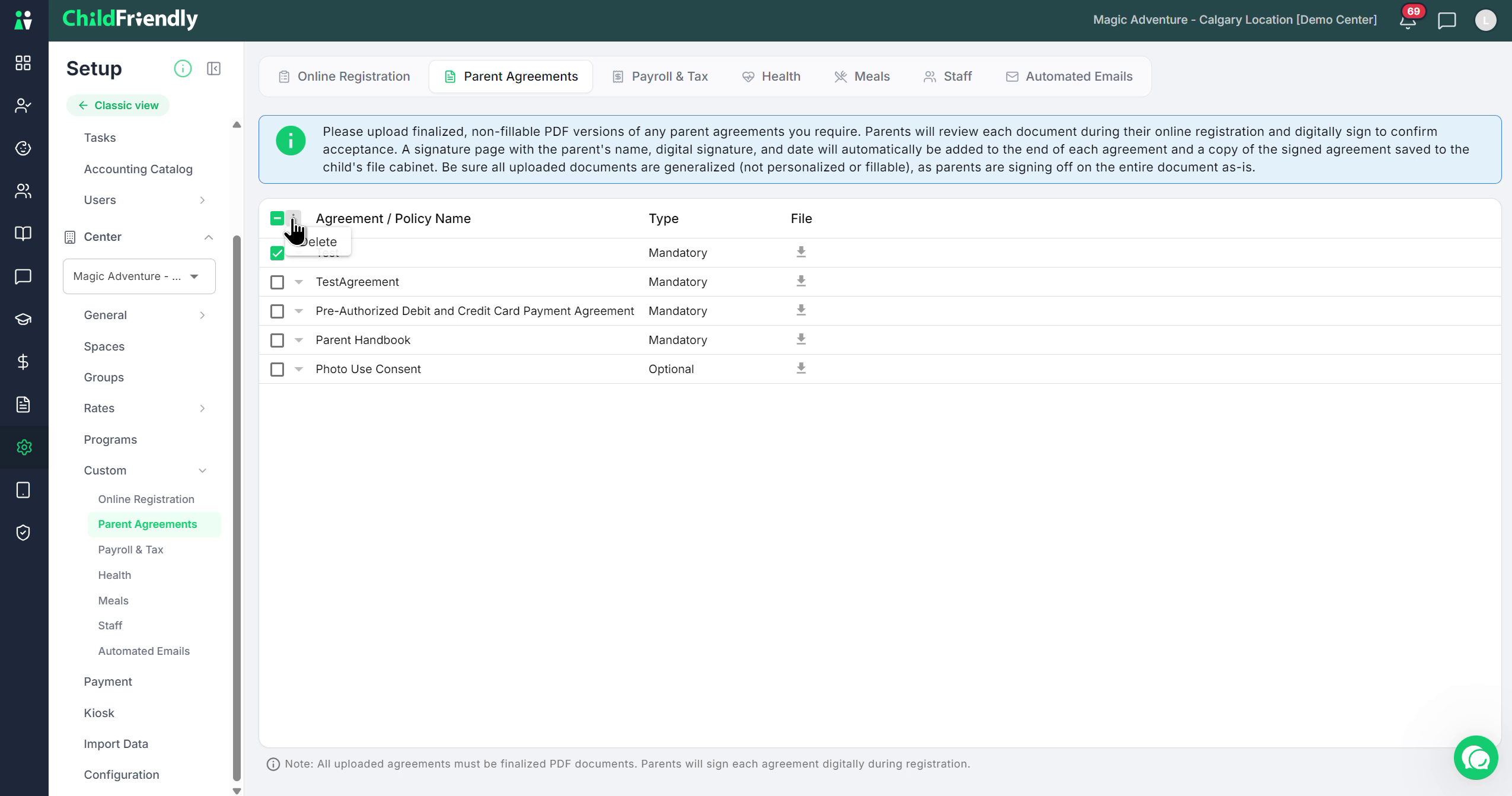
To download an agreement and review its contents, click Download.
Step 4: Edit Agreement Details and Settings
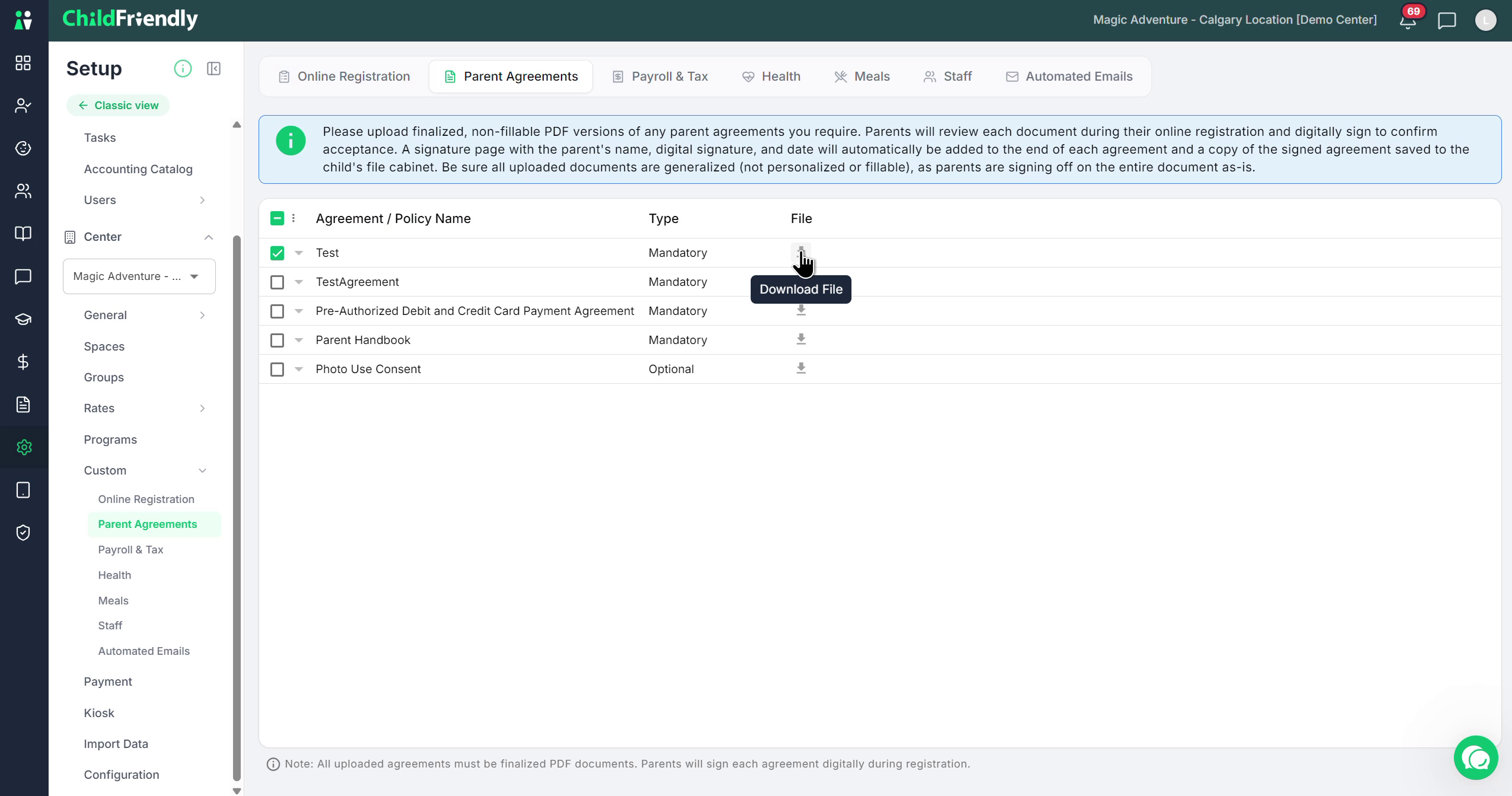
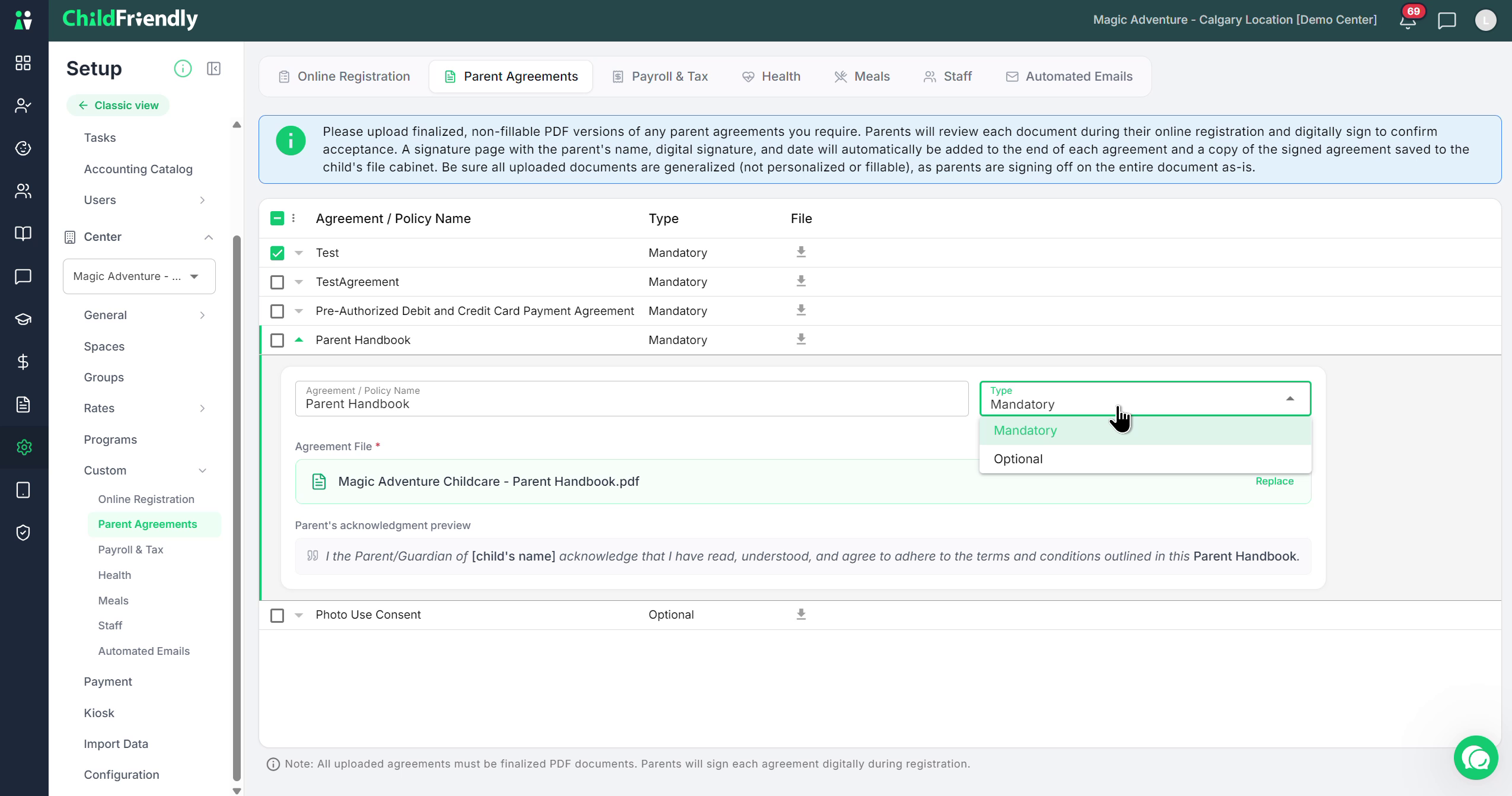
To modify an existing agreement (for example, a parent handbook), exapnd it to open it in Edit mode.
Within the agreement:
Enter or update the Agreement Name.
Upload a new PDF to replace an existing uploaded file as needed.
Choose whether the agreement is Optional or Mandatory for parents to sign.
Optional agreements (such as photo permissions) can be tracked through reports in the Reports module, which show whether parents have signed specific optional items.
You will also see a preview of the parent acknowledgement text, which typically reads along the lines of:
“I, the parent or guardian of [Child’s Name], acknowledge that I have read, understood, and agree to adhere to the terms and conditions outlined in this [Agreement Name].”
The system automatically inserts the agreement name and child’s name, and appends this acknowledgement page with the parent’s signature and date to the uploaded PDF.
Step 5: Archive an Old Agreement and Add a New Version
When you update a document such as the parent handbook due to a policy change, it is best practice to create a new version while preserving the old one for historical records:
Archive the existing agreement by checking it off and then using the three dot menu, press archive, so that it moves to the Archive section.
The archived agreement remains attached to all families who previously signed it and stays in their file cabinet and in your history.
After archiving, add a new agreement for the updated version.
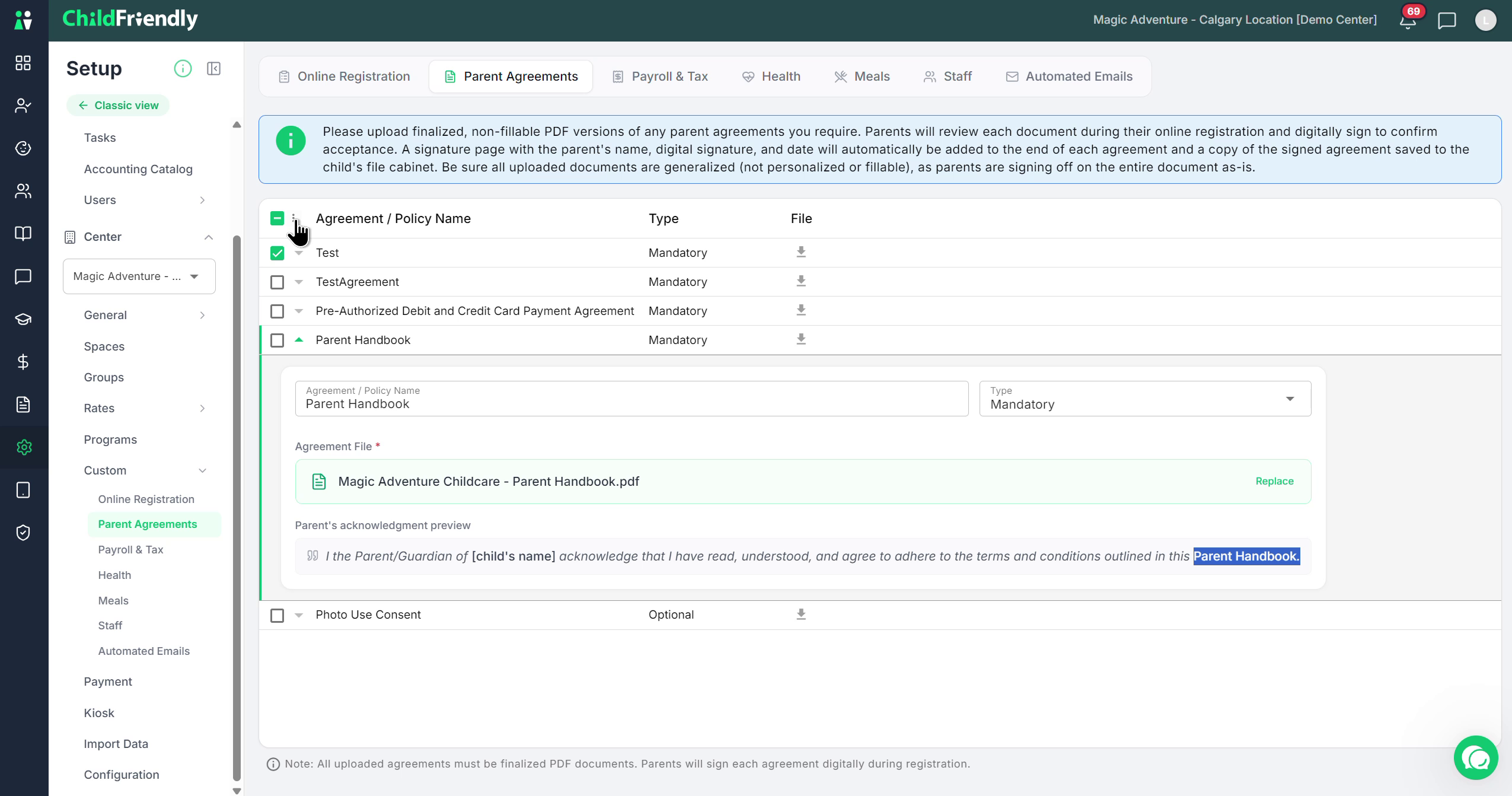
Click the plus (+) button to create the new agreement entry.
Once you add the new agreement:
Parents will be required to sign it the next time they log in to their portal.
Until they sign, they will not be able to access or use other portal features.
You can identify parents who have not signed the new agreement using the tag system in the Families module; the Agreements tag found in the onboarding column will indicate missing signatures.
Step 6: Replace an Agreement for New Families Only
If you want to update an agreement only for new families (without requiring existing families to re-sign):
Choose to replace an existing agreement with a new version by editing it directly instead of archiving it and creating a new one.
This replacement applies to all future families who enroll, ensuring they see and sign the updated version.
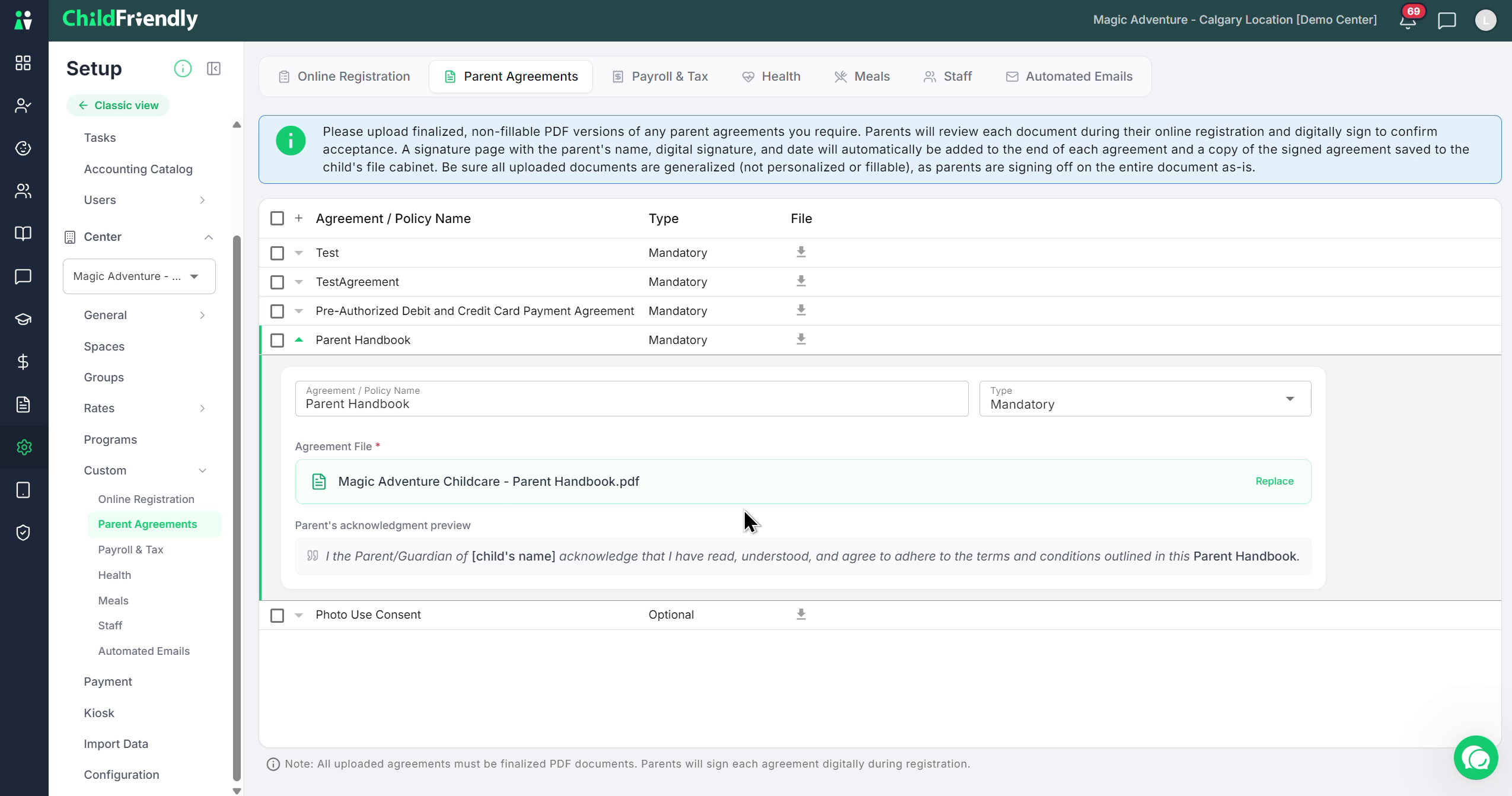
Existing families will not be prompted to re-sign when you use the replace option. If you need all current families to sign the new version, you must instead archive the existing agreement and add a new agreement (as described in Step 5).
Was this helpful?
Still need help? Ask the team