How to Set Up Tasks
Use the Tasks category in the Organization settings (within the Setup module) to define and maintain the list of staff tasks you want to track for payroll, reporting, and grant purposes. Tasks allow you to distinguish how many hours staff spend on different activities (e.g., childcare, prep, cleaning, transportation), which can support differentiated pay rates and grant submissions tied to specific work performed.
Last updated 3 months ago
Step 1: Understand the Purpose of Tasks
Tasks in ChildFriendly represent specific activities that staff perform during their workday, such as:
Childcare in ratio with children
Office preparation or planning
Cleaning or transportation
By setting up tasks:
You can track staff hours by task for payroll (including different pay rates per task, if applicable).
You can report on hours worked for specific tasks when applying for or reporting on grants that require task-based time tracking.
Step 2: Add a New Task
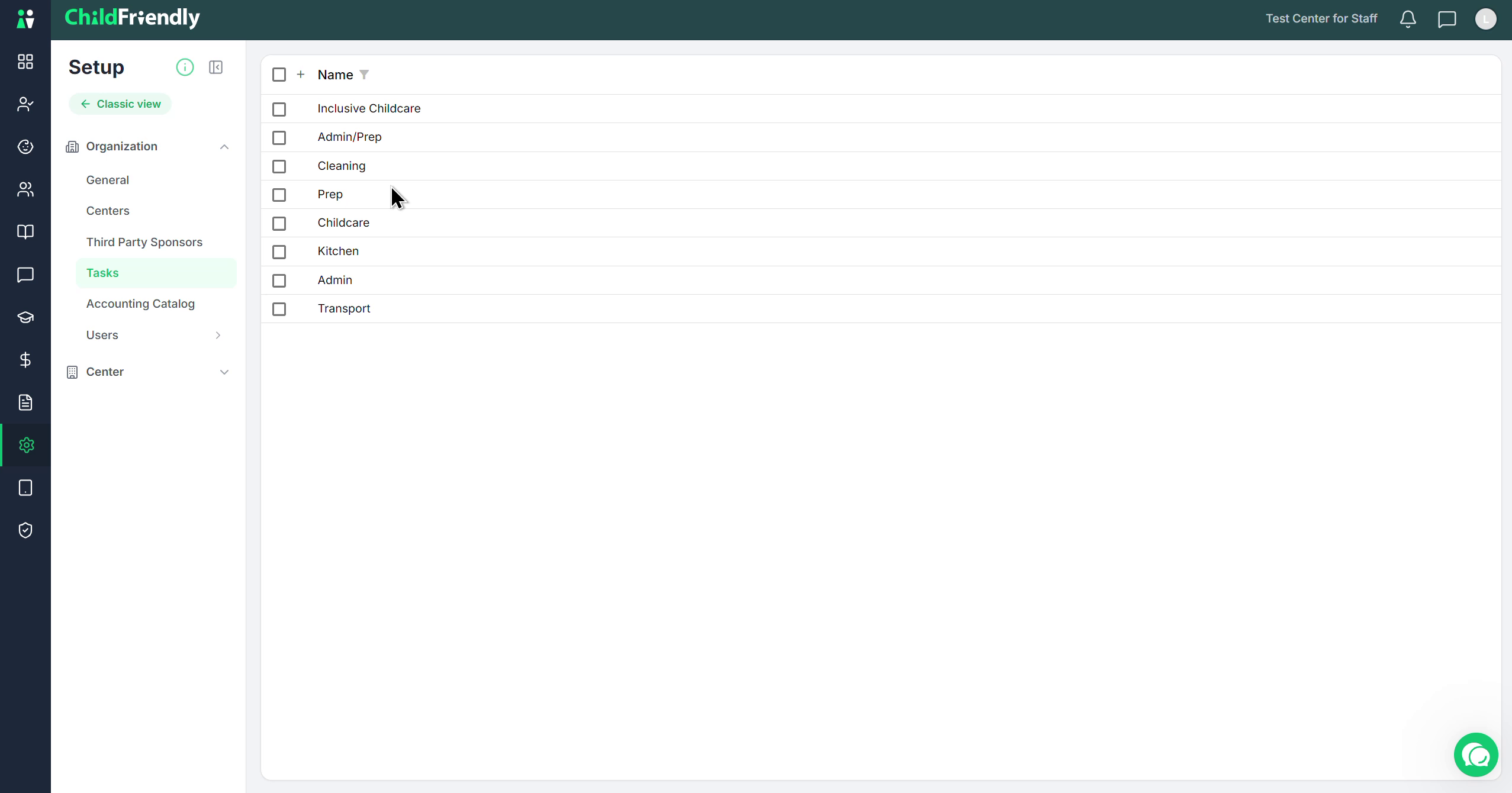
To create a new task that staff can log time against, click the plus (+) icon in the Tasks section and enter the task name.
Step 3: Edit an Existing Task
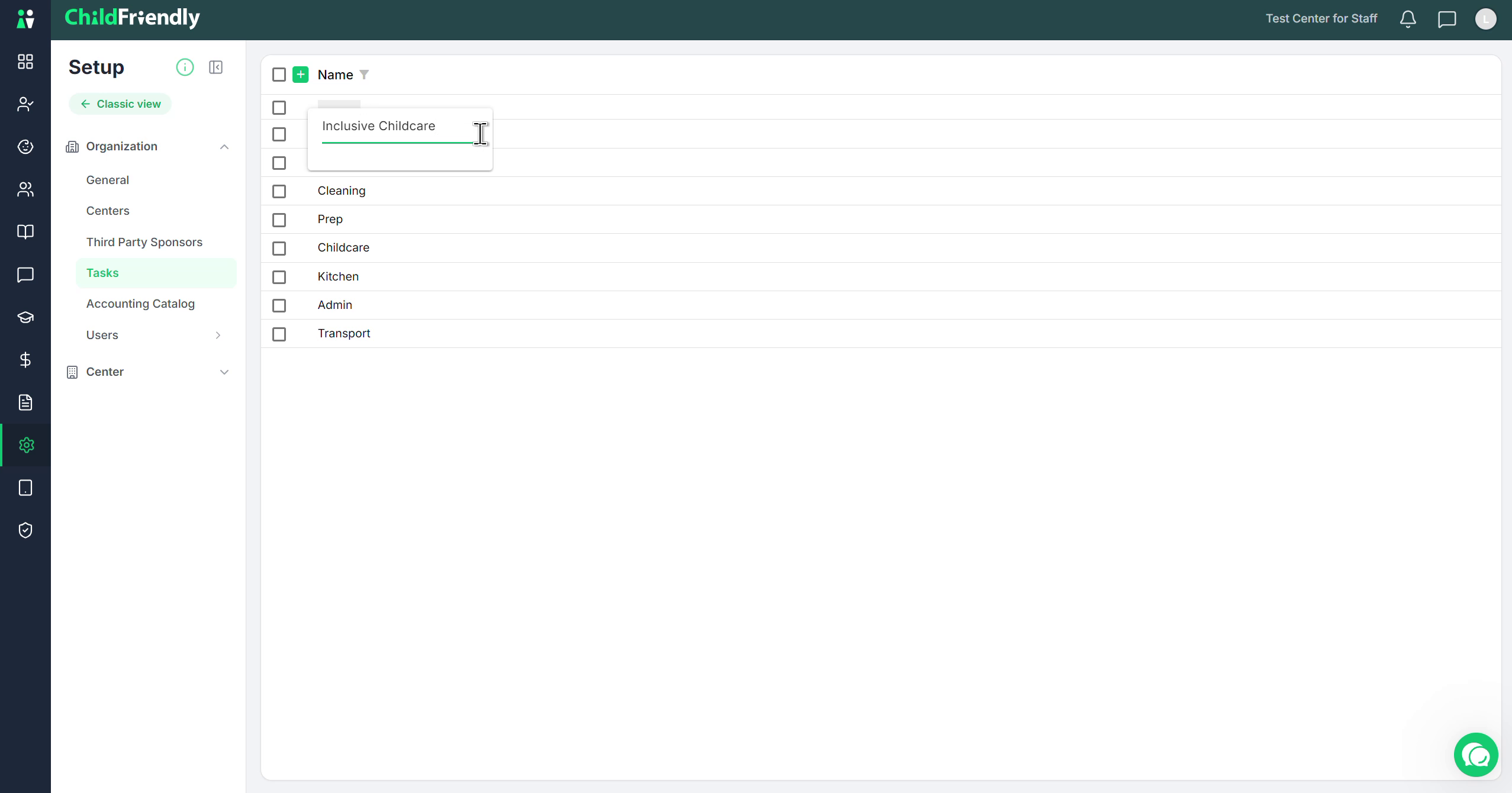
If you need to change the name or details of an existing task, click directly on the task in the list and edit it in place.
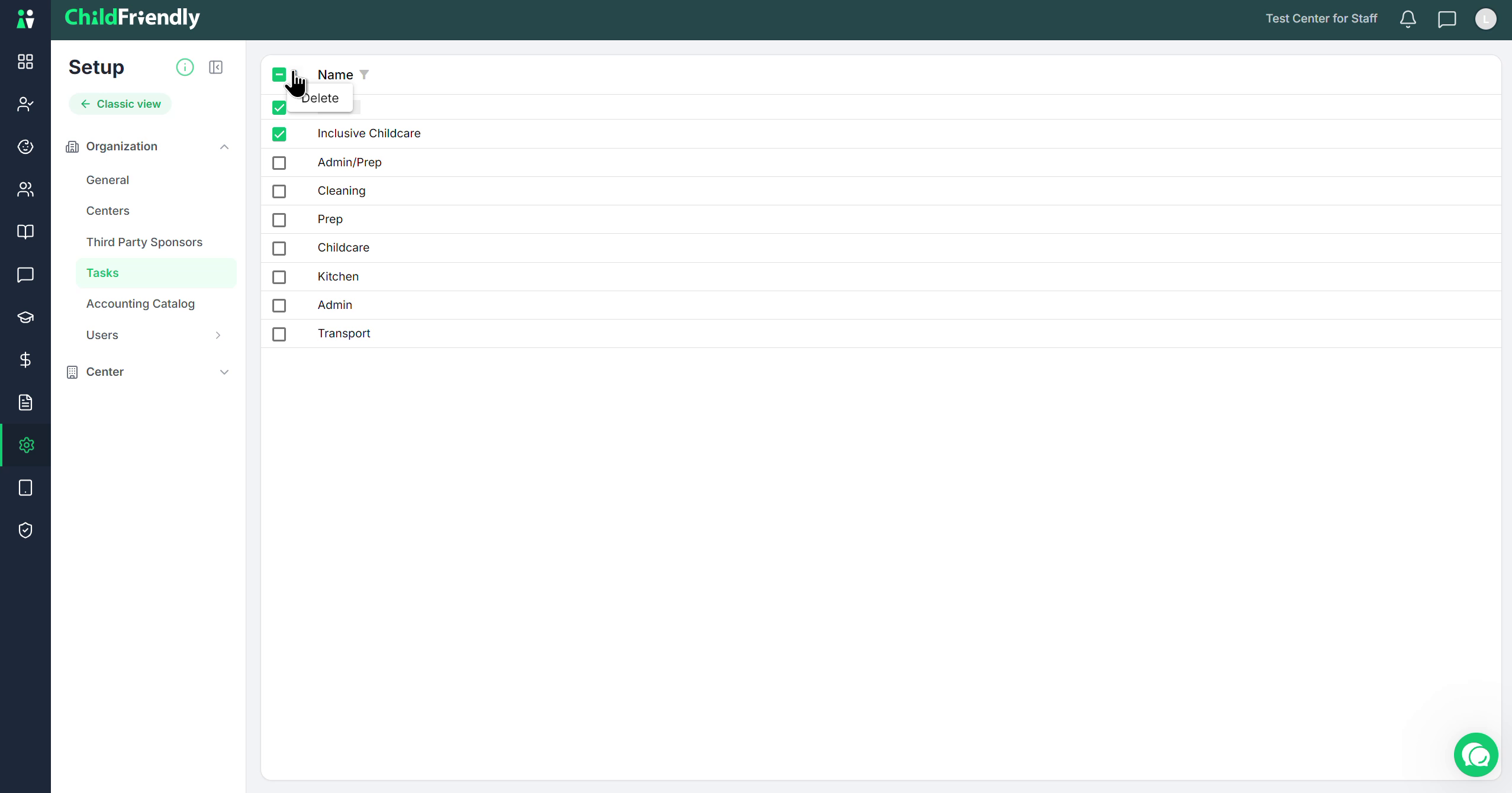
Step 4: Delete a Task
To remove a task you no longer need:
Select or highlight the task you want to delete.
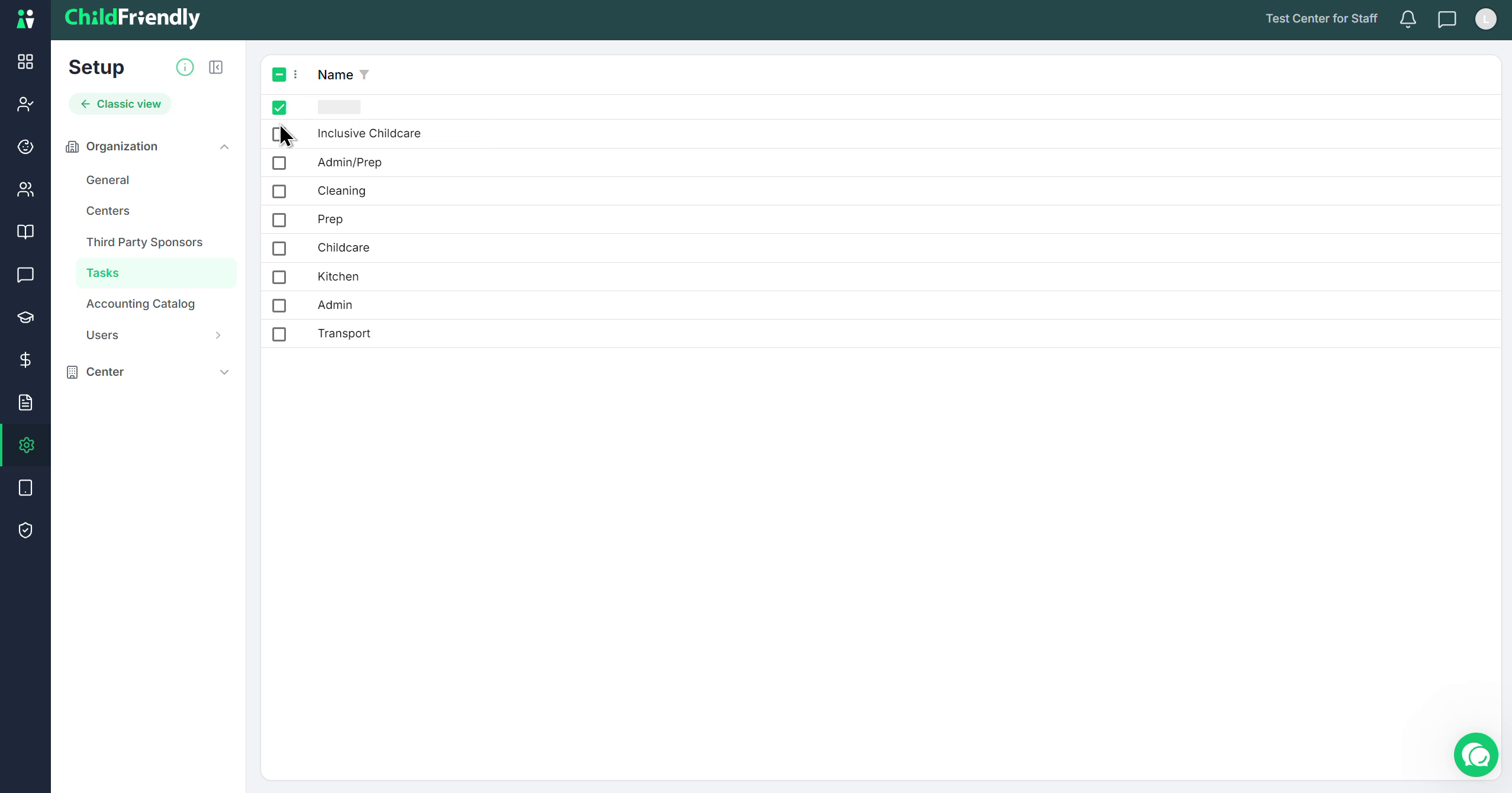
Click the three-dot options menu associated with that task.
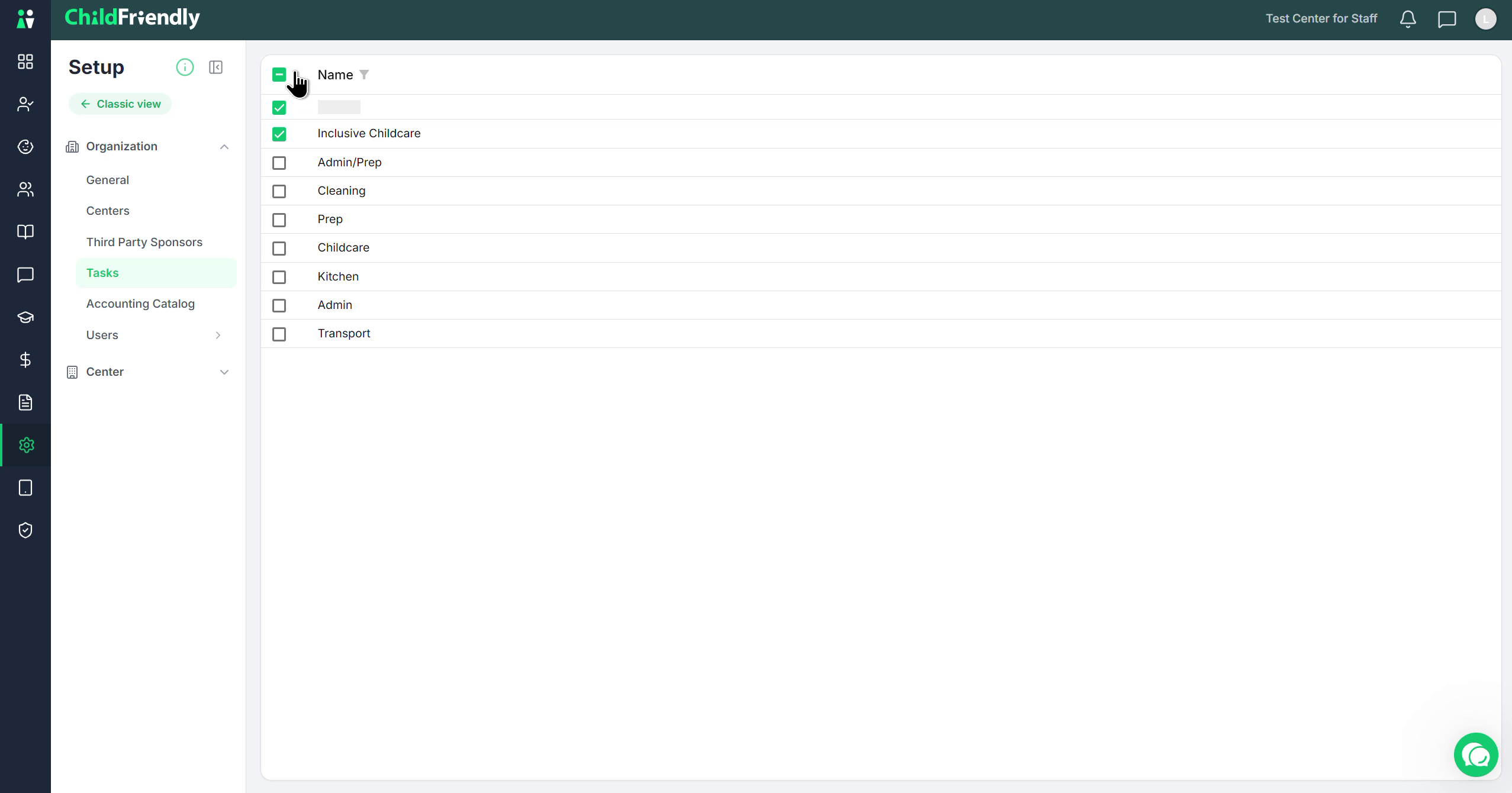
Click Delete to confirm removal of the task.
Once you have added, edited, or deleted tasks as needed, your task list will be ready for staff to use when logging their hours.
Was this helpful?
Still need help? Ask the team