How to Customize Other Learning Module Settings
This guide outlines the process for configuring routines, discovery topics, growth indicators, and approval workflows in the Learning Module under Setup. Following these steps will help streamline how your center organizes, reviews, and delivers weekly plans, lessons, and progress reports.
Last updated 3 months ago
Step 1: Open the Learning Module Settings
Begin by navigating to the Learning Module section located under Setup in your system. This section hosts all customization options for routines, discovery topics, growth indicators, and approval settings related to lessons, weekly plans, and progress reports.
Step 2: Organize Weekly Plans Using Routines
Routines act as structural headers within your weekly plans, improving clarity and organization.
You may define routines in two primary ways:
By learning area, such as:
Early literacy
Early numeracy
Art exploration
Other customizable categories
By schedule, such as:
Early morning arrival
Lunchtime
After nap time
Additional key daily segments
These headers are fully customizable for your needs.
Routine Management Actions:
Rename an existing routine by clicking the Edit button.

Remove a routine by selecting the Delete button.

Add a new routine or category using the plus (+) icon.

Step 3: Customize Discovery Topics for Lessons
Discovery topics serve as tags, helping classify lessons by theme or subject.
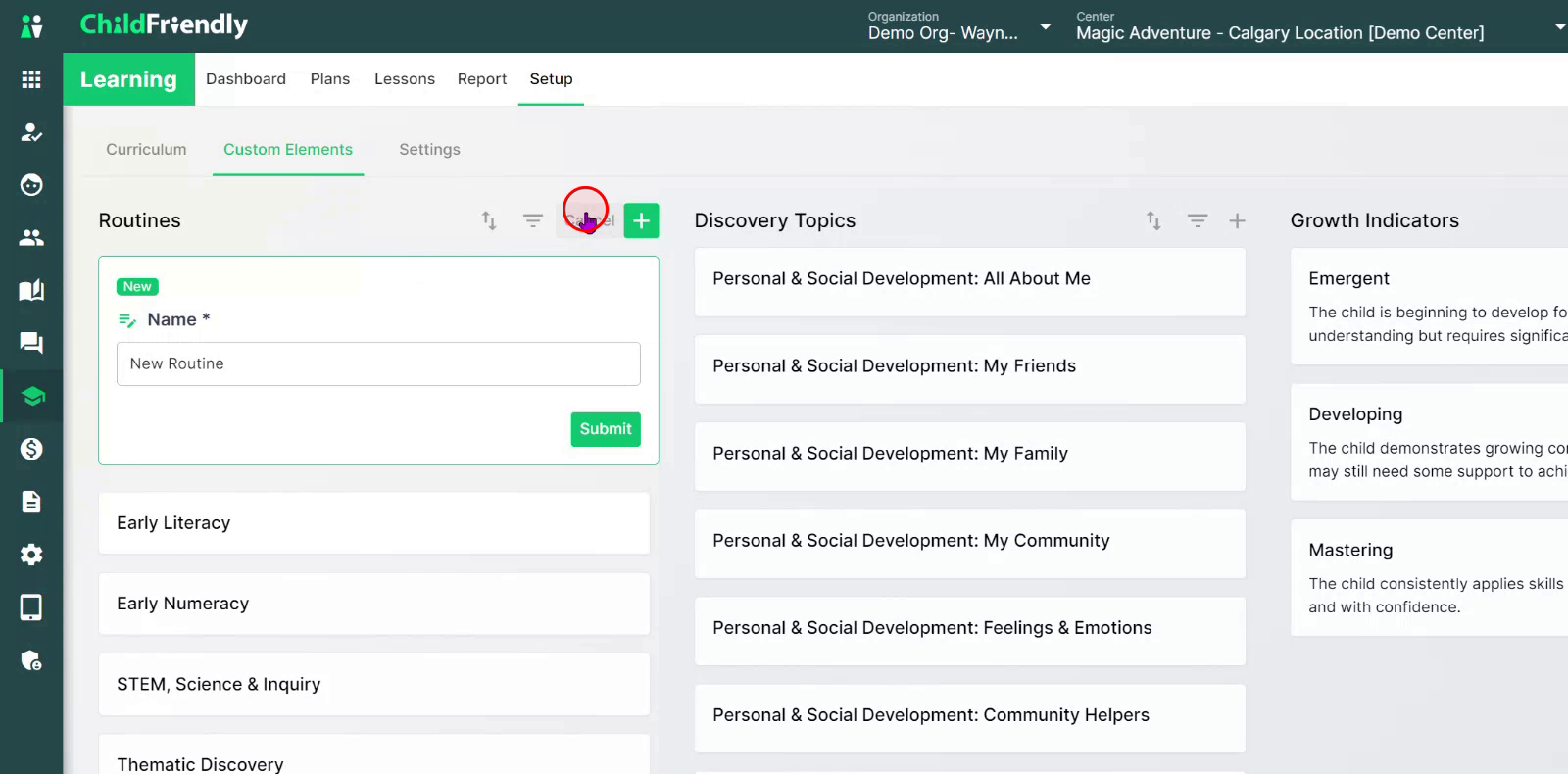
For example, a lesson on emotions could use the discovery topic “Feelings and Emotions.” Adapt topics to match your center’s terminology.
Discovery Topic Management:
Edit or rename topics via the Edit icon.

Remove obsolete topics with the Delete option.
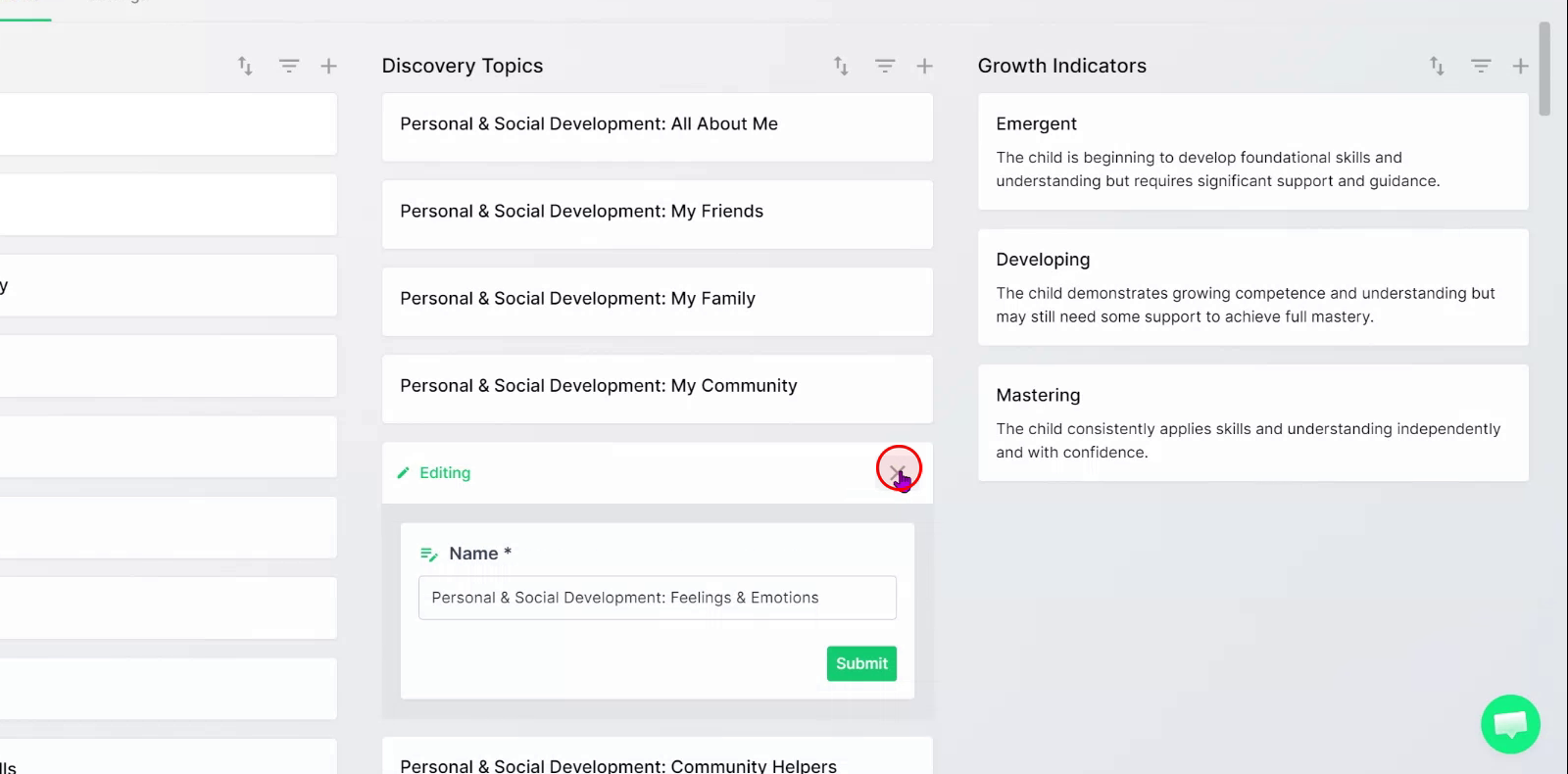
Add new topics through the Add (+) feature.

Step 4: Manage Growth Indicators for Progress Reports
Access the Growth Indicators section to configure rubrics representing child outcomes for progress reporting.
Growth Indicator Management:
Add new growth indicators by clicking the plus (+) icon.

Delete unused indicators using the Delete option.
Edit existing indicators with the Edit option.
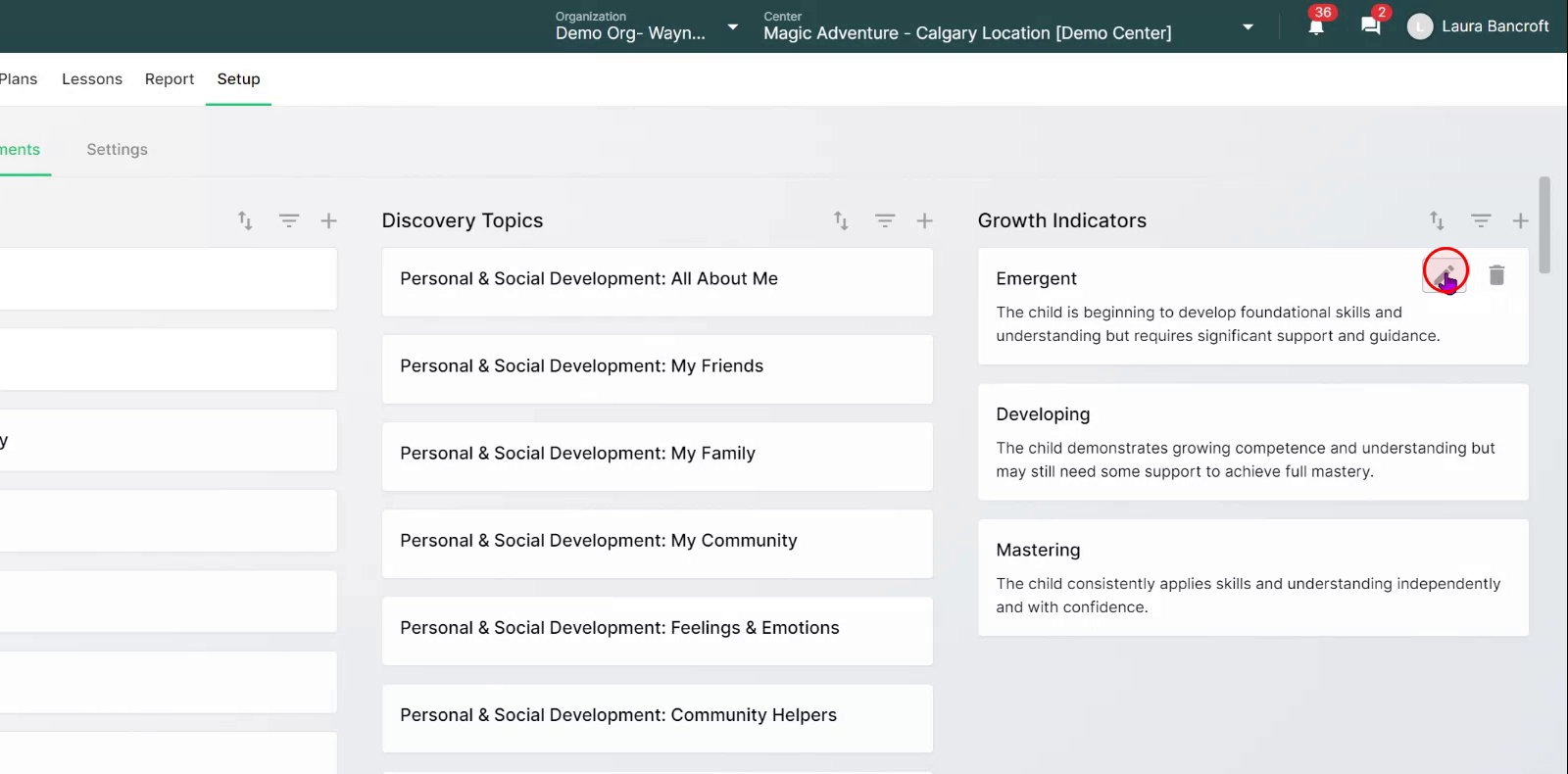
Growth indicators will be available in your progress reporting for tracking and communicating child development outcomes.
Step 5: Set Up Staff Approval Workflows
Navigate to Settings within the Learning Module to control administrative approvals for staff actions.

Approval Setting Options:
Toggle ON: Administrative approval is required prior to lessons, weekly plans, or assessments being shared with parents or added to your organization’s library. Admin staff review all content, enforcing quality control.
Toggle OFF: Staff can create and publish lessons, plans, and assessments without requiring administrative review.

Was this helpful?
Still need help? Ask the team