How to Create and Edit Lessons- Part 1
This document explains how to view lesson details, understand lesson structure, and effectively use the Organization Lessons, and Marketplace Lessons tabs to find and copy lessons into your personal library. Continue to the Part 2 Guide to learn how to use the My Lessons tab where you can create and submit lessons to admin for certification.
Last updated 3 months ago
Step 1: Open and Review a Lesson Example
Lets explore an example of what ChildFriendly defines as a "Lesson". Open the Lessons tab in the learning module and select a sample lesson to explore.

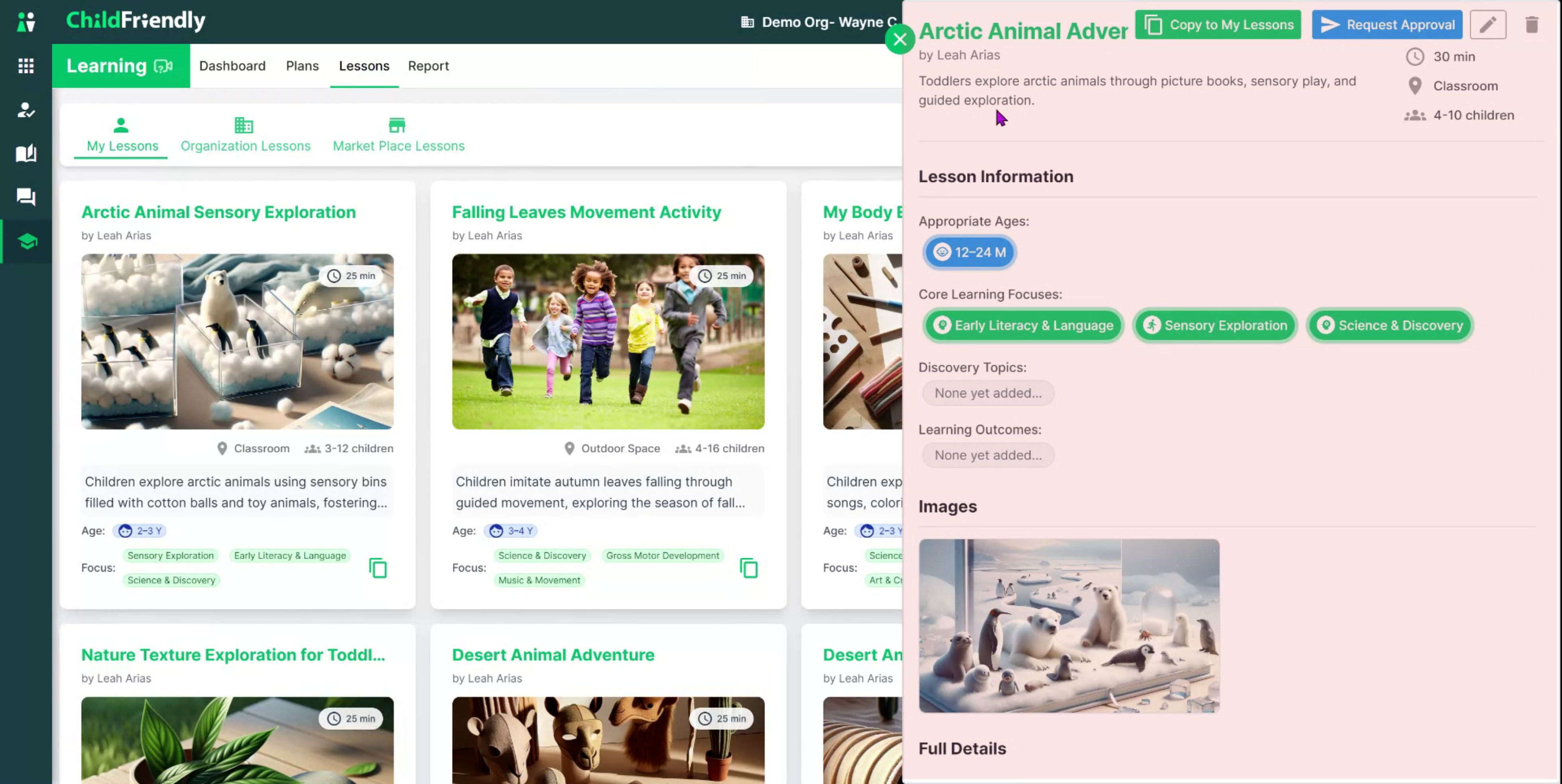
As you scroll through the lesson details, review the following information:
Lesson title and description
Timeframe for delivering the lesson
Ideal location (e.g., outdoors, classroom)
Recommended number of children
Appropriate age range
Core learning focus areas (e.g., science, gross motor)
Theme or discovery topic (e.g., winter animals, community helpers). Note that these are customizable by your admin.
Next, review:
Learning outcomes, which are pulled directly from your center’s curriculum (configured by your admin in Setup)
Thumbnail image, if one has been added for the lesson
Full lesson description, including the sequence of activities
For example: begin with an interactive story and discussion, move into a movement and sound activity, then end with a short circle-time wrap‑up discussion
Materials list, which shows what each child needs to participate in the lesson

Step 2: Understand the Three Lesson Libraries
At the top of the Lessons tab, locate and review the three sections:
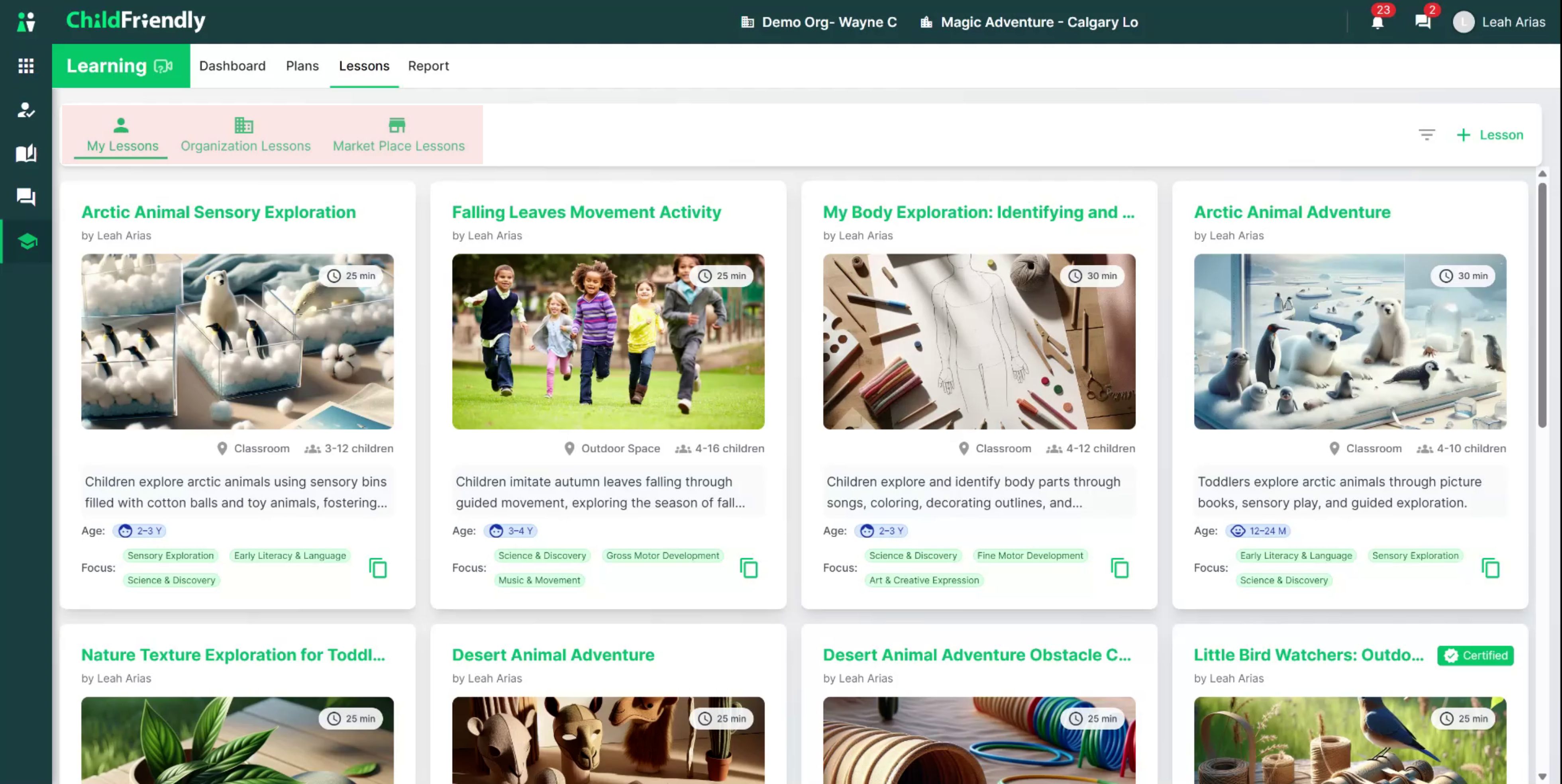
My Lessons – Your personal library containing lessons you, as the logged-in user, have created or copied.
Organization Lessons – Your center’s shared library of lessons created by educators in your organization and already reviewed and certified by administration. These provide ready-to-use, high-quality activities that colleagues have tested.
Marketplace Lessons – ChildFriendly’s global library containing thousands of early childhood education lessons uploaded by the ChildFriendly team and updated daily.
Step 3: Filter and Search Marketplace Lessons
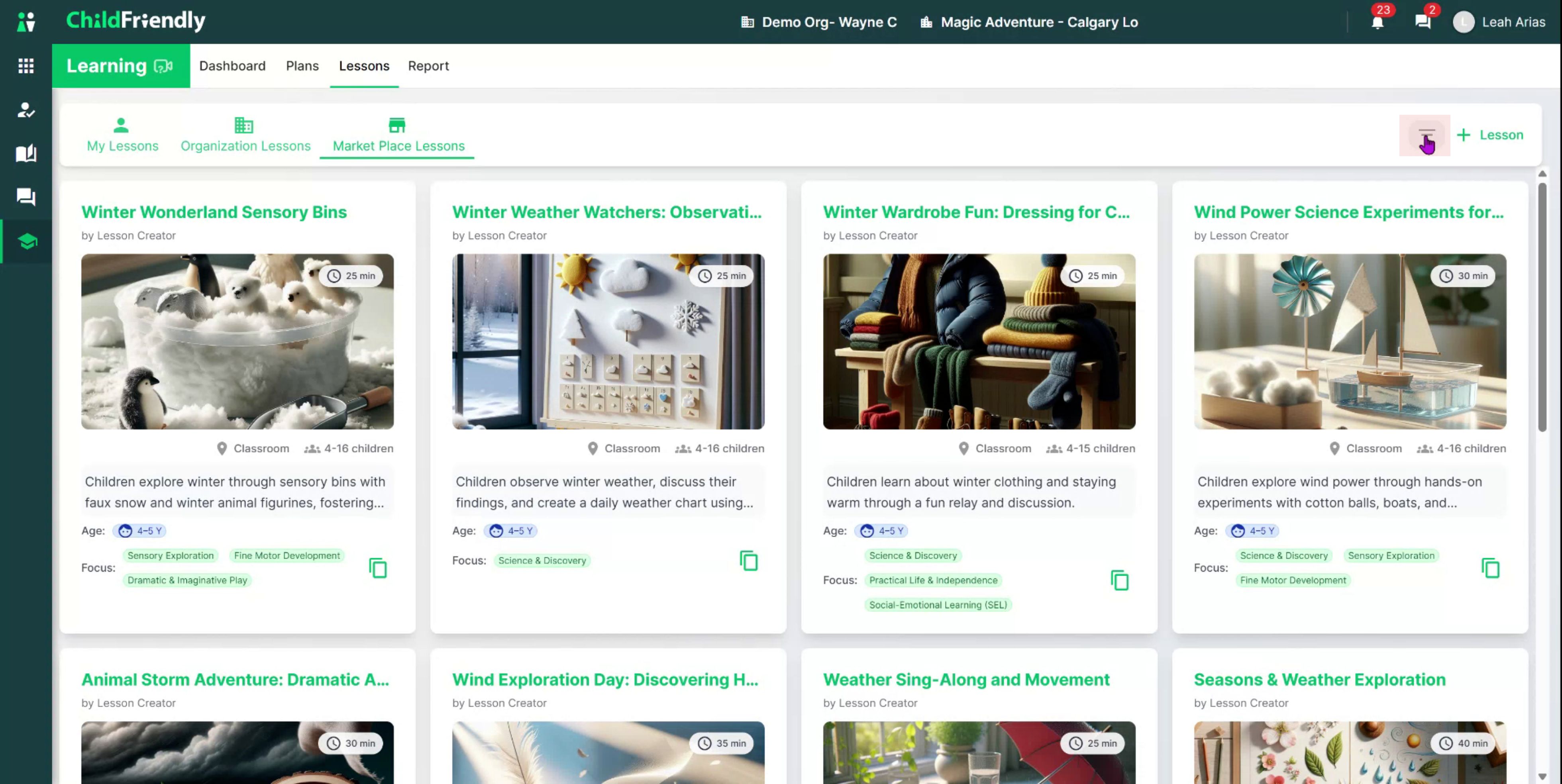
Go to the Marketplace Lessons tab to find lessons you can use or adapt.
Users can search Marketplace Lessons by clicking the filter icon.
Open the filter panel and enter relevant information to narrow your search.
For example, if you are a toddler educator, select the appropriate age group.
Then choose additional criteria, such as a core learning focus area (e.g., Science).
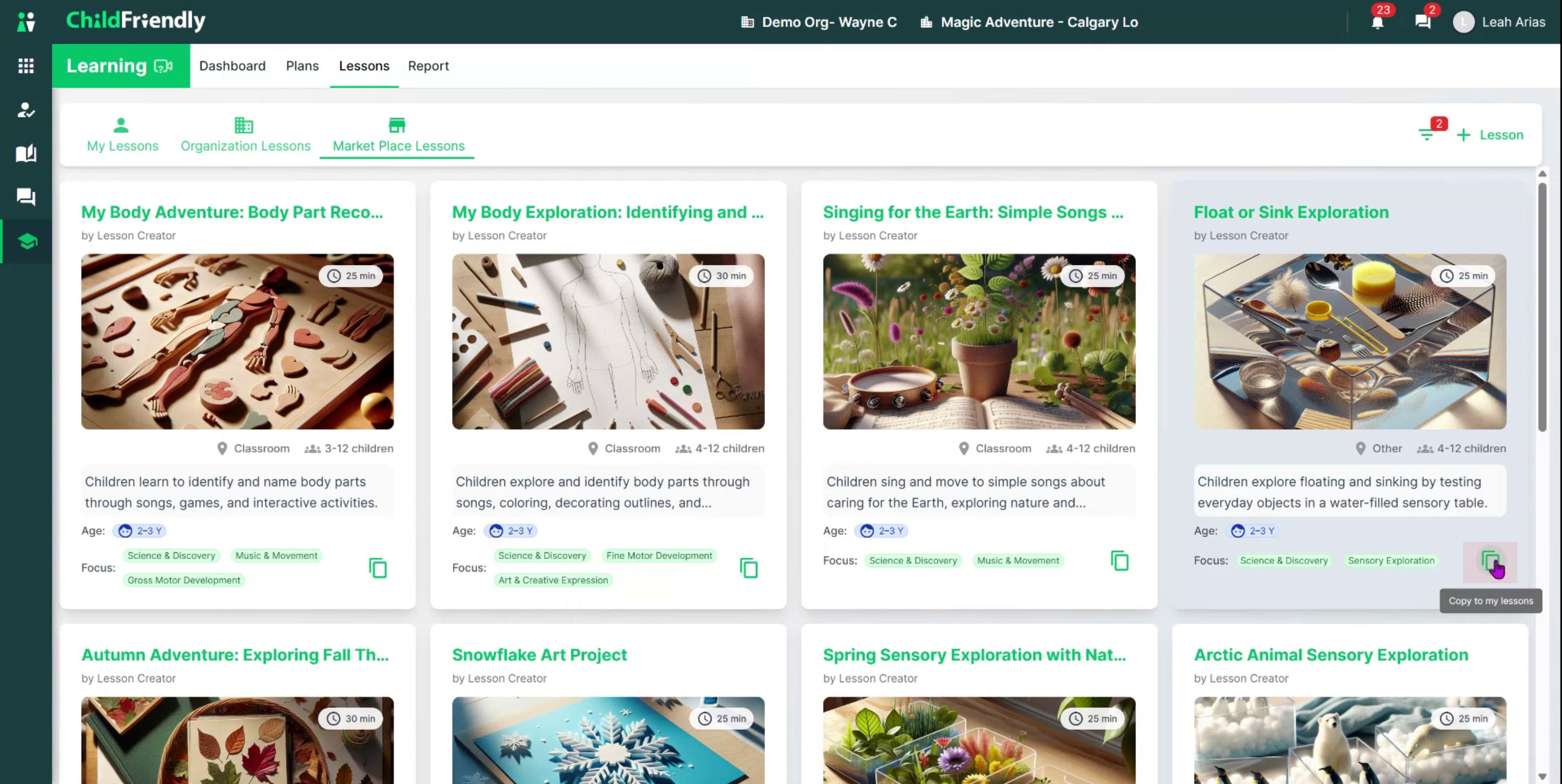
Step 4: Copy a Marketplace Lesson to Your Personal Library
Once you find a lesson you want to use, click the Copy to My Lessons icon.
This action copies the lesson into your My Lessons tab, where you can open it, edit the content, and adapt it to your own classroom needs.
Step 5: Use and Copy Lessons from the Organization Library
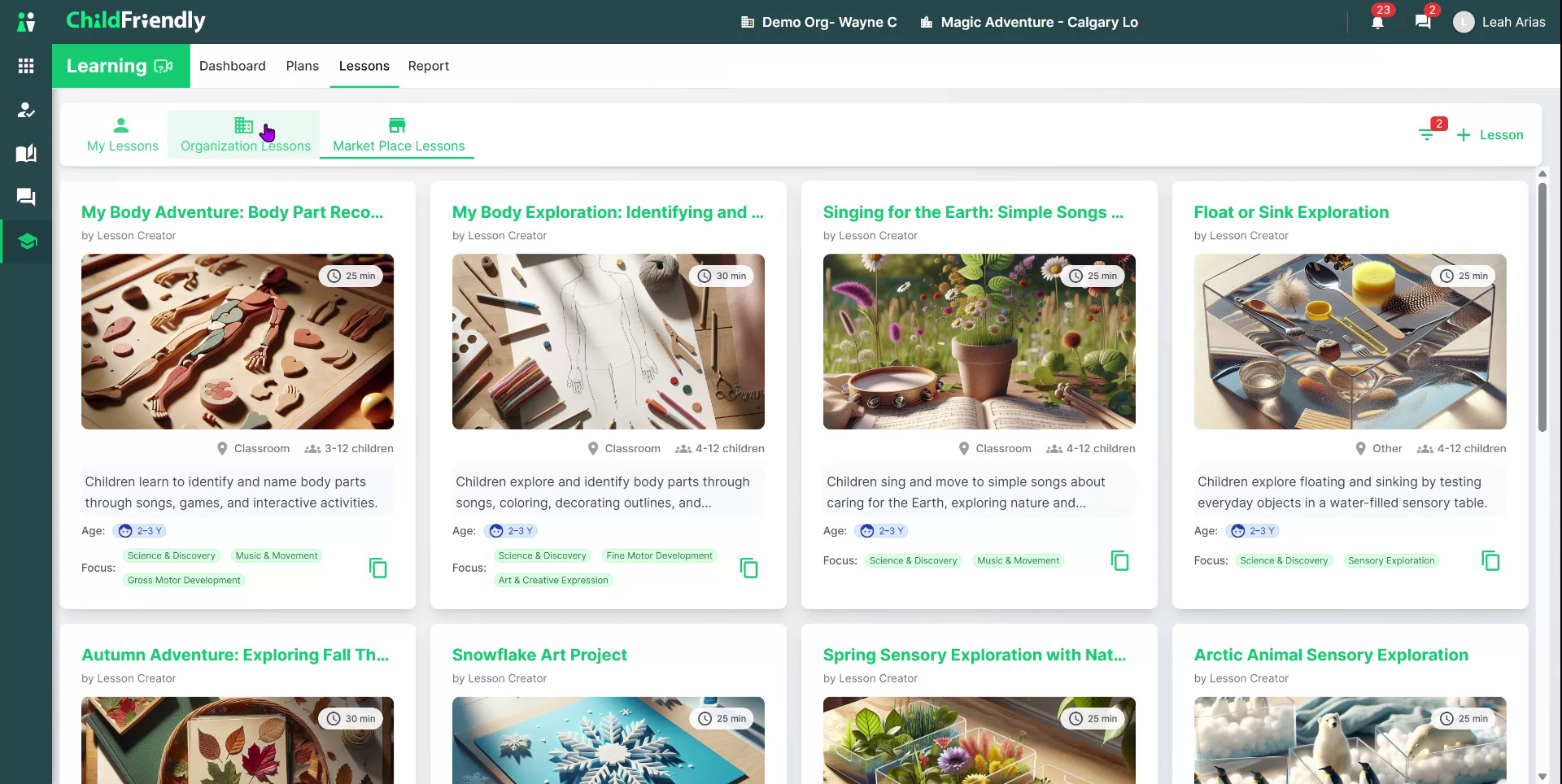
Organization Lessons tab lets you:
View only those lessons created by members of your organization and certified by admin for quality control.
Use the same filter icon to select applicable criteria (age group, focus area, etc.).
Press the Copy to My Lessons icon on any chosen lesson to add it to your My Lessons tab for editing and use in your classroom.
Once copied, open the lesson from My Lessons, customize it as needed, and then proceed to part two to learn how to create, edit, and submit lessons for certification.
Continue to our How to Create and Edit Lessons-Part 2 Guide and Video to learn how to use the My Lessons tab where you can create and submit lessons to admin for certification.
Was this helpful?
Still need help? Ask the team