How to Apply a Payment or Refund to Multiple Open Invoices & Memos
This document explains how to record payments and refunds from families using the Payments, Refunds, and Credits function in the Finance module. It covers applying a payment across multiple invoices or credit memos, handling underpayments via automatic reconciliation, and processing refunds.
Last updated 3 months ago
Step 1: Access the Payments, Refunds, and Credits Screen
In this method, you start from the Finance module instead of from an invoice.
If you receive a payment from a family (of any amount), you can either find and open the specific invoice as seen in other videos, or click the plus (+) icon beside the Payments, Refunds, and Credits column within the Finance module.

When you click the plus icon, the Payments, Refunds, and Credits screen opens.
Step 2: Select the Payer (Sponsor/Family)
On the New Payments, Refunds, and Credits screen, search for and select the sponsor who made the payment. ie. a guardian.

For example, you might select Elena as the person who made the payment.

After selecting the payer, the system displays all past invoices and credit memos for that payer that have not yet been fully paid.
Step 3: Enter the Payment Amount and Apply It
Enter the payment amount received from the sponsor (for example, $200.00) in the Amount field.

Then select the invoice(s) or credit memo(s) that this payment should be applied to.
The system will show the total of the selected invoices/credit memos and compare it with the amount you entered.
Step 4: Review Automatic Reconciliation for Differences
If the total of the selected invoices/credit memos does not match the payment amount you entered, the system will automatically create a reconciliation for the difference.
For example, if you enter a payment of $200.00 but the selected invoices total $326.24, the system identifies an underpayment of $136.24. The Reconciliation Preview section describes exactly how this underpayment will be handled.

Review this reconciliation preview carefully.
Click Submit.
Before you can submit, ensure all required fields are completed. If the Submit button is still greyed out, check for any missing required fields.

Step 5: Process Refunds Using the Same Screen
You can process refunds using the same Payments, Refunds, and Credits screen.
Open the same plus (+) icon and, at the top of the screen, change the type from Payment to Refund.

Then select the sponsor to whom you are issuing the refund.
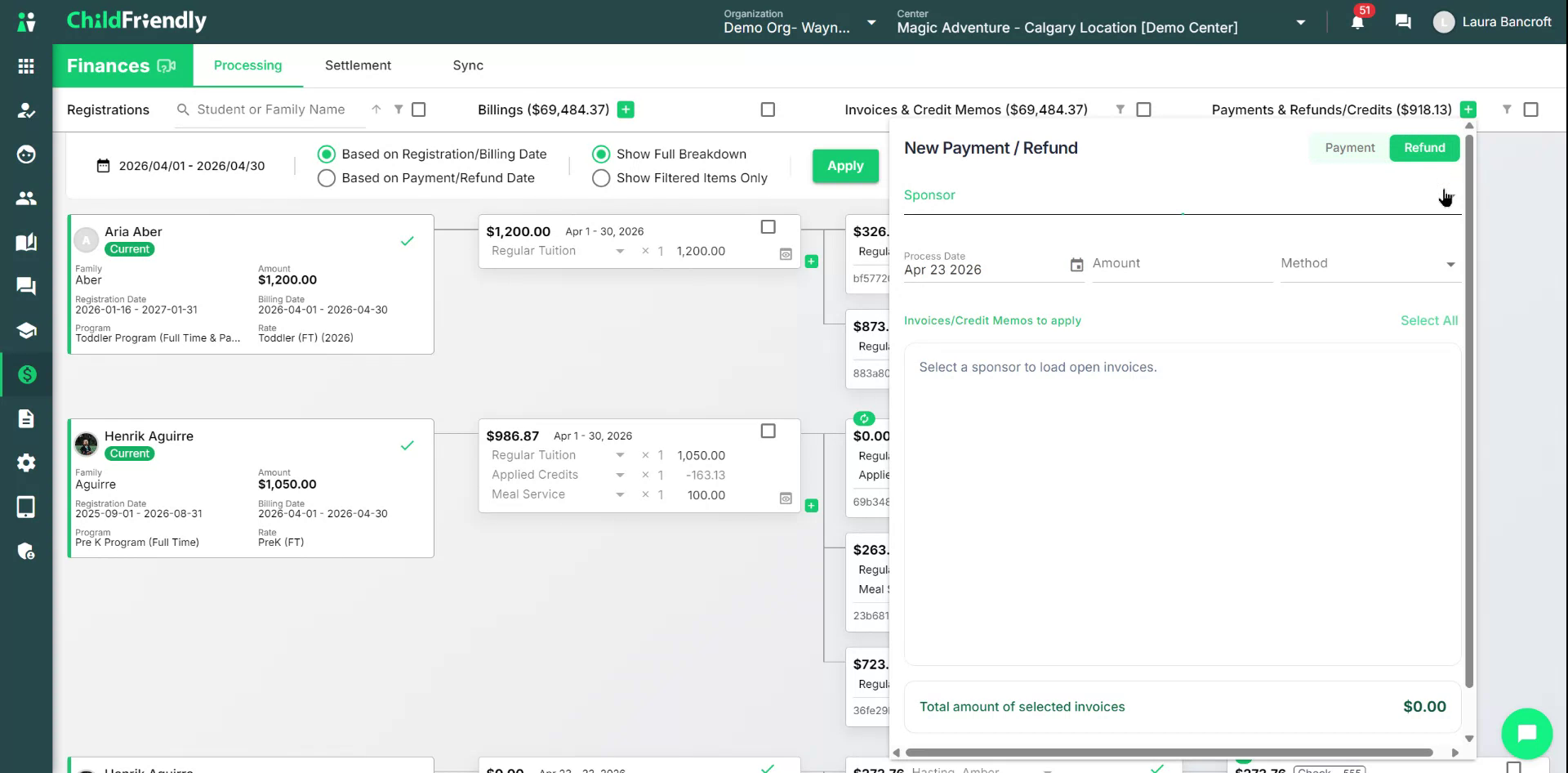
If there are any open invoices or credit memos relevant to the refund, they will appear on the screen. Select the applicable items and follow the same process as with payments (entering the amount, method, and submitting).

Was this helpful?
Still need help? Ask the team