Part 1: Record & Reconcile Third Party Payments
This process explains how to record a single lump-sum payment from a third party (such as a sponsor or grant provider) that covers multiple children’s invoices, and how to ensure only the relevant third-party invoices are included.
Last updated 3 months ago
Step 1: Prepare and Open the Finance Module
Ensure you have the third-party statement handy, including:
The date the payment reached your bank account
The total amount paid
The detailed breakdown of how much was paid for each child
In ChildFriendly, navigate to the Finance module and open the main Processing tab.
Step 2: Filter Invoices for the Correct Third Party
Under the Invoice section, open the filter to search for the relevant third party. Click the filter.
In the Sponsor section, search for and select the third party from whom you received the payment (for example, Alberta Affordability Grant).
Click to find the third party, then click to select them.

Step 3: Apply the Third-Party Filter and Show Only Filtered Items
Apply the filter so that only billings associated with the selected third party appear. Click Apply.

You will now see all billings that have an invoice attached to that third party, but you may also see other invoices (e.g., parent portions) linked to the same billing. To show only the third-party invoices:
In the filters area, select Show Filtered Item Only. Select Show Filtered Item Only, then click Apply.
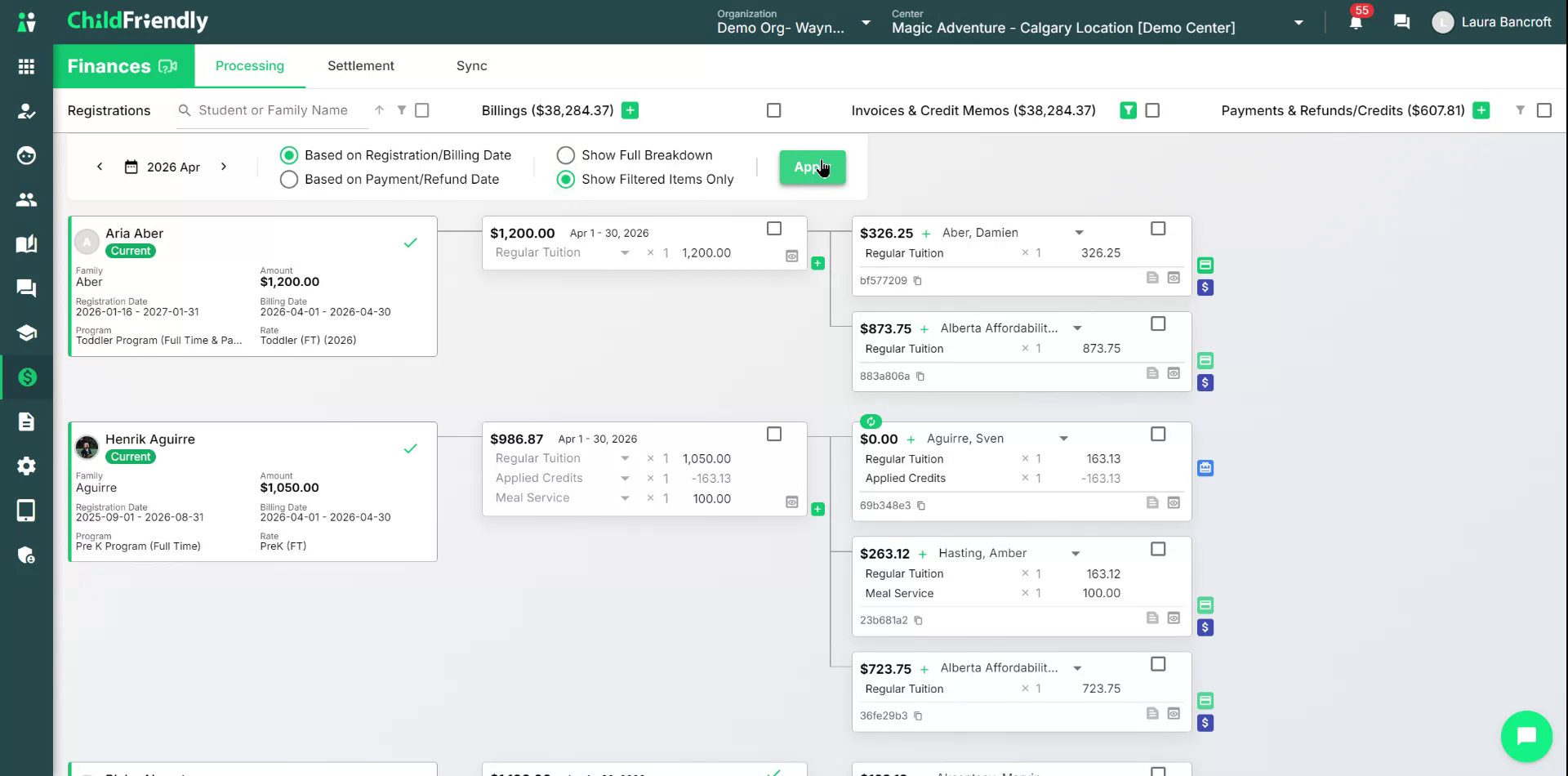
Now, only the invoices for the selected third party are displayed.
Step 4: Select All Applicable Third-Party Invoices
To record the bulk payment, first select all relevant invoices:
Use the Bulk Action / Bulk Select checkbox beside Invoices and Credit Memos to select all displayed invoices.
Click the Bulk Select box.

Step 5: Initiate a Bulk Manual Payment
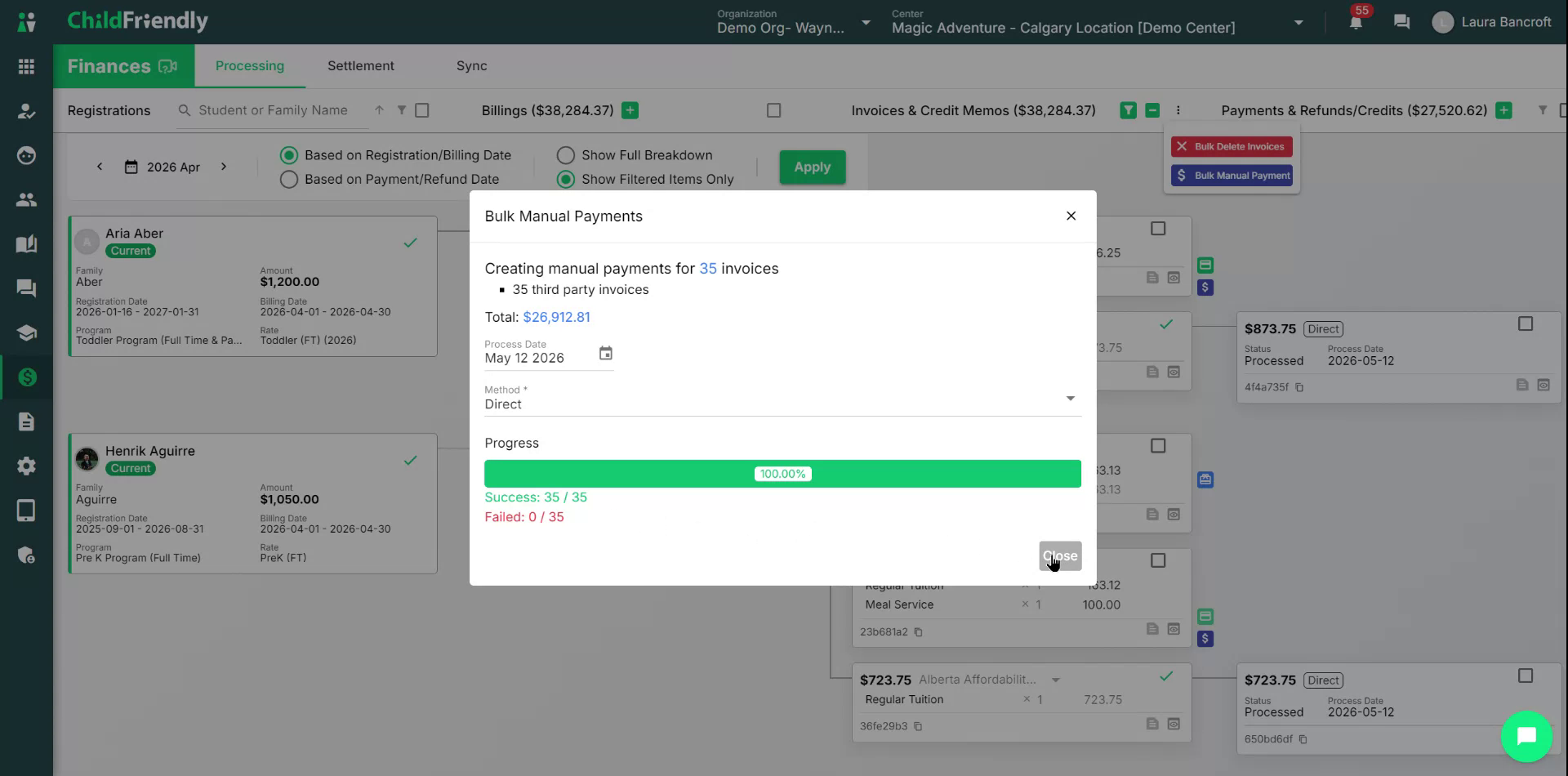
Open the bulk action options (three dots menu) and start a bulk payment for the selected invoices. Click the three dots and then Bulk Manual Payment.
A new screen will appear showing:
The number of invoices selected
The total amount of those invoices

Compare these totals with the third-party statement:
Confirm the total payment amount listed by the third party
Confirm the per-child breakdown
At this stage, it is normal if the total on the screen does not match the third-party statement; you will reconcile differences in a later step.
Step 6: Enter Payment Details and Submit
Enter the date the payment actually reached your bank account as the Process Date. Set the process date for the day the payment was actually made (e.g., the lump-sum payment received on May 12 for April invoices).
Select the Payment Method (e.g., Direct Deposit to your bank account).
Click the method, specify that this was a direct deposit to your bank account, and then press Submit.
After you submit, the system will record individual payments against each selected invoice for that third party. A confirmation will show, for example, that 35 out of 35 invoices were successfully processed. Close this confirmation window.
Click Close.
You will now see that each of the selected third-party invoices has a recorded payment.
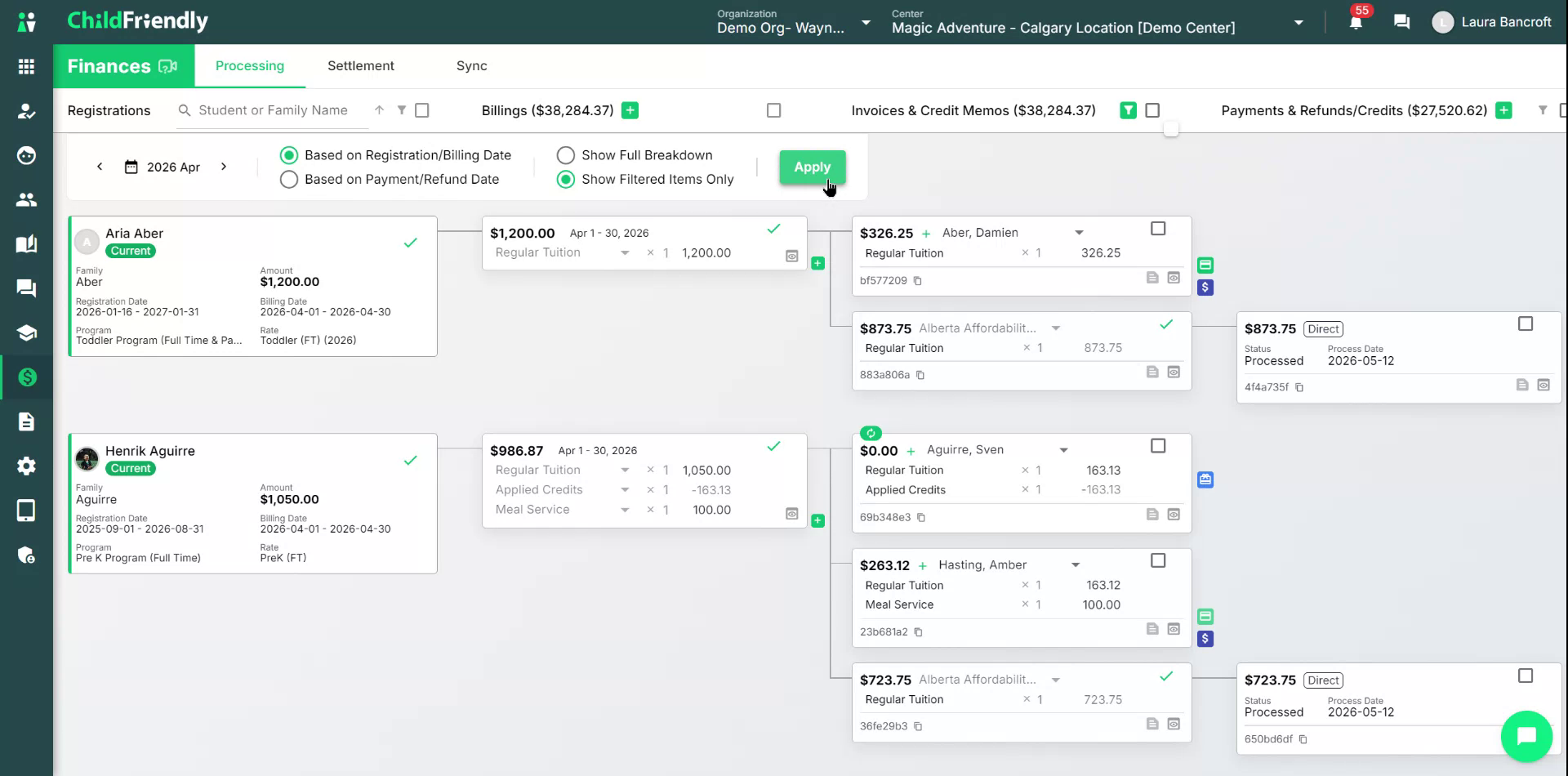
At this point, the total payment recorded in the system may still differ from the lump-sum amount shown on the third-party statement. The remaining task is to reconcile the third-party payment amount, which is done in the Settlement Tab. Please continue to How to Record & Reconcile Third Party Payments- Part 2 for more details.
Was this helpful?
Still need help? Ask the team