How to Refund a Parent
This guide explains three distinct methods for issuing refunds to parents or sponsors in ChildFriendly when there are credits or overpayments on their account. Each method details a different way to process refunds, whether for individual credit memos, via payments and refunds, or for all credits on a sponsor’s ledger.
Last updated 3 months ago
Method 1: Refunding a Specific Credit Memo from the Finance Module
Step 1: Open the Finance module and navigate to the Invoices and Credit Memos tab for the desired period (e.g., April).

Step 2: Access the filter options and choose Credit Memos as the filter type.

Step 3: Close the filter menu and click Apply to show only credit memos for that period.

Step 4: Locate the sponsor in the list (e.g., Marvin) and find the appropriate credit memo (e.g., $63.13).
Step 5: Click the refund icon next to the chosen credit memo to start the refund.

Step 6: Within the refund window, select whether to:
Apply the credit to the sponsor’s account for future use, or
Refund the amount directly (e.g., e-transfer).

Step 7: To refund directly, pick e-transfer or the suitable payment method.

Step 8: Specify the date the payment will be made.
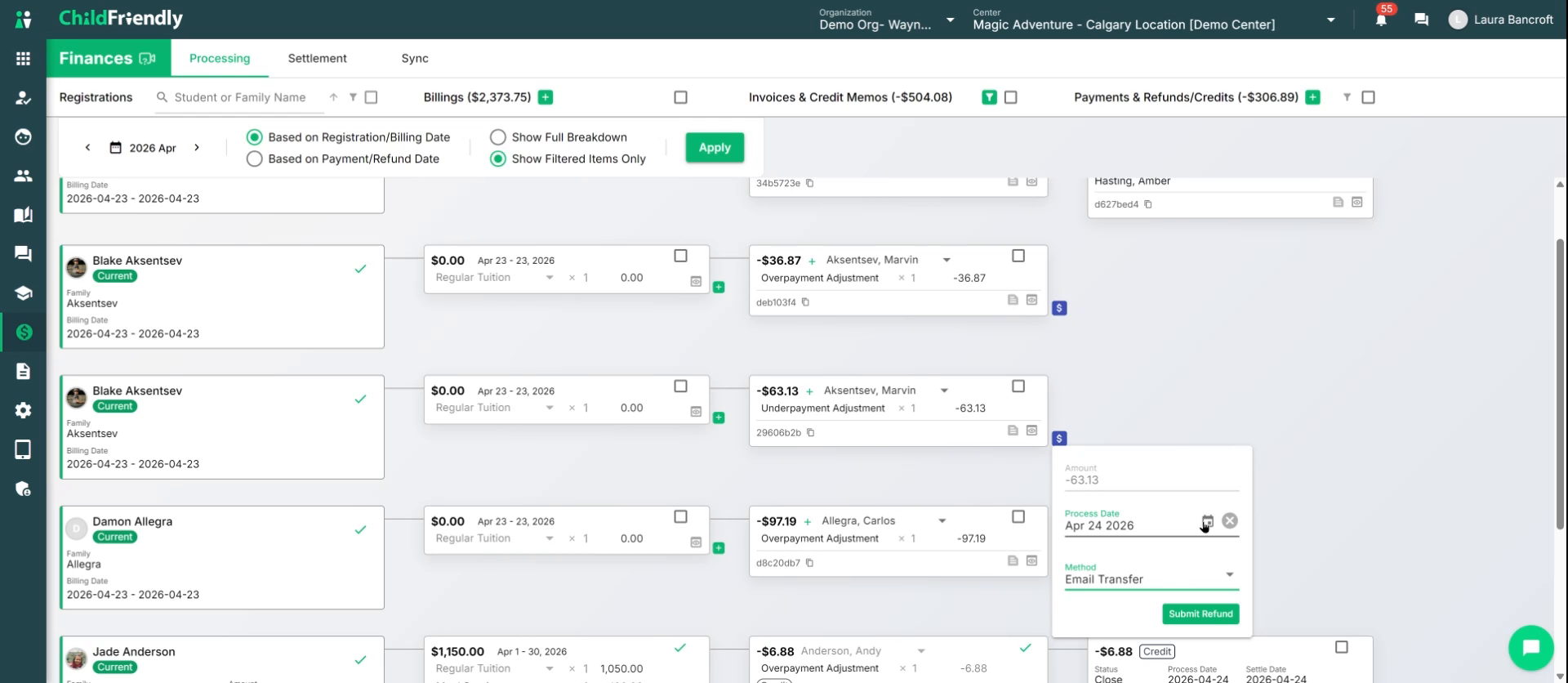
Step 9: Click Submit to record the refund.

The transaction will be recorded, but you must still process the actual payment outside of ChildFriendly.
Method 2: Refunding via the Payments and Refunds Section
Step 1: If not filtering by credit memo, go to the Finance area and click the plus (+) icon at the top of Payments and Refunds.
Step 2: Choose New Payment or Refund to bring up the entry form.
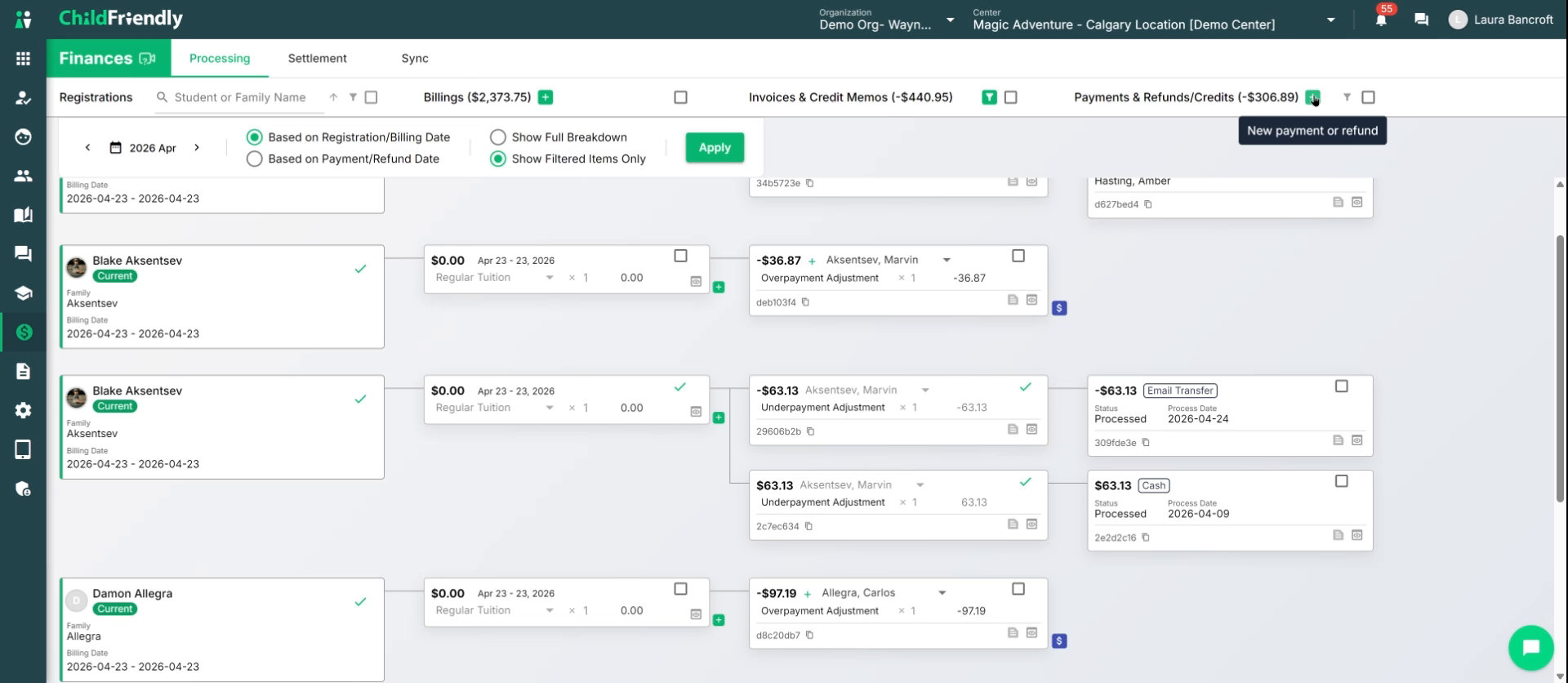
This screen lets you select the sponsor, refund date, and view current invoices and credits.
Step 3: Set the transaction type to Refund in the top-right of the screen.

Step 4: Search for and select the sponsor to refund (e.g., Marvin).

Step 5: Enter the refund date.
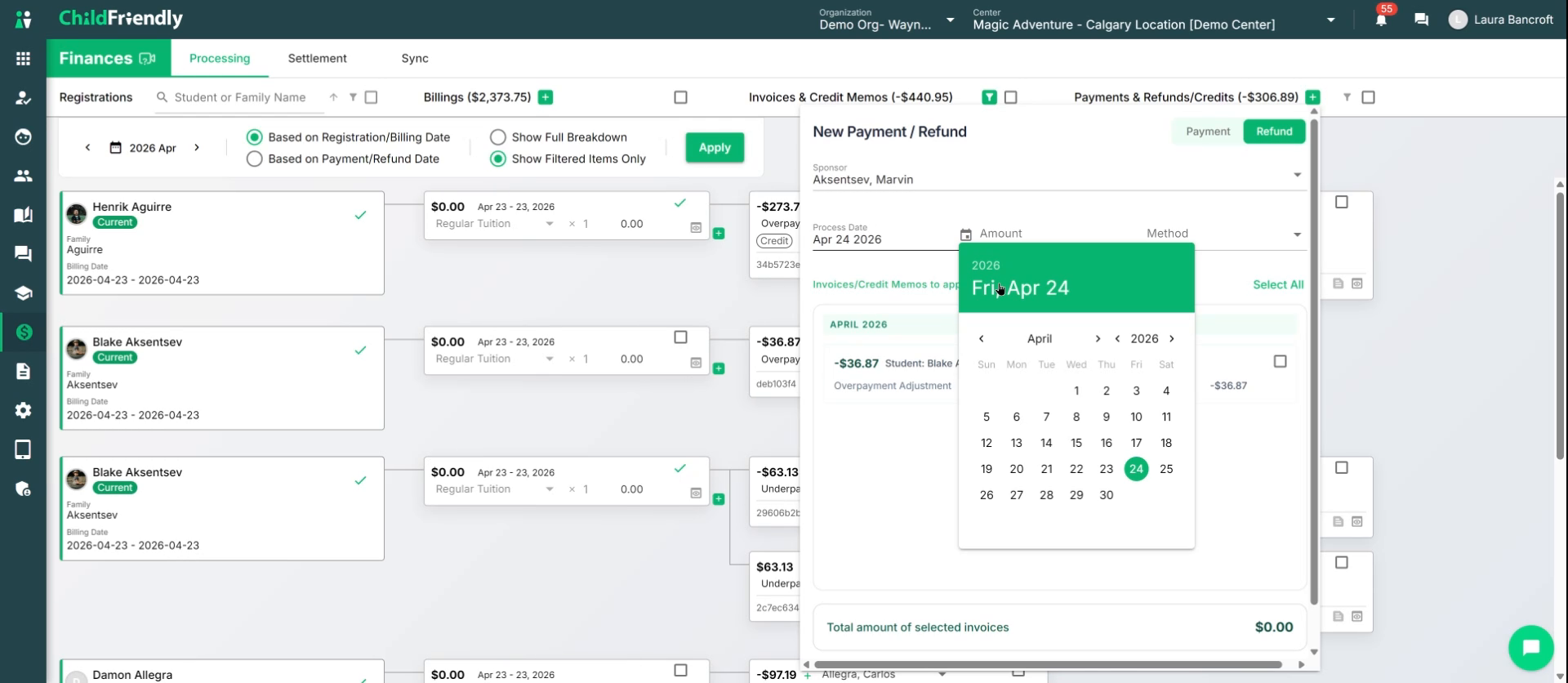
Step 6: Input the refund amount and pick the payment method (e.g., e-transfer, cash, etc.).

Step 7: If multiple credit memos are present, choose all that apply (e.g., select “all” for a combined refund).

Step 8: Click Submit to record the refund.
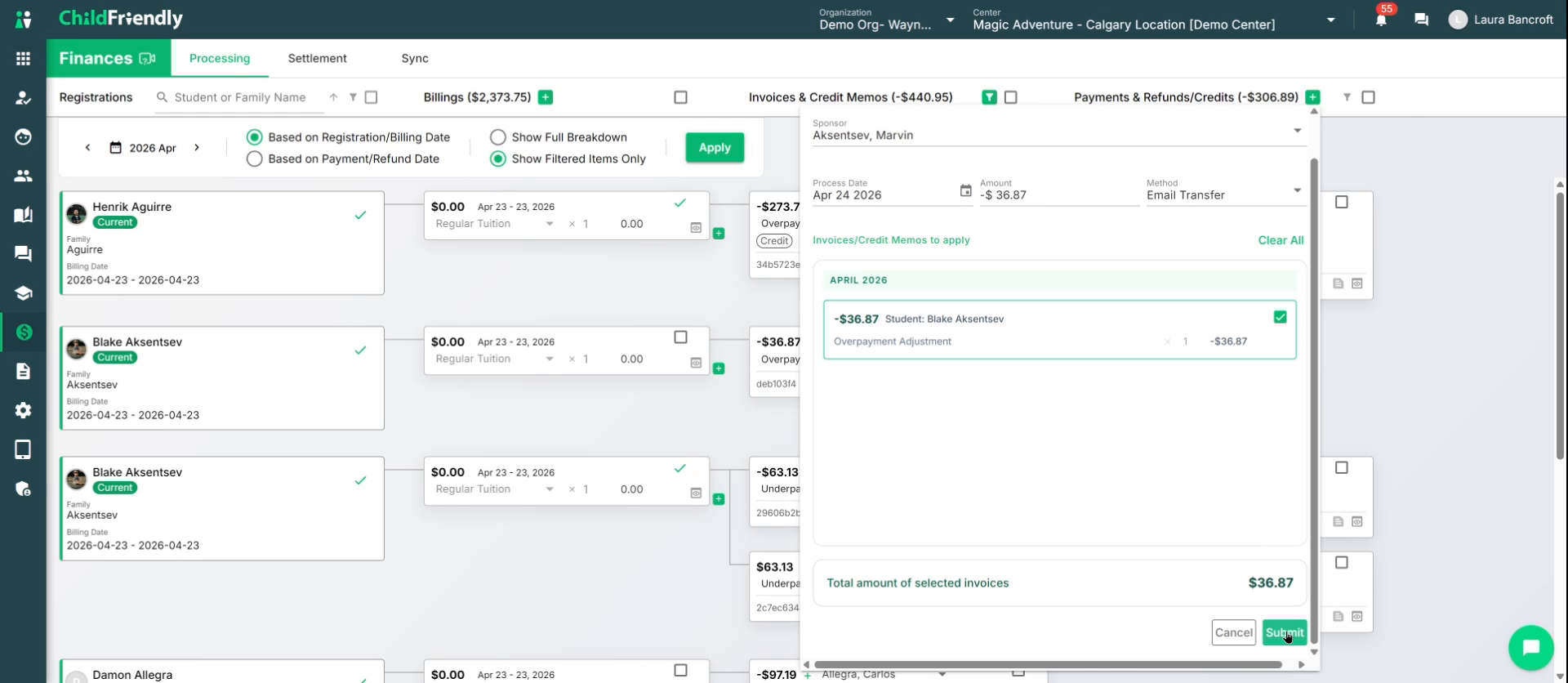
The refund will be reflected in the sponsor’s account records.
Method 3: Refunding All Credits from the Sponsor’s Ledger
Step 1: Access the relevant family profile (e.g., Amber Hastings).
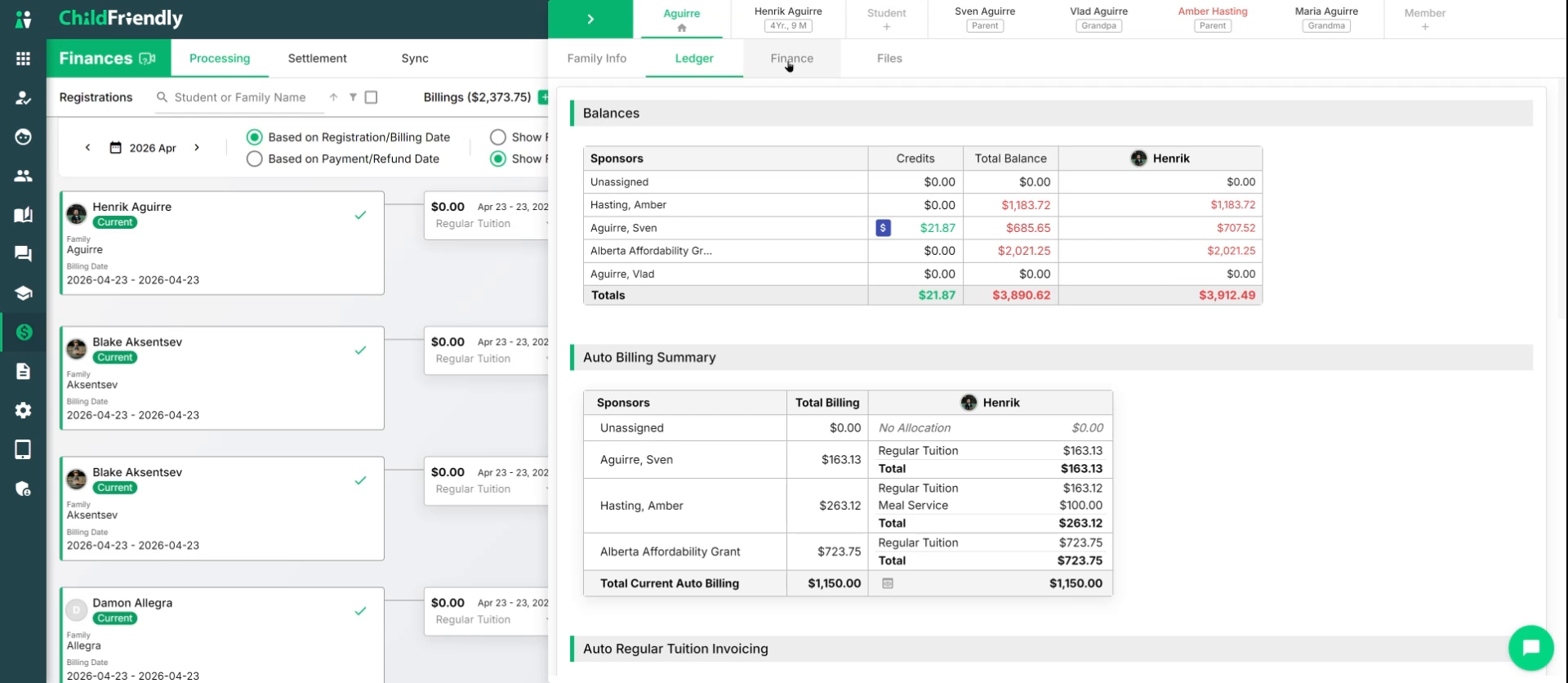
Step 2: Go to the family’s Ledger to review all transactions.
The ledger displays a Credits column by sponsor and a dollar sign icon for refunds.
Step 3: Click the dollar sign ($) next to the account in the Credits column to begin the refund.

Step 4: In the refund window, review and adjust as needed:
Process date
Refund amount (adjust if refunding less than the total) and the date
Line item description (e.g., “Refunding regular tuition”)
Payment method (e.g., e-transfer, cheque, cash)

Step 5: Click Create Refund to record the refund.

The refund will now appear in the family’s finance tab and the credits on their account updated to 0, in that sponsor's ledger.
Was this helpful?
Still need help? Ask the team