How to Set Up Your Curriculum
This document explains how to access, review, customize, and add curriculums within the Setup section of the Learning Module’s Curriculum tab. Use these steps to manage domains, focus areas, and outcomes so they align with your organization’s educational framework.
Last updated 3 months ago
Step 1: Open the Curriculum & Outcomes Page
Navigate to the Learning module from the left-hand menu.
Go to Setup and then select Curriculum & Outcomes.
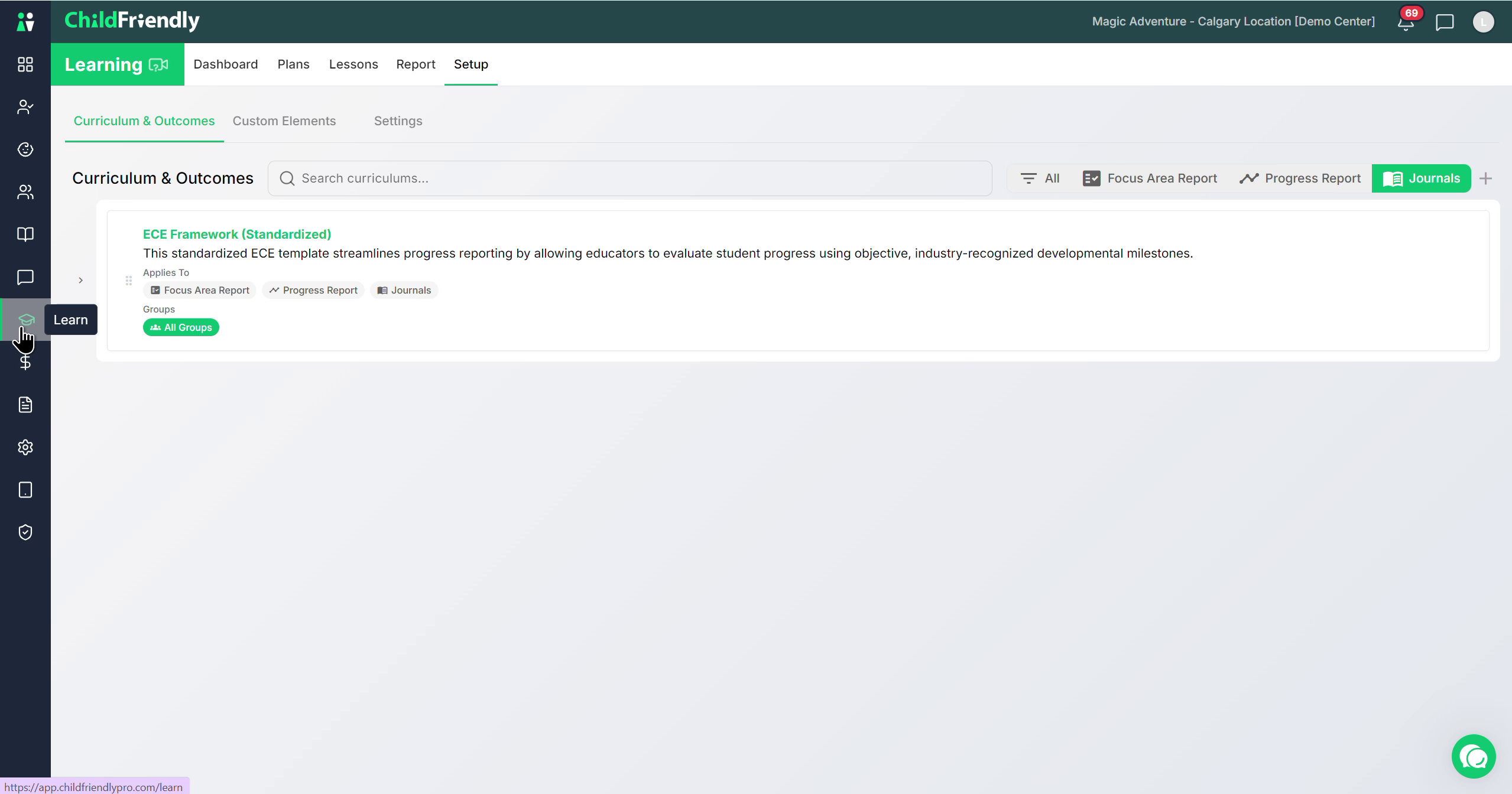
In Curriculum & Outcomes, you will see a default standardized ECE curriculum that has already been uploaded for you.
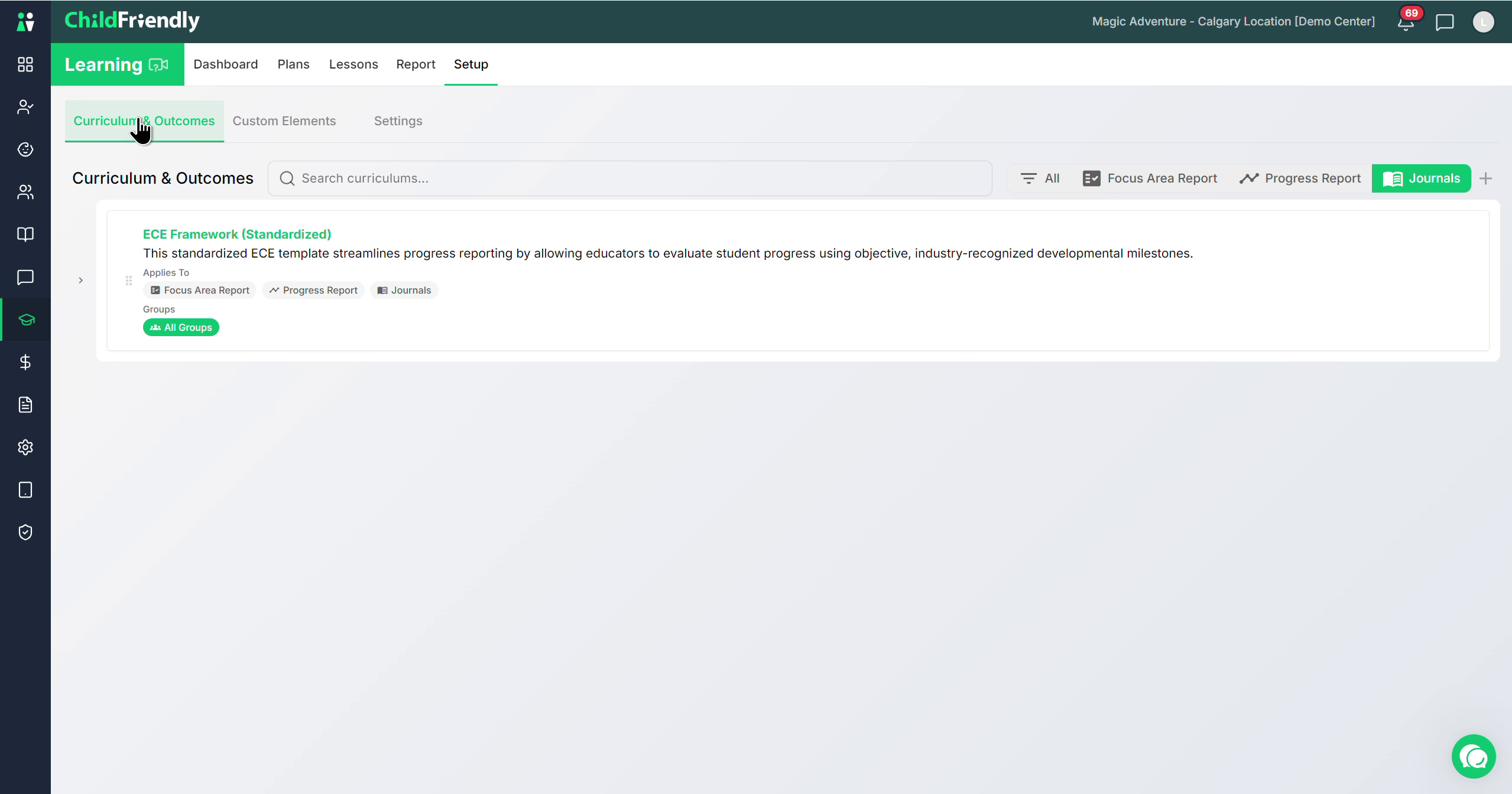
This default framework can be edited, deleted, or replaced with your own curriculum.
Step 2: Understand How Curriculum Is Used
Curriculum in Child Friendly is primarily used to power:
Progress reports sent to parents, where learning outcomes appear and are graded using rubrics configured in your settings.
Journal entries, where educators can tag specific focus areas.
Focus area reports, which aggregate how often each learning outcome has been tagged in journals or included in progress reports.
Each curriculum is structured in multiple layers starting at the highest layer, called the domains, then within each domain there are focus areas and finally within each focus area there are learning outcomes. These final outcomes are what appear in progress reports for educators to grade using the rubrics you configure.
Step 3: View and Edit an Existing Curriculum
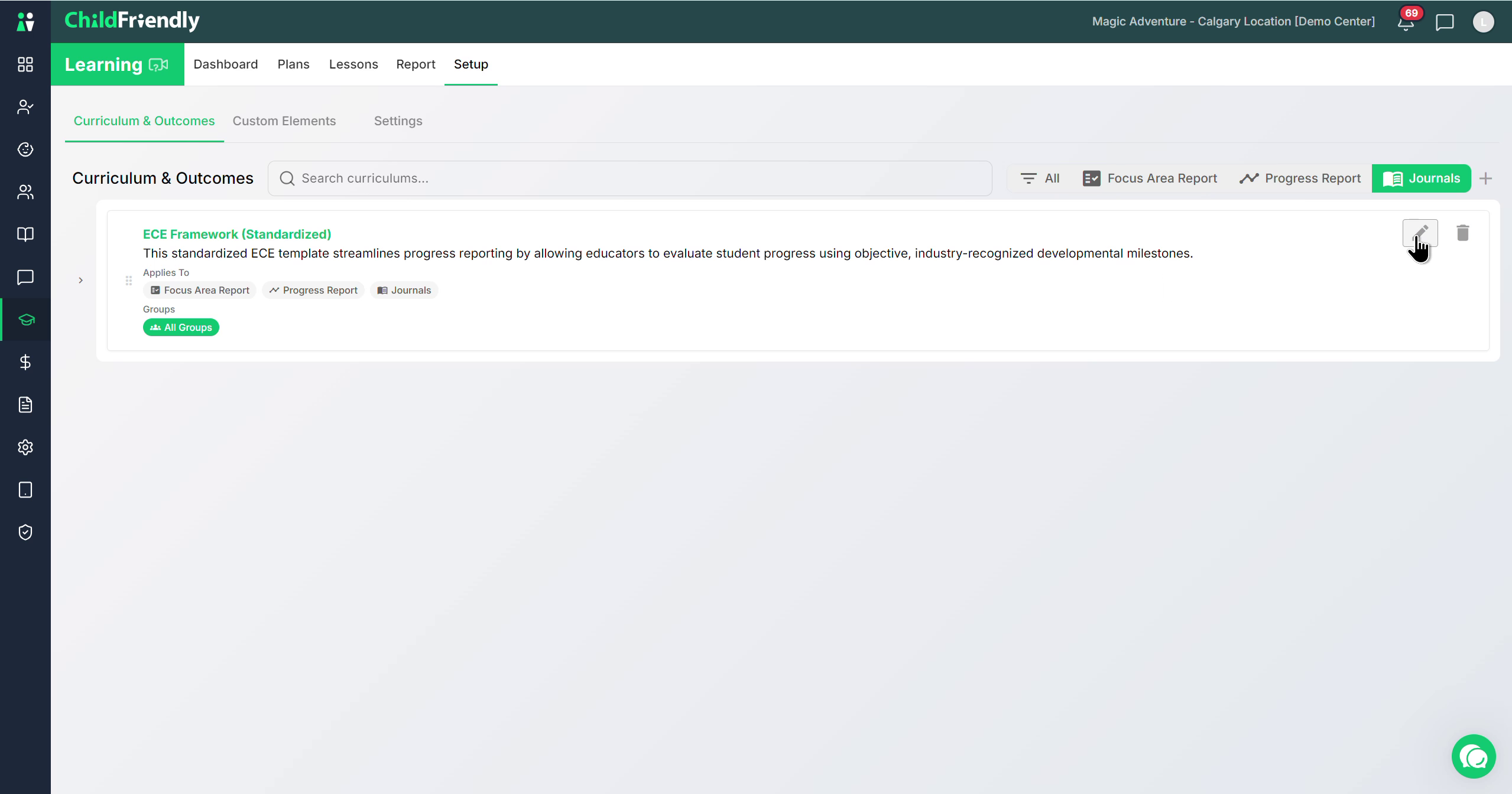
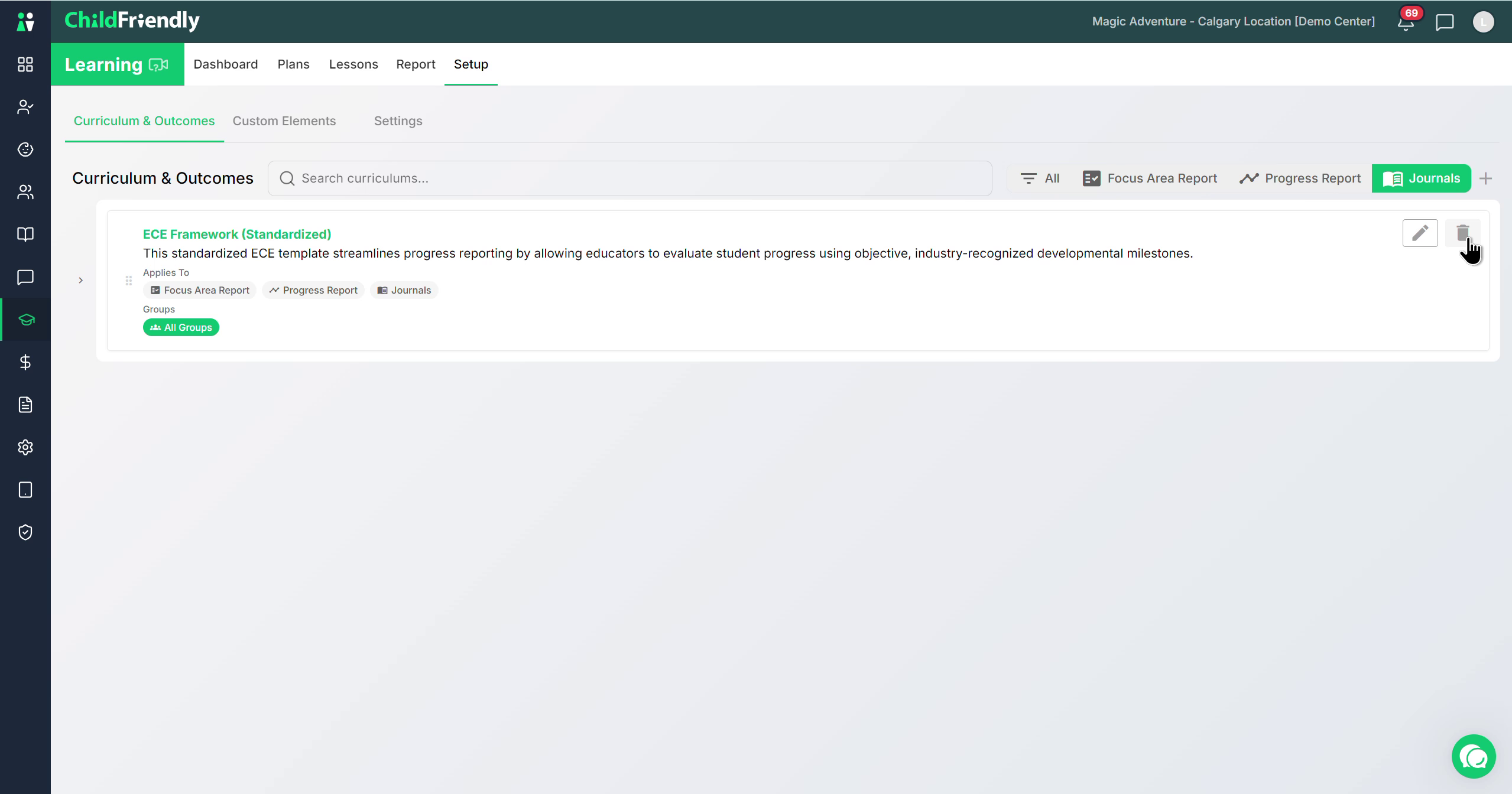
To modify the existing curriculum, use the icons beside its name:
Click the pencil icon to edit the curriculum.
Click the trash can icon to delete the curriculum.
To review the structure, expand the curriculum to see its layers.
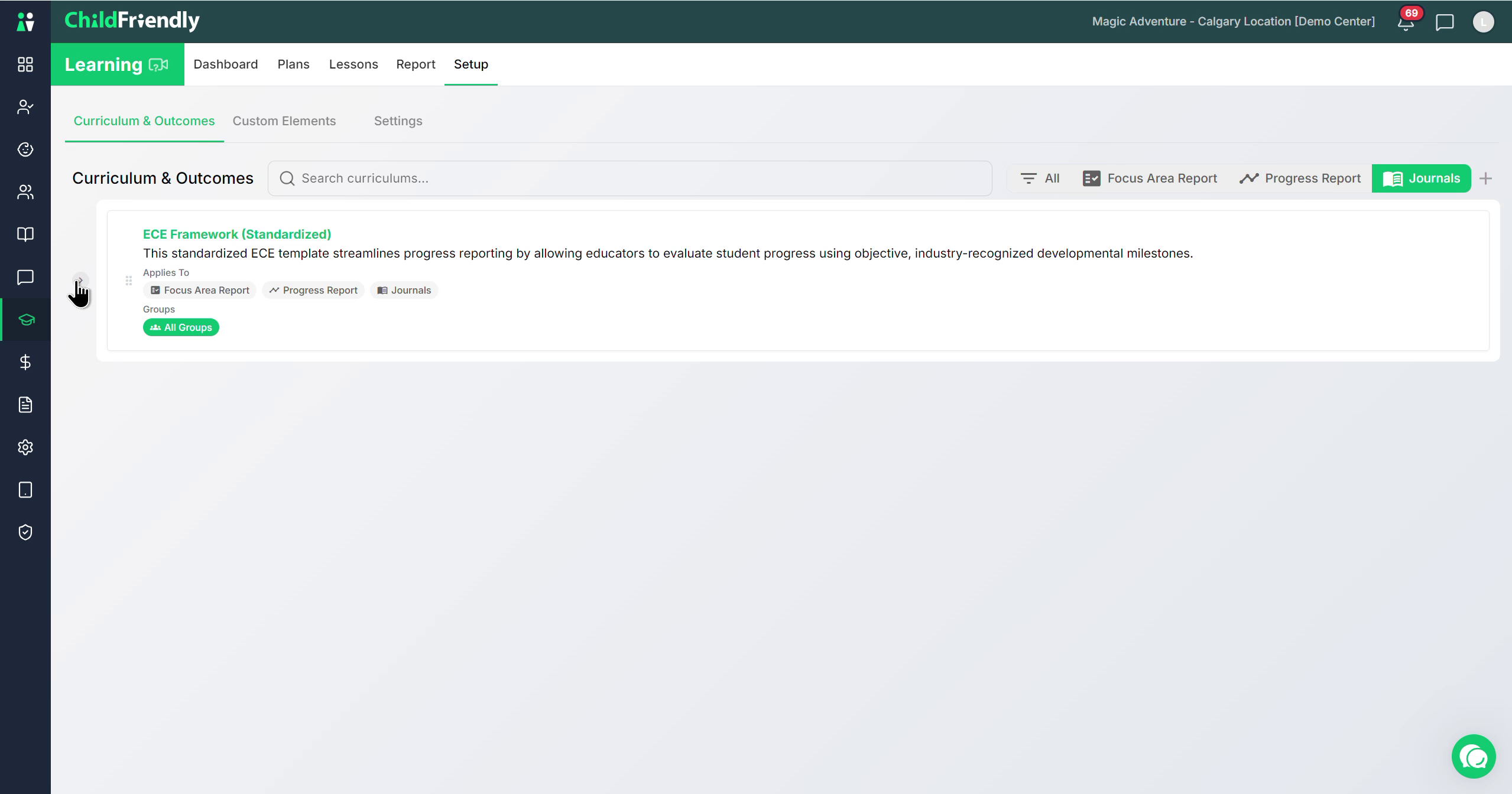
Inside, you will see the first layer, the domains. Domains are tagged in journals.
Expand further to view the next layer, to see the focus areas within that domain.
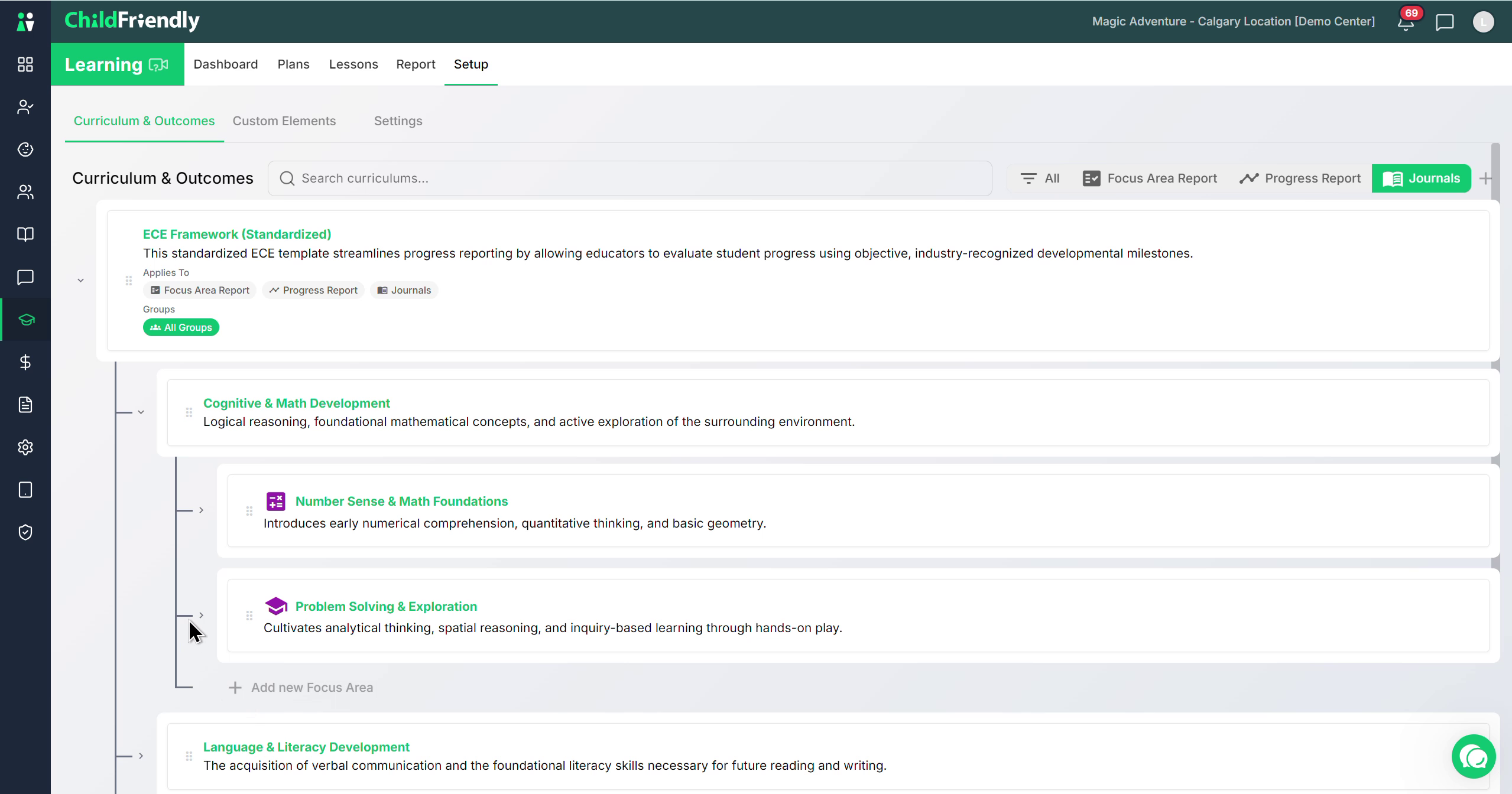
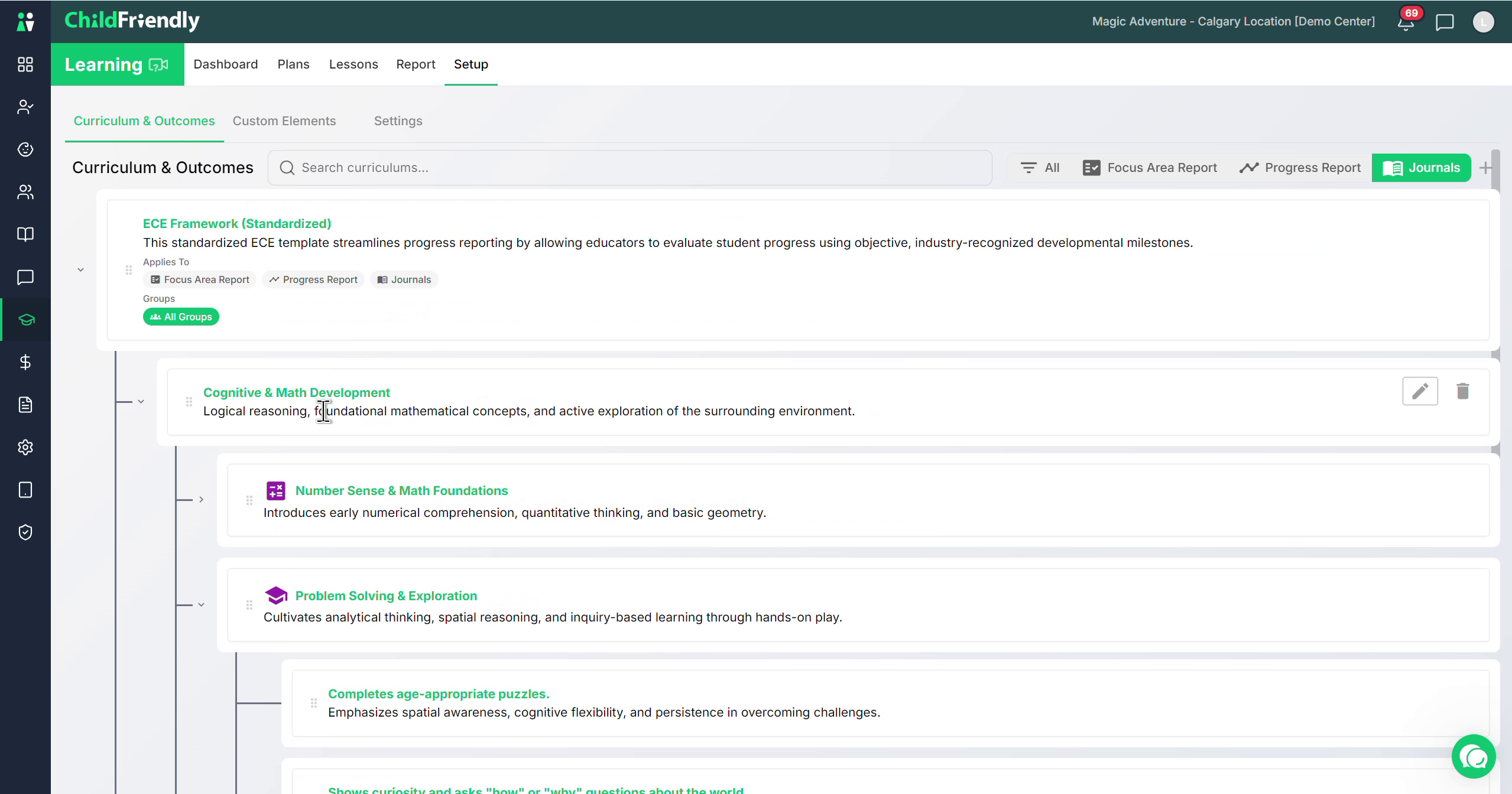
Expand again to reach the final learning outcomes. These learning outcomes are what appear in progress reports for educators to track and report on.
Within this editing view, you can:
Edit items individually.
Drag and drop to reorder items.
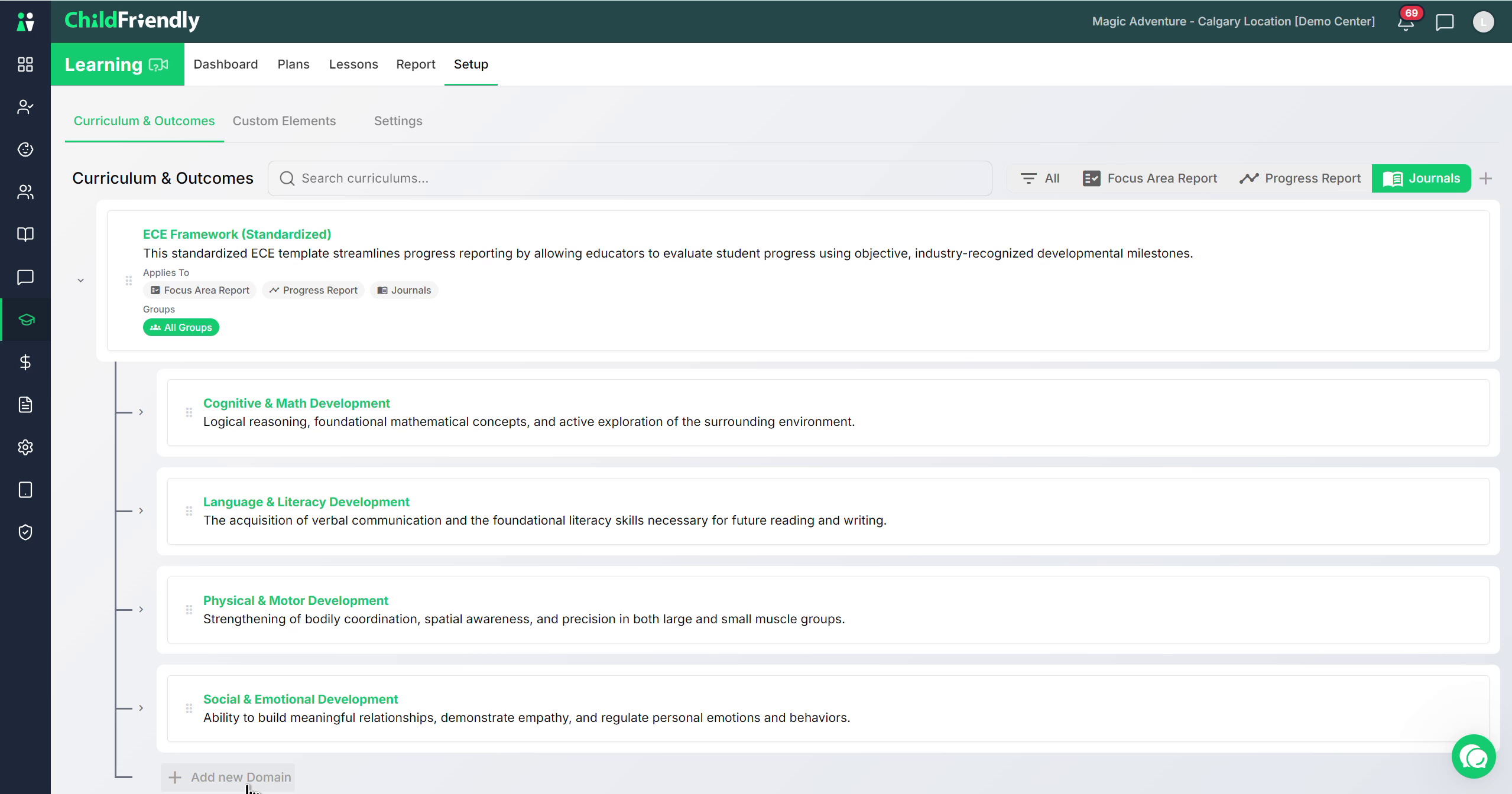
Add more domains or categories at the bottom and edit them as needed.
Step 4: Configure Where and to Whom a Curriculum Applies
As you edit a curriculum, you can specify what it applies to:
Decide whether it is used for progress reports, journals, and/or the focus area report.
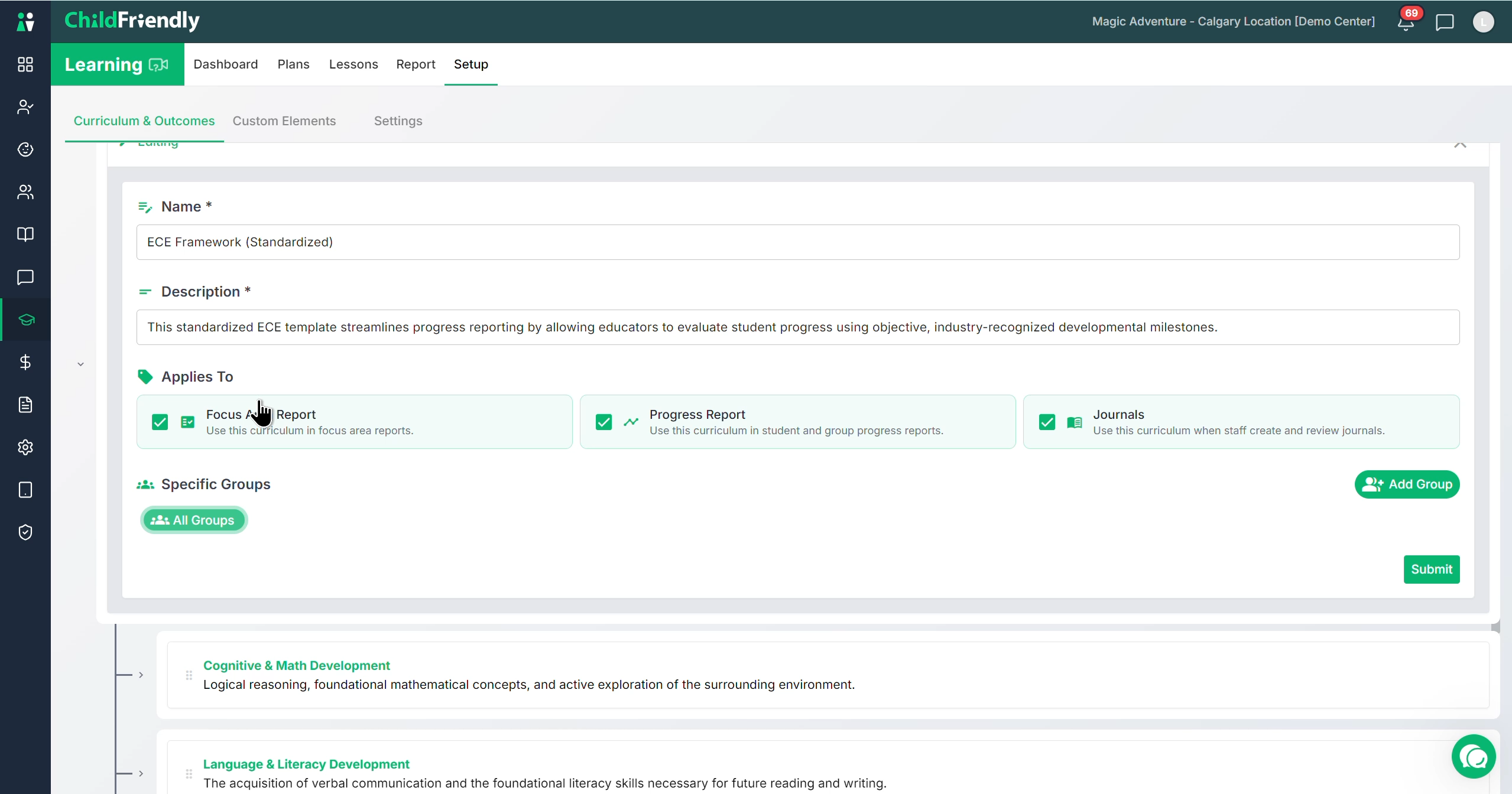
Optionally create different curricula for different purposes (e.g., a simplified curriculum for progress reporting and another for journal entries).
To limit a curriculum to specific groups (for example, a toddler-only curriculum):
Change the Group selection to include only the desired groups.
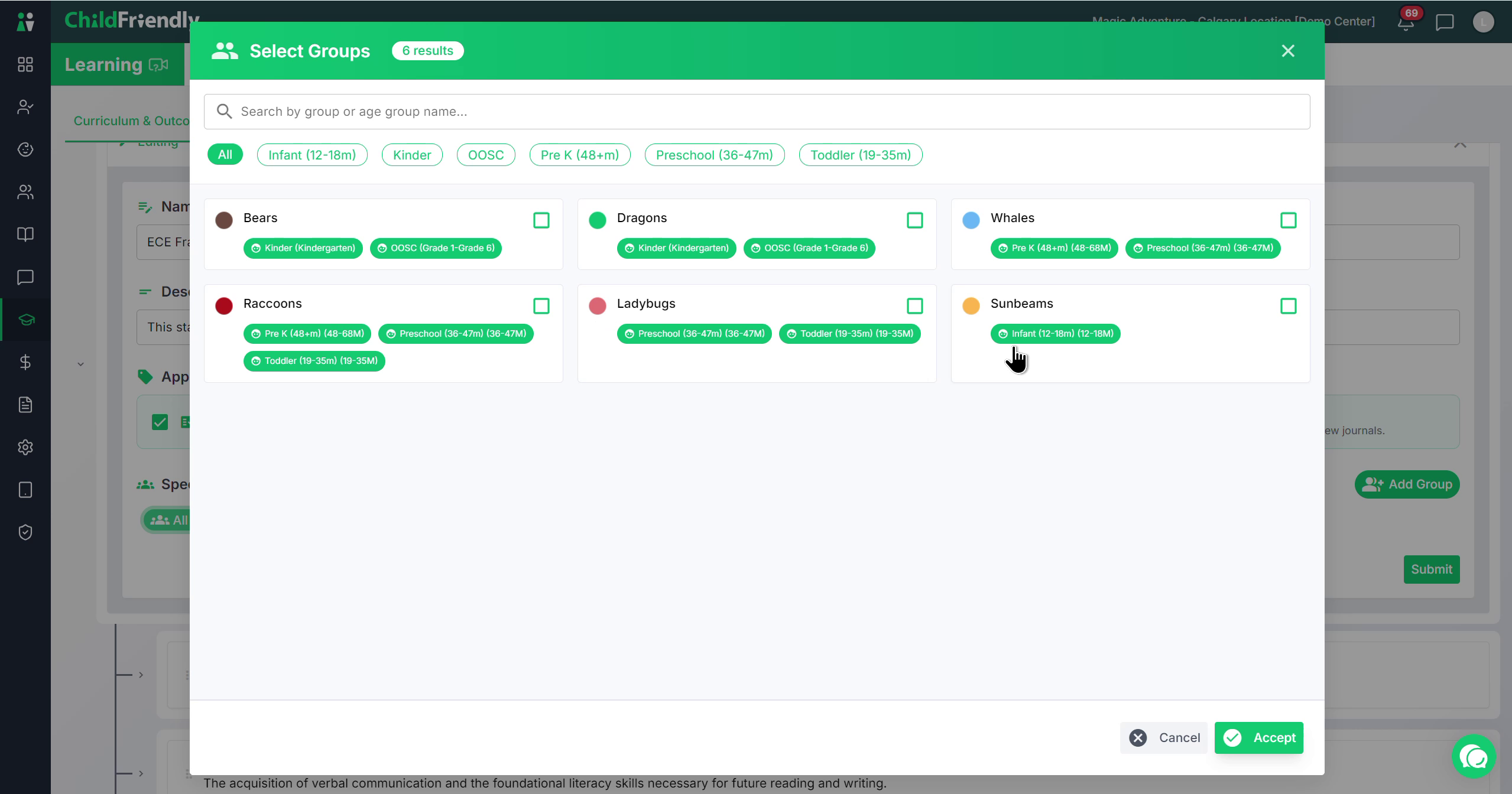
Click Accept to confirm the group selection.
The curriculum will now only apply to children within those selected groups.
Step 5: Filter and Search Curricula
At the top of the Curriculum & Outcomes page, you can:
Filter by the different report types (e.g., Progress Reports, Journals, Focus Area Report) that a curriculum applies to, or select All to view everything.
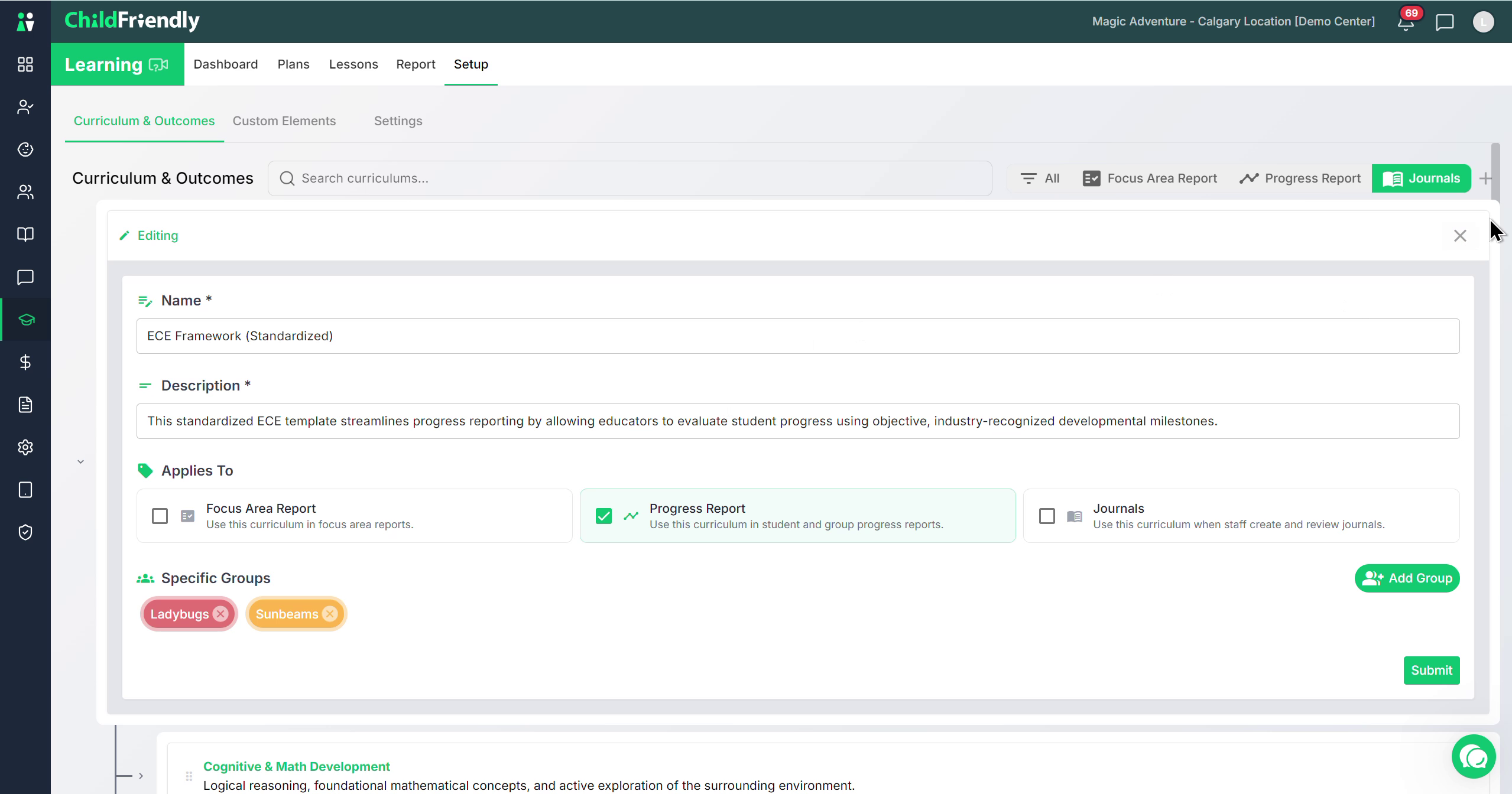
You can also search for specific curricula using the search bar if you have multiple curricula configured.
Step 6: Add a New Curriculum
If you prefer not to edit the existing curriculum, you can create a new one:
Click the plus (+) icon to add a new curriculum.
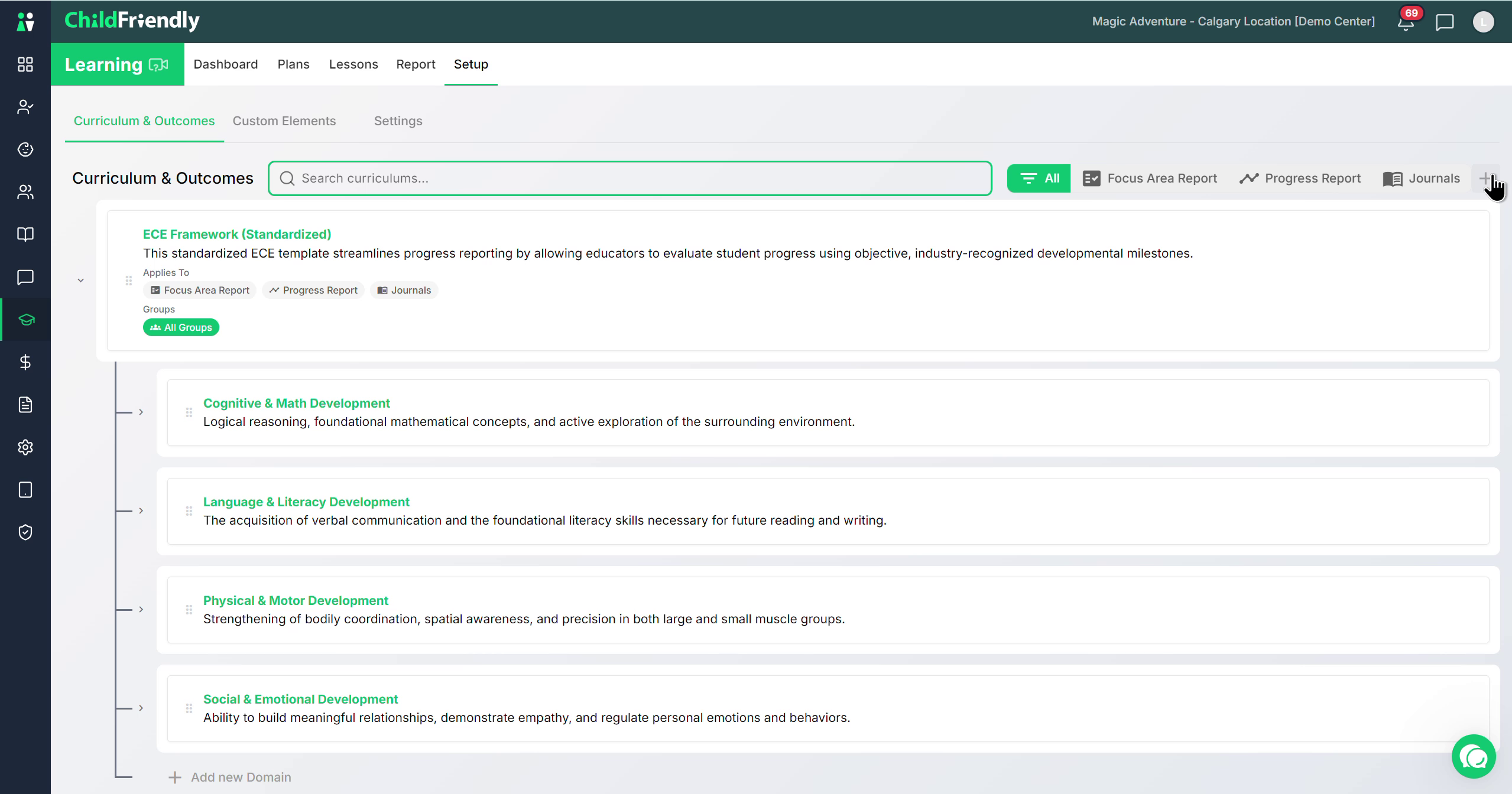
When you click the plus icon, a selection window appears where you can choose the source of your curriculum.
You can select from the following options:
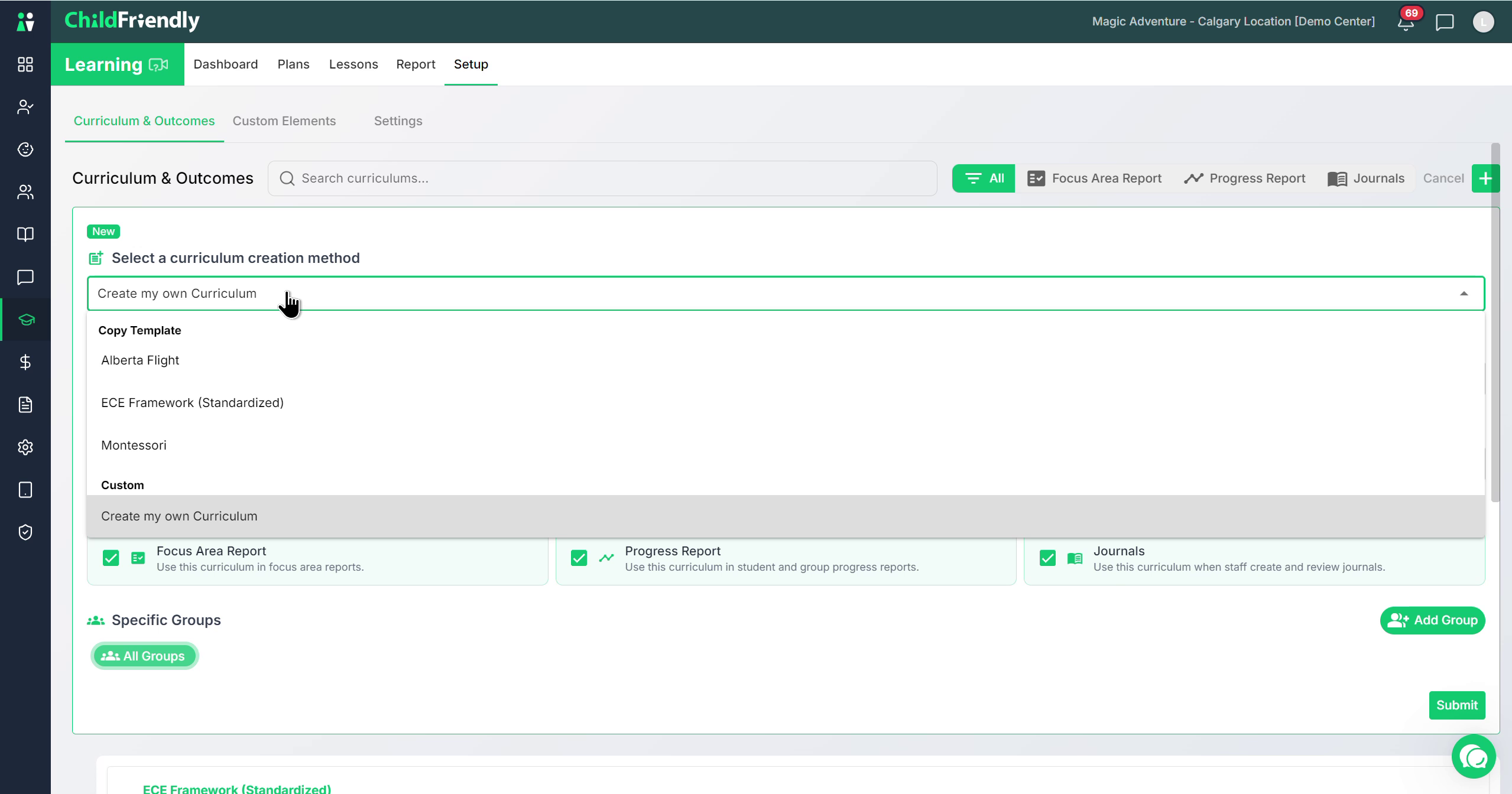
Create my own custom curriculum – a blank slate to enter your own structure and learning outcomes.
A pre-loaded Montessori curriculum (standardized).
A standardized general ECE framework.
Your province-specific or state-specific curriculum.
Once, select, you can review its structure and make any edits needed. Once your curricula are configured and assigned to the appropriate groups and report types, you are ready to move on to planning and lessons using these curricula.
Was this helpful?
Still need help? Ask the team