How to Disable Setup Mode
This guide explains how to turn off Setup Mode in your ChildFriendly account so that emails can begin sending and families and staff can start accessing their accounts. Follow these steps once you have completed your initial configuration and are ready to go live.
Last updated 3 months ago
Step 1: Open the Setup Module and Select a Center
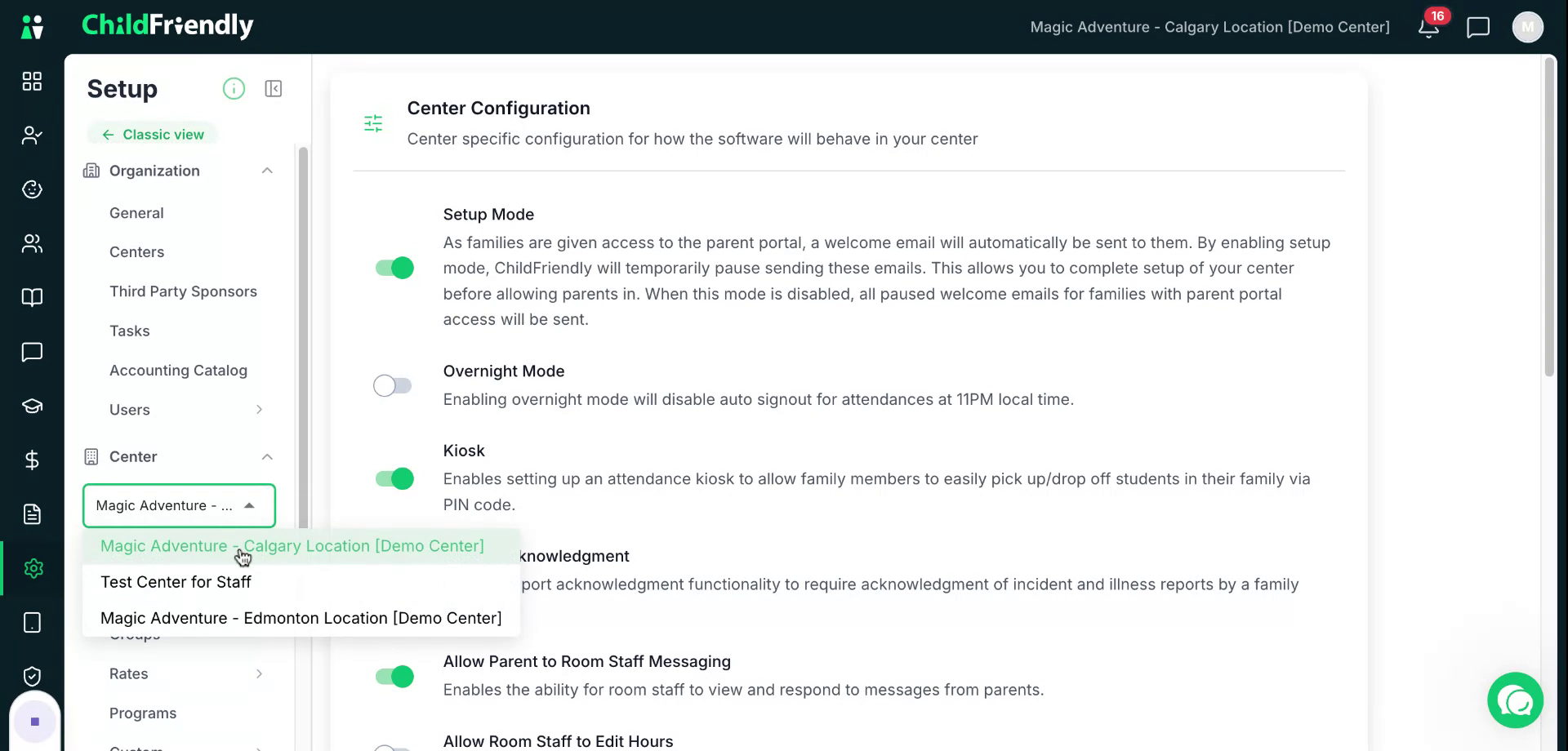
Ensure you are in the Setup module. Under Center, if you have multiple centers, select the center you wish to disable Setup Mode for.
Step 2: Access Configuration Settings
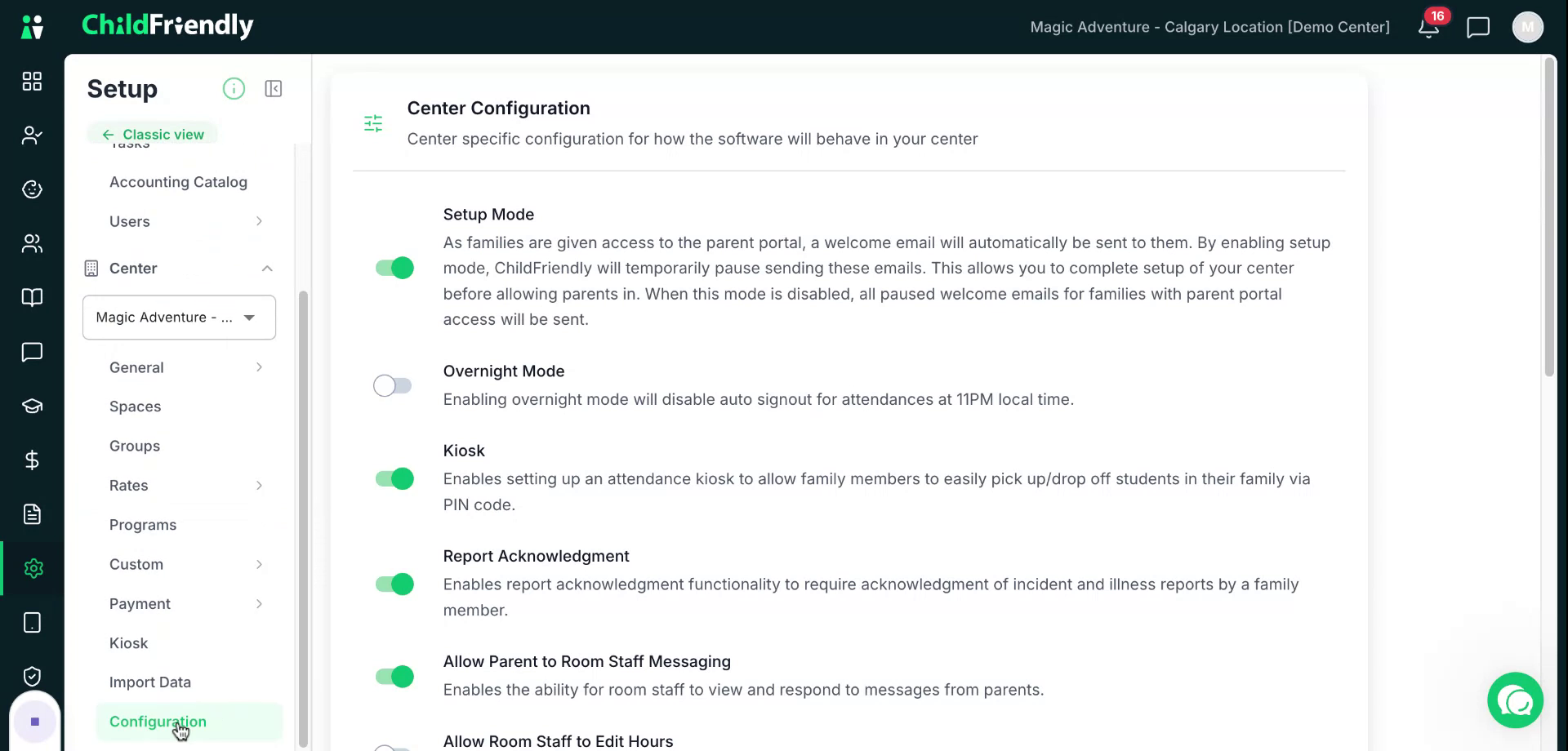
Scroll down and click Configuration to open the settings for the selected center.
Step 3: Review the Purpose of Setup Mode
When you are first setting up your ChildFriendly account, it will default to Setup Mode. This mode allows you to add all required information and settings before any emails or login access are sent to parents and staff. While Setup Mode is active, all emails and account invites are disabled.
Before turning off Setup Mode, make sure you are ready to:
Begin sending emails
Allow families and staff to receive their login information
Start accepting registrations
Remember, once you disable Set Up Mode, the system will now automatically send account invites to staff and families you have already added. As you add more, account inivites will now be sent automatically as well.
Step 4: Toggle Off Setup Mode and Confirm
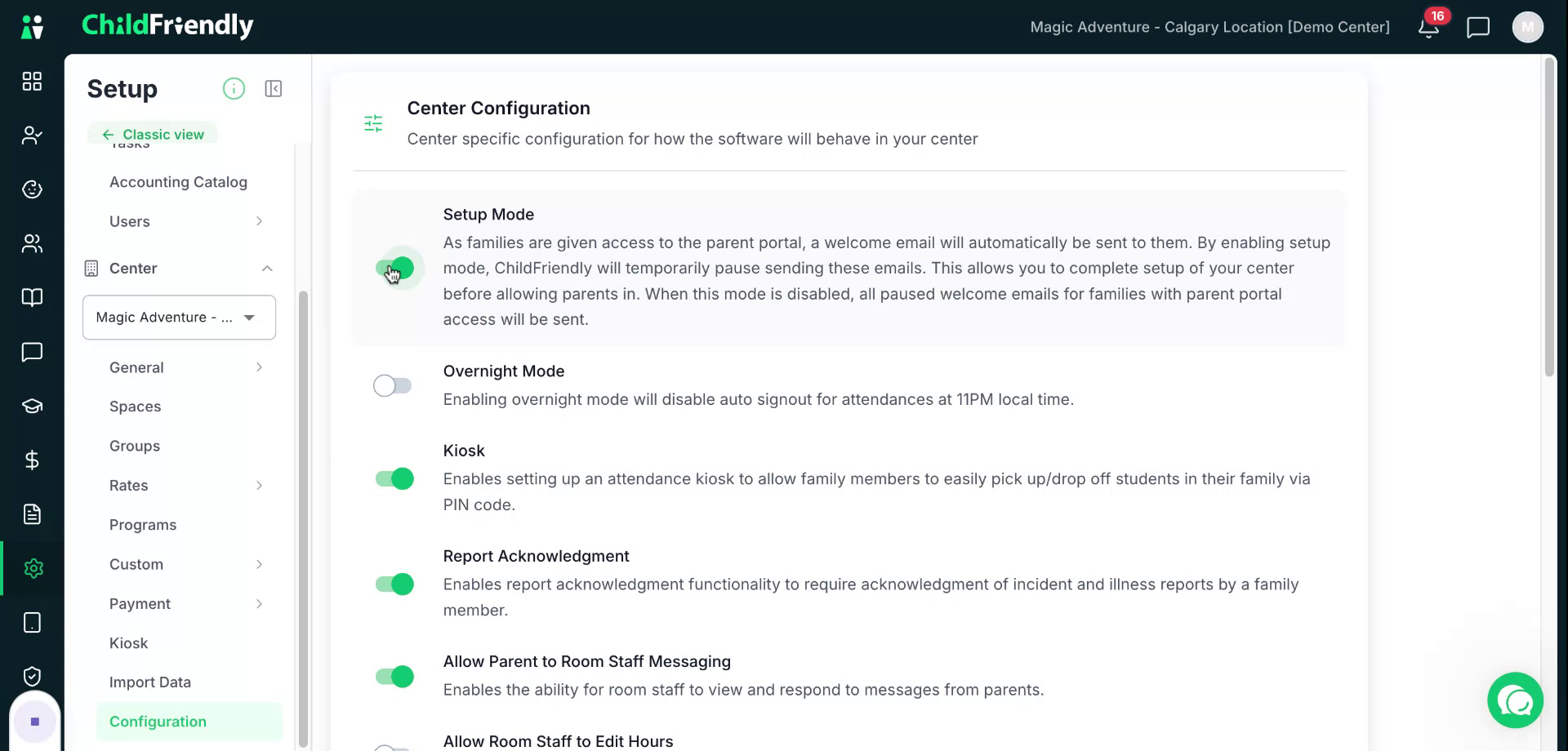
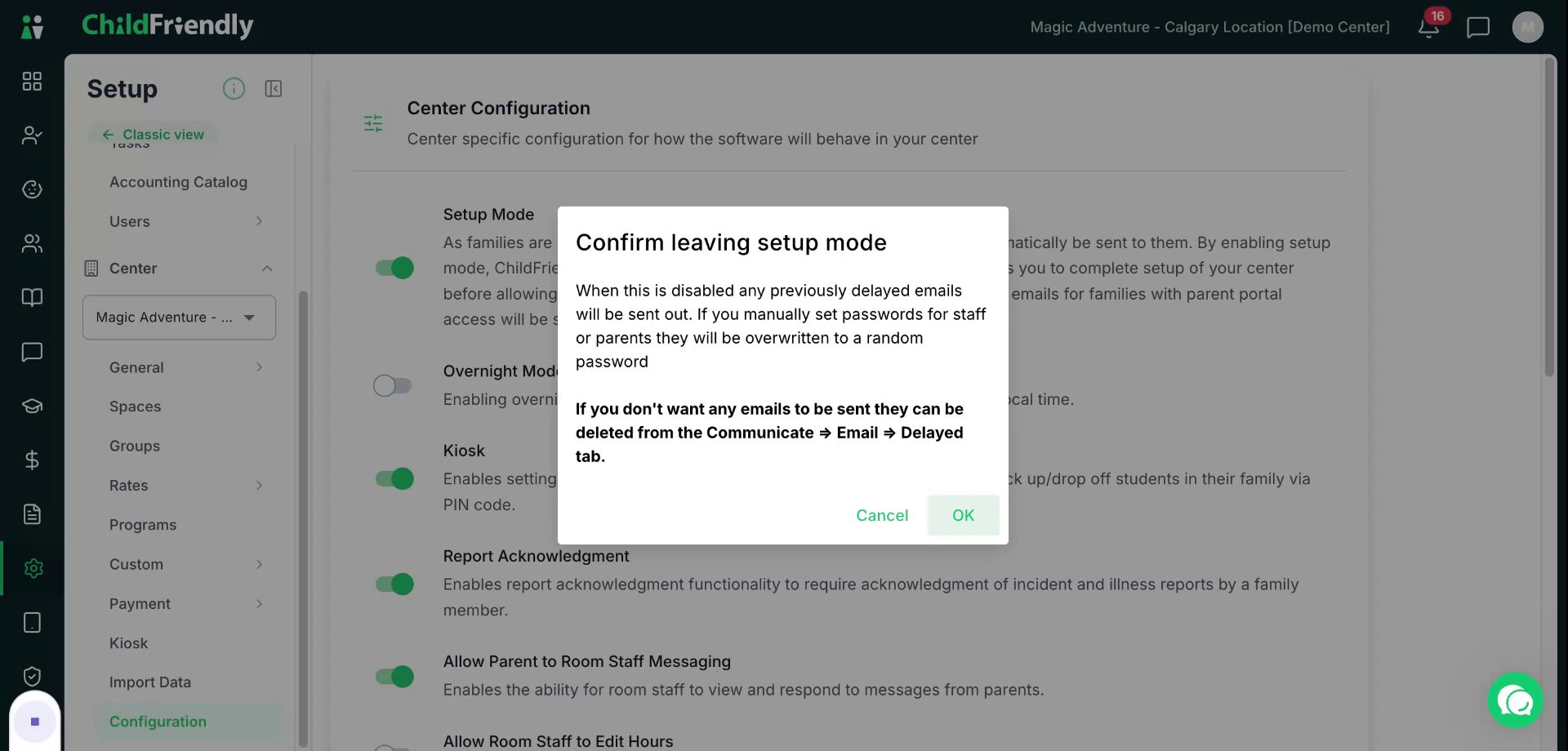
Once you are ready to go live, locate the Setup Mode toggle and switch it off. When prompted, confirm that you want to leave Setup Mode; any previously delayed emails will now be sent out. Click OK to finalize.
Step 5: Begin Providing Access to Families and Staff
After Setup Mode is disabled, you can start giving access to your families and staff members, allowing them to log in and use the system.
Was this helpful?
Still need help? Ask the team