How to Run Enrollment Reports
Use the Enrollment Reports in ChildFriendly to review current rosters, forecast future enrollment, monitor group and license capacity, globally view family answers to custom enrollment questions and track upcoming registration changes, starts, and ends across your center.
Last updated 3 months ago
Step 1: Open Enrollment Reports
In the left-hand navigation menu, go to the Reports section.
Click Enrollment Reports to open the enrollment reporting options.
Step 2: Run the Roster Details Report
In Enrollment Reports, select Roster Details.
Enter the date range you want to review.
Select the group you wish to see, or leave the group selection blank to include all applicable children.
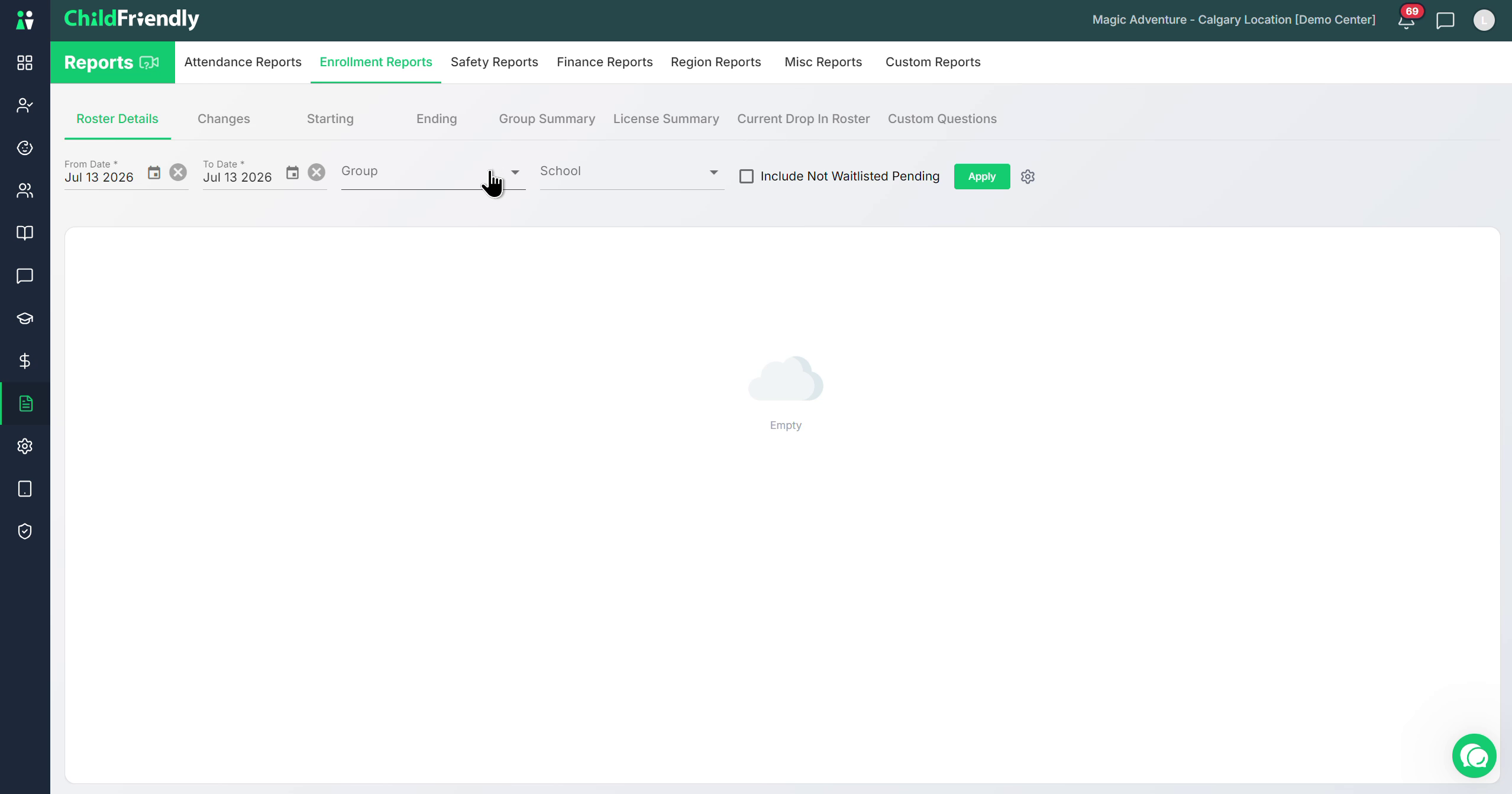
Optionally, select a specific school if applicable.
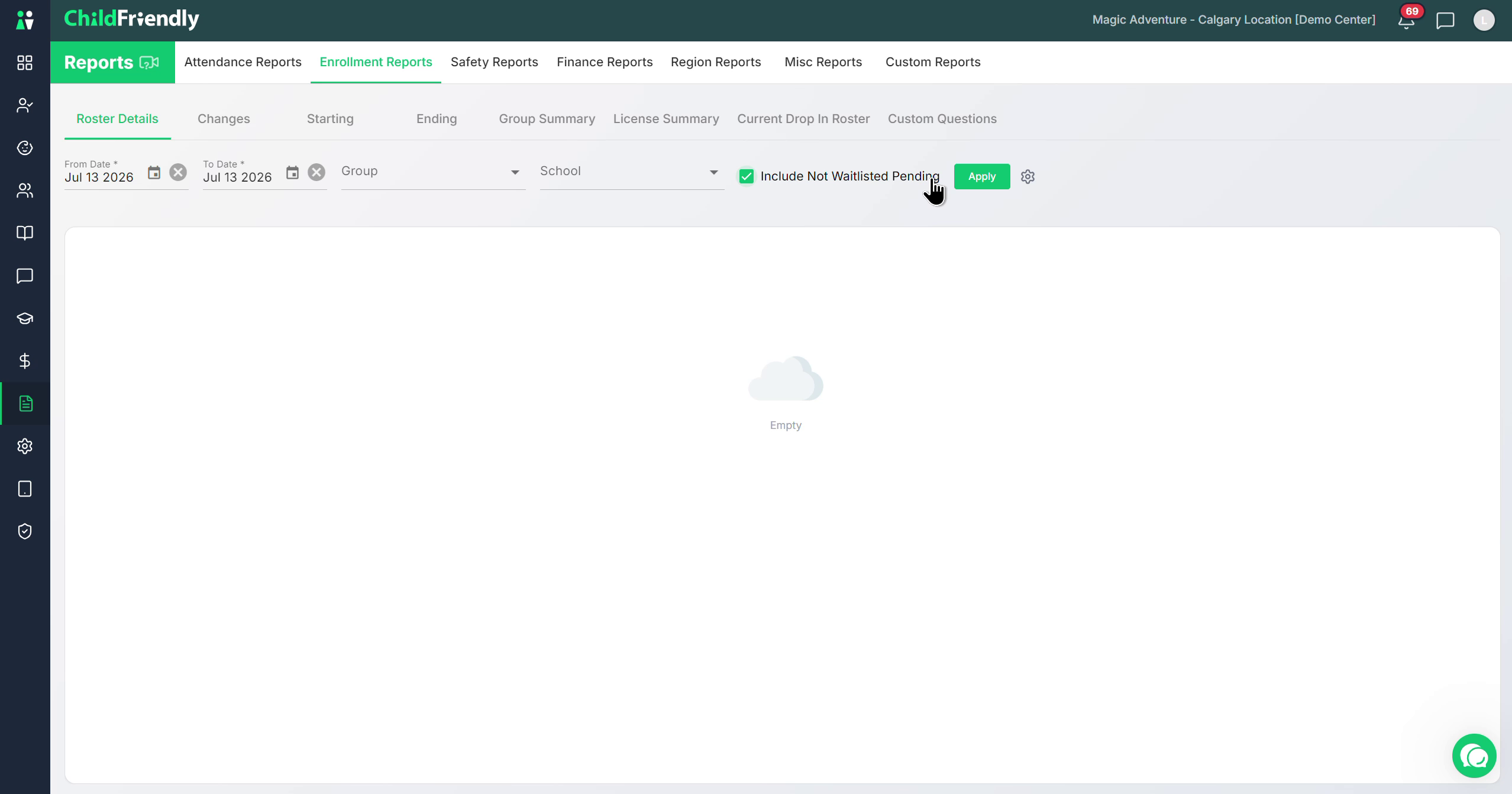
Choose whether to include students who are pending but not waitlisted. These are children with pending registrations who are not on the waitlist but are sitting in the admin dashboard ready to be registered.
Click Apply to generate the report.
This Roster Details report is your primary detailed roster view. It shows all children in your center for the selected date range, including:
Number of records (e.g., 83 records)
Date of birth
Current status as of today and status as of the filtered date
Information tags (e.g., missing guardian contact)
Registered days of attendance
Age group and program rate
Registration start and end dates, or withdraw date if entered
Step 3: Customize Columns and Export Roster Details
If you do not wish to see all available columns, click the gear icon (settings toggle).
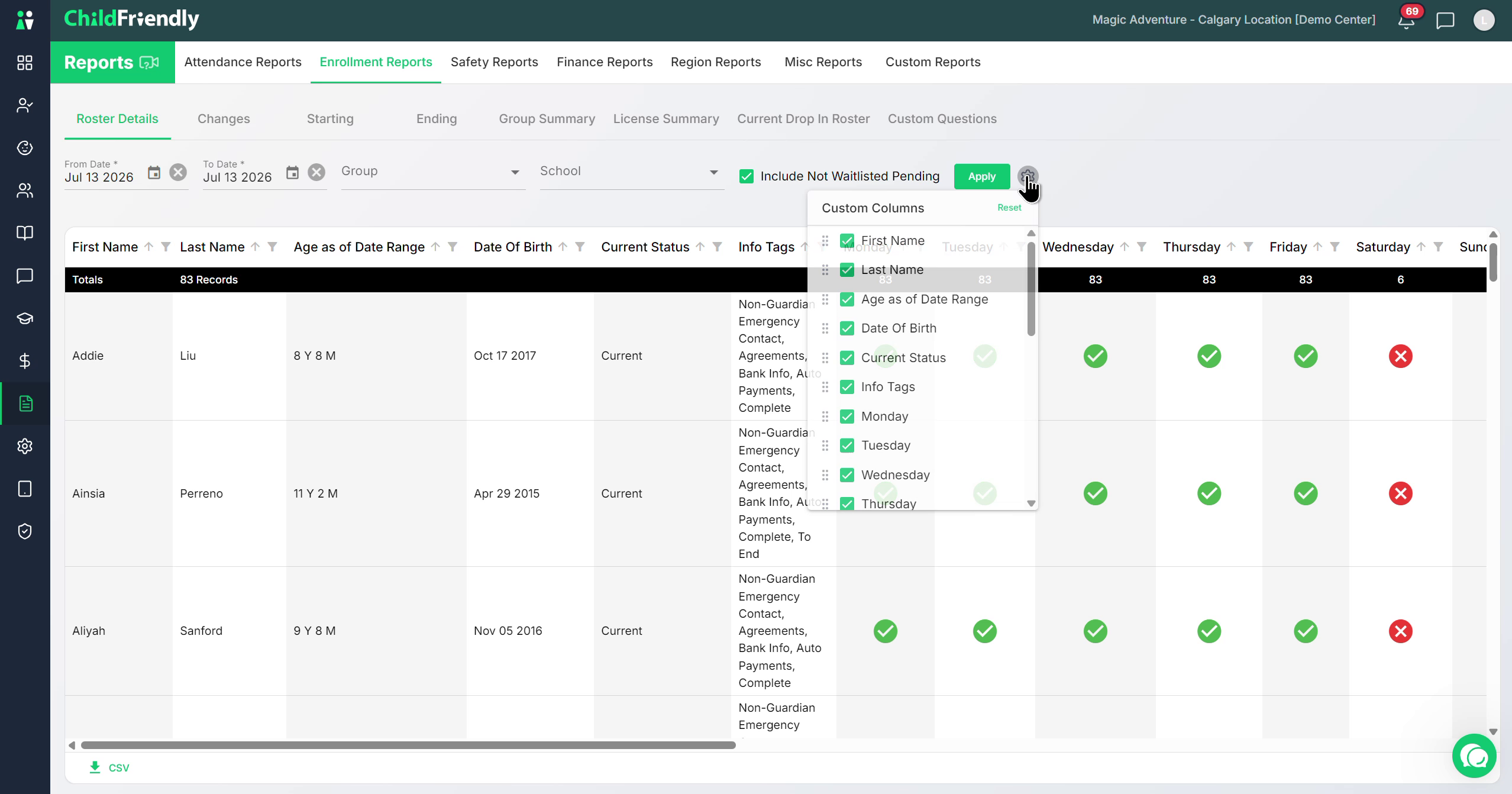
Uncheck any columns you do not want to display and reorder columns as needed.
Once customized, download the report as a CSV file if you wish to export the data.
Step 4: View Group Summary for Capacity and Counts
In Enrollment Reports, select Group Summary.
Choose whether to include pending but not waitlisted children, as with the Roster Details report.
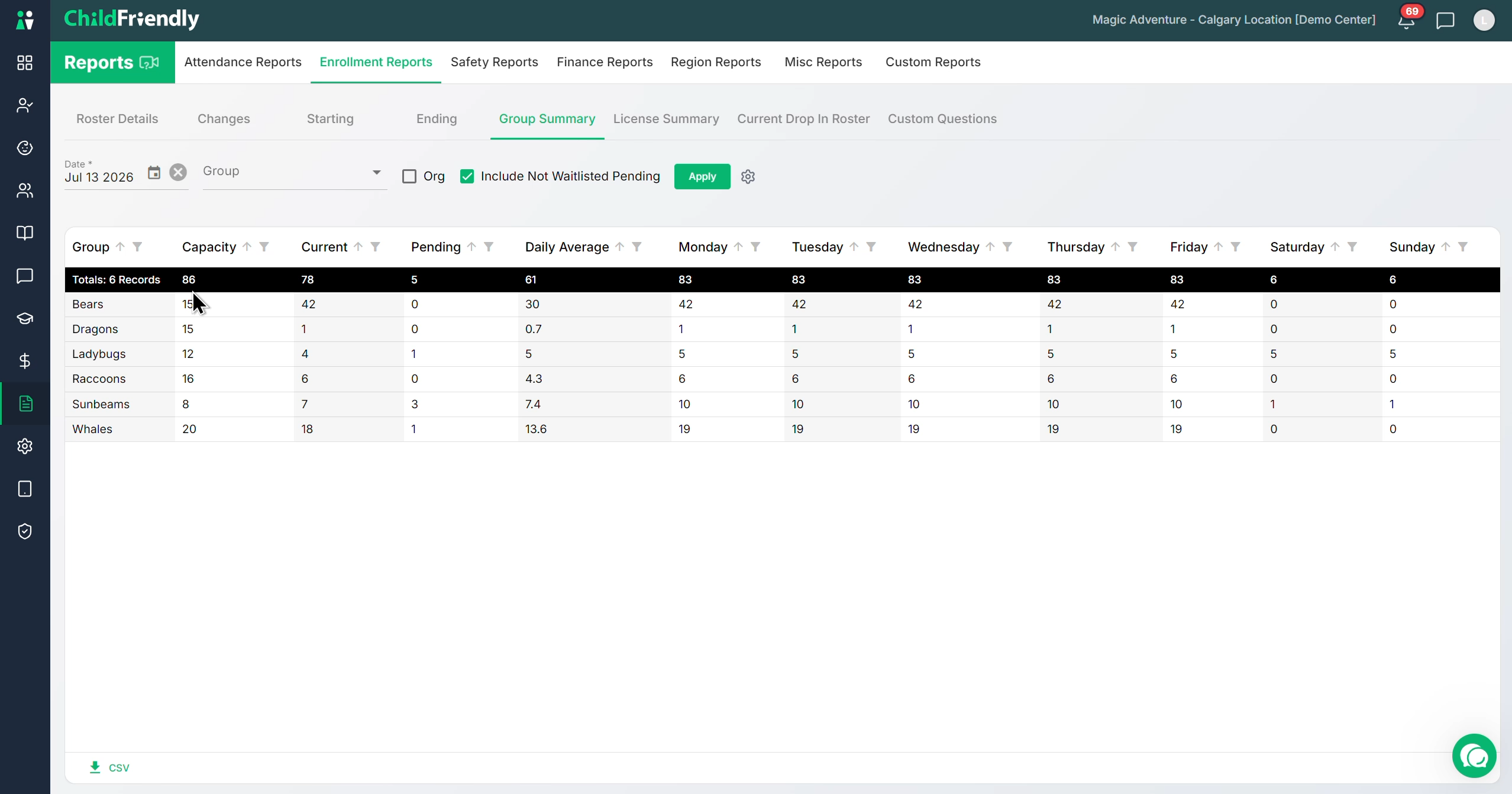
Set your date and click Apply.
The Group Summary report provides, as of the selected date:
Total count of children in your center
Capacity of each room
Number of children who will be current
Number of pending (not waitlisted) children
Daily average and related metrics
Results grouped and sorted by group
Step 5: Use License Summary for License-Based Views
If you prefer to see data summarized by license instead of by group, select the License Summary report in Enrollment Reports.
Run the report for your desired date range and options.
Review the results summarized by license type.
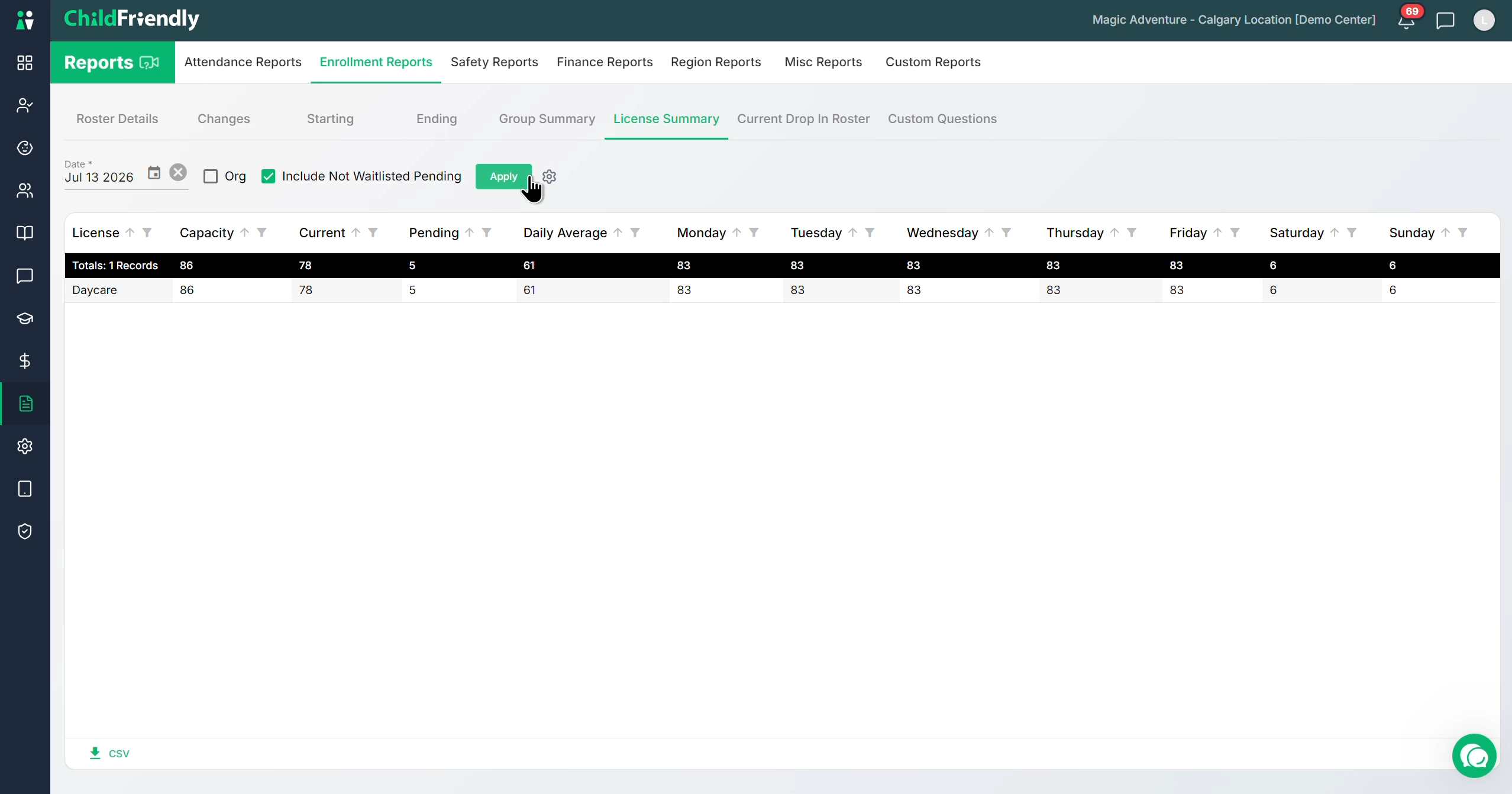
If your center has multiple license types (e.g., Daycare and Out-of-School Care), the report will divide counts accordingly. If there is only one license (e.g., just Daycare), all results will appear under that license.
Step 6: Review Drop-In Rosters
In the Drop In Roster report, you can view all children marked as drop-in.
Step 7: Run the Custom Questions Report
Select the Custom Questions report in Enrollment Reports.
Use this report to view answers to any custom questions added to the online registration form.
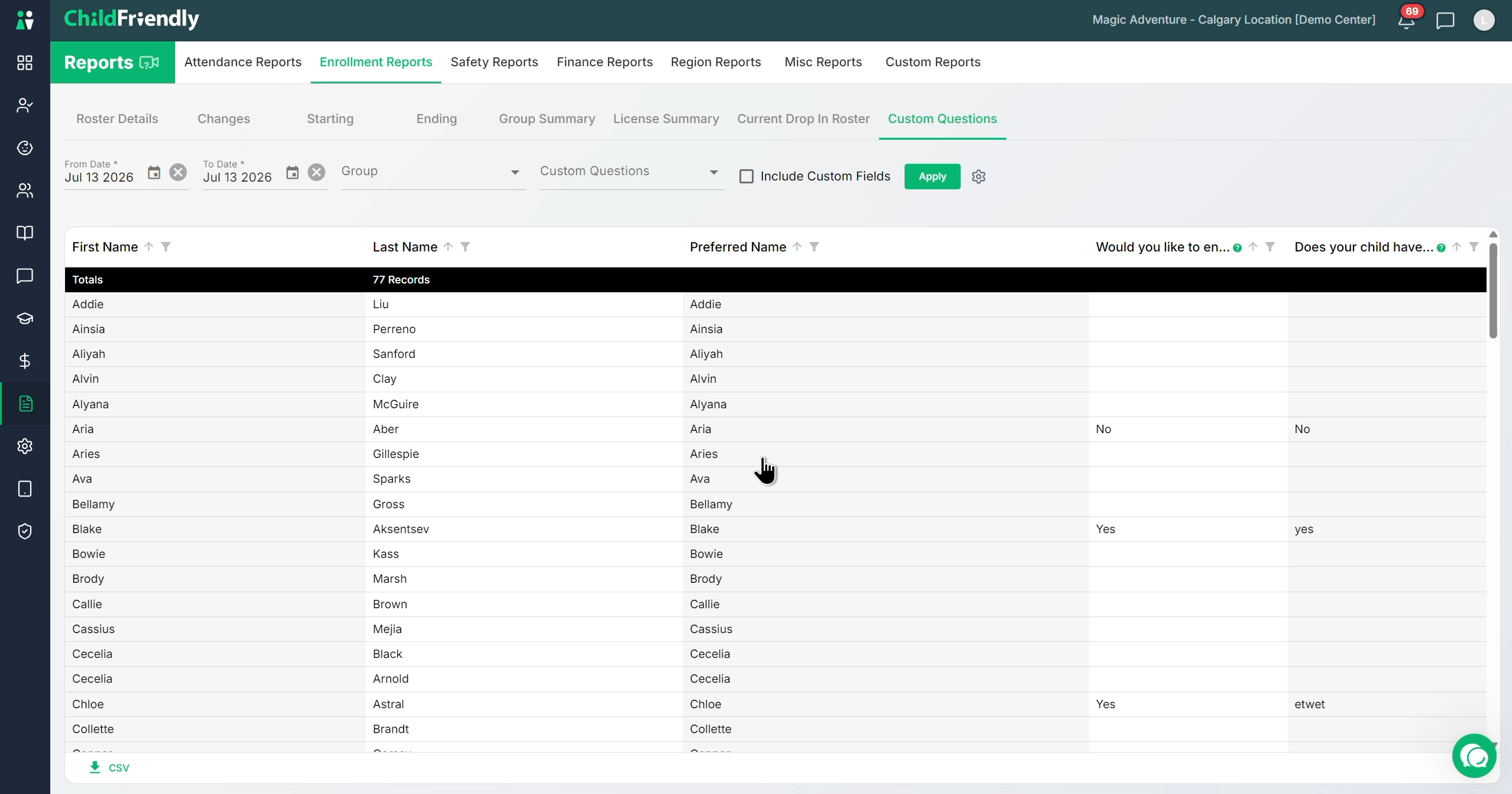
This is helpful for reviewing additional information collected during registration.
Step 8: Monitor Upcoming Registration Changes
Open the Changes report in Enrollment Reports.
Set the date range for the period you wish to review (e.g., the next month, two months, or three months) to see all upcoming changes in any children’s registration records, such as any child whose group or rate changes at some point in the selected period.
Click Apply.
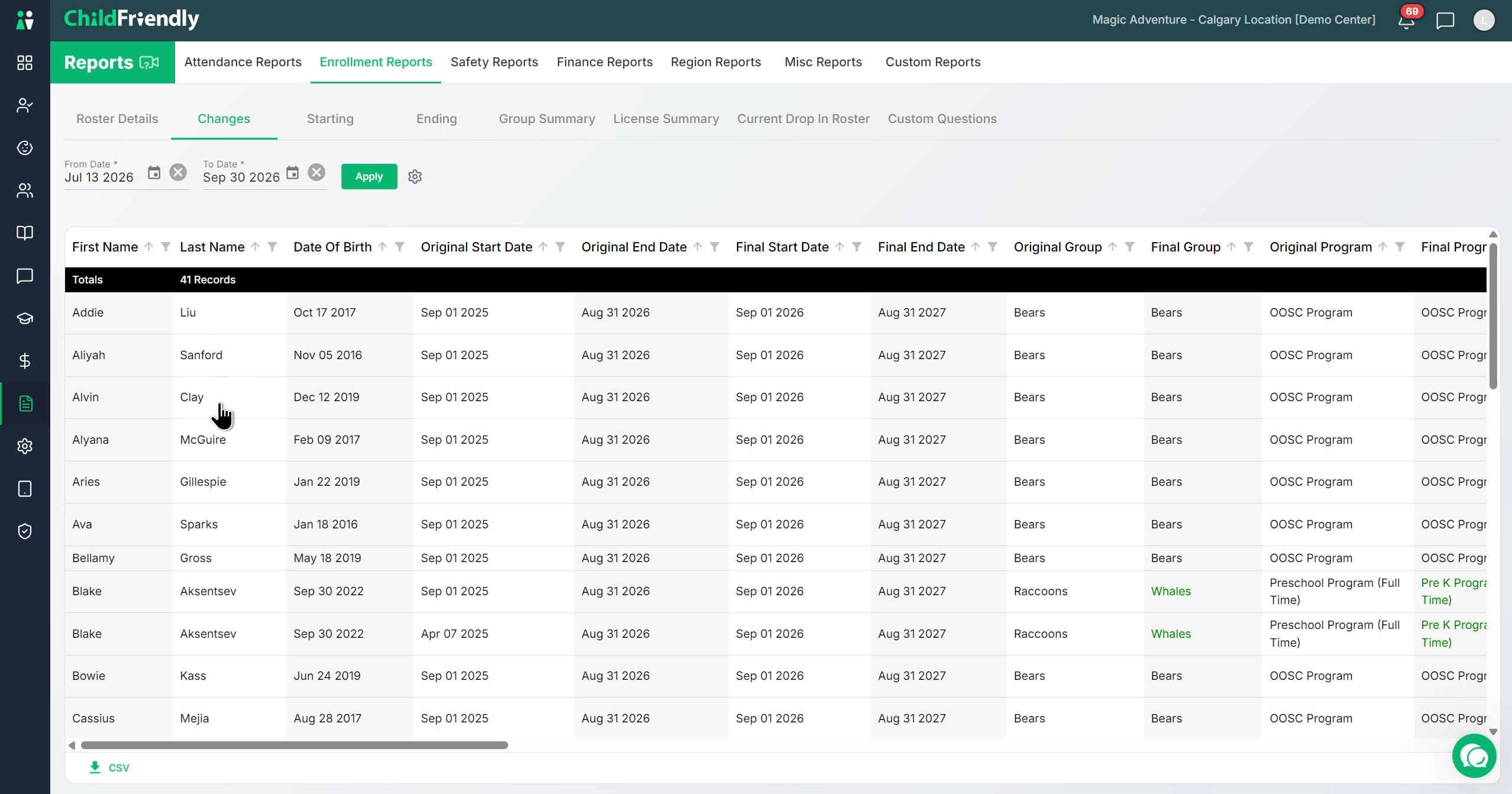
You can optionally customize the columns as before.
Step 9: Track New and Ending Registrations
Use the Starting report to see children with new registration recordsbeginning within a selected date range—these may be children new to the center or existing children with a new registration.
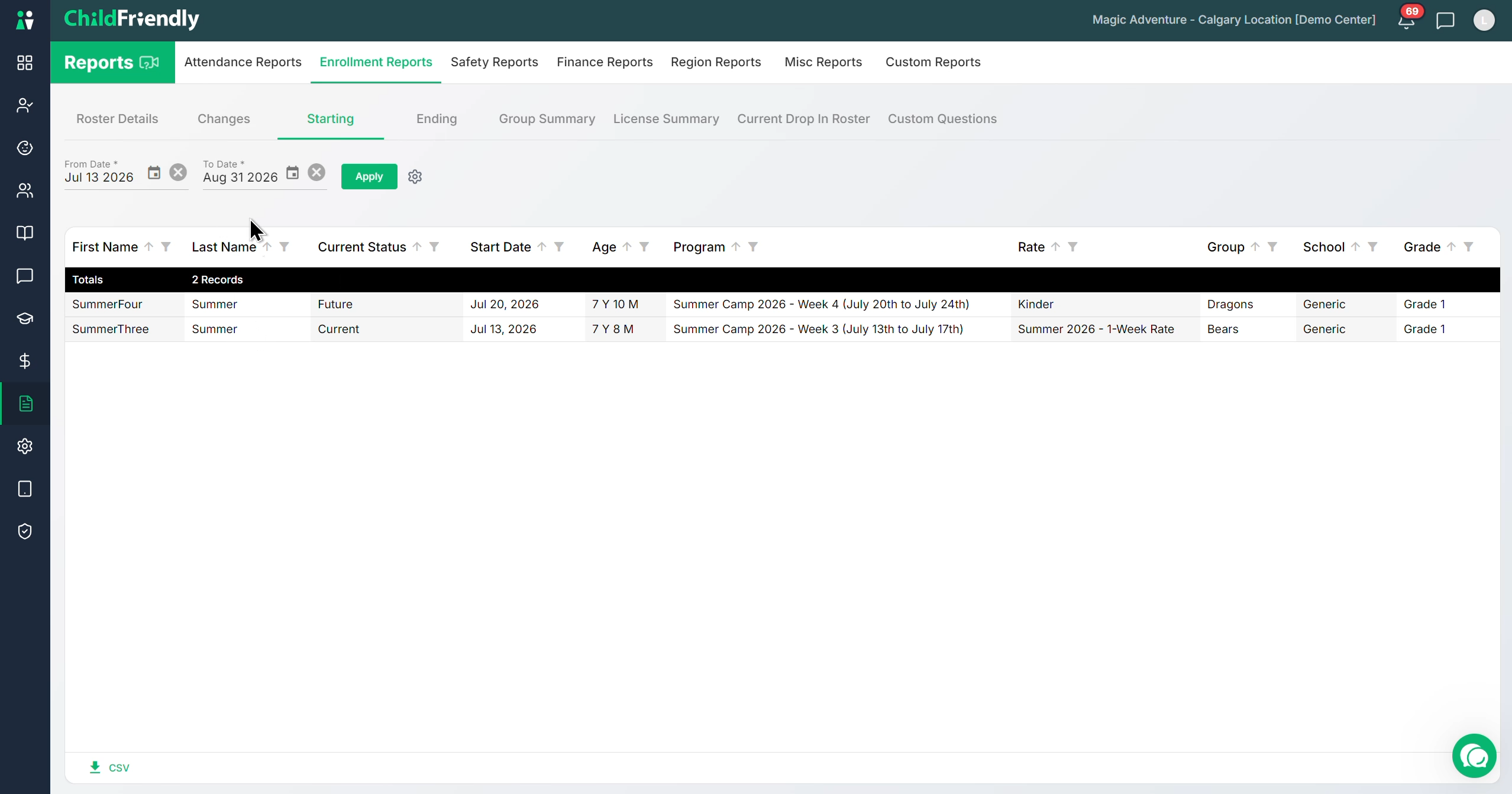
Use the Ending view similarly to see any children who has a registration record coming to an end within the date range.
Was this helpful?
Still need help? Ask the team