How to Set Up Groups within a Center
Use the Groups section in the Setup module to define how children are grouped for registration at your center. Groups are registration groupings (e.g., Sunbeams, Raccoons), distinct from physical spaces (e.g., Ladybugs classroom, gym). Proper setup ensures your groups align with your licensing approvals specific to your center, including, capacities, and permitted age ranges.
Last updated 3 months ago
Step 1: Understand Groups vs. Spaces
Groups represent how children are organized for registration purposes, not the physical rooms in your center. Spaces are physical locations (e.g., Ladybugs classroom, gym, outdoor play yard, office), while groups are registration cohorts (e.g., Sunbeams, Raccoons) whose combined capacities typically match your total licensed capacity.
In the example shown, the “Sunbeams” group allows infants aged 12–18 months, has a capacity of 8 children, indicates whether the group naps, and is associated with a Program (e.g., Infants or Nursery School program).
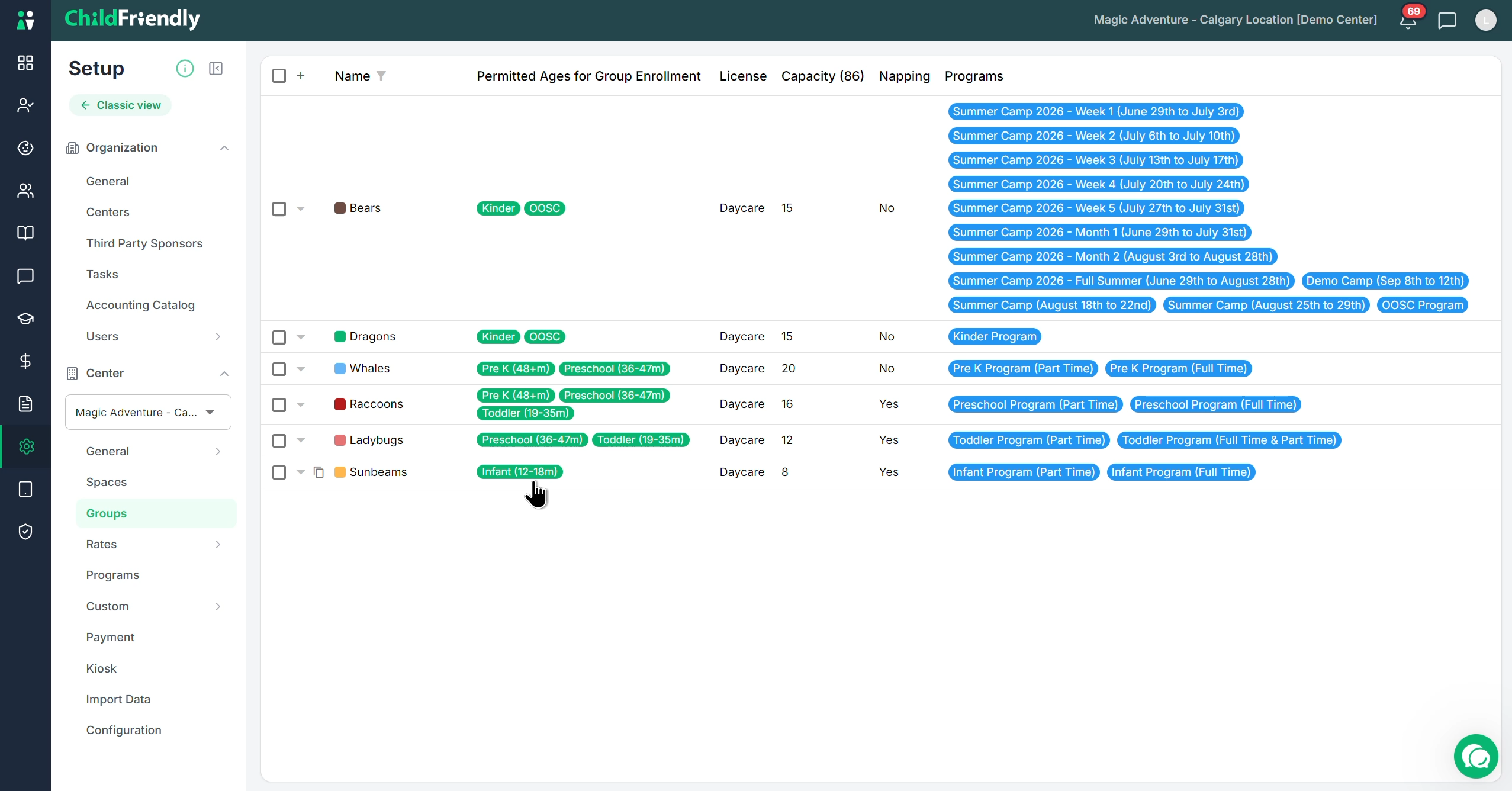
Programs are higher-level offerings (e.g., Infant program, Summer program, Pre-K program, Kindergarten, Out-of-School Care) that can have one or more groups attached. For example, a Preschool program might include the Raccoons group and another group such as Chipmunks.
Step 2: Add a New Group
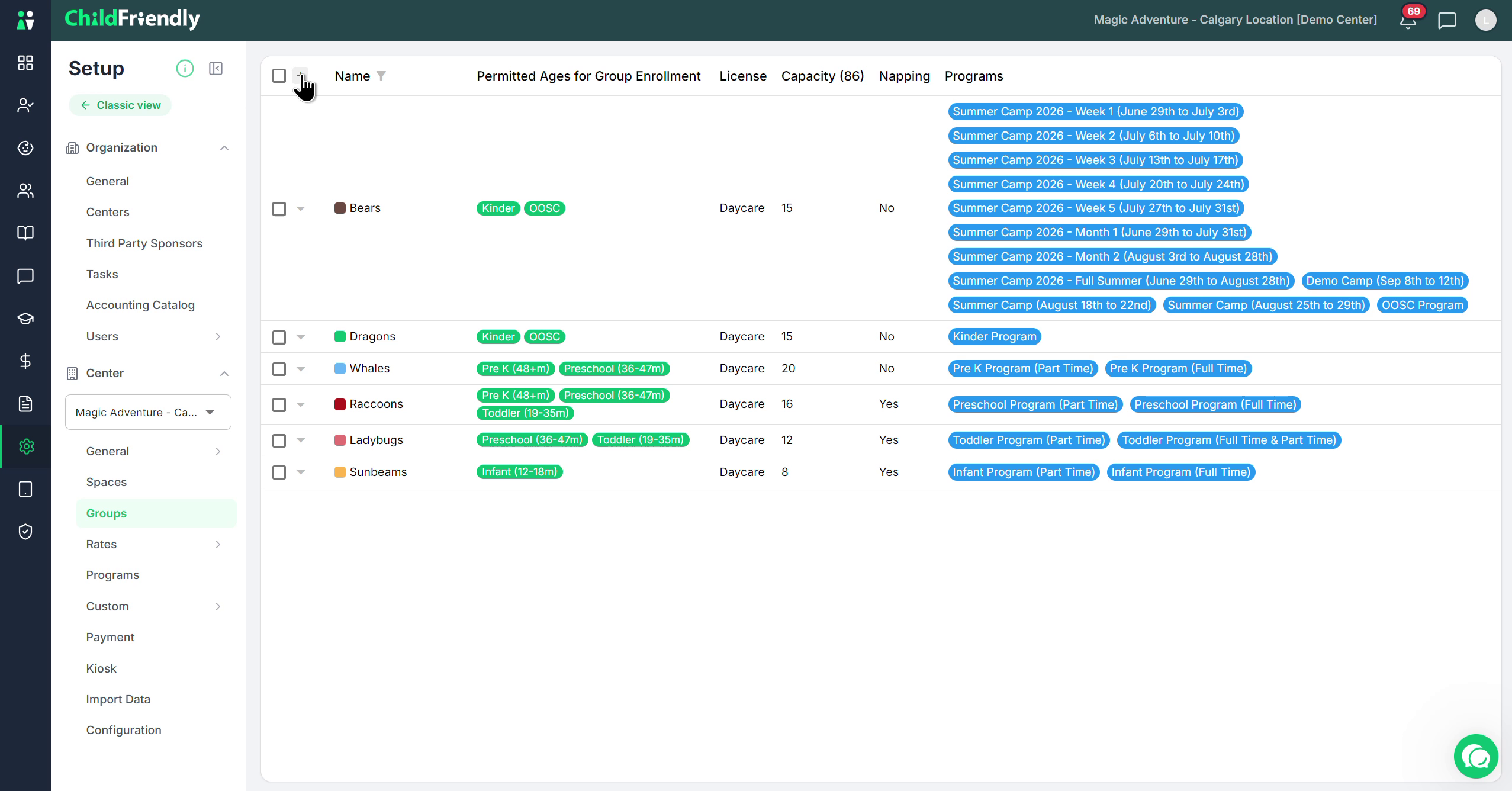
To create a new registration group for your center, click the plus (+) icon in the Groups section.
Step 3: Delete an Existing Group
To remove a group you no longer need:
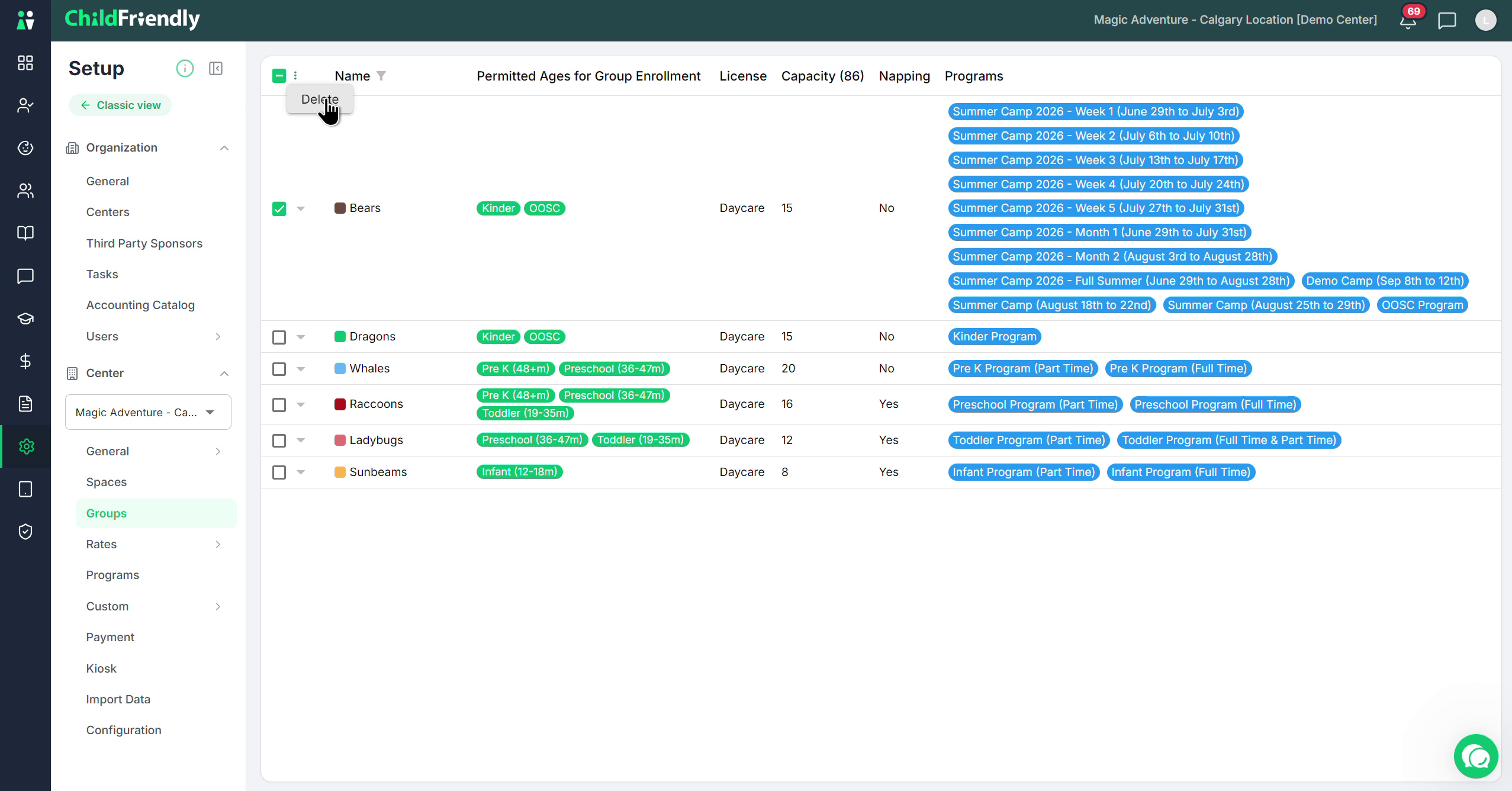
Select the checkbox for the group you wish to delete.
Click the triple-dot (more options) icon.
Choose Delete to permanently remove the group.
Step 4: Duplicate an Existing Group
To quickly create a new group based on an existing one, use the Copy icon:
Click the Copy icon next to the group you want to duplicate.
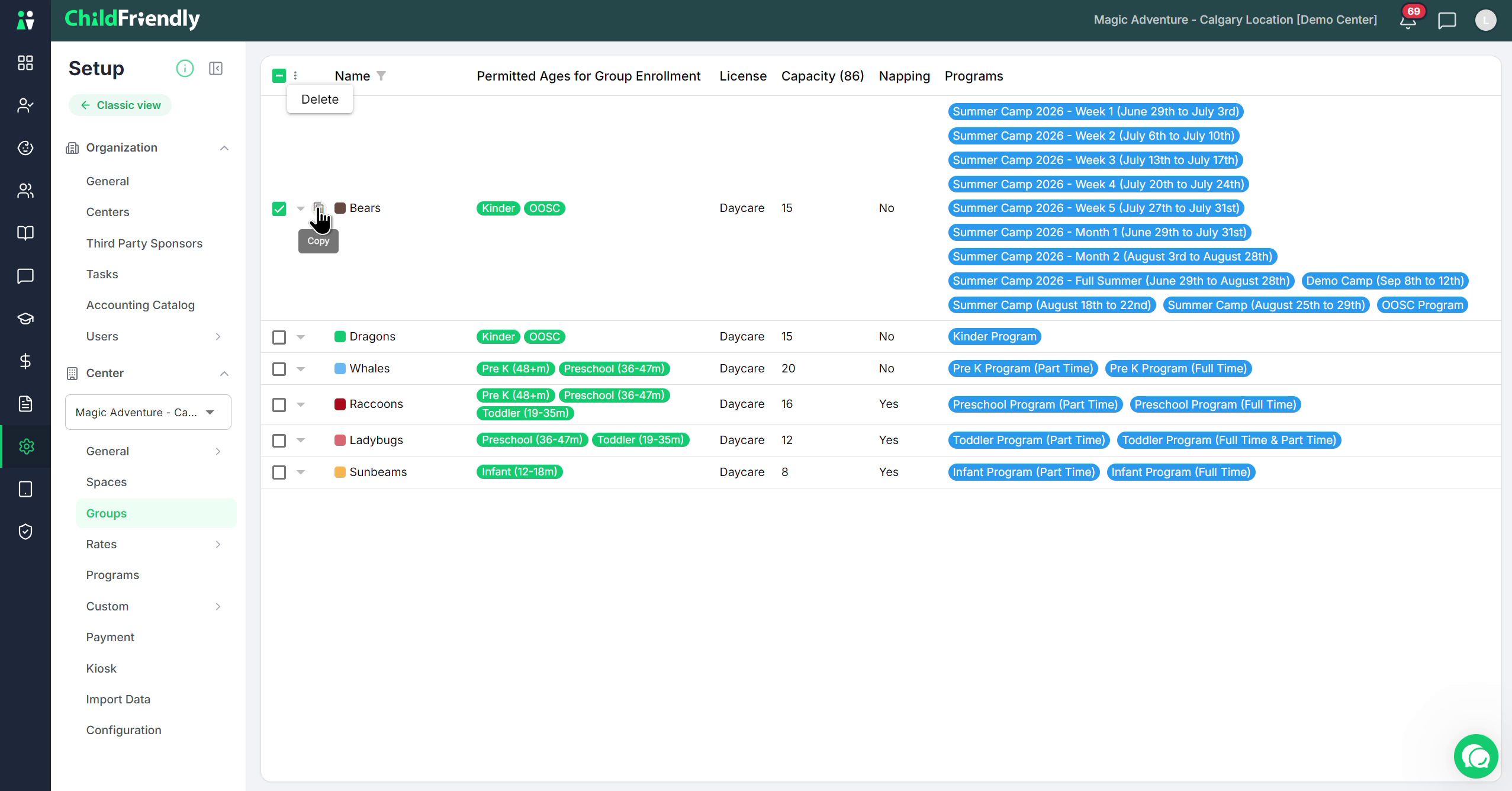
This will create a new group with the same configuration, which you can then edit as needed.
Step 5: Open a Group for Editing
To review or modify a group’s details:
Expand the group row to open its edit view.
The available fields for configuration will be displayed.
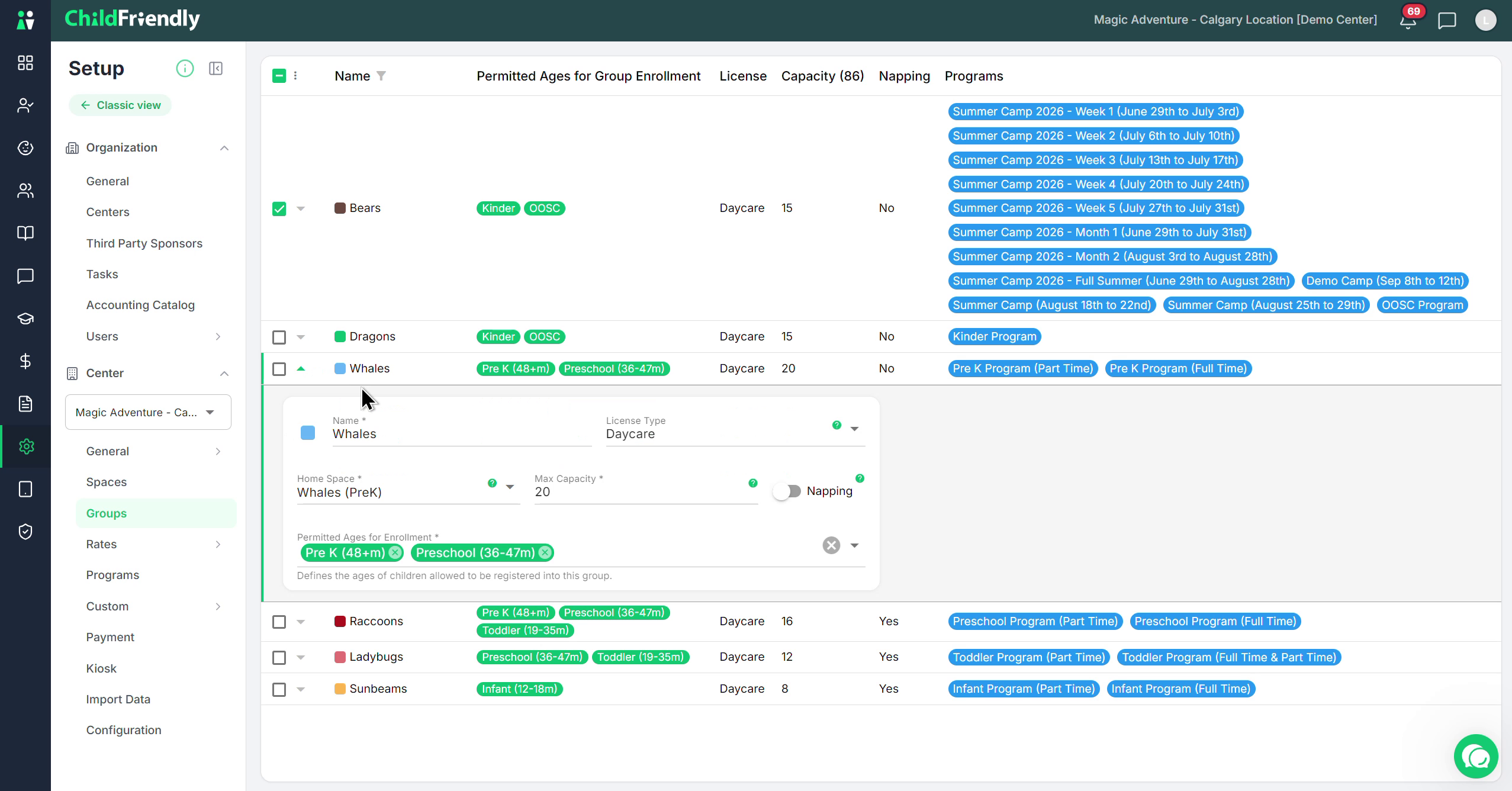
Step 6: Configure Group Name and Color
Within the group edit view:
Enter a clear, descriptive Group Name (e.g., “Sunbeams,” “Raccoons,” “Whales”).
Assign a Color Code to visually categorize groups (for example, one color for infant/toddler groups and another for preschool/Pre-K groups).
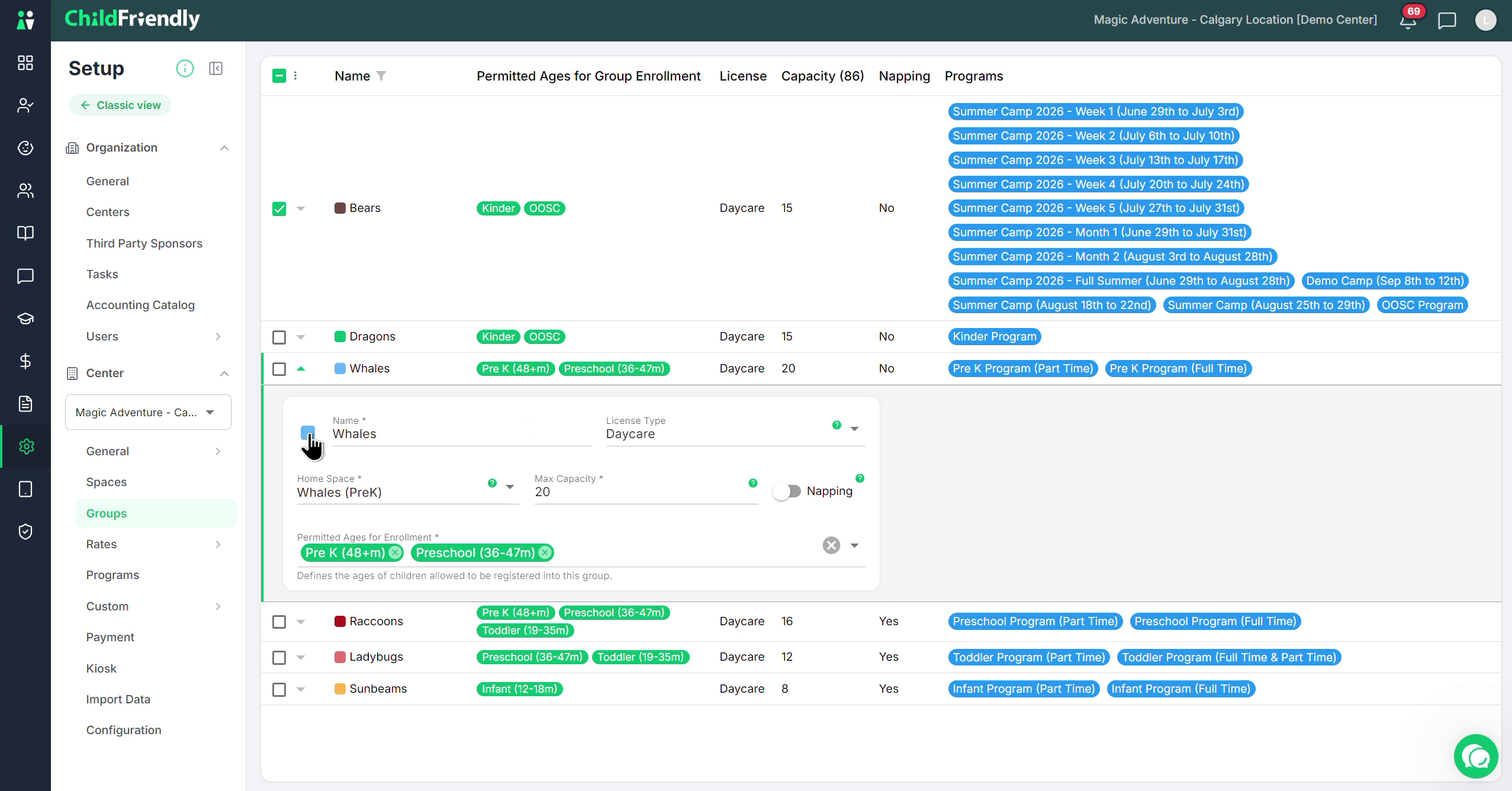
Step 7: Select the License Type
Specify which license this group belongs to:
Click License Type and choose the appropriate option (e.g., daycare, preschool, out-of-school care).
Available license types may vary depending on your state or province.
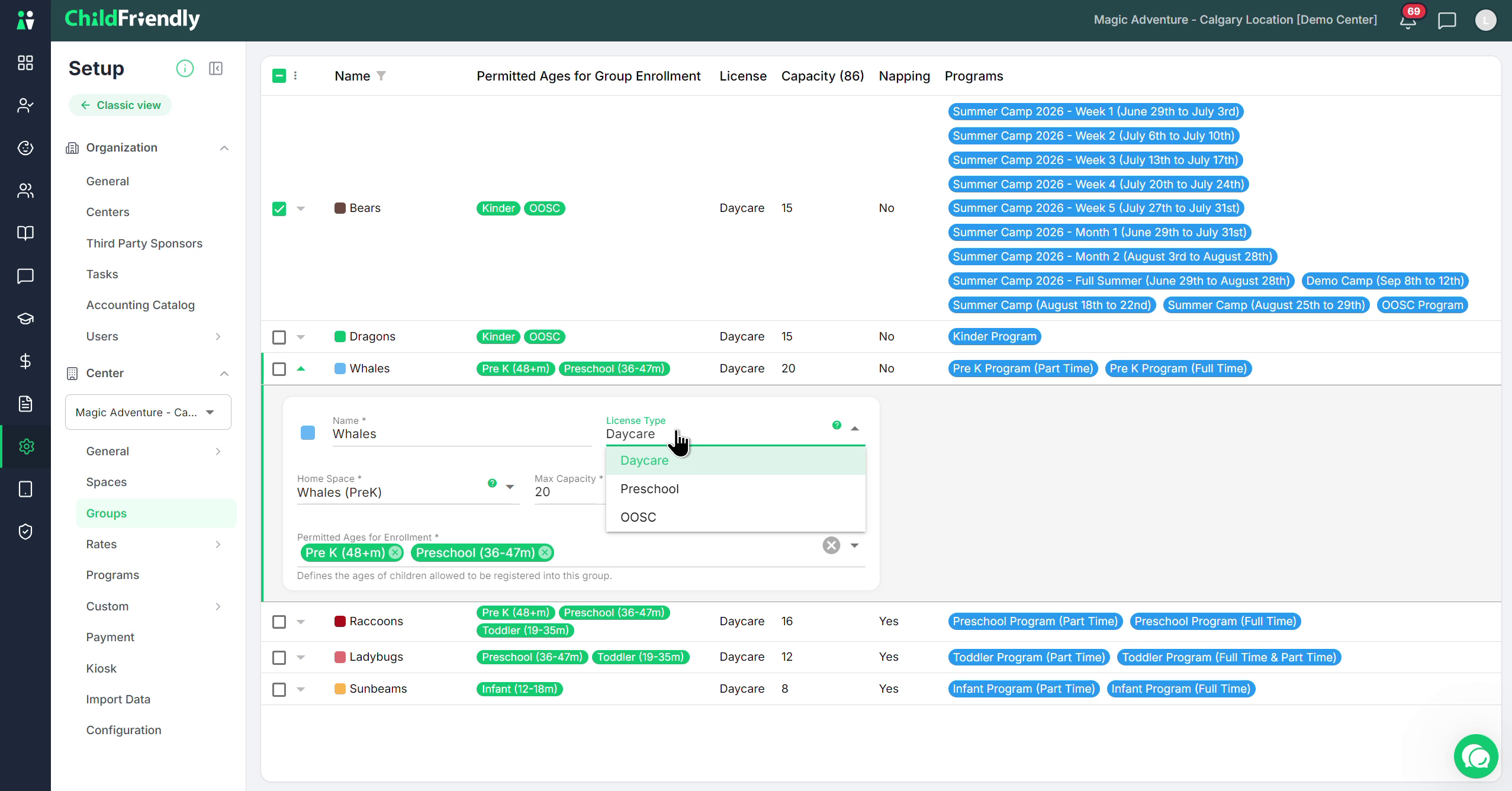
Step 8: Assign a Home Space
Designate the primary room or space associated with this group:
Set the Home Space (often their homeroom, such as the “Whales” classroom).
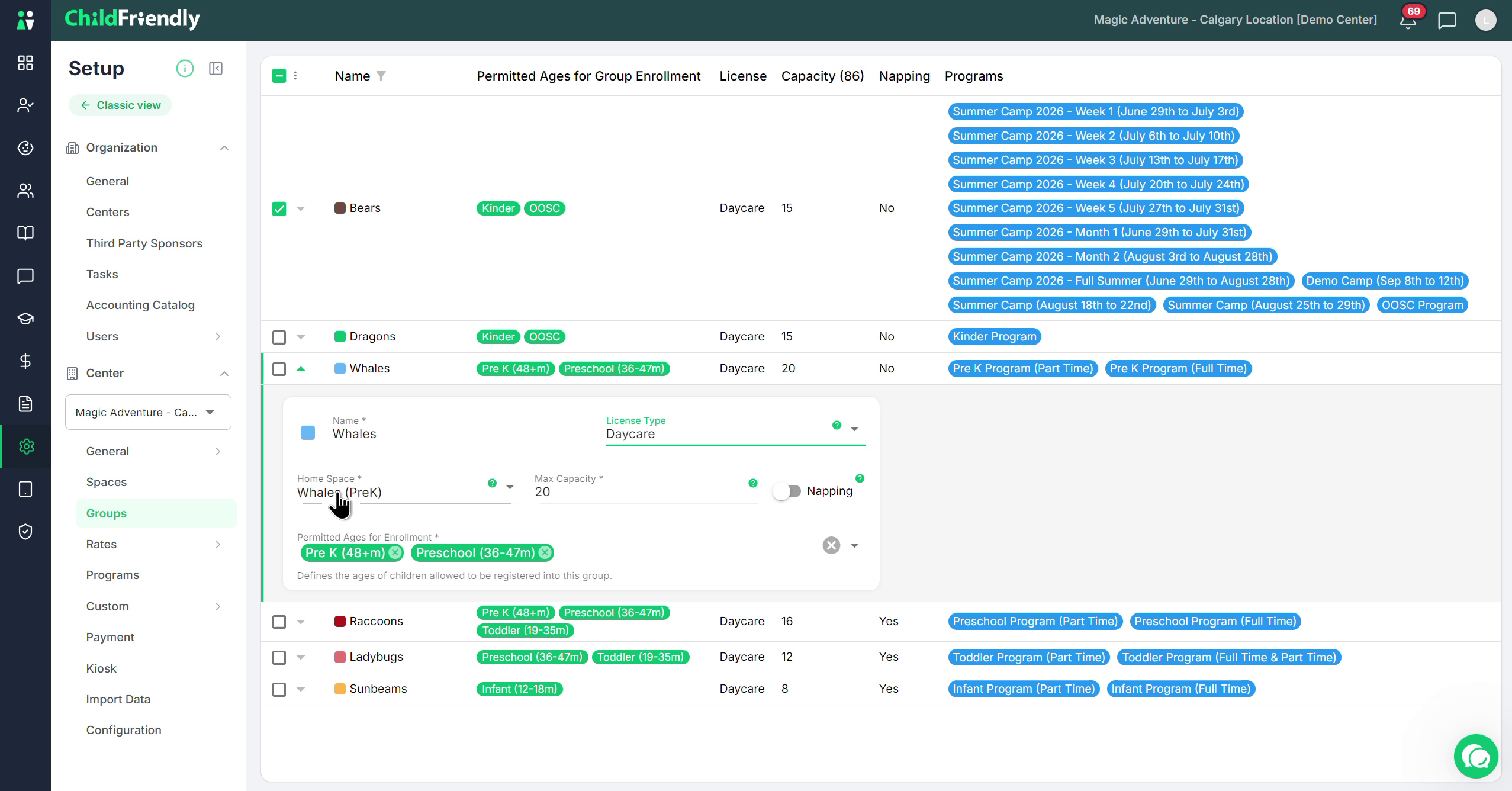
The home space is where the group typically signs in, even if they also use other spaces like the gym or outdoor areas. This home room is considered their main homeroom location.
Step 9: Set Maximum Capacity and Napping Availability
Define the group’s capacity and nap status:
Enter the Max Capacity for this group based on your licensed registration capacity for that group.
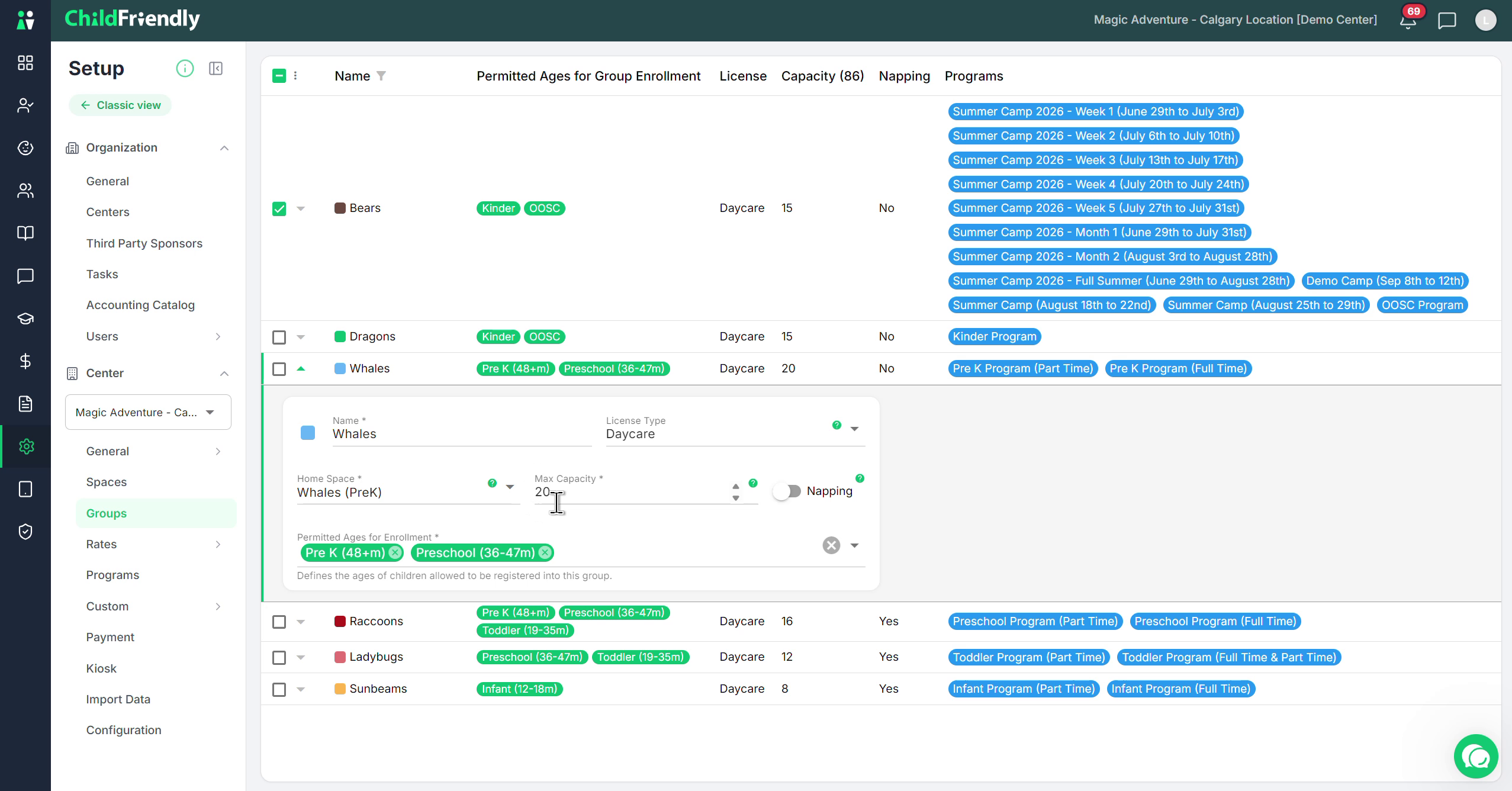
Indicate whether this group Naps (yes/no).
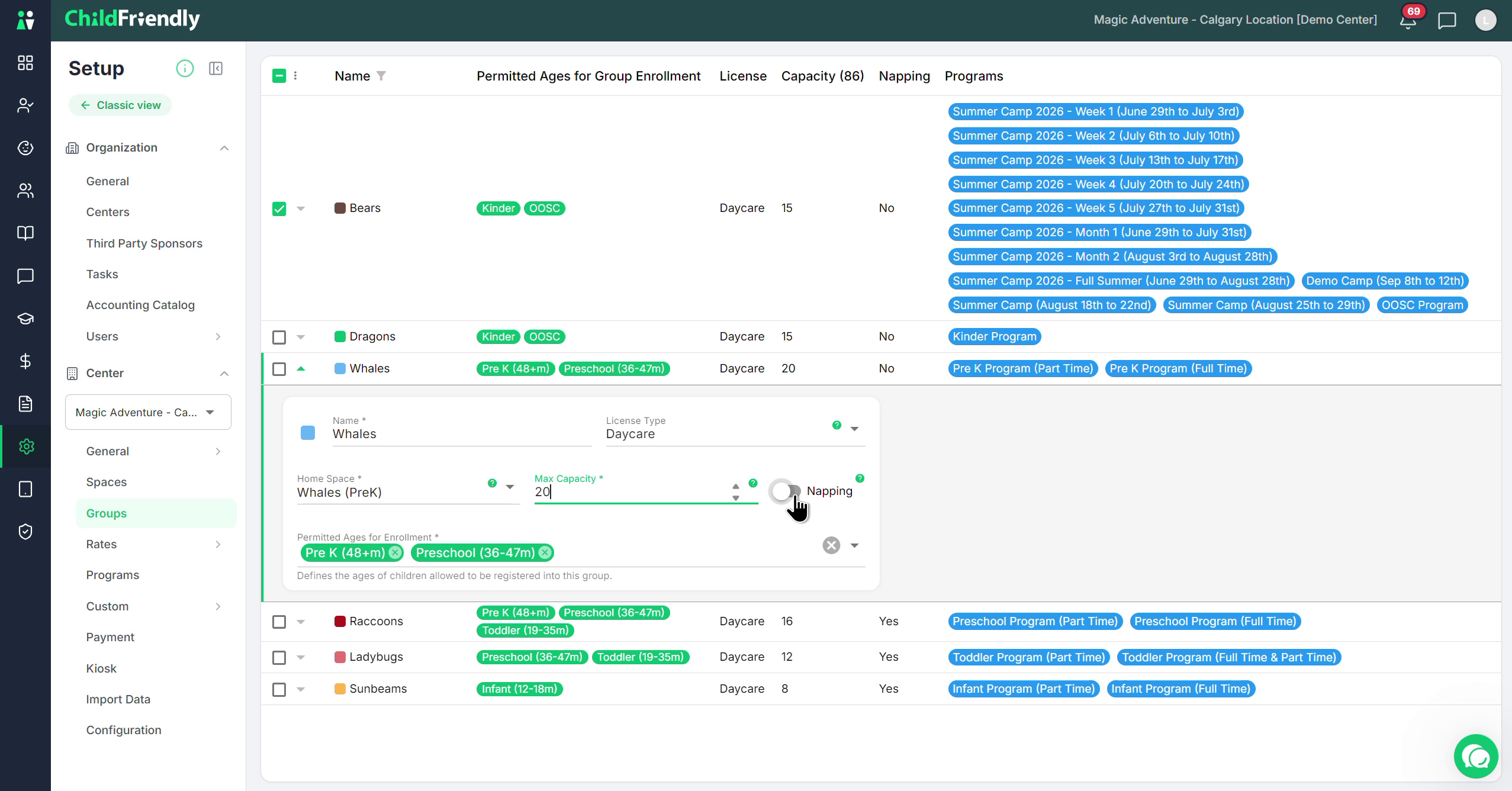
Step 10: Define Permitted Ages for Enrollment
Configure the age range allowed in the group:
Set the Permitted Ages for Enrollment, which determines which children can be registered into this group at any given time, including as they age.
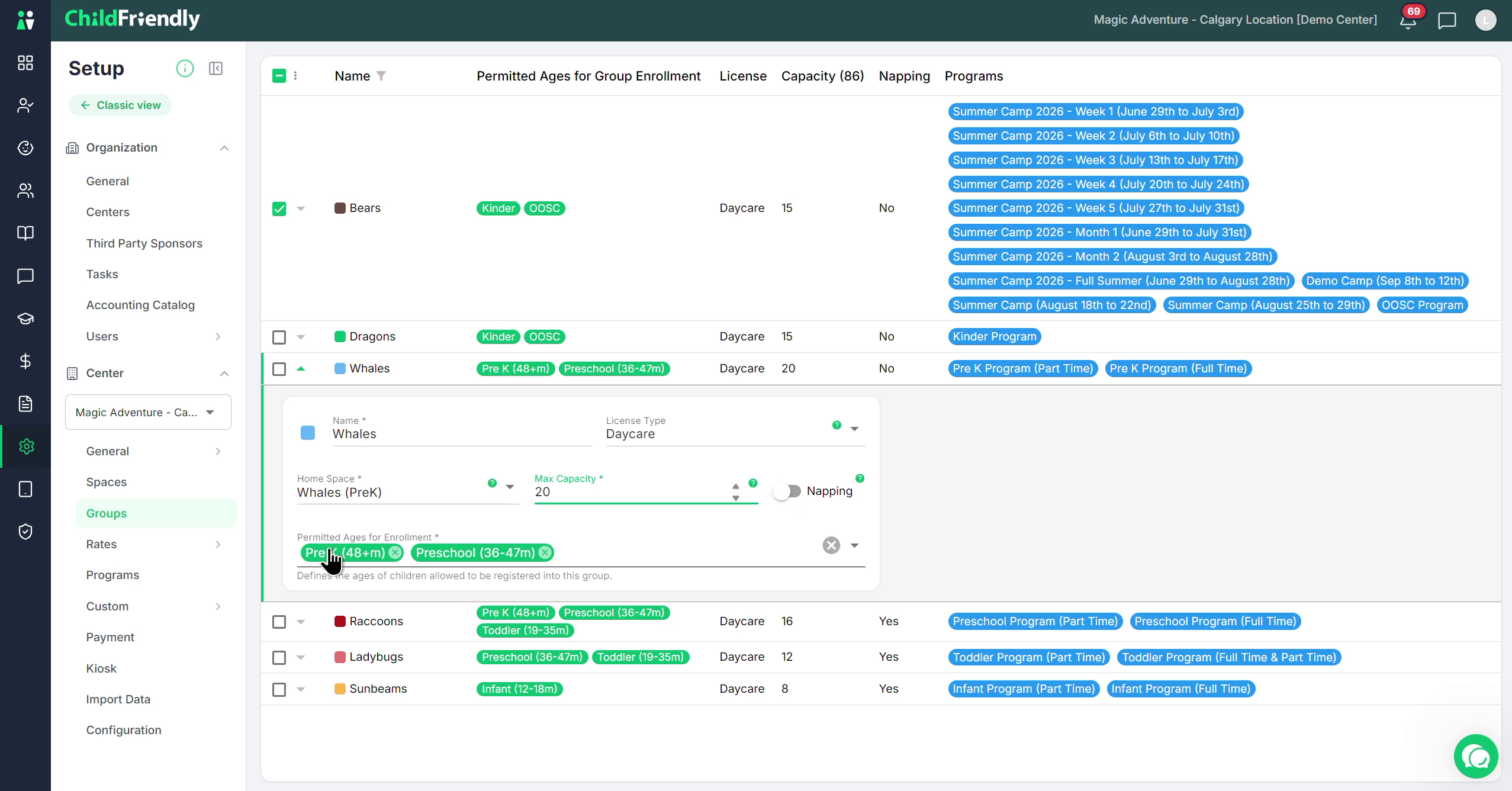
This setting controls eligibility: if a child’s age falls outside the permitted range, the system will generate a “forbidden age” error and will not allow the child to remain in the group.
To avoid issues when children age up but cannot yet move to an older group (e.g., no space available), it is recommended to:
Set the standard age range for the group (e.g., infant/toddler), and
Add a buffer by including the next age band up, so that children who have just aged up can temporarily remain in the group without triggering forbidden age errors.
Was this helpful?
Still need help? Ask the team