How to Run the Illness Log
This document explains how to access, filter, and export the Illness Log from the Reports module. You will learn how to select date ranges, filter by group, review the illness details, and download the report as a CSV file.
Last updated 3 months ago
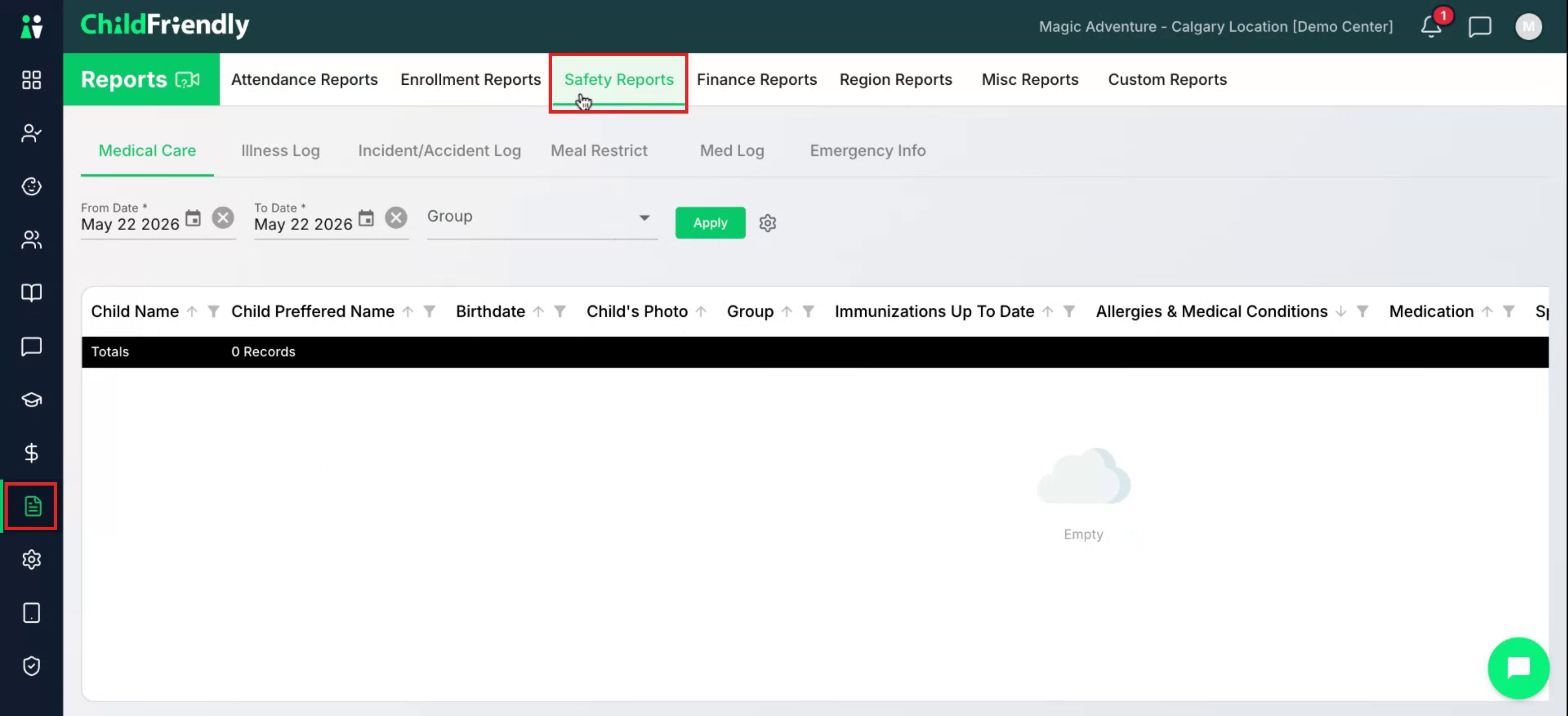
Step 1: Open the Safety Reports Tab
Ensure you are in the Reports module, then click the Safety Reports tab at the top.
Step 2: Navigate to the Illness Log
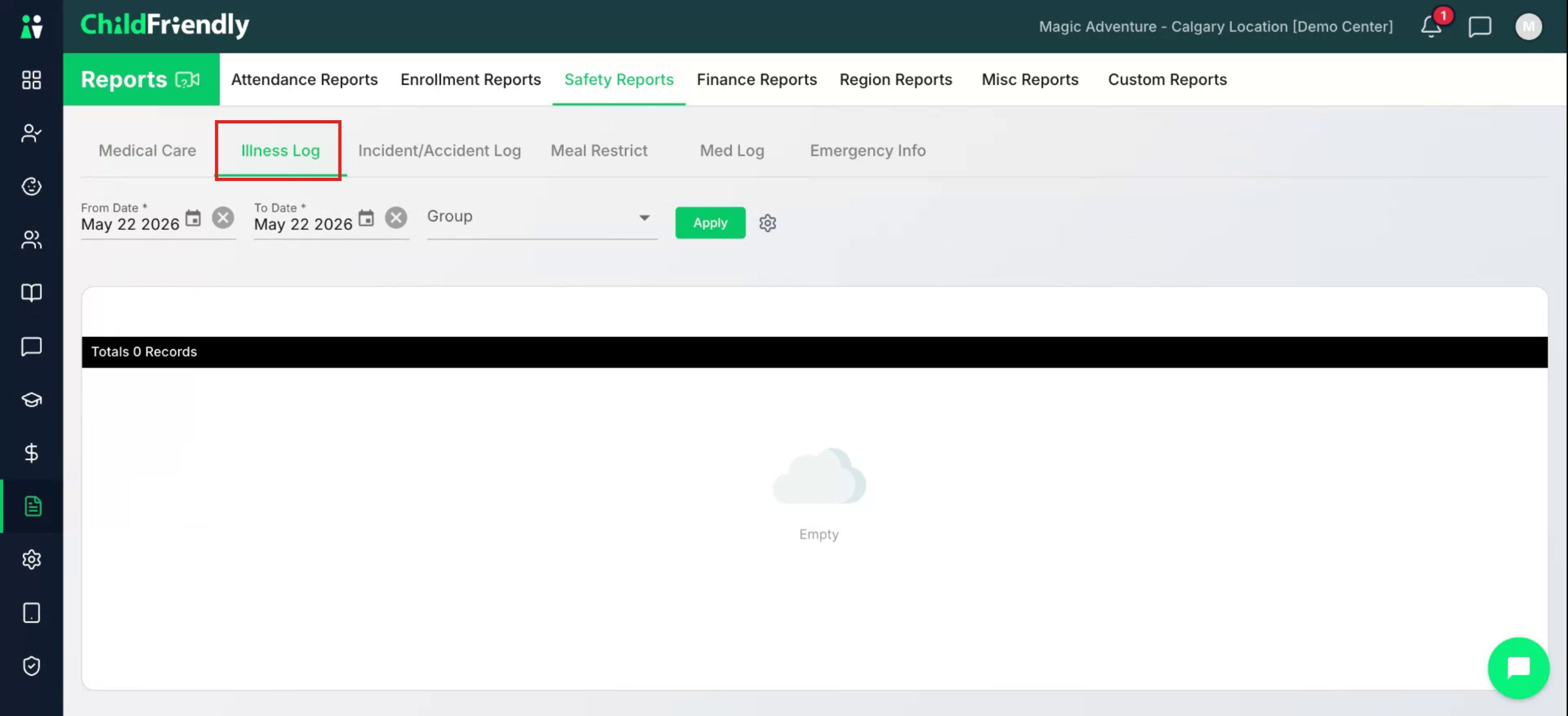
Within Safety Reports, go to the Illness Log tab.
The illness log displays all illness journal records approved by admin.
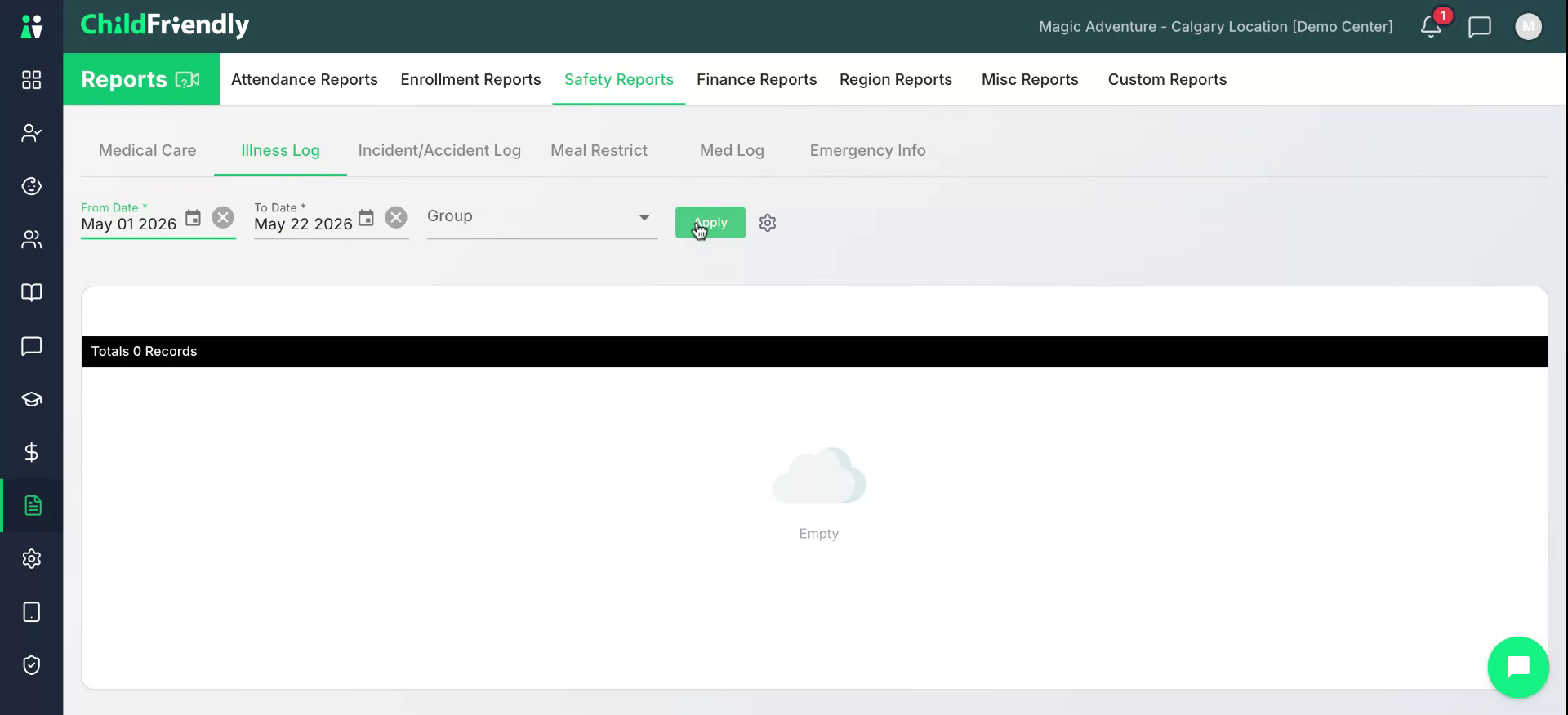
Step 3: Choose the Date or Date Range
From the Illness Log, you can either search by a specific date or select a broader date range (for example, by month, year, or a custom range).

After selecting your desired date or date range, click the Apply button.
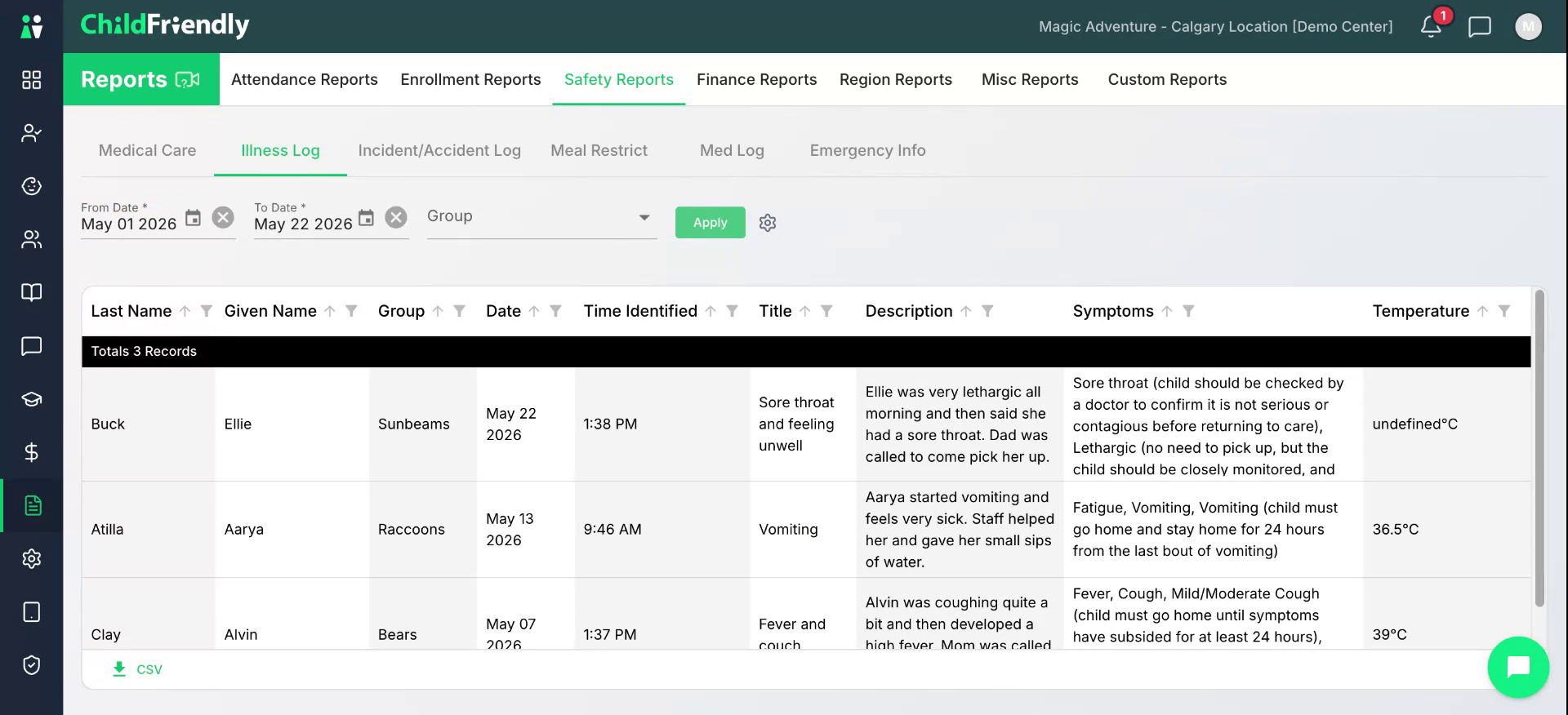
Step 4: Review the Illness Log Results
A list of all illness logs for the selected period will appear. The report displays:
Last name and first name
Group
Date
Illness description
Symptoms
Recorded temperature (if available)
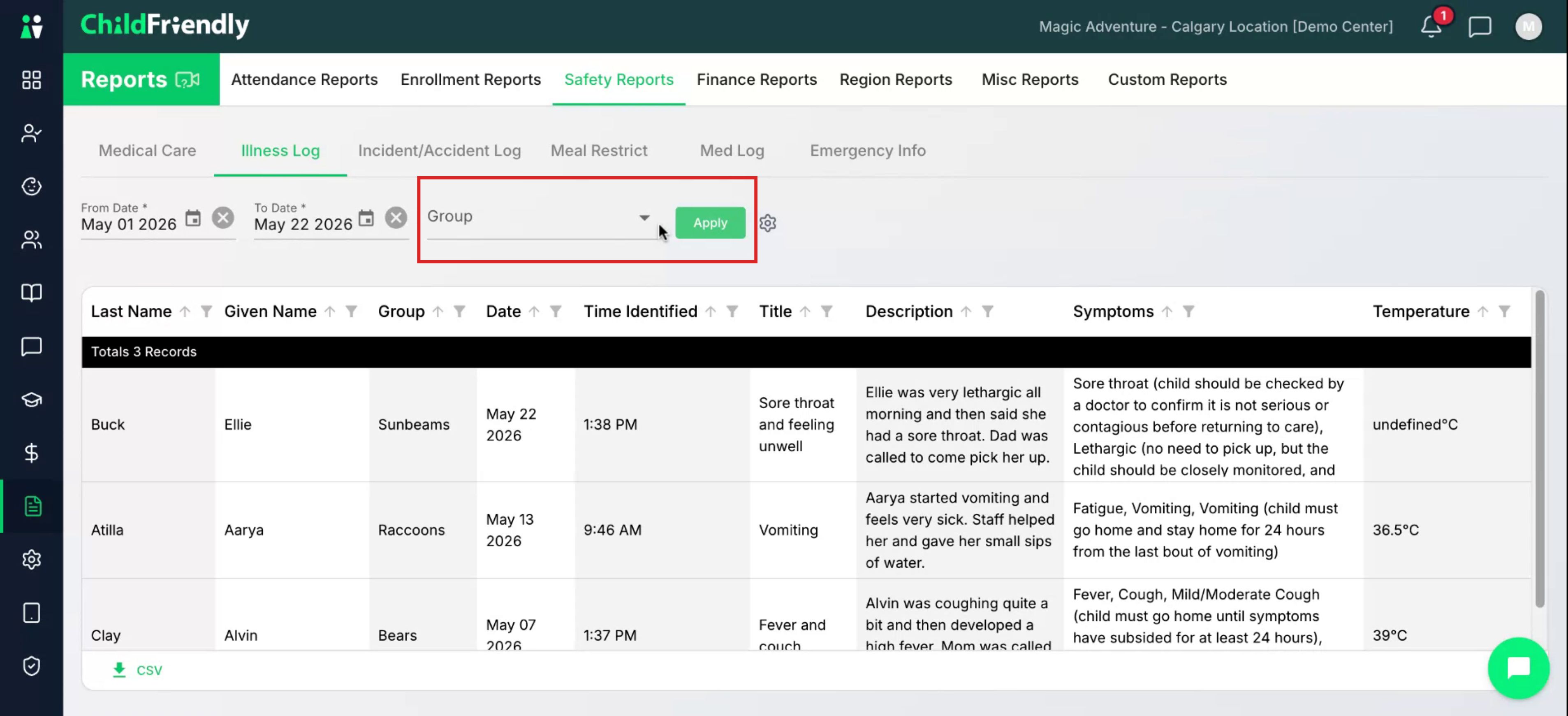
Step 5: Filter the Results by Group
If needed, filter the report further by group. Click the Group dropdown menu and select the group you want to view, then click the Apply button.
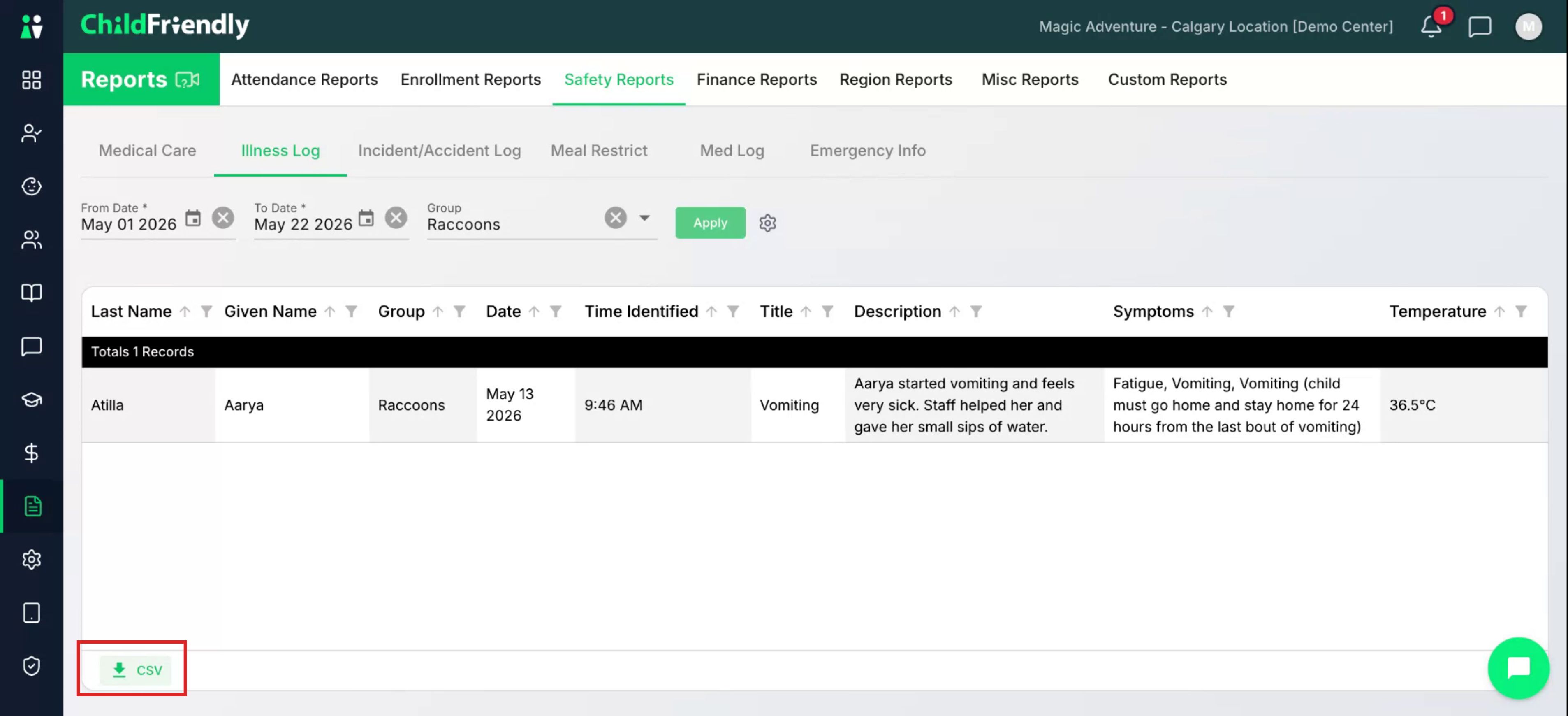
A list of only the children within the selected group will then display.
Step 6: Download the Report as CSV
To download an Excel-compatible version of the illness report, click the CSV icon at the bottom of the screen.
Was this helpful?
Still need help? Ask the team