How to Run the Medication Log
This document explains how to access, view, filter, download, and edit information related to the Medication Log within the Reports module.
Last updated 3 months ago
Step 1: Open the Safety Reports Section
Ensure you are in the Reports module. Then click the Safety Reports tab at the top.

Step 2: Access the Medication Log
Within Safety Reports, find and click the Med Log tab.
The Medication Log is a useful tracking tool for reviewing any time a medication was administered.

Step 3: Choose a Date or Date Range
Decide whether you want to view the medication log for a single day or for a specific date range (for example, the last week or month).
Select the desired date or date range, then click the Apply button to load the results.

Step 4: Review the Medication Log Details
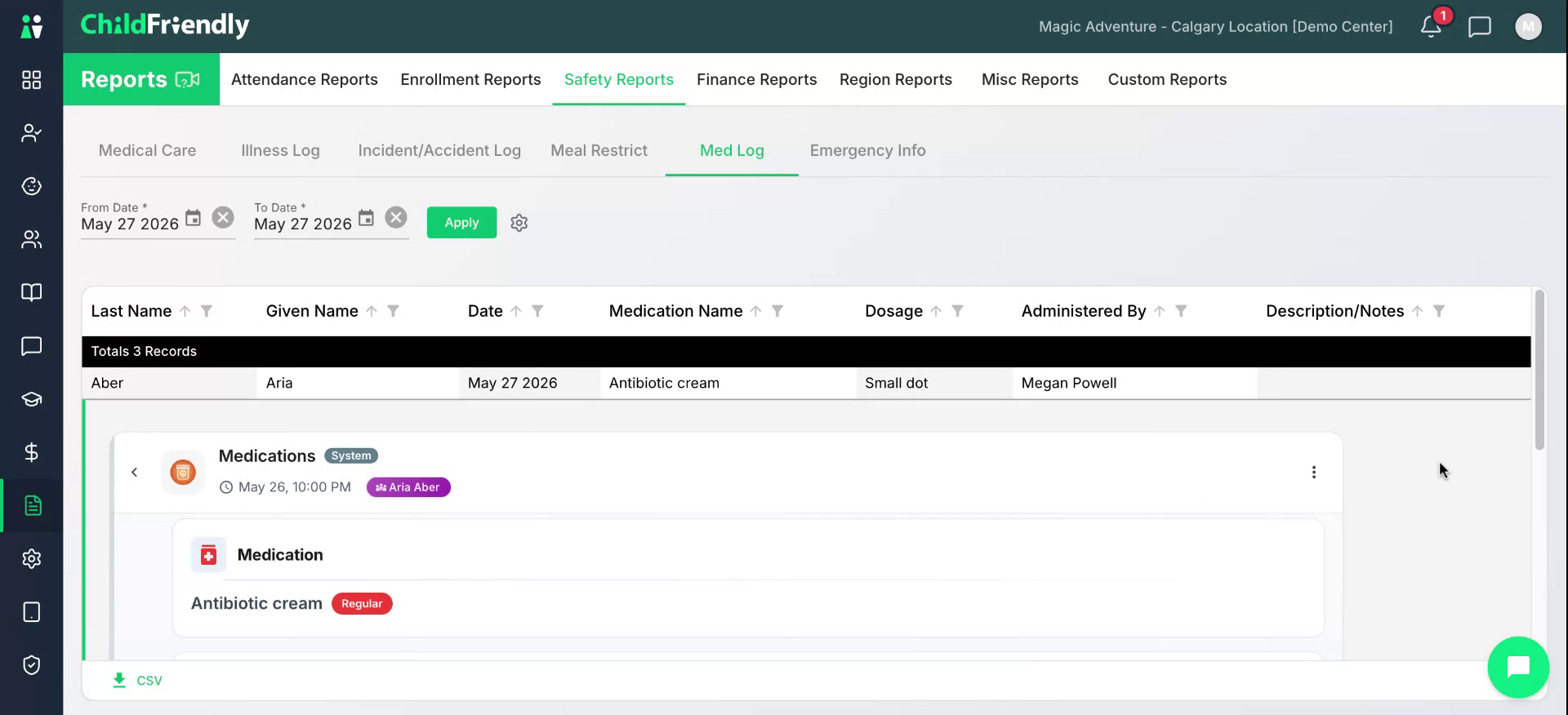
Review the medication log entries that appear for the selected date or range. You will see each child’s first and last name, the date the medication was given, the medication name, dosage, who administered it, and any description or notes, if applicable.

Step 5: Download the Log as a CSV File
To download the displayed medication log as an Excel-compatible spreadsheet, click the CSV icon at the bottom of the screen.

Step 6: View Detailed Child Medication Information
If you need more information about a particular entry, click the medication line to access information including the dosage and administration details such as the scheduled time and the time the med was given.
Step 7: Edit Medication Information in the Child’s Profile
If you need to edit the medication details in a child’s profile, click into the child’s profile and scroll down to the Medications settings. Adjust the medication information as required and save your changes.
Was this helpful?
Still need help? Ask the team