How to Use the RSVP Feature
This document explains how users can access and use the RSVP tab to view and manage child absences, including filtering records and adding new absences from a child’s profile.
Last updated 3 months ago
View RSVP's via the Dashboard (All Staff)
Step 1: Open the Dashboard
Click the Dashboard icon to access the main admin dashboard.
On the dashboard, click the RSVP tab to open the RSVP section.

This tab displays all children who have been marked absent from the center for the day. It is also used to record absences for children enrolled in out-of-school care who are usually picked up or dropped off at school by the center but do not require pickup on a specific day. This area allows the center’s bus driver and admin staff to review any absences submitted by parents through the parent app.
The RSVP list shows:
Child’s name
Date of absence
Type of absence (school absence or regular daycare absence)
Reason for absence and any notes
Group the child is in
School attended, if applicable
You can also download this information as a CSV file for reporting or record-keeping.
Step 2: Filter RSVP Records by Date
Use the date filter to narrow down the RSVP records.
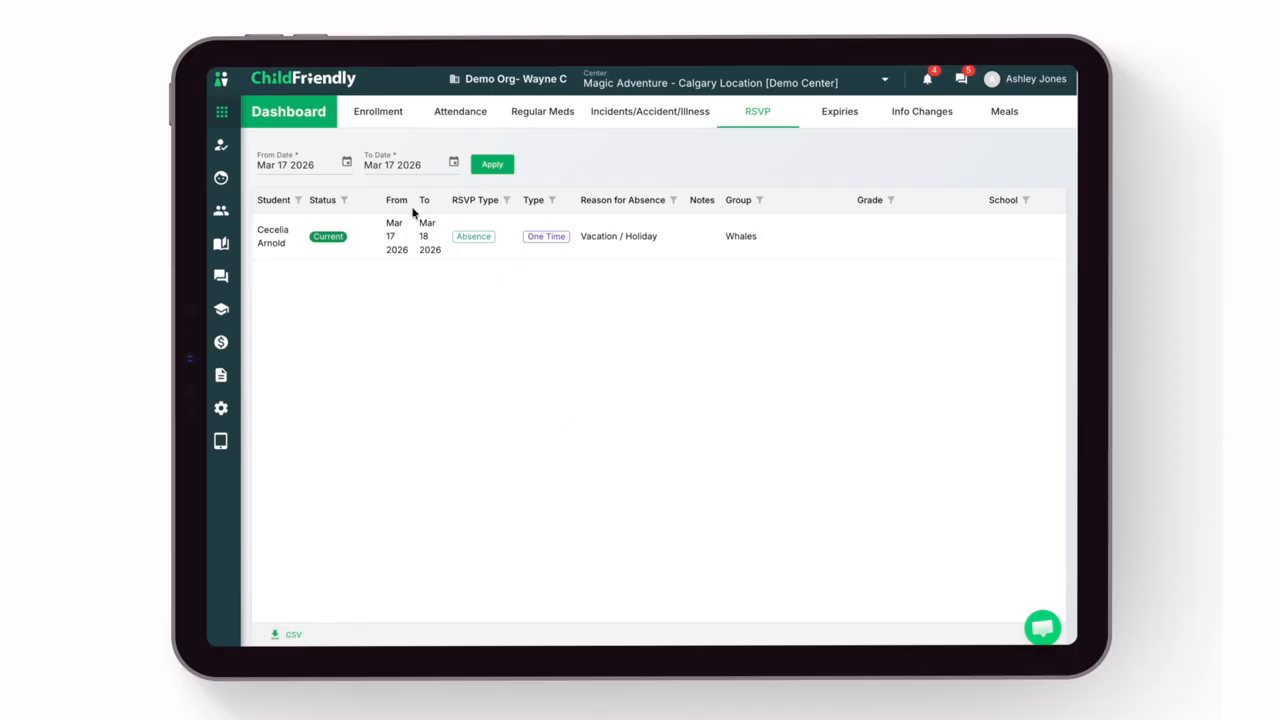
Adjust the From and To date.

After setting the desired date range, click Apply to view the results.

Record an Absence (Admin Only)
Step 1: Open the Families Module to Add an Absence
If you need to add an absence from the admin side, navigate to the Families module.
Locate the child for whom you need to record an absence and click to open their profile.

Step 2: Open the Child’s RSVP Tab
Within the child’s profile, click the RSVP tab to manage their absences.
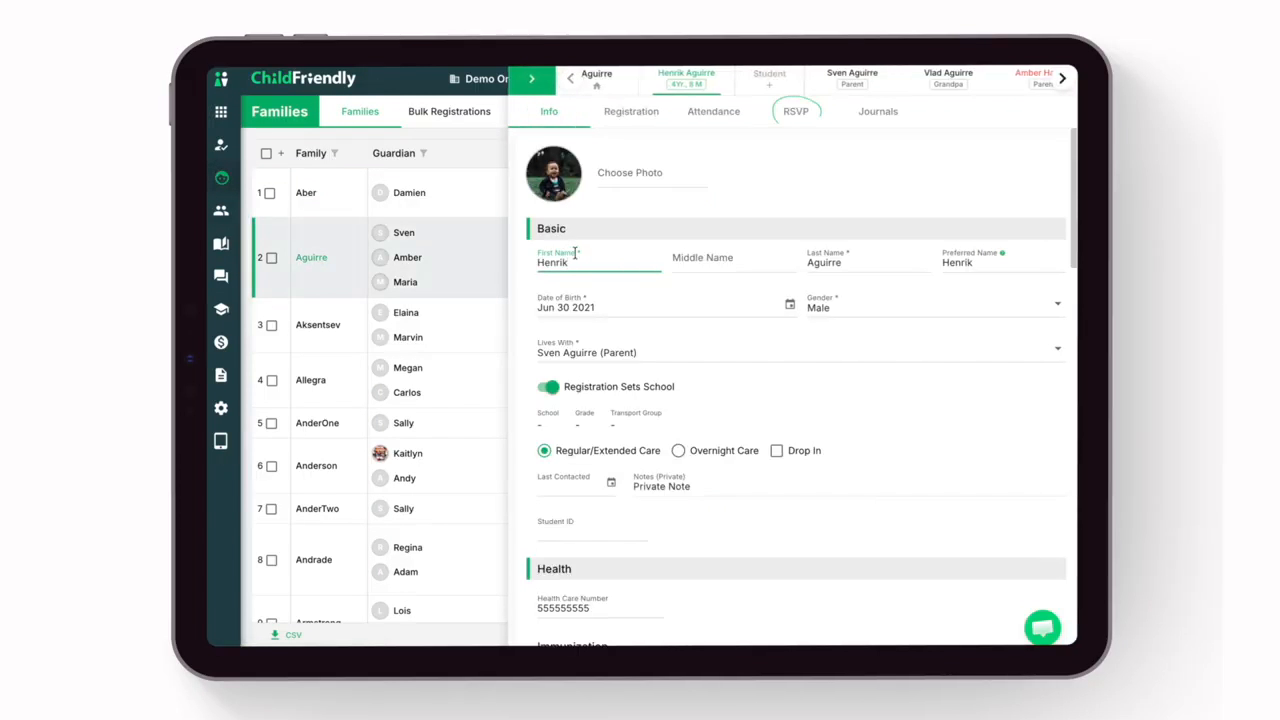
Step 3: Select the Absence Date and Add a New Entry
Choose the date you want to mark the child as absent.

Click the plus (+) icon to add a new absence entry.
From the options provided, select whether this is a center absence or a school pickup absence.

Step 4: Enter Absence Details and Save
Enter all necessary details for the absence, such as the reason and any relevant notes.
When finished, click Save to record the absence.

The absence will now be added to the child’s profile and reflected in the RSVP tab.
Both Admin and Room Educators can view RSVPs in the Dashboard Module as outlined above however only Admin can access and record an RSVP in the Family Module. Parents can also record RSVPs from the parent app.
Was this helpful?
Still need help? Ask the team