How to Resolve the Forbidden Age Group Error
This document explains how to identify and resolve the “forbidden age group” warning in ChildFriendly. You will verify which children are in the space, review space permissions, adjust permitted age groups if needed, or move children to appropriate spaces, all while complying with your local regulations.
Last updated 3 months ago
Step 1: Understanding the Error
The Forbidden Age Group red warning occurs when a child is signed into a space where their specific age group is not permitted in the system settings.

Licensing Examples to Consider:
The Transition Gap: If your toddler room is licensed for 18 to 35-month-olds, what happens the day a child turns 3 years old but there is no space available in the next older room? Are they still permitted to stay in the toddler room?
Early Entry: What about a 17-month old who you wish to start in that toddler room that typically starts at 18 months, are they permitted to start early? Will they be in that physical space at 17 months?
Shared Spaces: In a gym or multipurpose room, which specific ages and licenses apply? You may have different approvals for Daycare versus a After School Care, for example. It is important to remember that the ages you are licensed for in a physical space might be different from how you choose to group the children. Additionally, different age groups might use the same space, such as a gym, at different times throughout the day.
Important: Before adjusting the software, refer to your local regulations and your specific site license first. Once you have confirmed which ages are approved for each space, you can ensure your configuration in ChildFriendly aligns with those requirements.
Step 2: Identifying the Conflict
When you see the warning, start by checking which children are currently in the space and their specific ages.
Example: In the "LadyBugs" space, we have 2-year-olds, but we also have Chloe, who is only 13 months old and visiting from the Sunbeams group.

Step 3: Checking Space Permissions
To see why the error is triggering, click into the settings for that specific space.
Example: The LadyBugs space permits Toddlers (19–35 months) and Preschoolers (36–47 months). Because Chloe is 13 months (Infant age group), the software triggers a warning.

Step 4: Resolving the Error
You have two primary ways to resolve this conflict:
Option A: Move the Child
Return to the Attendance Module and move the child to a location where their age group is already permitted.
Option B: Update Space Permissions
If your license allows that age group to be in the space (regularly or occasionally), update the software settings:
Navigate to the Space settings.
Select the Space.
Under Permitted Age Groups, add the missing age group.
Save your changes.

Once saved, navigate back to the Attendance Module to confirm the red warning has disappeared.

Configuration Rules: Spaces vs. Groups
It is vital to remember that Spaces (physical rooms) and Groups (assigned groupings of children for registration and scheduling purposes) are distinct, even if they share a name like the "LadyBugs" Space vs the "LadyBugs" Group.
Rules for Alignment:
Mandatory Coverage: If a Group regularly uses a Space, that Space must permit every age represented within that Group.
Visitor Flexibility: A Space can include more permitted ages than the Group that primarily lives there (to account for visiting children).
In summary, always double-check that your Space settings cover the full age range of any Group that will be signed into it, plus any guest ages permitted by your license.
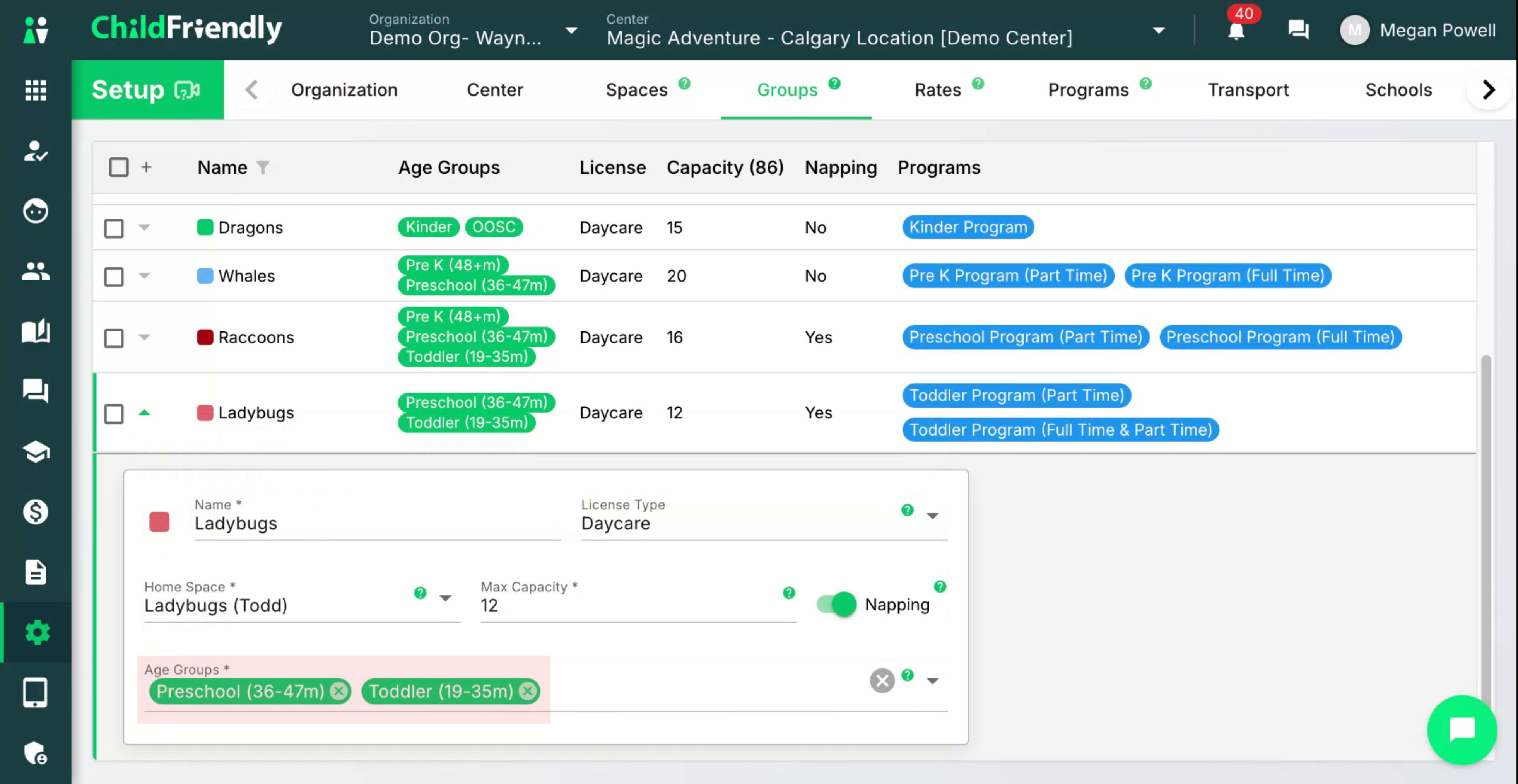
Updating the Ages within Groups
To update the ages within an group as opposed to a space;
Go to the Group tab within the Setup Module.
Select the specific Group.
Confirm all allowable age groups are listed; add any missing ages and Save.
Was this helpful?
Still need help? Ask the team