How to Run the Meal Restrictions Report
This document explains how to access, filter, and export the Meal Restrictions report from the Reports module. You will learn how to filter by date, group, and meal adjustments, and how to download the results as a CSV/Excel file.
Last updated 3 months ago
Step 1: Open the Meal Restrictions Report
Ensure you are in the Reports module. Click the Safety Reports tab.
Next, click the Meal Restrict tab at the top.

Step 2: Choose a Date or Date Range
In the Meal Restrictions report, you can filter by a single date or a date range (for example, an entire week).
Select your exact date or date range.

When you are done, click the Apply button to run the report for the chosen period.

Step 3: Review the Meal Restrictions Summary
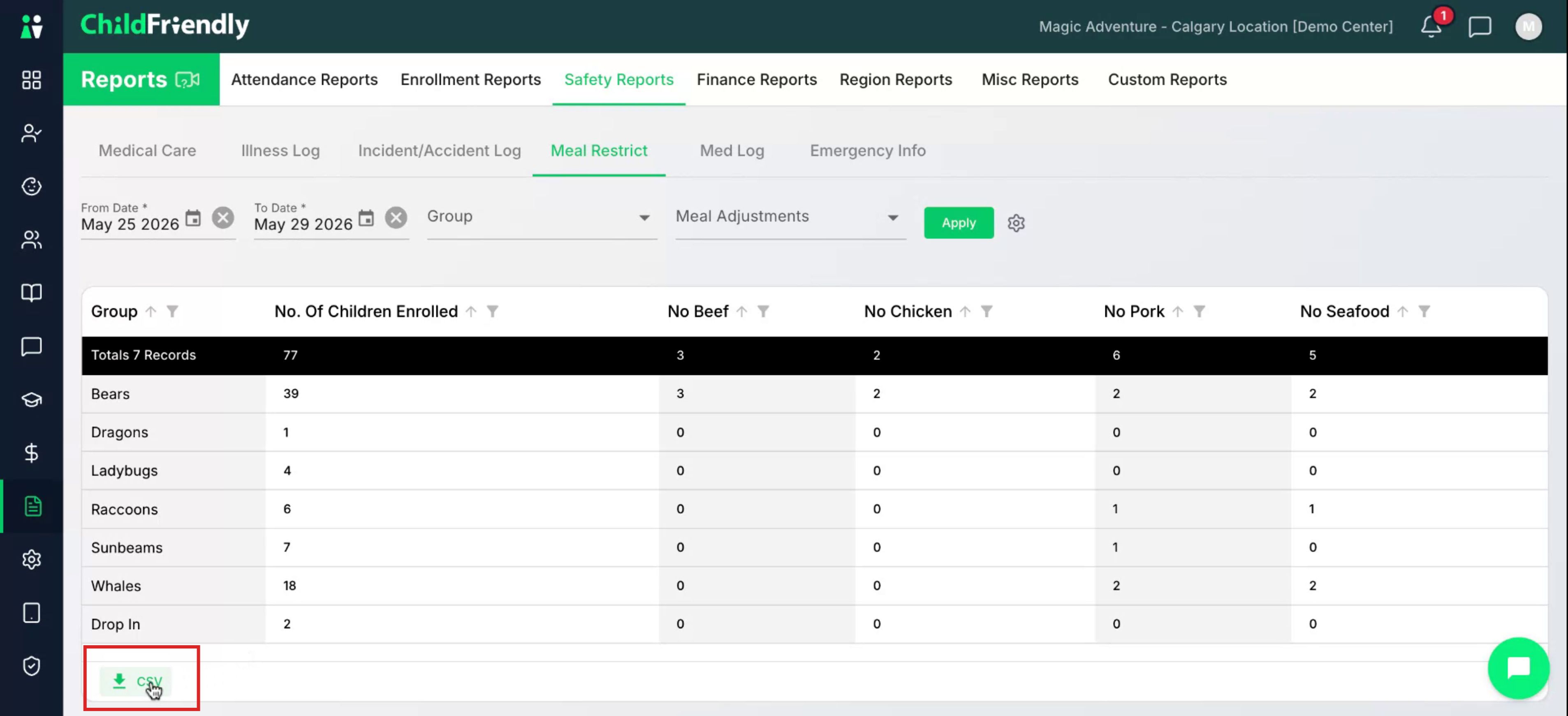
After applying the date filter, a list of all children is displayed, organized by groups. For each group, you will see:
The total number of children enrolled
The number of children with each type of meal restriction (e.g., no beef, no chicken, no pork, no seafood)
Please note that meal restrictions must first be added in the Setup module in the Custom settings. Any meal restrictions added there will display here. Refer to the meal restrictions training for more information
If needed, you can download the displayed data as an Excel-compatible file by clicking the CSV icon.
Step 4: Filter the Report by Group
To narrow the report to a specific group, use the Group filter.
Select the group you wish to view.
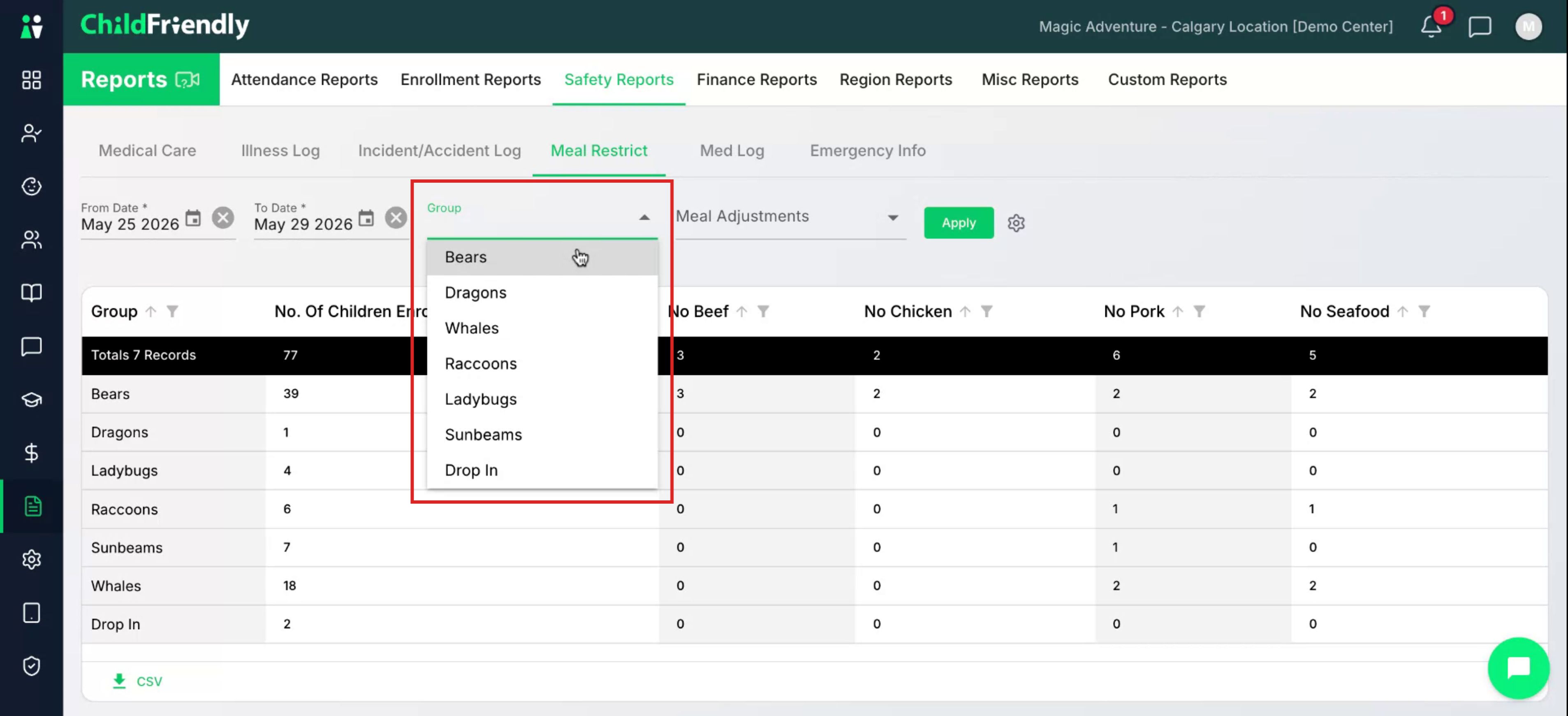
Then click Apply again to refresh the report with only children from that selected group.
Step 5: Filter by Meal Adjustments
You can further refine the report using Meal Adjustments filters. These allow you to show only children with specific meal service types, such as:
Full-time meal service
General meal service
Part-time meal service
Meal service options can be added in the Setup module, under Adjustments.
Select the desired meal adjustment option.
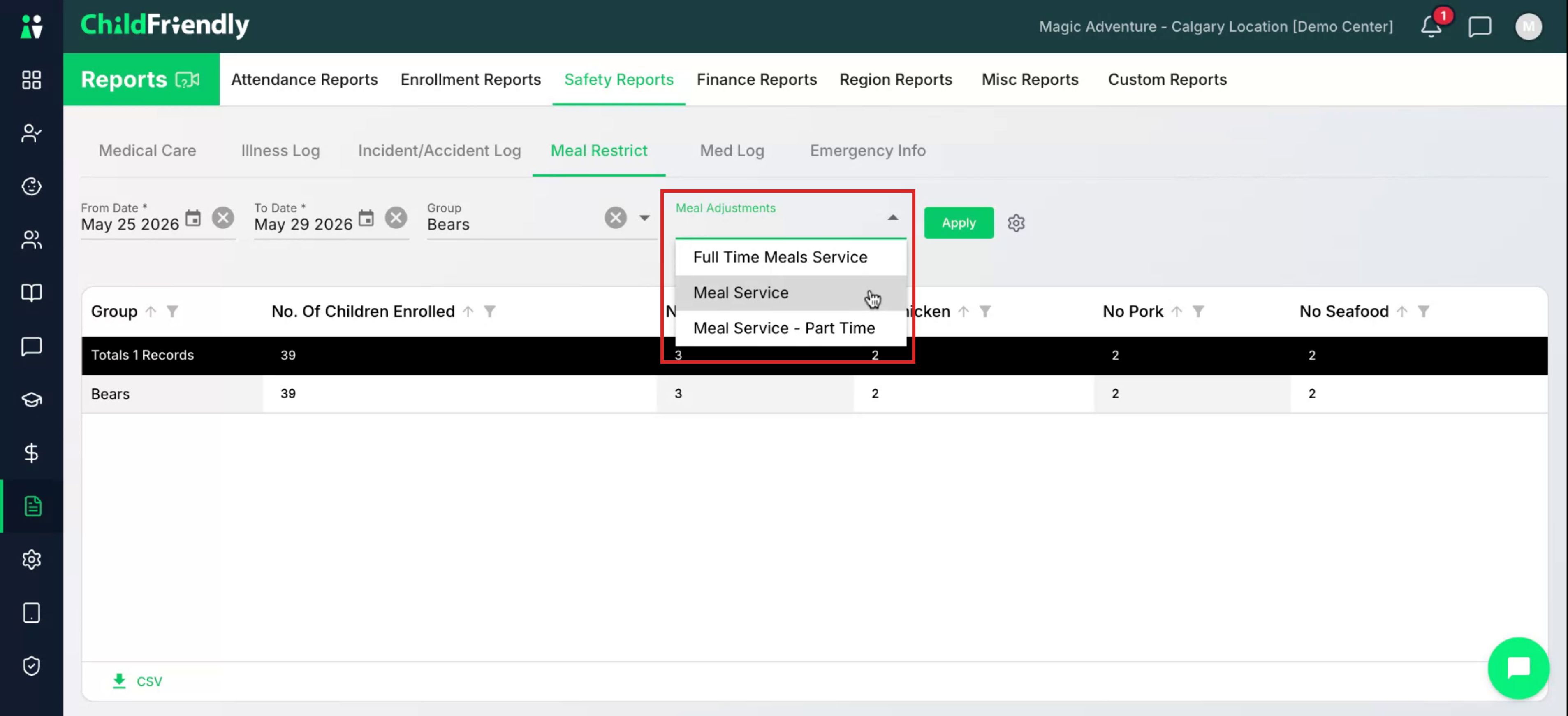
After selecting, click Apply to update the report based on your chosen meal adjustment.
Step 6: Download the Filtered Report
At any point while applying filters (by date, group, or meal adjustments), you can download the current view of the report as a CSV file for use in Excel or other tools. Click the CSV download option to export the filtered results.
Was this helpful?
Still need help? Ask the team