How to Use the Calendar Feature
This document explains how to use the ChildFriendly Communicate module’s calendar for planning staff events, family events, menu planning and more. We also review how to manage group access, notifications, recurring events, and calendar sharing.
Last updated 3 months ago
Step 1: Access the Calendar in the Communicate Module
While in the Communicate module, locate and open the Calendar tab to begin using the calendar feature.
Click the Calendar tab.

The calendar is used for planning purposes and can support a variety of needs, such as scheduling staff meetings, parent-teacher nights, center events, and meal planning.
Step 2: Choose Your Calendar View and Date
Use the View options at the top of the calendar to change how the calendar is displayed.
You can view the calendar by week,

by month,
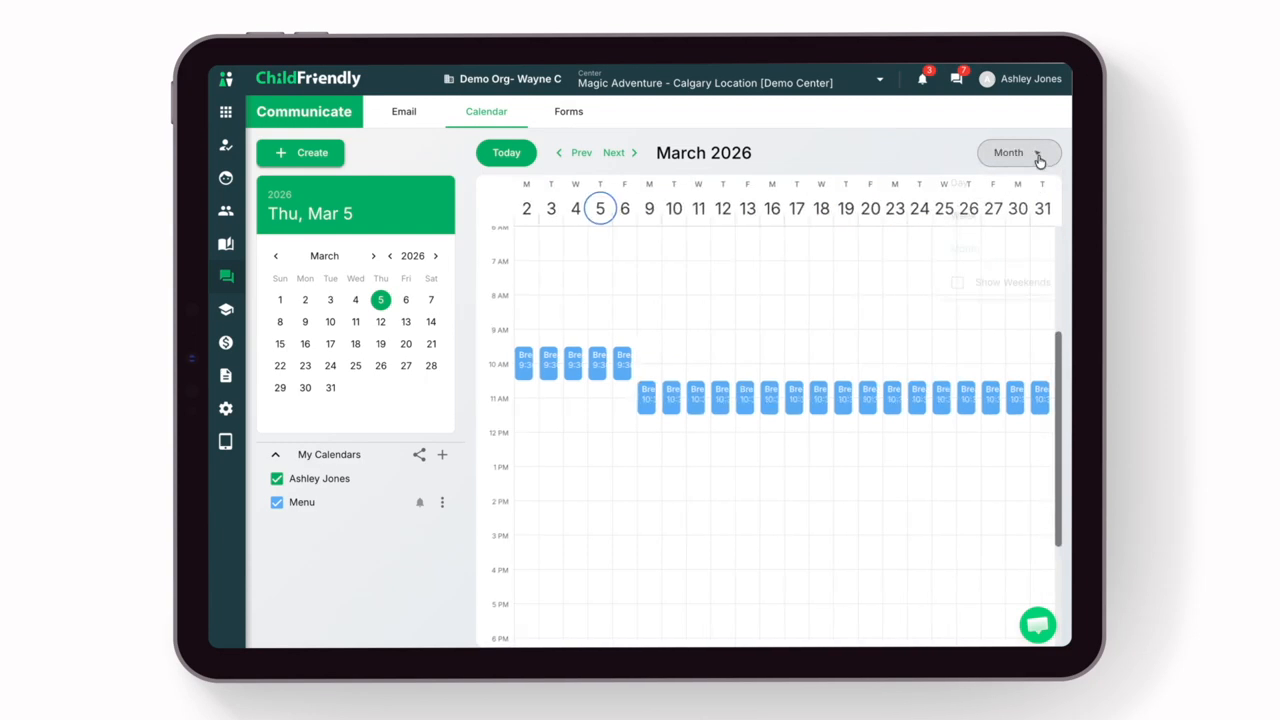
or by day. Click the drop-down arrow to change your view.

Use the mini calendar on the left-hand side if you want to select and jump to a specific day.

Step 3: Understand Calendar Types and Availability
Calendars can be created for internal staff use, for families at the center, or for specific groups of people (for example, all preschoolers or admin staff only).
Any calendars that are available to you will display at the bottom of the screen in the My Calendars area.
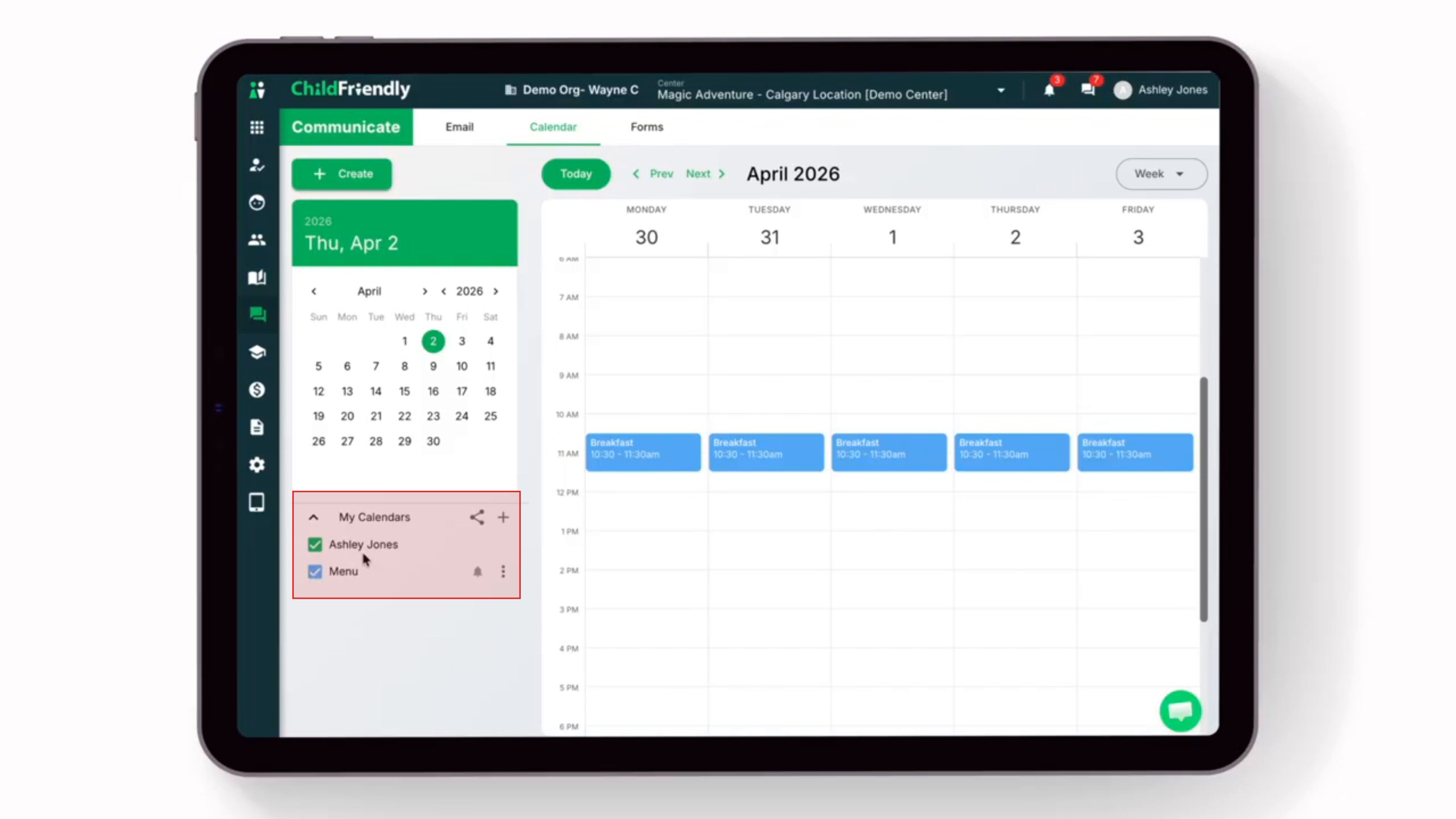
Step 4: Create a New Staff Calendar
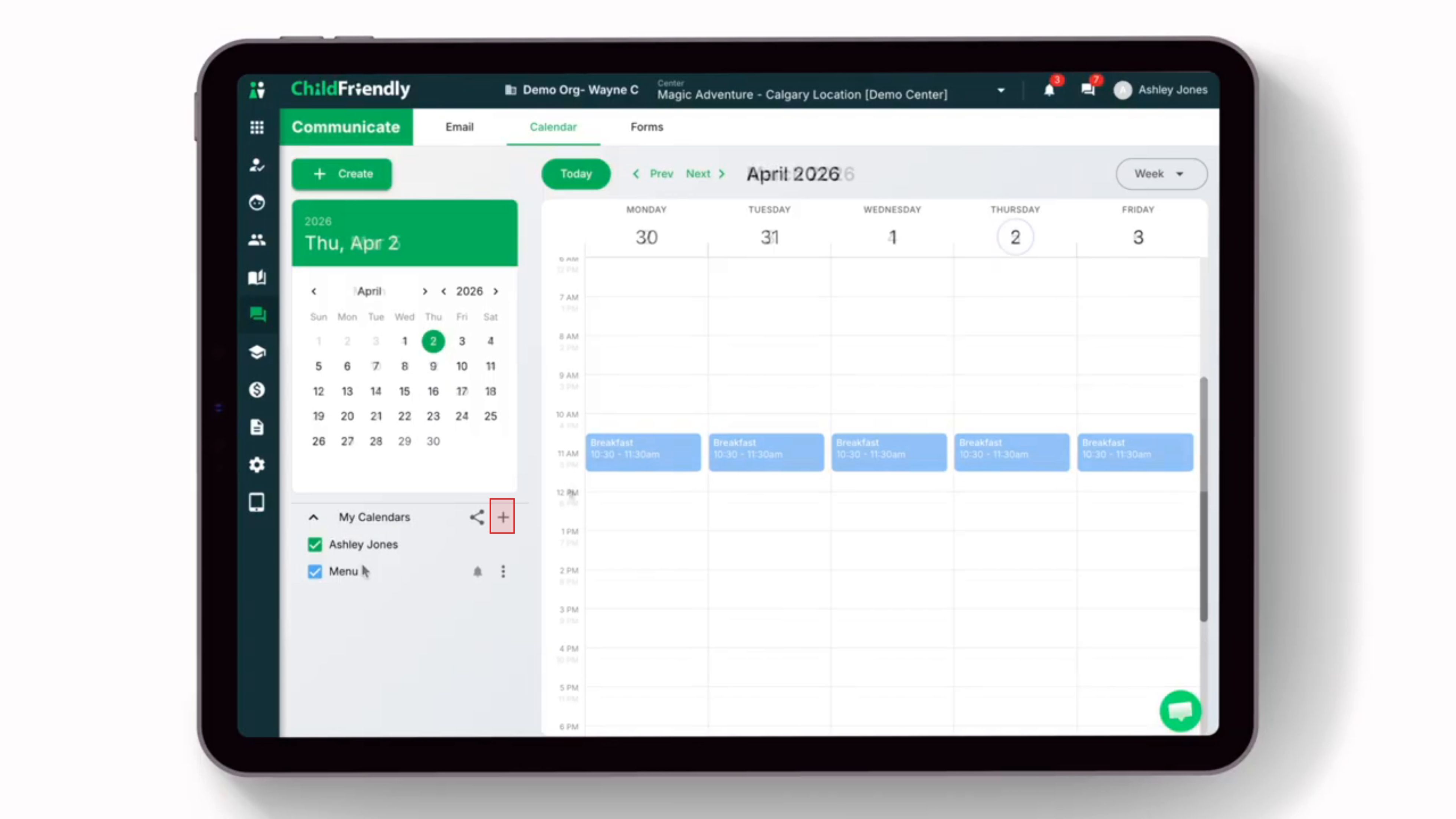
To create a new calendar for a specific group of staff, click the plus sign at the bottom of the My Calendars area.
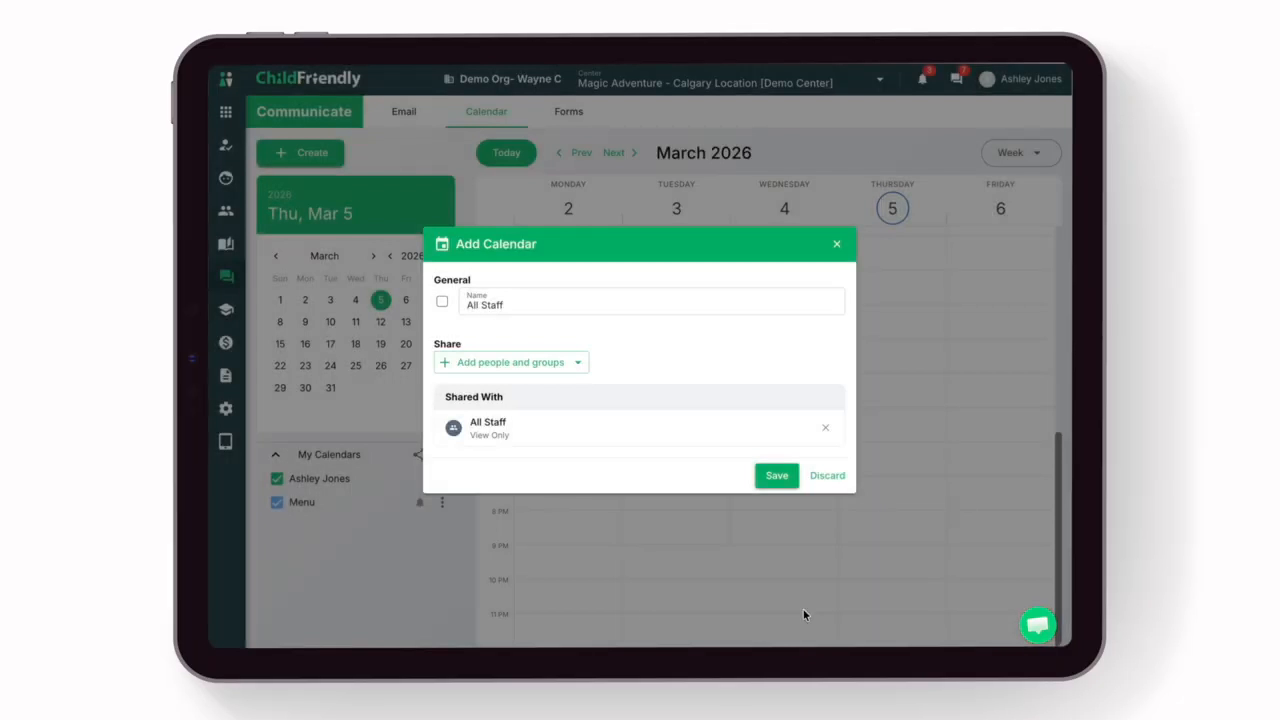
Give the calendar a clear name, such as “All Staff.”
Next, click the Add People & Groups icon.

From here, you can select who the calendar is for by choosing from:
Groups
Staff
Member-specific
Selecting any of these options will let you narrow down who the calendar is for.
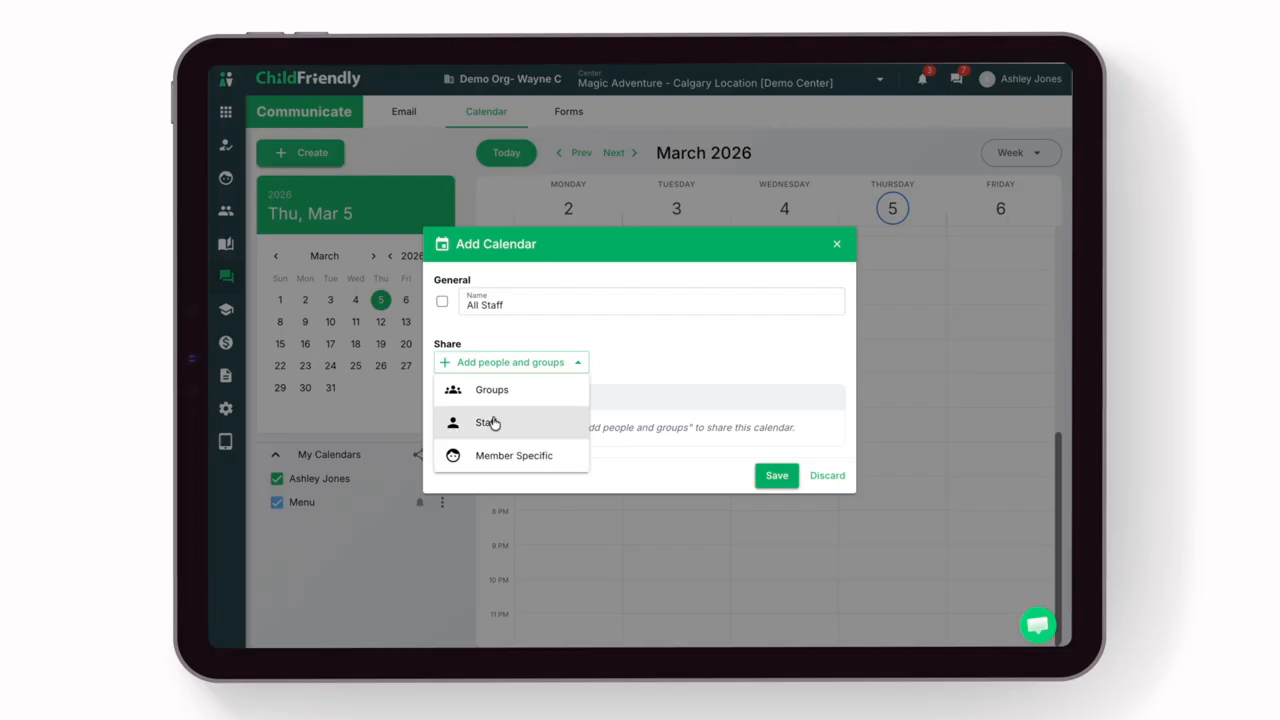
In this first example, create a calendar for staff.
After selecting Staff, enter or select the staff members you want included on the calendar. You can use the Share with All Staff toggle to quickly include all staff at the center.

Only active staff are selected by default.
If you need to create an event for future or inactive staff, you can include them here as well.
You can also narrow the calendar to staff who are assigned to specific child groups.
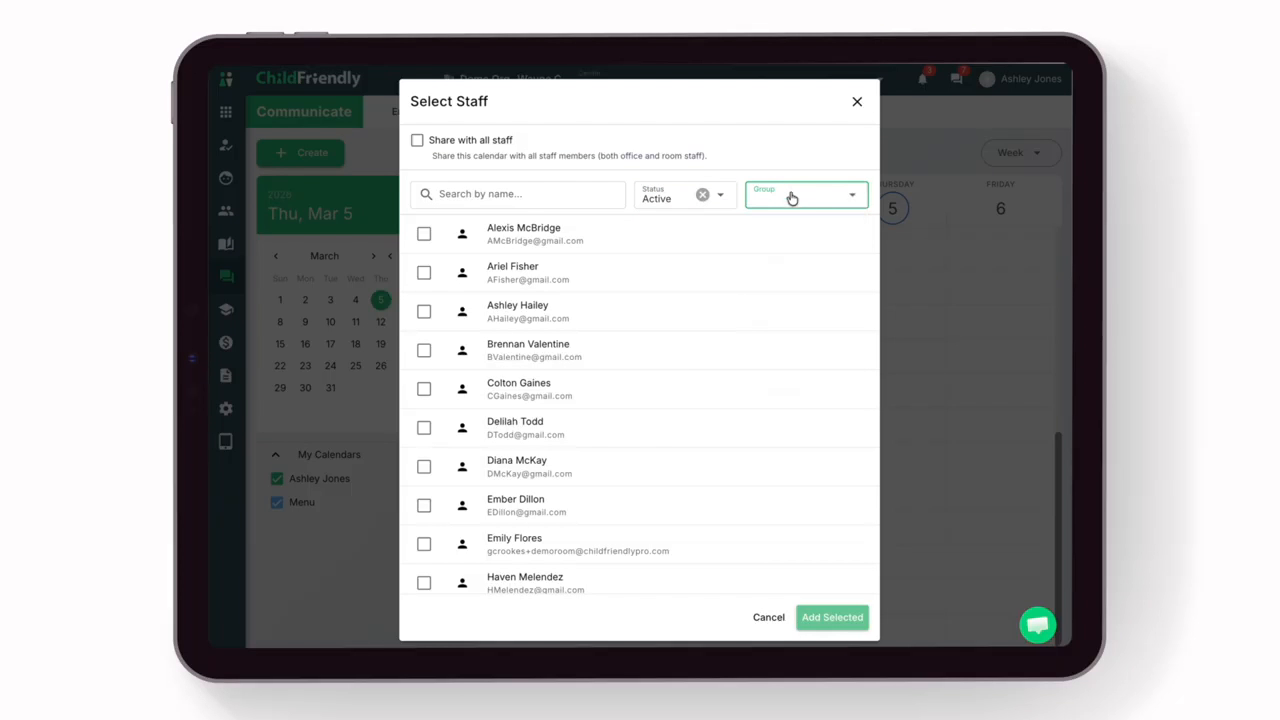
When you are finished selecting staff, click Add Selected Staff.
Then click Save to complete the setup of the staff calendar.
Step 5: Manage Calendar Visibility and Notifications
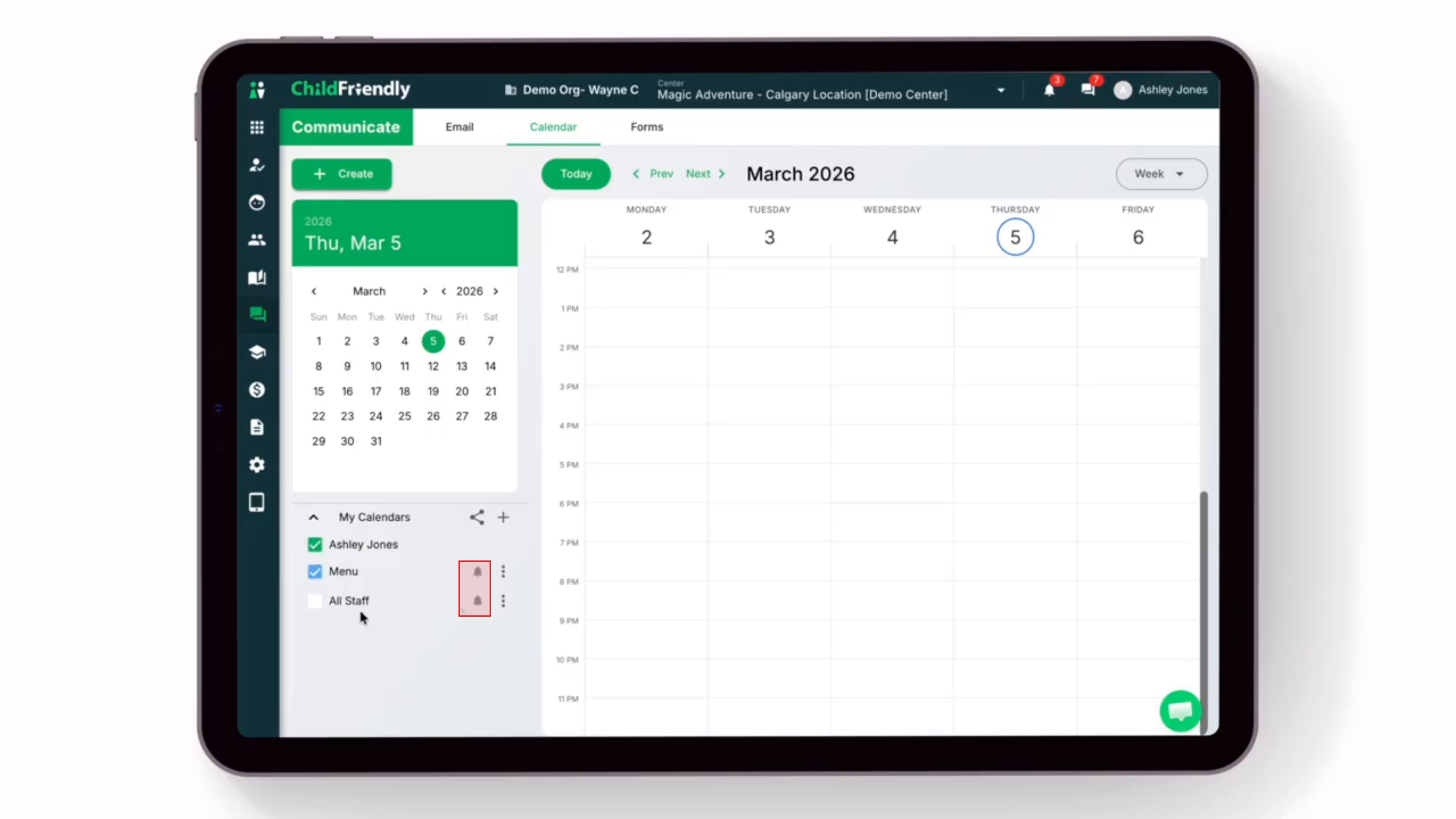
Once saved, the new calendar is now visible. Below the calendar, you can toggle each of your calendars on or off to control which ones are displayed.

If you would like to mute notifications for any calendar, click the bell icon next to that specific calendar.
Step 6: Create a Calendar for Families
To create a calendar for families (for example, to share important dates or events), click the plus sign again.
Give this calendar a clear name, such as “Center Families.” Then click Add People & Groups.
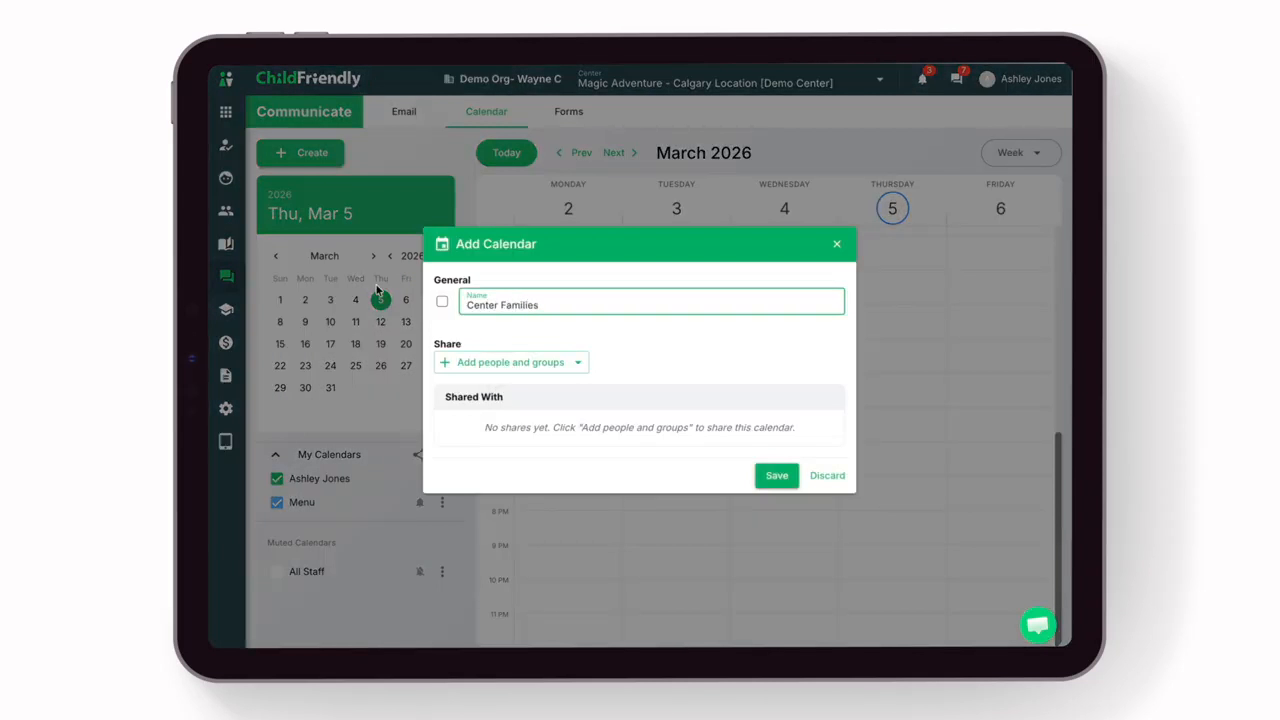
Select Groups as the type of audience.

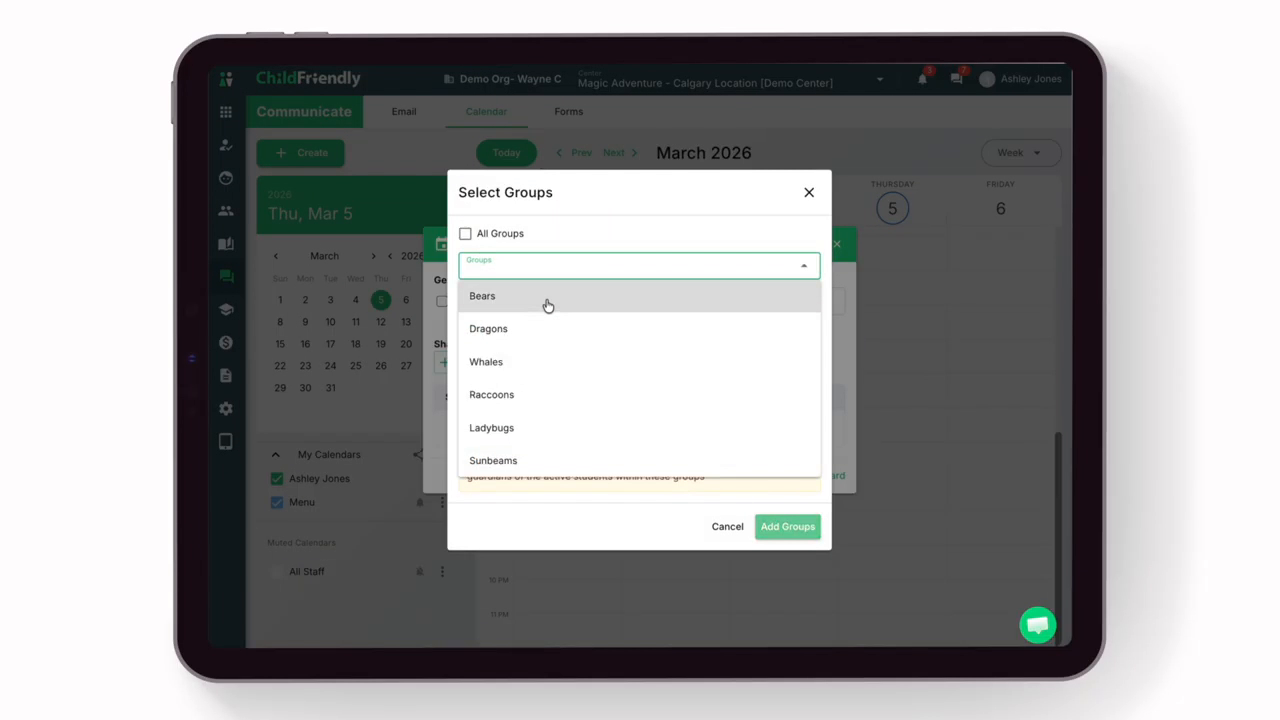
You can either share the calendar with all groups by selecting the toggle, or select only particular group(s) by using the Groups drop-down arrow.
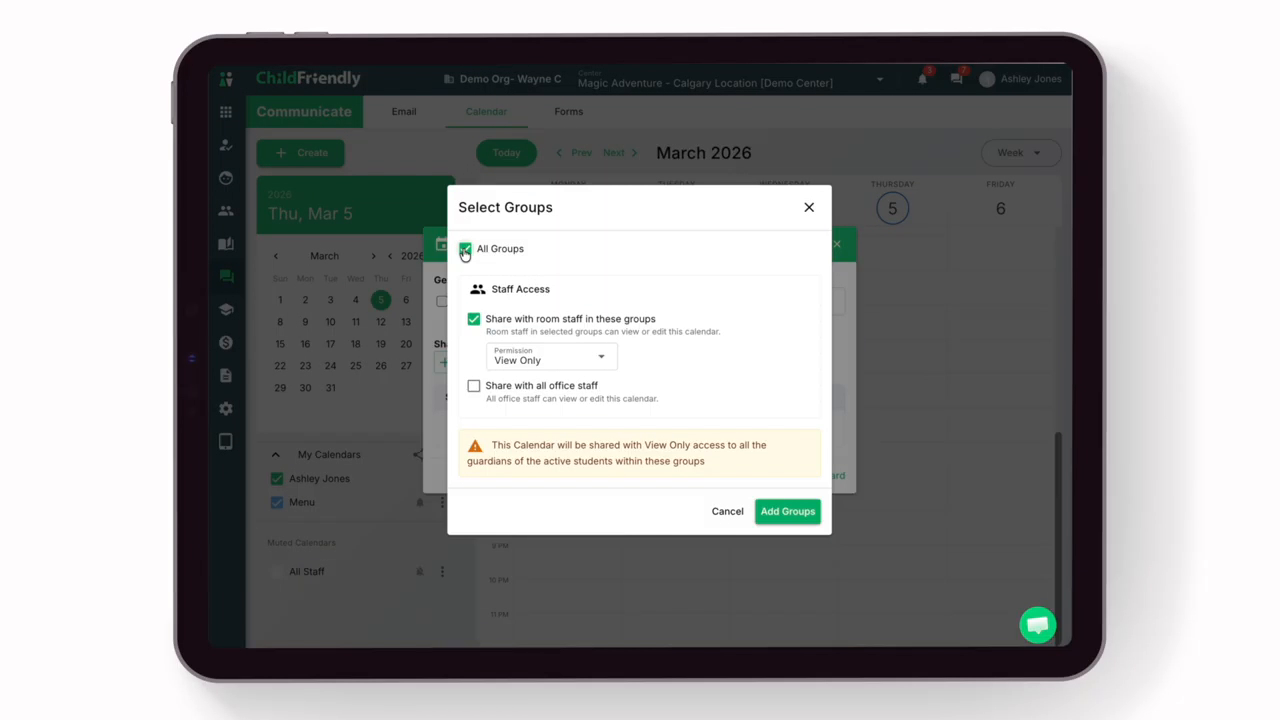
Select any groups you wish to add to your new family calendar.
In the Staff Access area, decide whether room staff should have permission to edit the calendar.
If you do not want staff to have editing access, leave the default of View Only. All guardians of children in the selected groups will always be limited to View Only access.
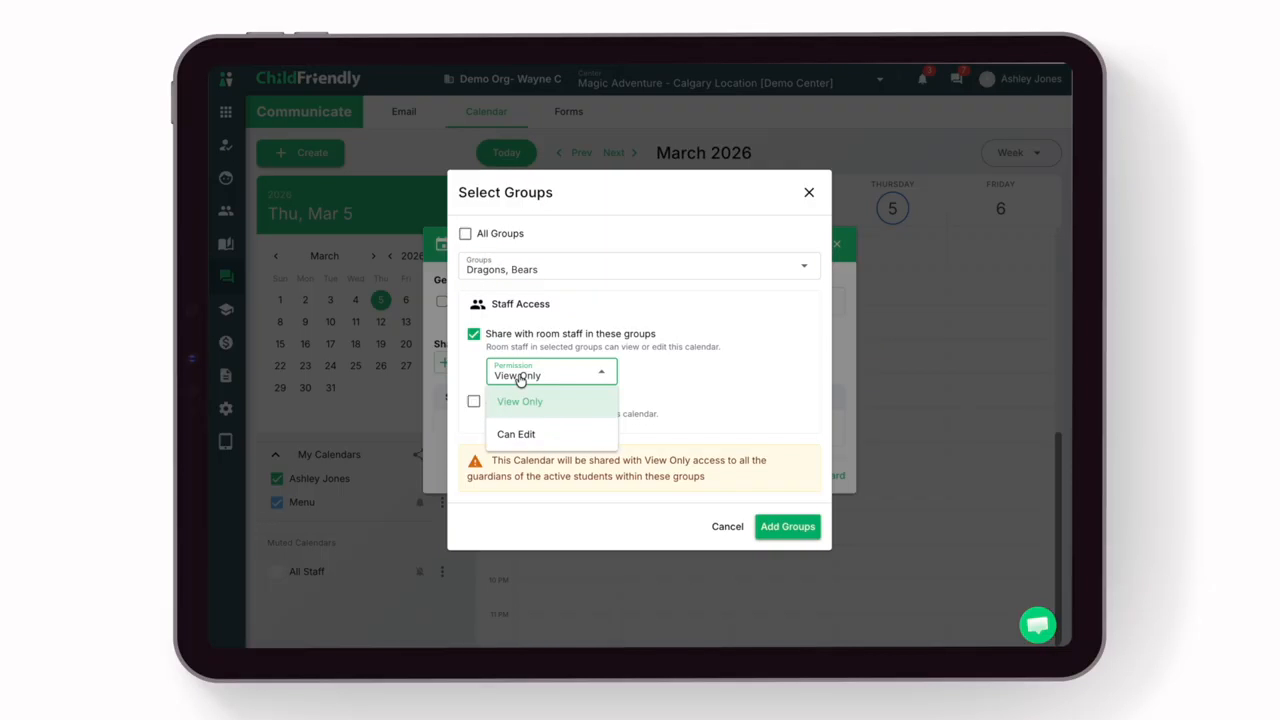
When finished, click Add Groups to complete creation of the new group calendar.
Now, the calendar can be used to share important dates and information with parents or guardians of children in the selected groups. Anyone with portal access in those groups will receive a notification when a new item is added to their calendar.
Step 7: Add a New Event to a Calendar
To add an event, click the Create button.
In the dialog box, give the event a name, such as “Monthly Staff Meeting.”

Select the date and time of the event.
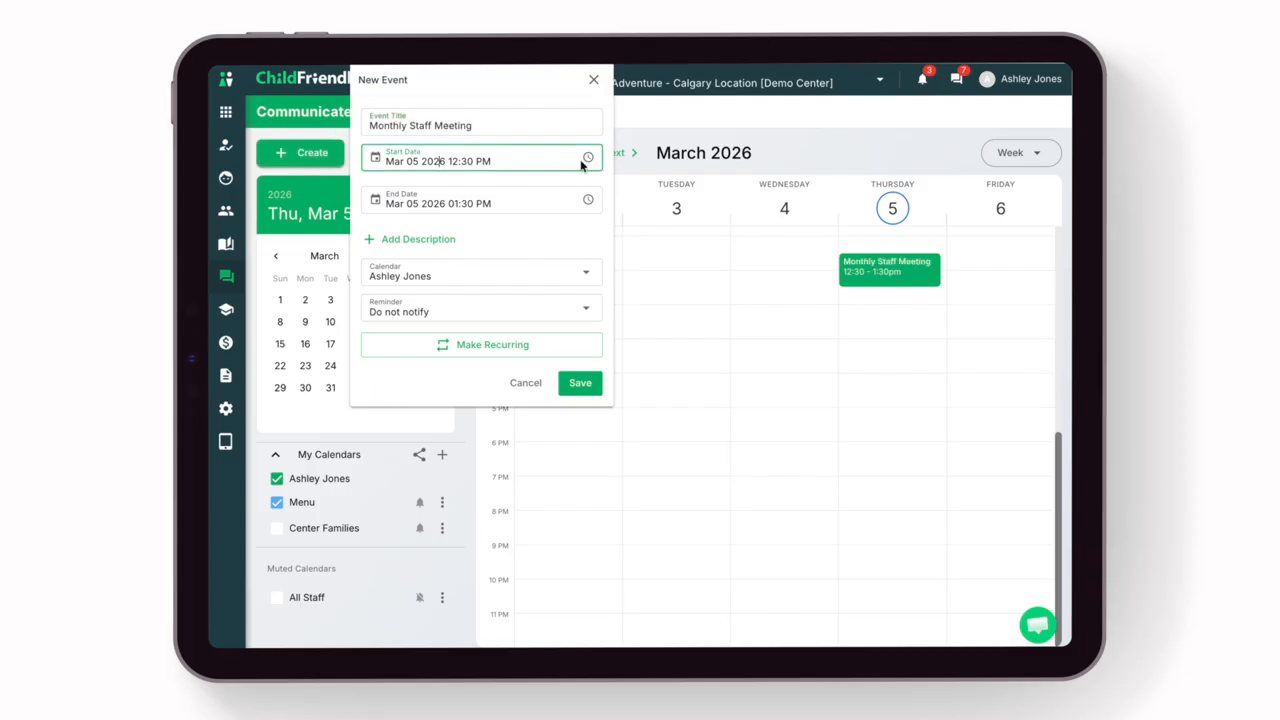
Optionally, add a description with any additional details.
Under the Reminder setting, choose the type and timing of notifications for this event.
Each user who receives the event can also set their own reminder settings once they receive it.

If you want the event to recur, click the Make Recurring icon and select how often the event should repeat (for example, once every month).

In the Series End Date field, set the date when the recurring event should stop.
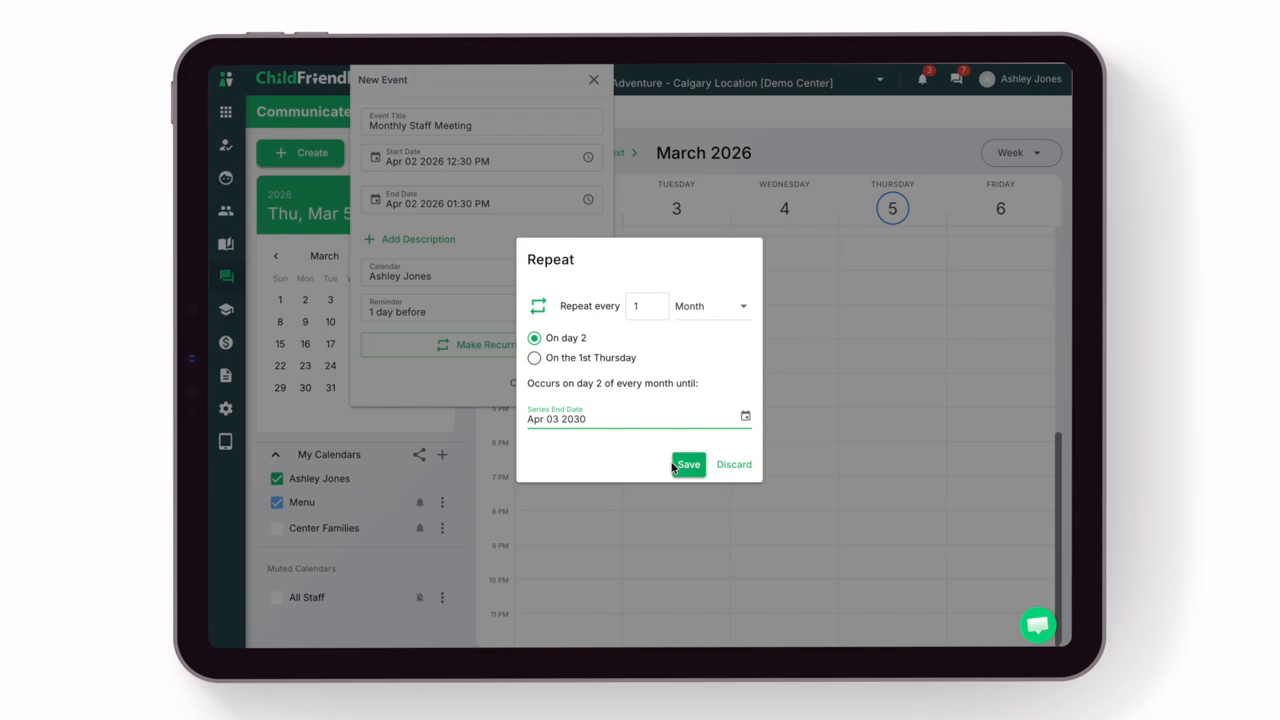
Tip: If this is a regular, ongoing event with no planned end date, select a date far in the future.
When you are finished, click the Save button to save the new event.
The event will now appear on the calendars of everyone included.
Step 8: Use the Calendar for Menu Planning
You can also use the calendar for menu planning so parents and staff know what children will be served each day. Before adding menu events, ensure your calendar groups are set up correctly:
If all children in each group receive the same food, you can use one general calendar.
If meals and snacks vary by group, set up group-specific calendars and share them with the appropriate childcare groups.
To create a sample menu event, click to create a new event.
Give the event a menu name, such as “Monday’s Menu,” and select the correct date and time.
Click into the Description field.
Enter the meal details (for example, breakfast, lunch, and snacks). Then click the Calendar field and be sure to select the correct groups or calendar for this menu.

Click Save. Your menu details will now appear on the selected calendar or groups.
Step 9: Share a Calendar via iCal Link
To share a calendar link (for example, to import into Google Calendar or Outlook), you must have editing access to that calendar.
Find the calendar you want to share and click the Share Calendar link.

Give the shared calendar link a name. Then click the drop-down menu and select the calendar you would like to share.

Click the Create Link icon.
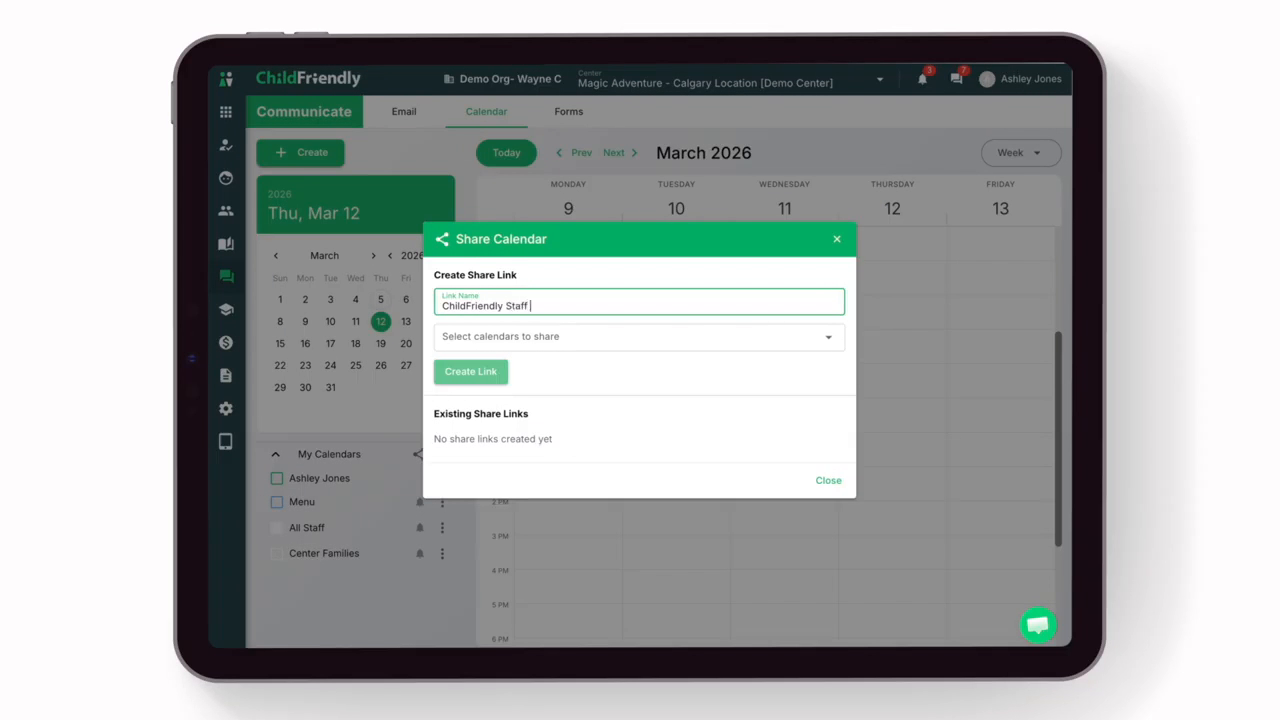
An iCal link will be generated, which you can copy and import into other calendar apps such as Google or Outlook. Any changes made to the calendar afterward will be reflected in those connected apps.

Was this helpful?
Still need help? Ask the team