How to Adjust and Edit Past Attendance Records
This document explains how admins can edit, delete, and adjust attendance records for both staff and children, including sign-in and sign-out times, and how these changes affect attendance reports.
Last updated 3 months ago
Step 1: Open the Staff Member’s Attendance Record
Ensure you are in the Staff module. Find the staff member whose hours you want to adjust.

Open the staff list or search for the relevant staff profile.
Select the correct staff member’s record to open their profile.

In the staff member’s file, click the Attendance tab.

Locate the specific date whose attendance you need to adjust. Click on the date.
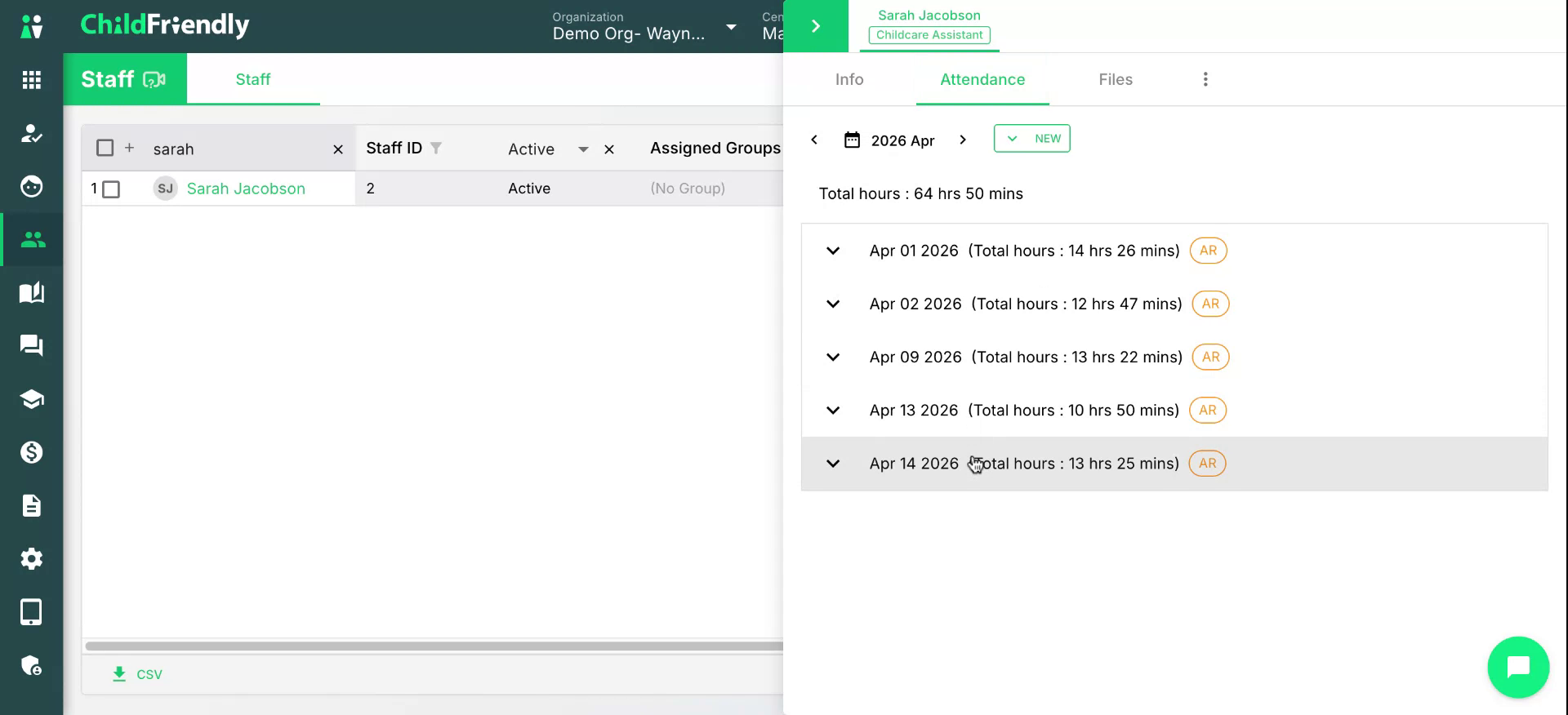
Step 2: Edit Staff Sign-In and Sign-Out Times
From the selected date’s attendance entry, you can adjust the sign-in and sign-out times.

Hover over the time you wish to change and click the pencil (edit) icon.
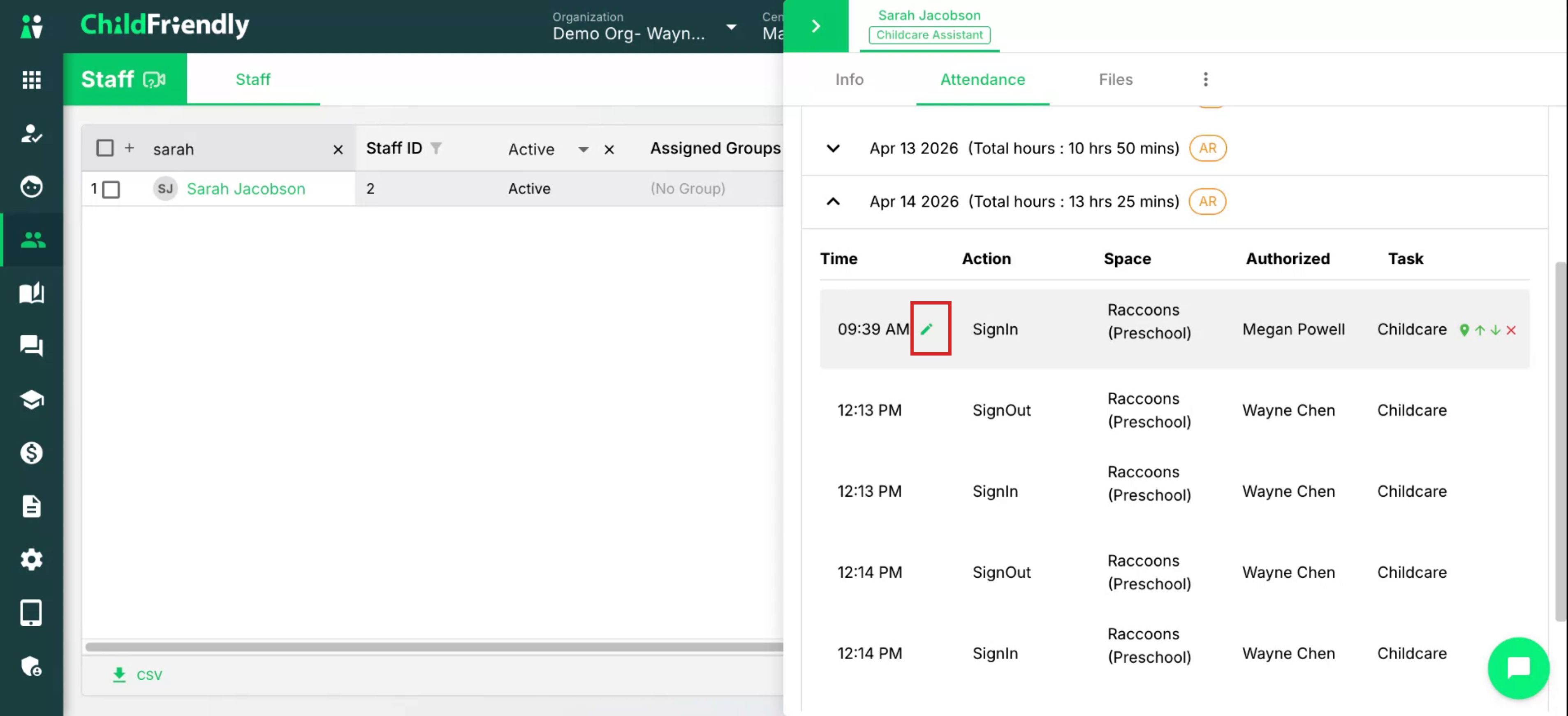
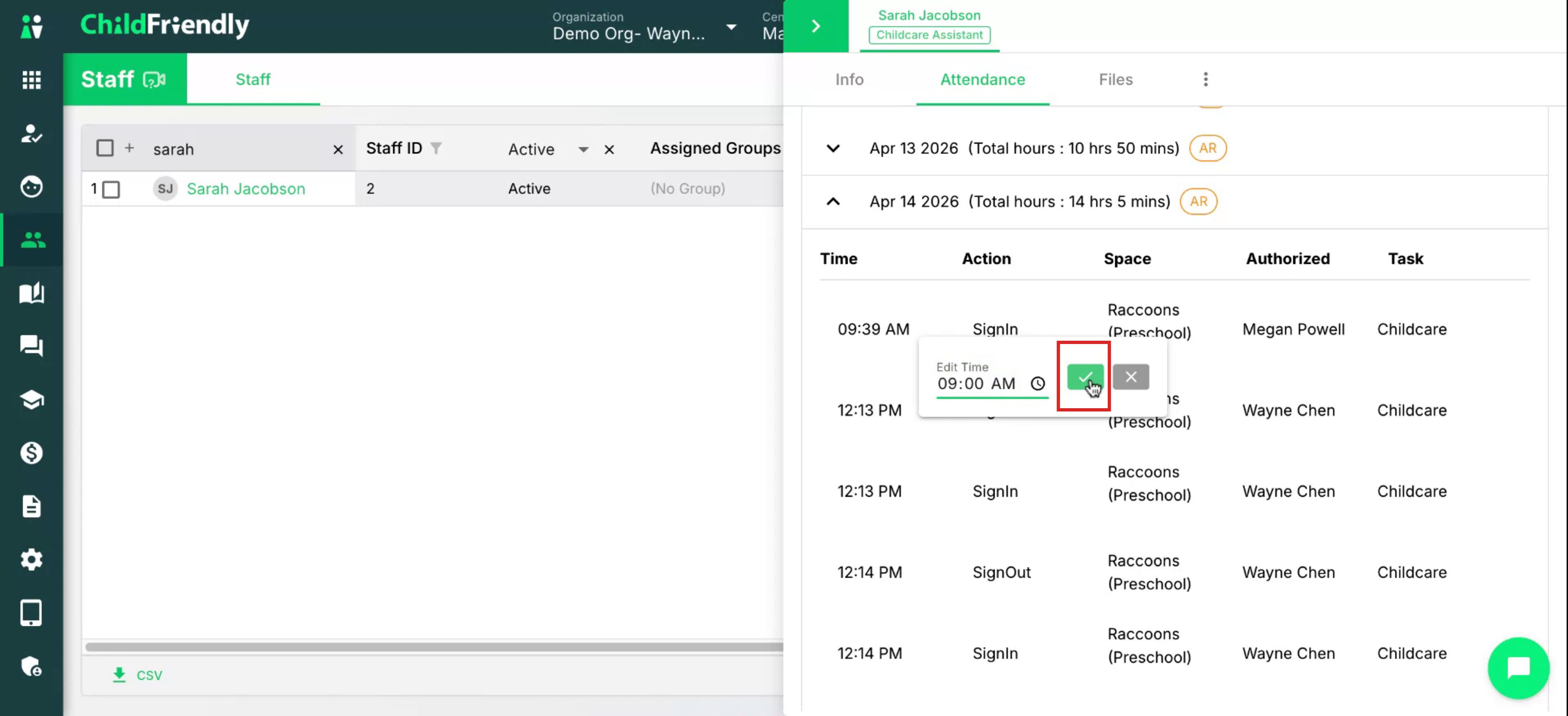
Enter the correct sign-in time. When you are finished, click the green check mark to save the adjustment.

Step 3: Delete Staff Attendance Records and Review Warnings
If necessary, you can delete an attendance line, such as a move.

When deleting, a message will appear indicating that this change may affect other attendance history for the day. Review the information shown before confirming. You can view the impact details before selecting Yes or No to proceed.
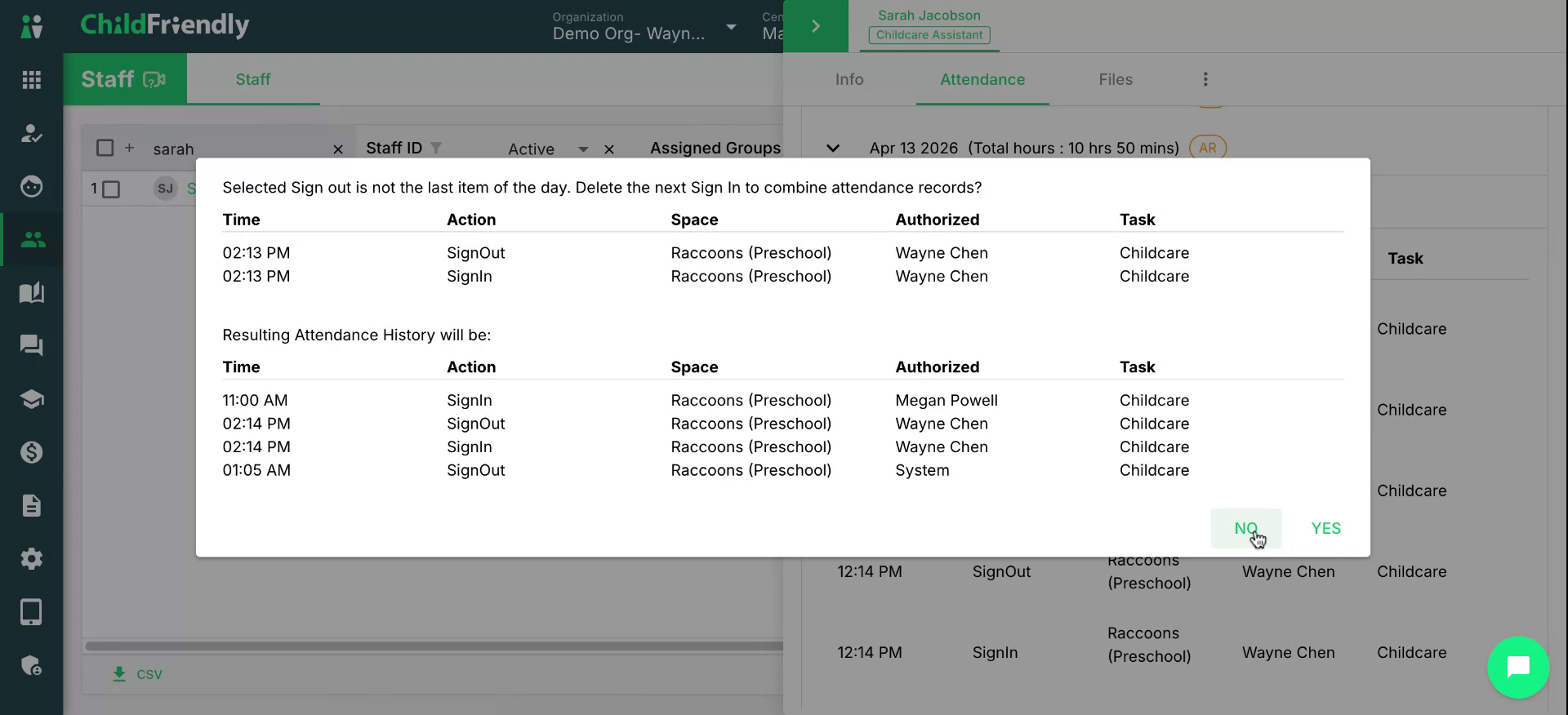
Step 4: Adjust Final Sign-Out Time with Notes
Select the final sign-out time that needs adjustment. Click the relevant time fields to begin editing.
Adjust the time to the correct value. Add a note if required, for example: “Forgot to sign out at the end of the day.”

Click the green check mark to save the final time adjustment.
You should see a success message confirming that the time has been updated.

Step 5: Delete Problematic Entries and Resolve Overlaps
If there are any errors—such as overlapping sign-in and sign-out times—you will receive an error message and be required to adjust the logs.

You must resolve the overlap by correcting or deleting the relevant records.
Delete the specific record that is causing the issue, ensuring records remain accurate.

Step 6: Open the Child’s Attendance Record
To adjust child (student) hours, follow a similar process.

Go to the Families module.
Find and select the child whose hours you wish to adjust.
Open the child’s file and click the Attendance tab.
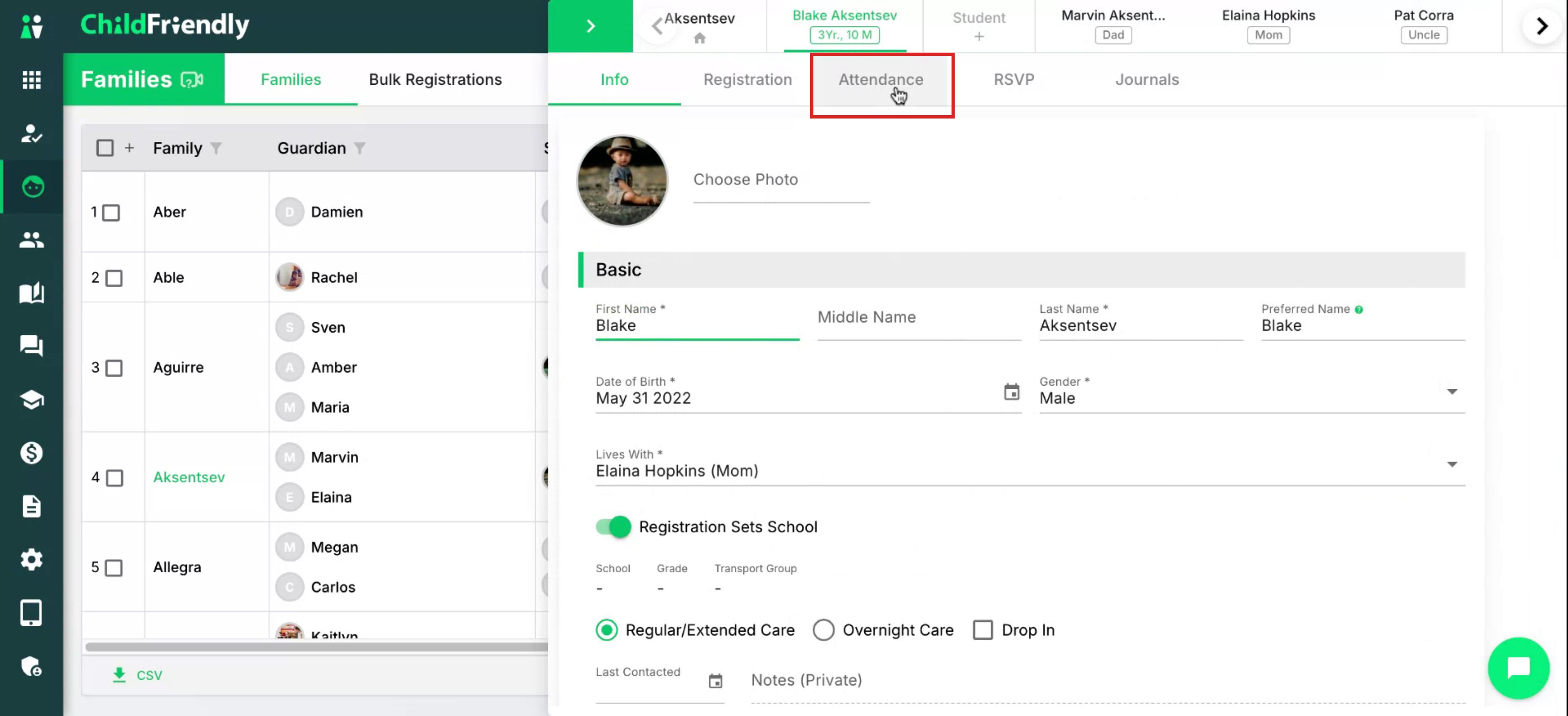
Locate the specific day in question.
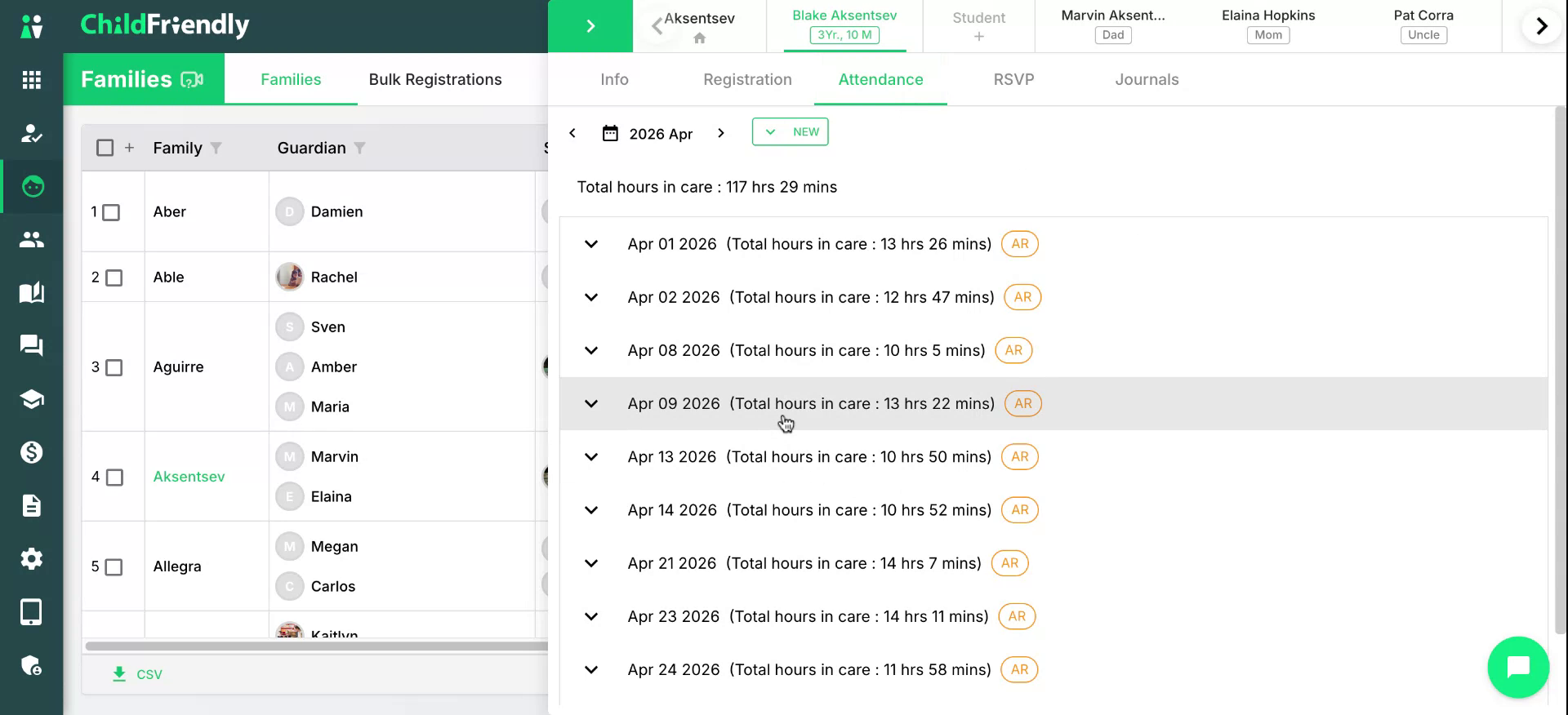
Step 7: Edit Child Sign-In and Sign-Out Times
From the child’s attendance for that day, you can adjust the sign-in and sign-out hours.
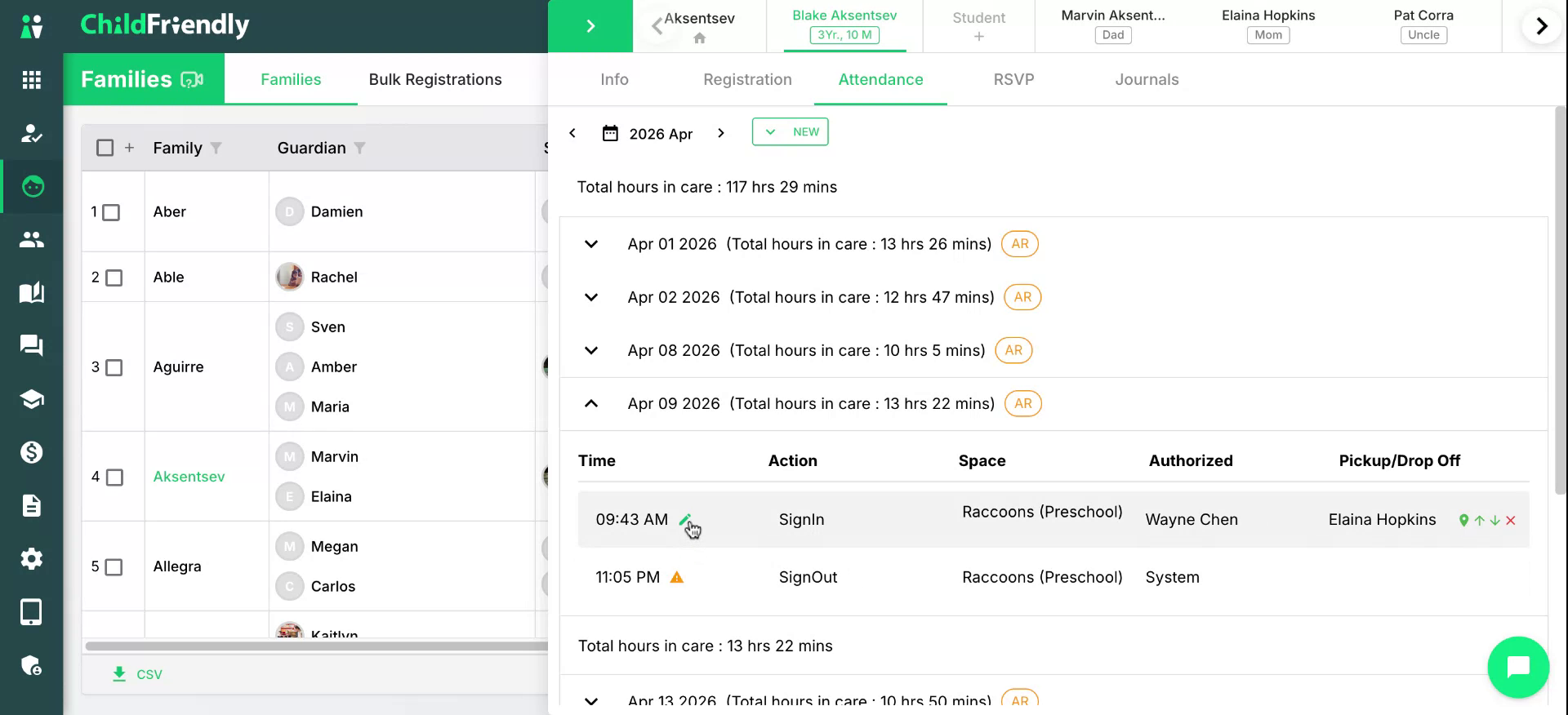
You can edit the sign-in time.
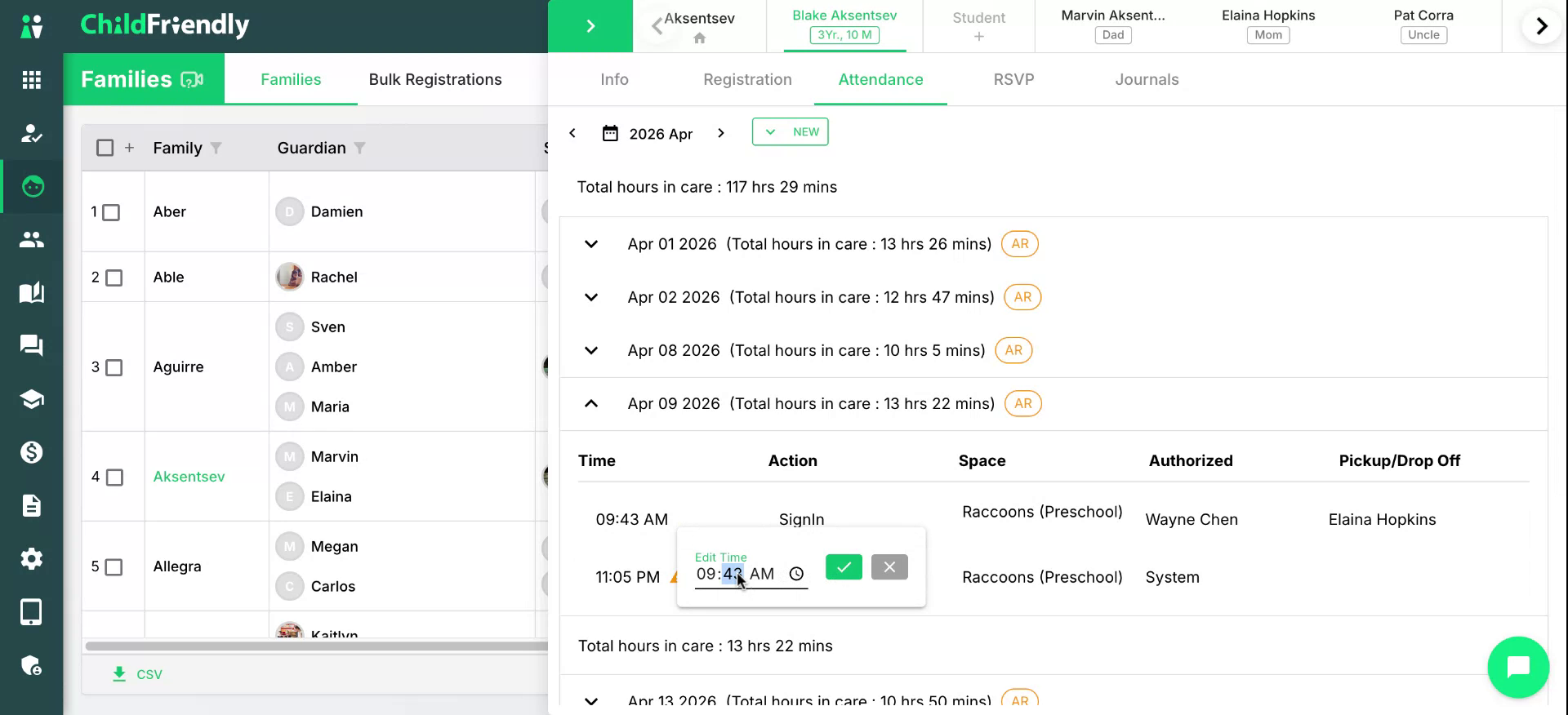
And you can edit the sign-out time.

After entering the correct times, click to save your changes.

You will see that the child’s attendance has been automatically updated.
You can also add a new sign-in or sign-out entry if required.
Step 8: Understand Permissions and Reporting Impact
Only admins have access to edit and adjust attendance records. You may be required to add a note when adjusting the final sign-out time to provide an audit trail.
As soon as you make changes to attendance, these updates are immediately reflected in all relevant attendance reports within the Reports module.
Was this helpful?
Still need help? Ask the team