How to Use the Dashboard's Admin Attendance Features
This document explains how admin staff can use the Dashboard Admin Attendance features in ChildFriendly to monitor and approve invalid sign-outs and overtime, and review detailed attendance records.
Last updated 3 months ago
How to Access the Dashboard and Attendance Section
Ensure you are logged in with admin access, as the Dashboard Attendance area is only available to administrators. First, navigate to the Dashboard module.
Then click the Attendance tab in the dashboard.
How to Approve Invalid or Missing Student Sign-Outs
Go to the Student Sign Out tab.

Here you will see any students who were not properly signed out and whose sign-outs are considered invalid or incomplete. These entries must first be approved by an admin.
Example: If a student was never signed out the day prior, they are automatically signed out at midnight and will show here for admin oversight, editing and approval.
Click the Approve button on each item to edit or approve the individual sign-out record as needed.

How to Review and Approve Staff Overtime
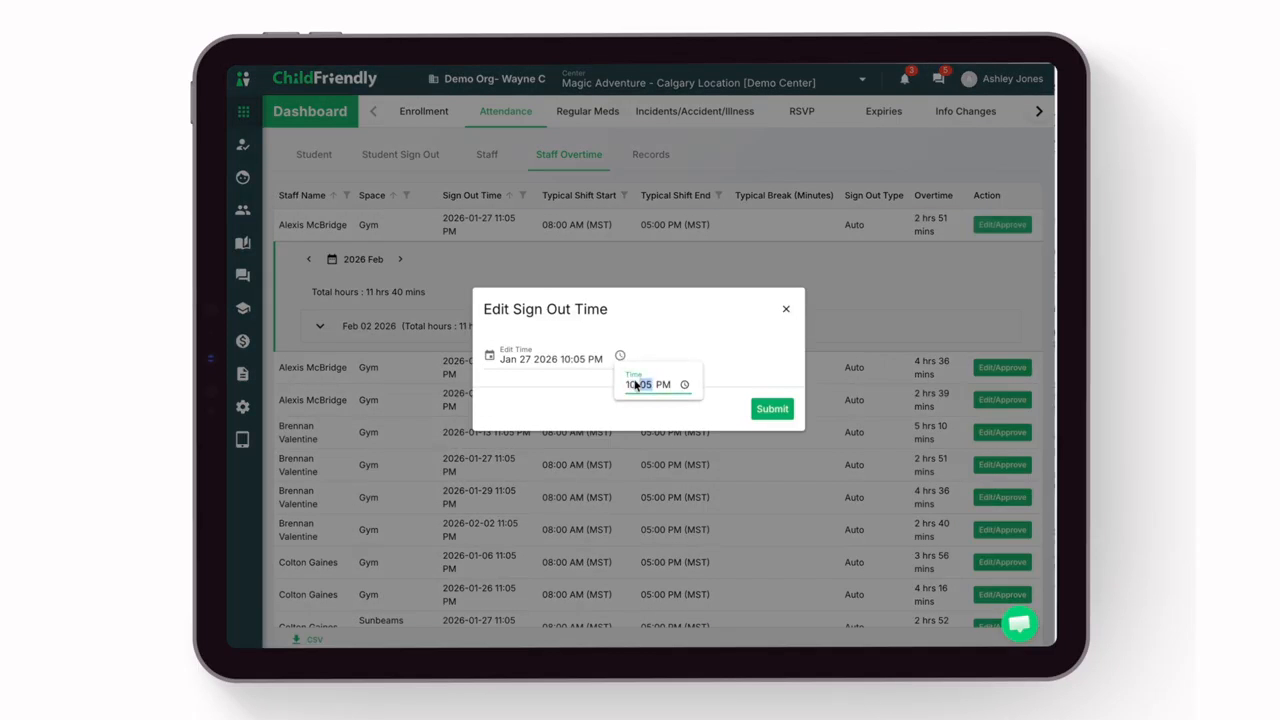
Open the Staff Overtime tab to view overtime entries that require approval.
This tab lists all staff requiring approval, who worked longer then their expected shift. Specifically, any staff who worked for over ten minutes past their typical shift time appear here and require admin approval. Make sure to fill out each staff members typical shift and break times in their staff profile to ensure they are being flagged accurately.
You can review all relevant details before approving overtime, including the actual sign-out time and the total overtime worked.

Click the Edit/Approve button to either adjust the overtime hours or approve them as recorded.
How to Access All Attendance Records
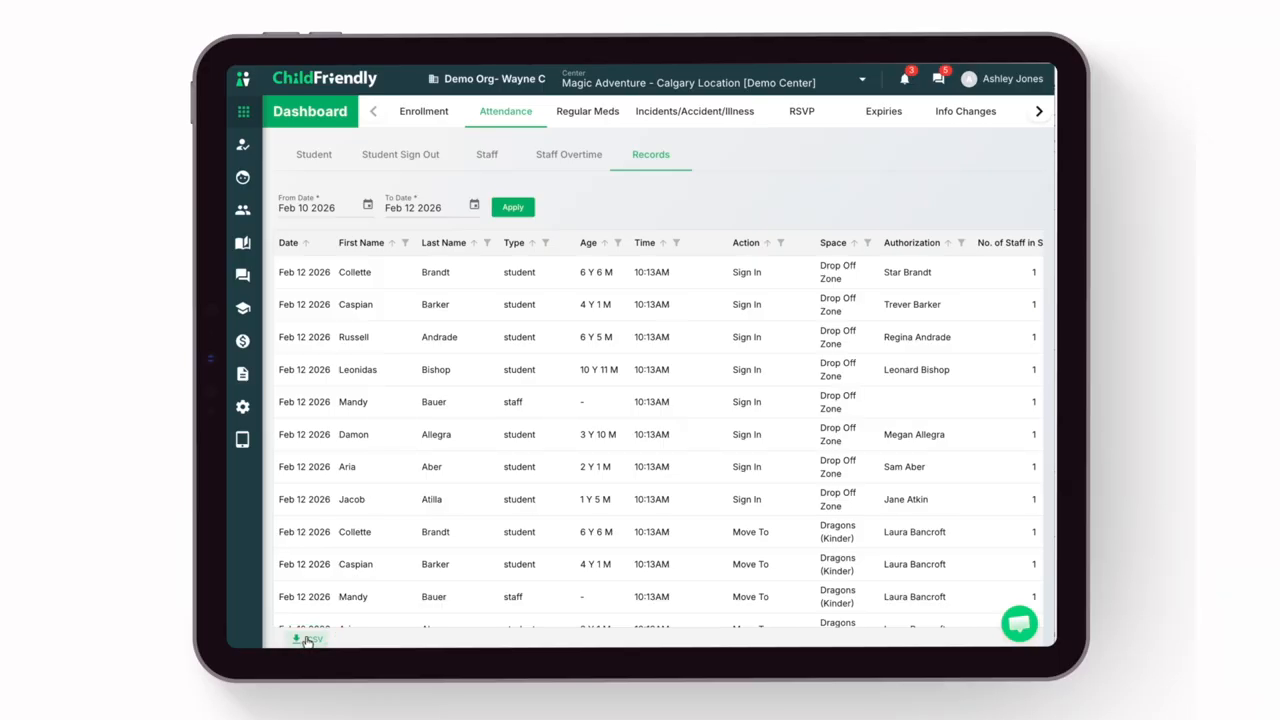
Open the Records tab to access detailed attendance records for both staff and students.

Use the search tools to refine the data.
You can search by a specific date or a date range using the calendar search feature.
After setting your criteria, click Apply to update the results.

This area shows the times that children and staff signed in and out, as well as movements within the center (for example, moving to the gym or an outdoor play area).
You can filter by time to quickly see how many staff members and children were in a particular space at any given moment.

The report also indicates whether the actual staff-to-child ratio at each point in time was compliant. By scrolling to the right, you can compare the actual versus required ratios.
Click the All Attendees Present in Space button to view a list of all attendees present in a specific space at a selected time.

This report is especially useful for pulling attendance logs during licensing inspections.
Please note that additional attendance records are also available in the Reports module under the Attendance section or under each individual staff or child profile.
How to Download Attendance Data as CSV Files
Each tab in the Dashboard Attendance area (Student, Student Sign Out, Staff, Staff Overtime, and Records) can be downloaded as a CSV file for external analysis or archiving.
Click the CSV icon at the bottom left of the screen to download the records from the current tab.
For more detailed information on signing students and staff in and out, refer to the training videos available in the main Attendance module.
Was this helpful?
Still need help? Ask the team