How to Move Children to School
This process shows how to move children into a transport space (such as a van), sign them in with the appropriate staff and authorized drop-off details, and then sign them out again when they are dropped off at school.
Last updated 3 months ago
Step 1: Prepare Transport Spaces in Settings
Before transporting children, ensure your transport spaces (e.g., buses, vans, walking groups) are set up in the system under Settings. These spaces will be used to move and track children during transport.
Step 2: Open the Attendance Module and Choose a Transport Space
To begin transporting children to school, go to the Attendance module. Click on the transport space you want to move children into (for example, a van or bus).
Step 3: Add a Team to the Transport Space
Click into the space by adding a team.

This creates the specific team (e.g., “Van to Apple Academy”) you will use for this trip.
Step 4: Select Students for Transport
Click Select Students.
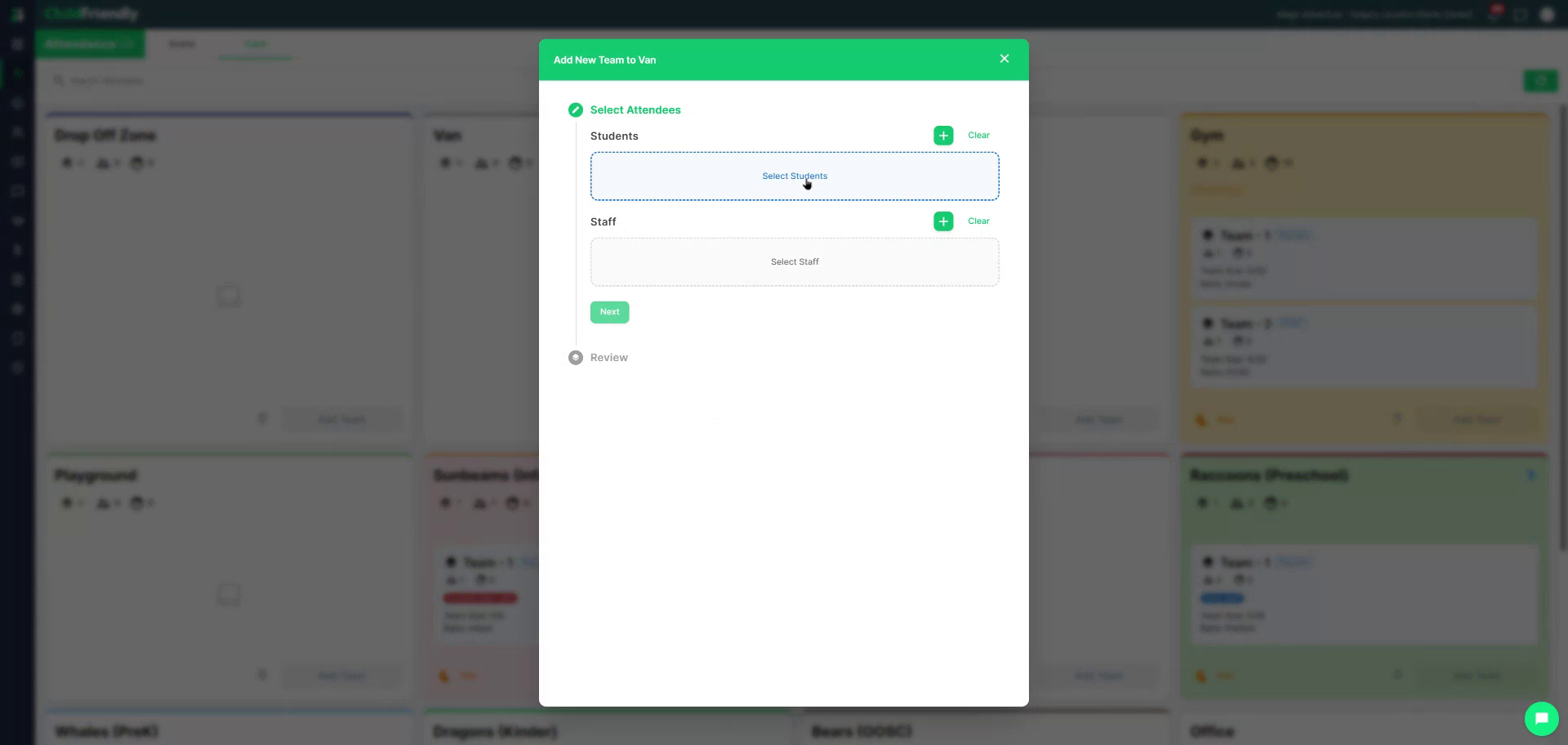
Use the filters to narrow down which students appear in the list.
For instance, you can filter to show all children from a specific school (e.g., Apple Academy), or filter by transport group, grade, or standard registration group.
Once you have configured your filters, the appropriate children will appear in the list.

Step 5: Choose Children to Add to the Team
From the filtered list, select the children you wish to move into the transport space.
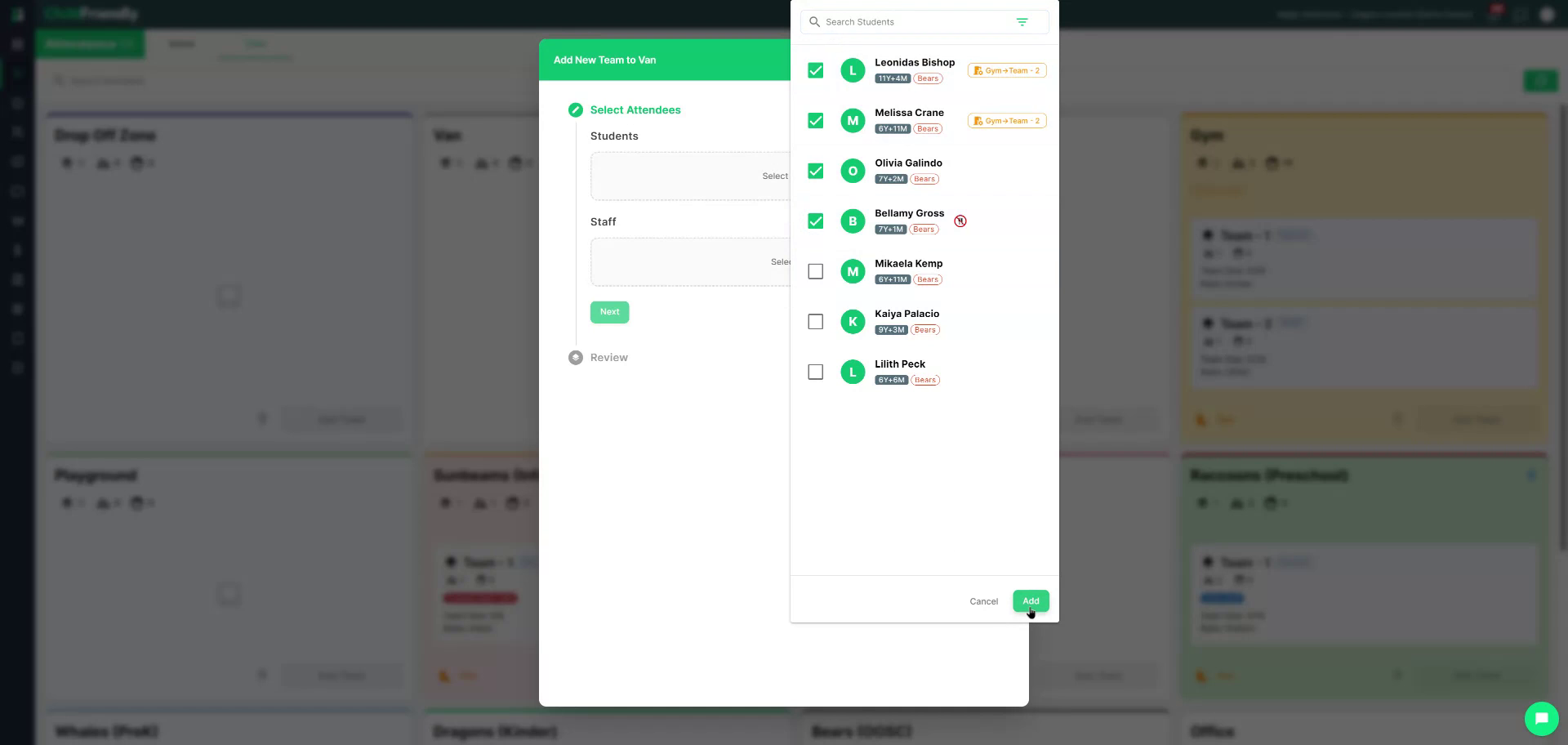
After selecting the desired children, press Add to add them to the team.
All selected children are now associated with this transport team.
Step 6: Assign Staff to the Transport Team
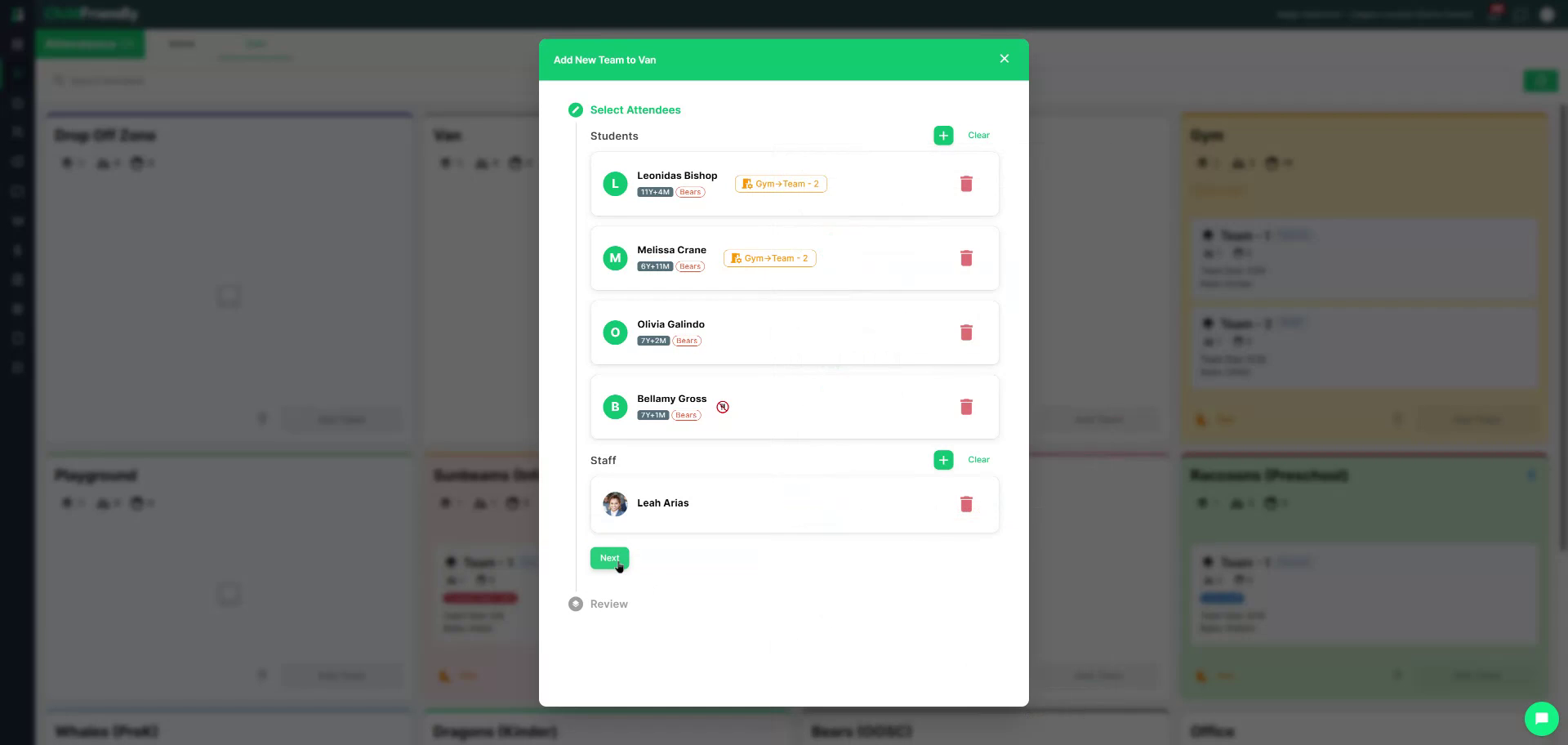
Next, select which staff member(s) will be driving or accompanying the children in the transport (e.g., in the van).
Click Next to proceed.

Then press Sign In to sign the children and staff into the transport space.
Step 7: Record Authorized Drop-Off for Newly Arriving Children
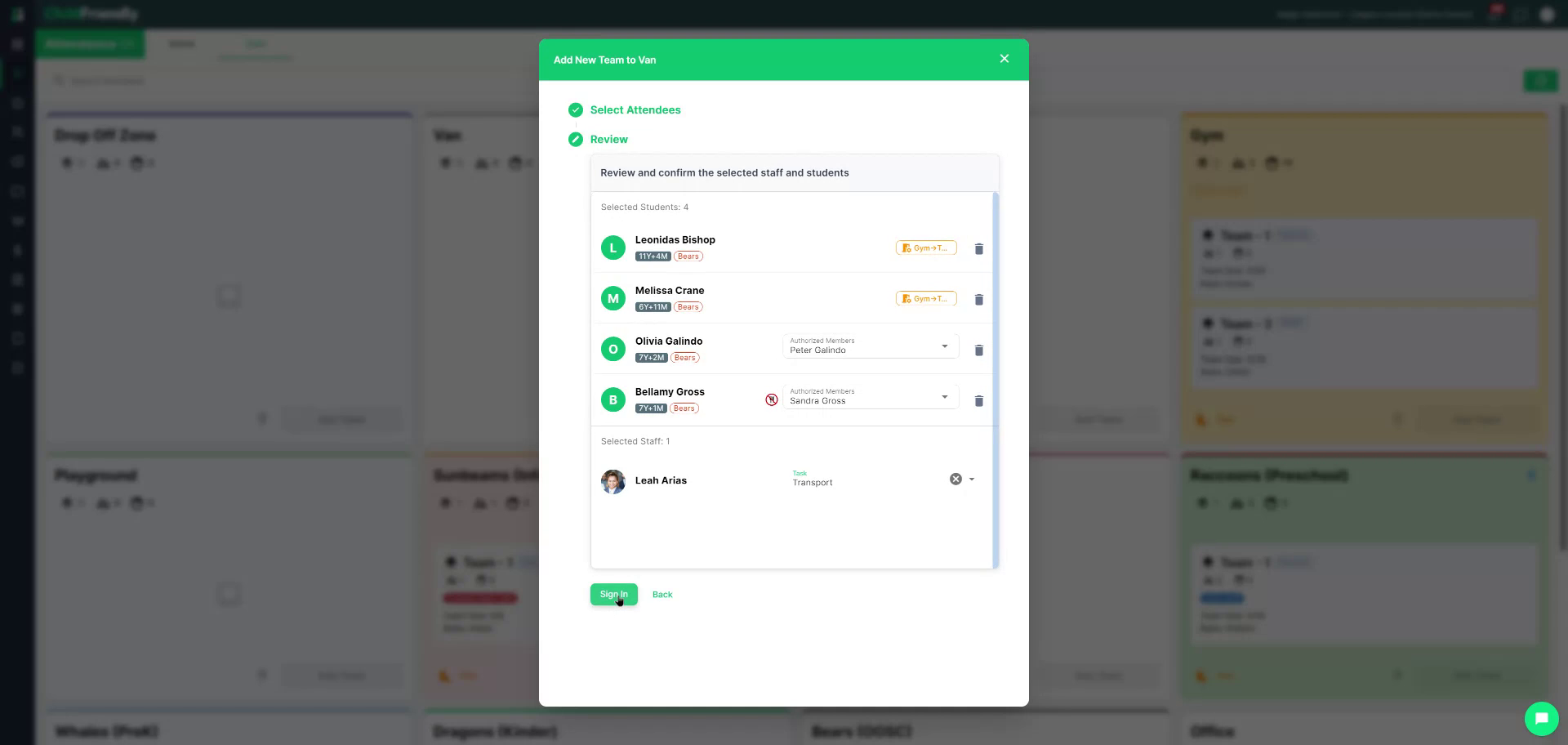
If any selected children were not already signed into a different space in your center and are being dropped off for the first time, you will be prompted to add an authorized member who is dropping them off for transport.
Select the parent or guardian who is dropping the child off.

For staff, select the activity they are performing, such as “Transporting” or “Childcare,” depending on what you have configured in Settings.

If a child was already signed in (for example, they were in the gym), they do not require an additional authorized member, since they are already in your care.
Press Sign In to complete the sign-in for all selected children and staff.
You will now see the selected children listed in the transport space (e.g., in the van).
Step 8: Sign Out Children to the School as Authorized Caregiver
When your staff arrive at the school with the van, they can again click into their transport team.
They then click Sign Out and choose which children they are dropping off at that school.
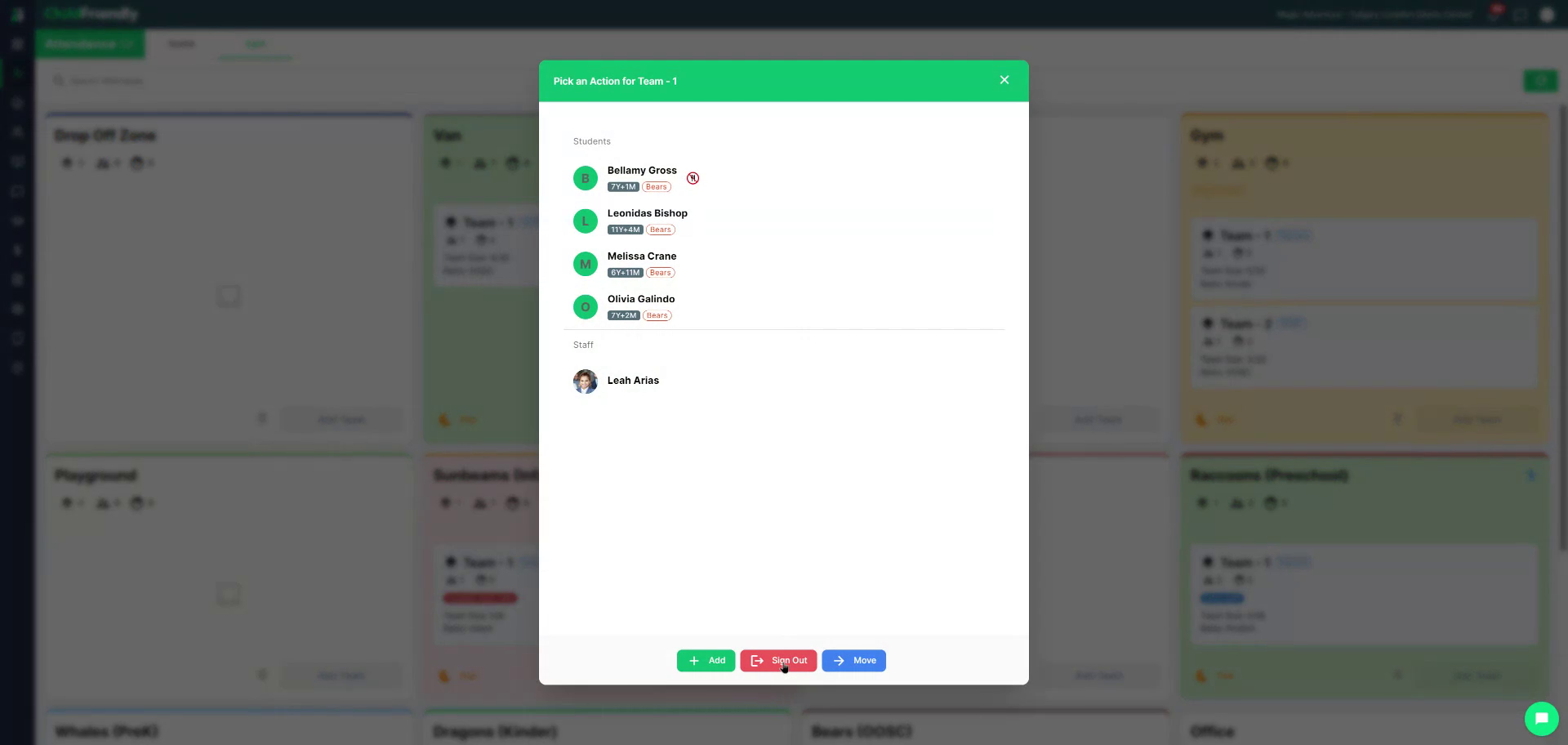
In this example, all children on the team are selected.
The system will ask who is picking up these children. For school drop-off, this is not an authorized parent, as it would be in daycare. Instead, the school itself becomes the authorized caregiver or pickup entity.
Select the school where the children are being dropped off.

Then press Sign Out to complete the transfer of care to the school.

Your staff can now return to the center, with all children correctly signed out to the school.
Was this helpful?
Still need help? Ask the team