How to Reset a Parent's Password
This document explains how staff can reset a parent’s password in ChildFriendly from the Families module. Use these steps when a parent cannot locate their welcome email, has lost their password, or needs assistance updating it.
Last updated 3 months ago
Step 1: Open the Families Module and Locate the Family Record
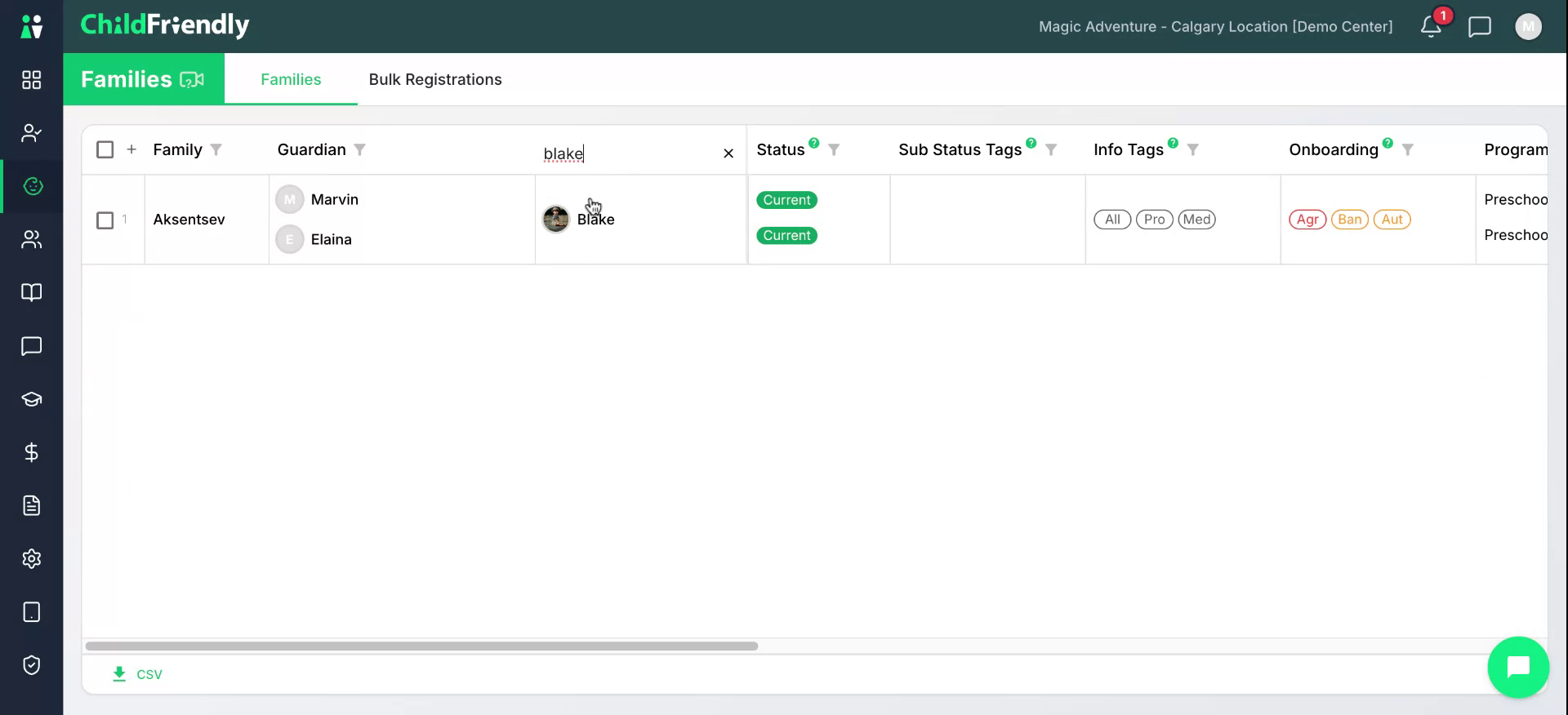
Ensure you are in the Families module. Find and open the family record associated with the parent whose password needs to be reset.

Step 2: Select the Relevant Student or Parent
From the family list, select the appropriate student or parent linked to the account that requires a password reset. Click to open the family profile.
Step 3: Navigate to the Parent’s Profile
On the family profile, locate the parent whose password needs to be reset and click their profile to open it.

Step 4: Use the Reset Password Function
In the parent’s profile, click the Reset Password icon to begin the password reset process.

Step 5: Set and Confirm the New Password
Enter the new password, following any on-screen password guidelines, then click Reset to confirm.

The parent’s password is reset immediately, and a success message appears at the top of the screen. Record the new password securely so you can provide it to the parent, who can start using it right away.
Was this helpful?
Still need help? Ask the team