How to Log In, Set Up Your Profile & Notifications
This document explains how to log in to your ChildFriendly account for the first time, review your hours, configure notification and messaging preferences, change your temporary password, and log out securely.
Last updated 3 months ago
Step 1: Log In with Your Temporary Credentials
Locate the email sent by your center that contains your temporary password. Use the email address provided to your center to log in, and enter the temporary password from that email to access your ChildFriendly account.

Once you are logged in, the modules you see will depend on your assigned role (for example, room staff, center admin, or org admin).
Step 2: Open Your Profile Menu
Click your name in the application header to open your profile menu and access your personal options and settings.
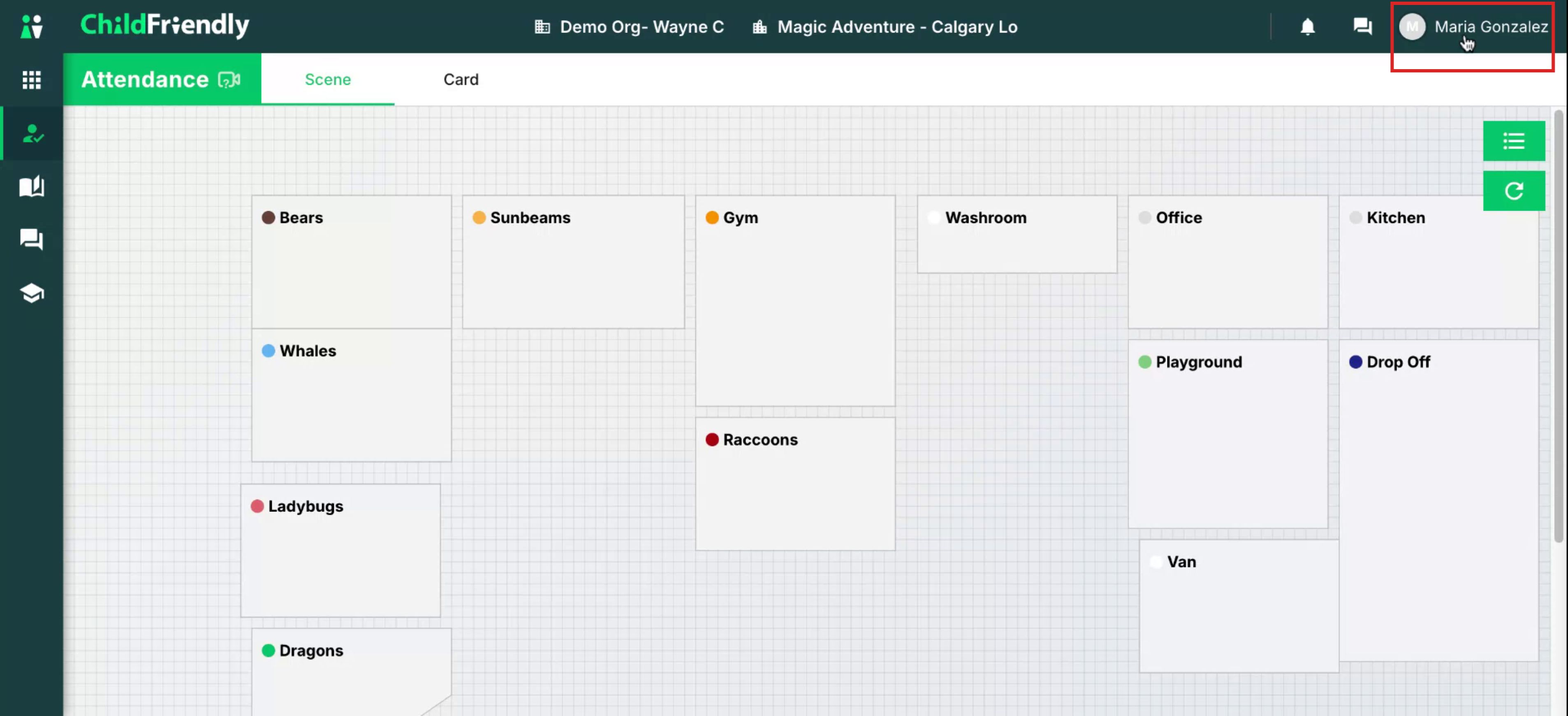
Step 3: Review Your Hours
Select the My Hours section to view any recorded hours that apply to your role.

You can access this section at any time and scroll through the month to review your hours.

Step 4: Open Settings for Notifications and Messages
From your profile or main menu, click Settings to configure your notification and messaging preferences.
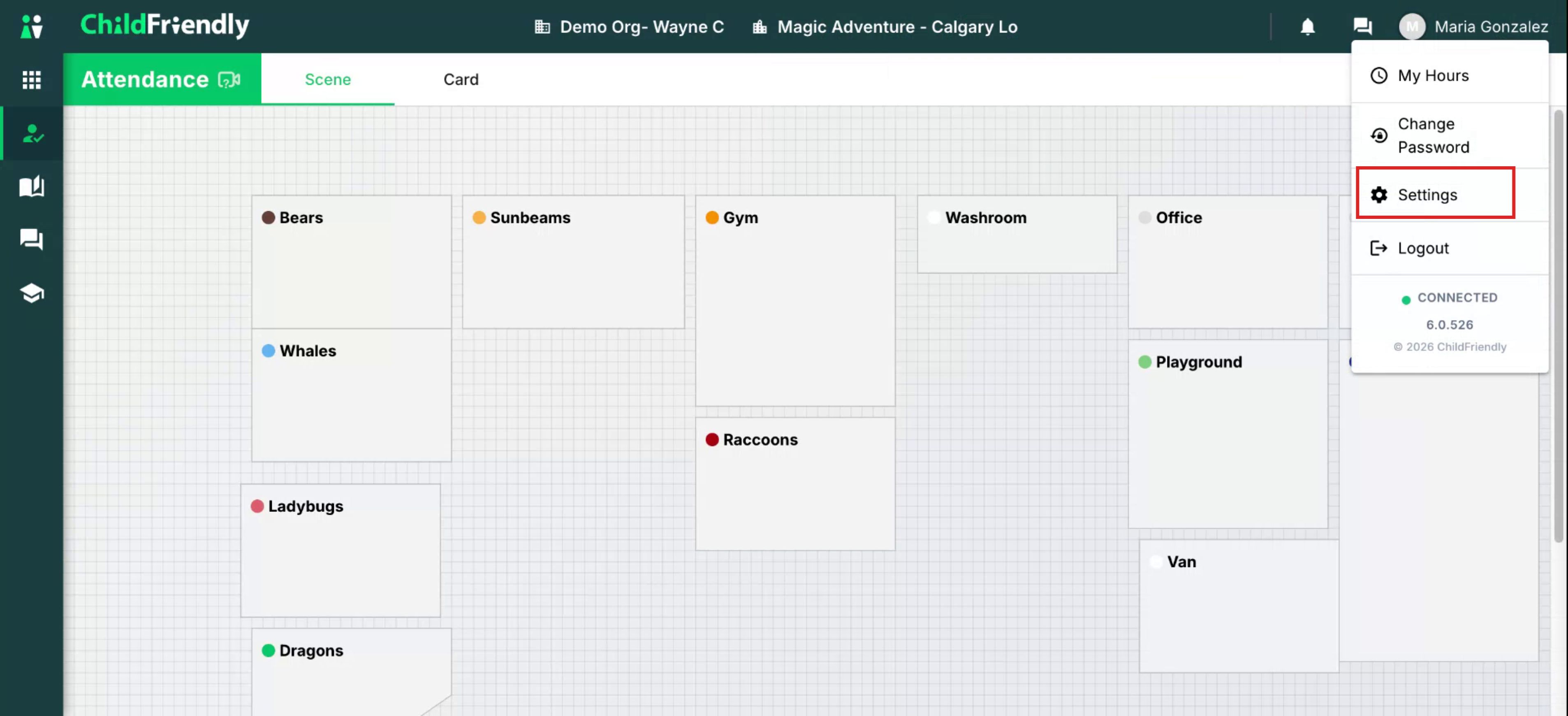
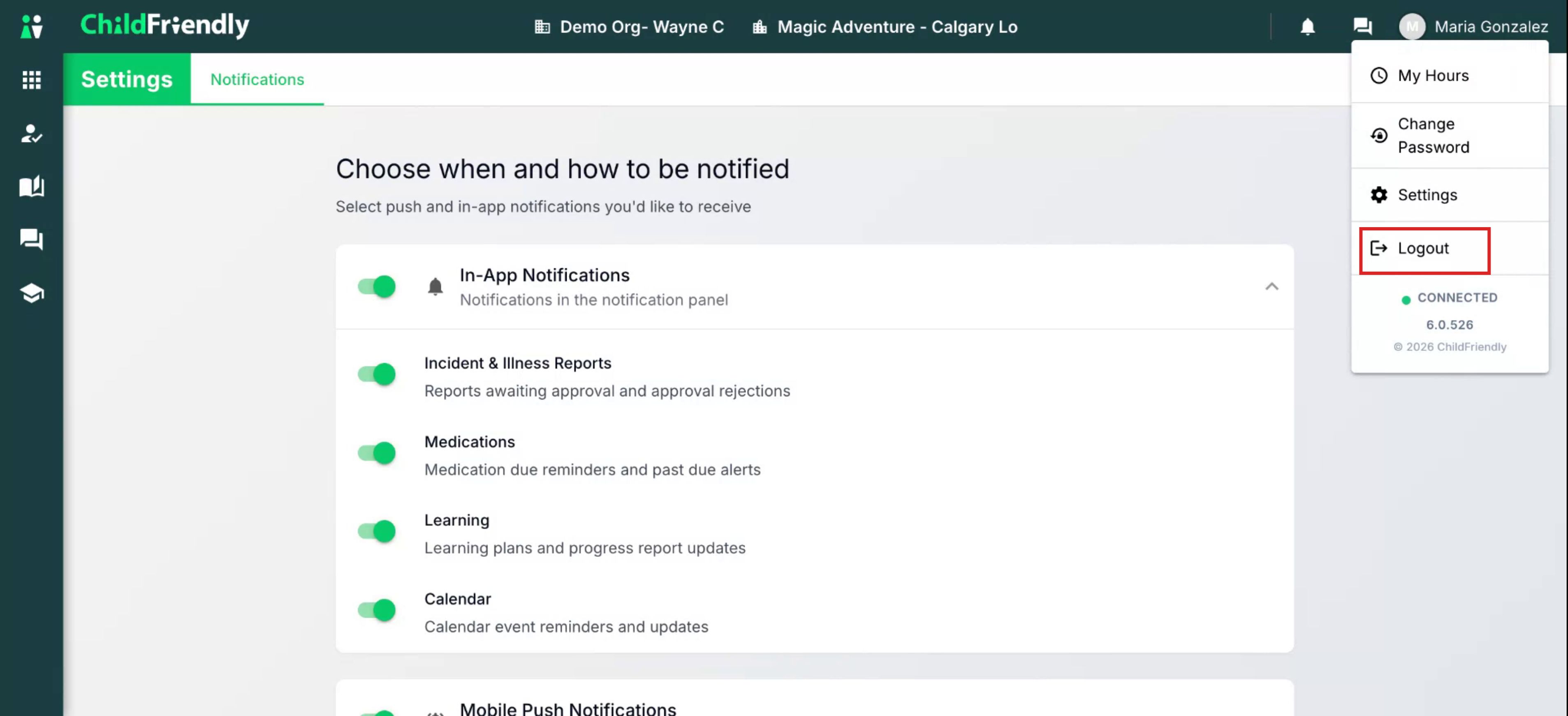
In the In-app Notifications area, choose which events you want to be notified about, such as incident and illness reports, medication due times, learning updates, and calendar event reminders or updates.
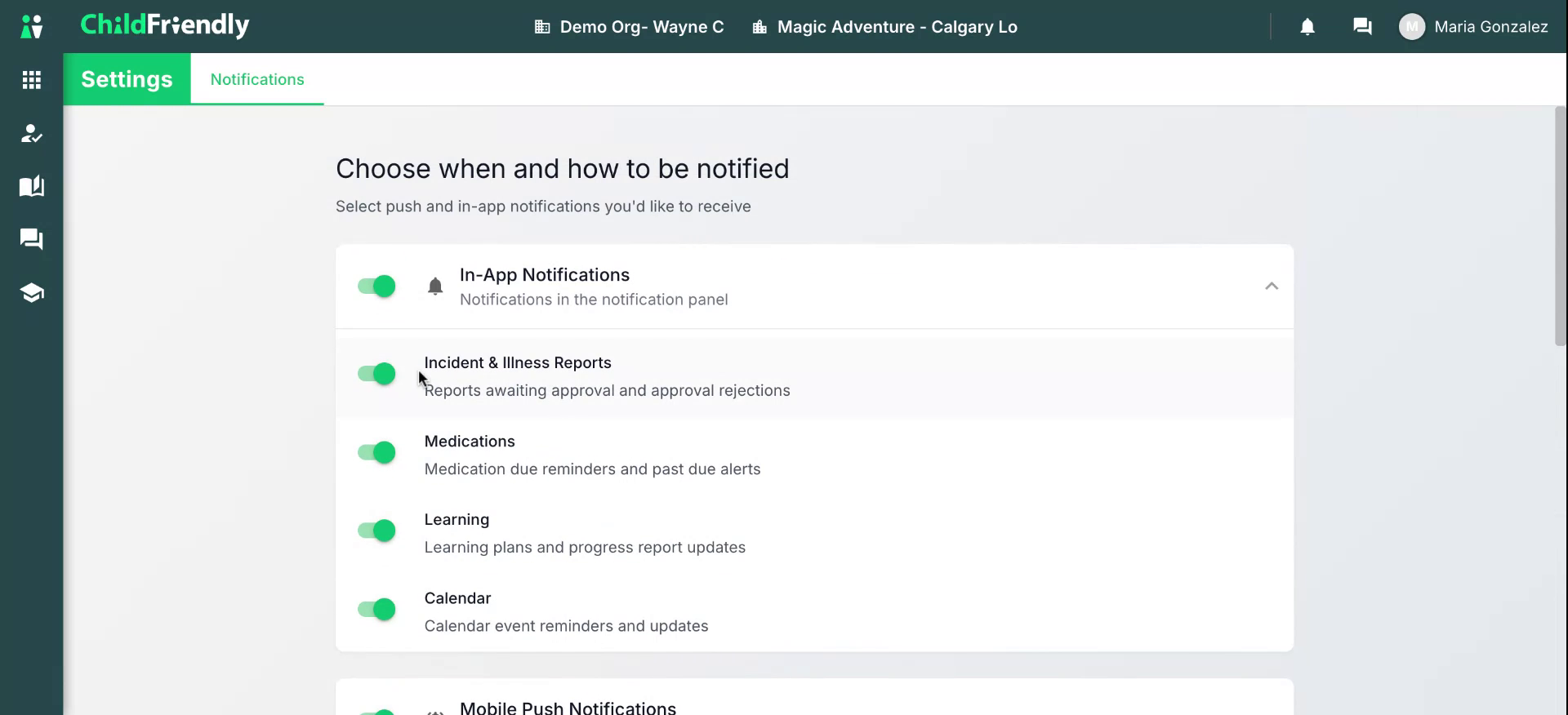
In the Mobile Push Notifications area, enable or adjust push notifications on your mobile device for items like messages from family members, urgent messages, incident and illness reports, medications, and more. For detailed setup instructions on your device, refer to the dedicated training video on mobile push notifications.
Step 5: Configure Messaging Notification Preferences
In the Notifications section, toggle on or off the options you prefer.
You can adjust all notifications or individual items at any time.

All changes are saved automatically as soon as they are made.
Step 6: Change Your Temporary Password
It is important to replace the temporary password you were provided with a new, secure password.
From your name, click Change Password.
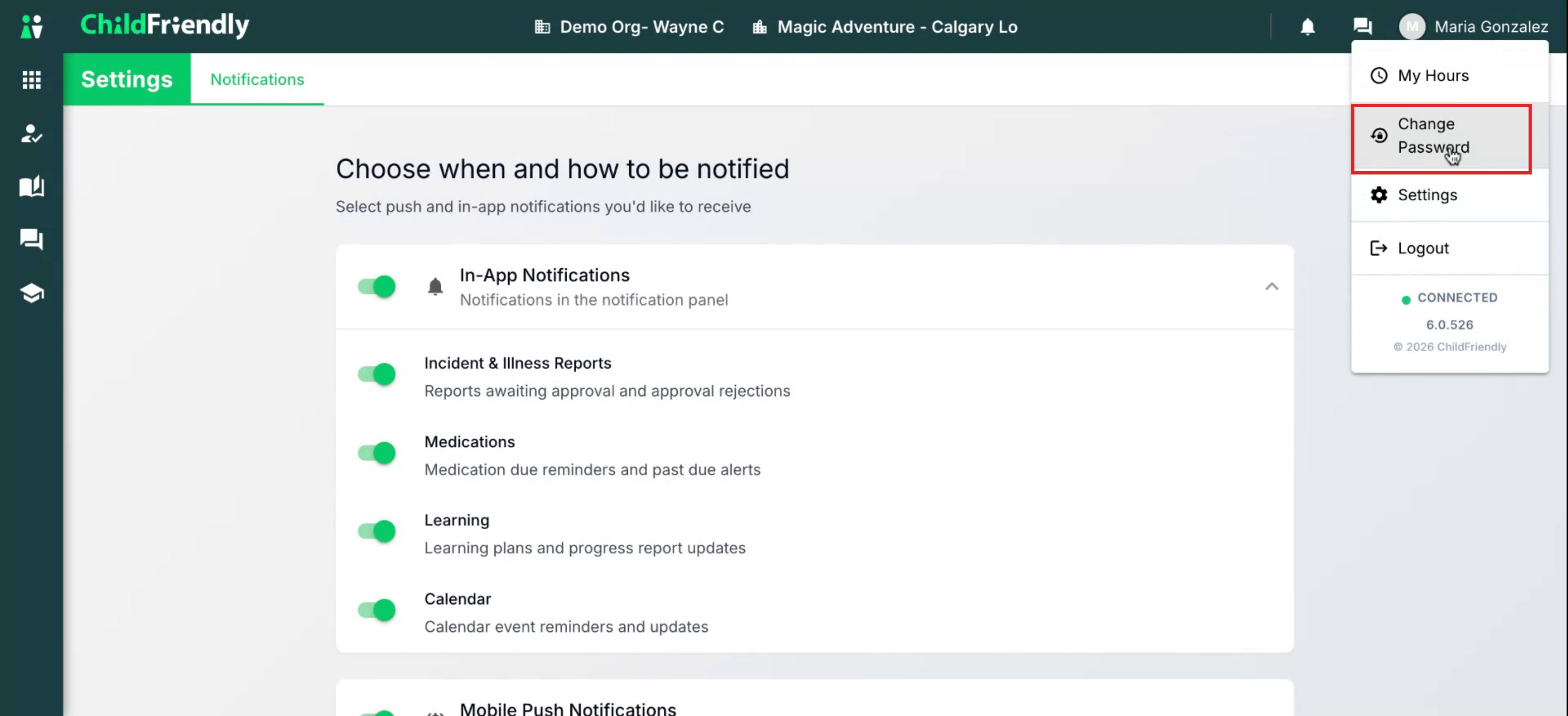
Enter your current (temporary) password.
Enter your new password.
Confirm the new password.
Click Submit.

Your password will be updated automatically once submitted.
Step 7: Log Out from Shared Devices
When you are finished, especially if you are using a shared or mutual device, make sure to log out of your ChildFriendly account to protect your information.
Was this helpful?
Still need help? Ask the team